
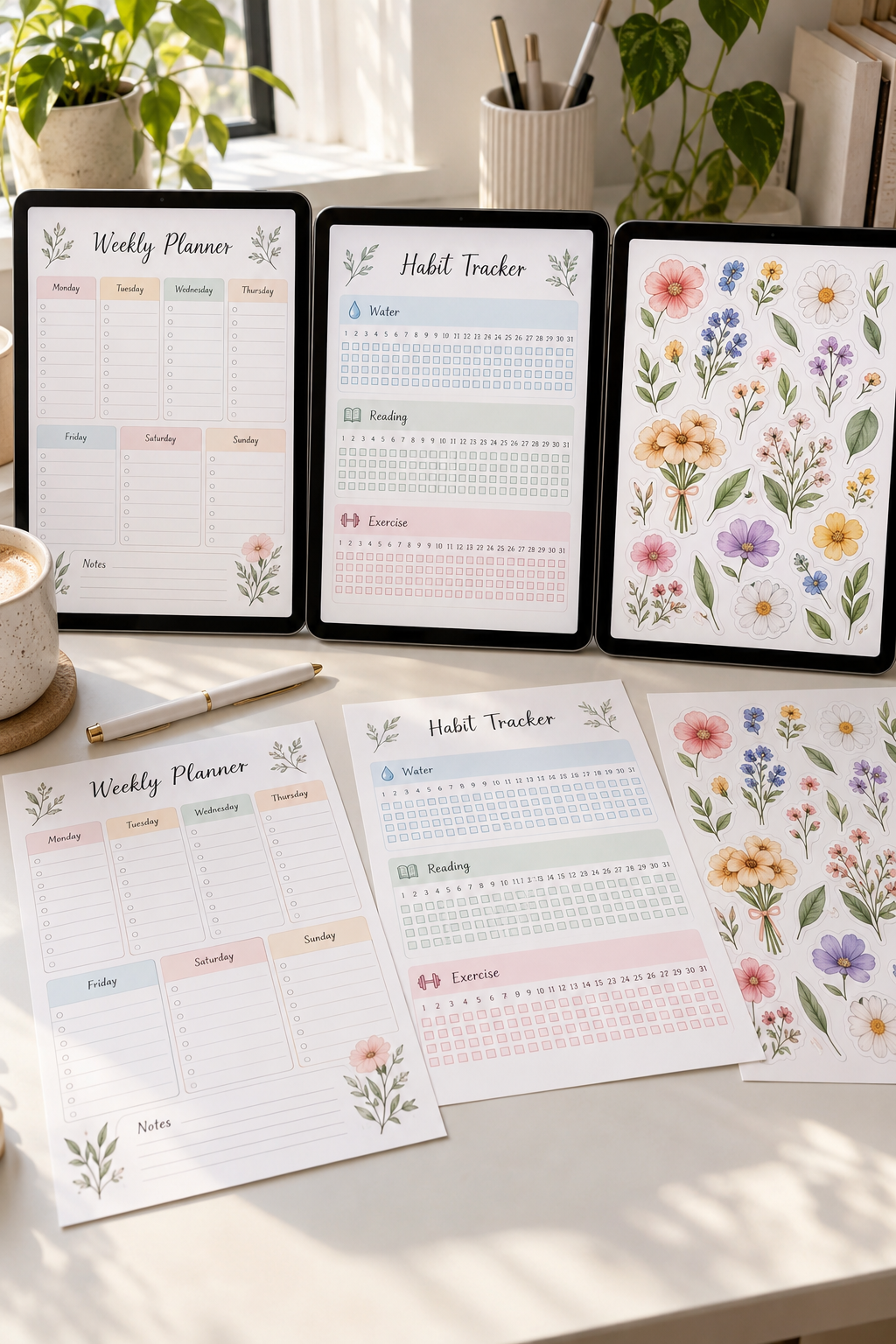
Buying a tablet for digital products gets confusing fast. One screen looks great for drawing, another promises laptop-style work, and both may leave you stuck when it is time to export a printable PDF.
If you plan to sell planners, worksheets, digital stickers, or Canva templates, the flashy features matter less than how you actually work. Can you read small text on a full page? Move files into neat folders? Edit the same design on your computer later? A tablet that feels smooth for sketching may still be awkward for naming, checking, and uploading a whole product bundle.
The best tablet for digital products depends on what you make and which apps you rely on. A beginner building simple checklists needs a different setup from an illustrator drawing detailed sticker sheets. You also need to think about a compatible pen, keyboard, storage, and any software you cannot use on a mobile device.
Below are ten real tablet options, with a useful strength and a practical drawback for each. Start with the tasks you do most often, not the longest feature list.
1. Apple iPad Air 11-Inch (M4) for Everyday Printable Design
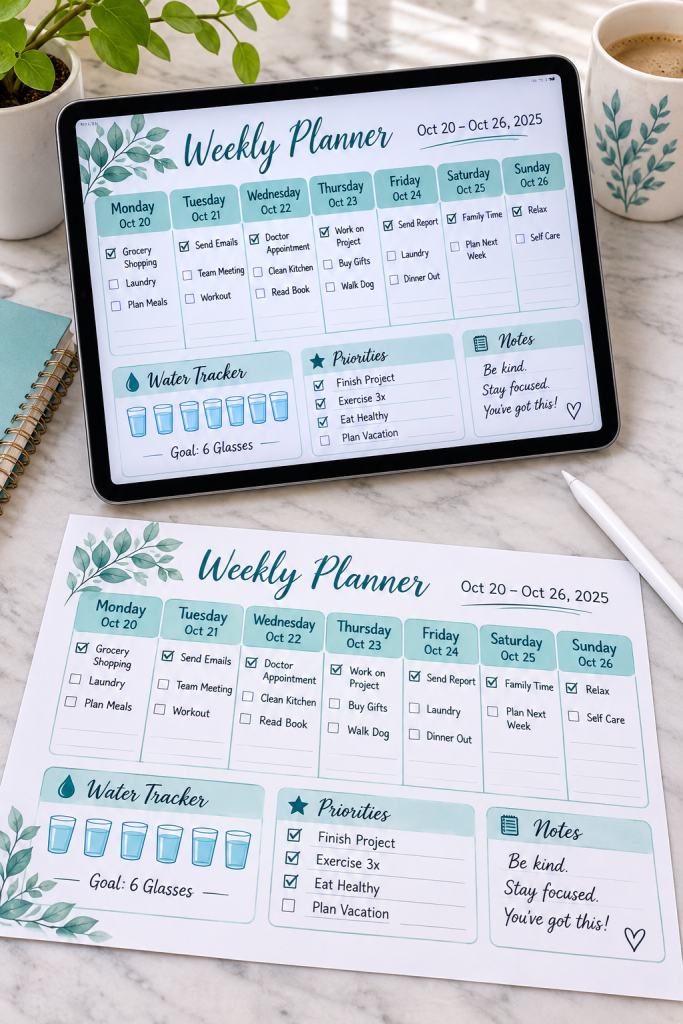
An 11-inch iPad Air gives you room to work on weekly planners without carrying an oversized screen. The M4 model supports Apple Pencil Pro, which is useful for drawing small icons, adding handwritten details, and marking up designs.
Where It Fits Best
This tablet suits sellers who switch between Canva layouts, digital illustrations, and checking finished printable pages.
A simple workflow could be:
1. Build a weekly planner with dated sections.
2. Add small icons or handwritten labels.
3. Export a PDF and inspect the finished page.
The limitation: iPadOS cannot replace every desktop design workflow. Some software features and detailed file management tasks are easier on a computer.
2. Apple iPad (A16) for Beginner Canva Templates
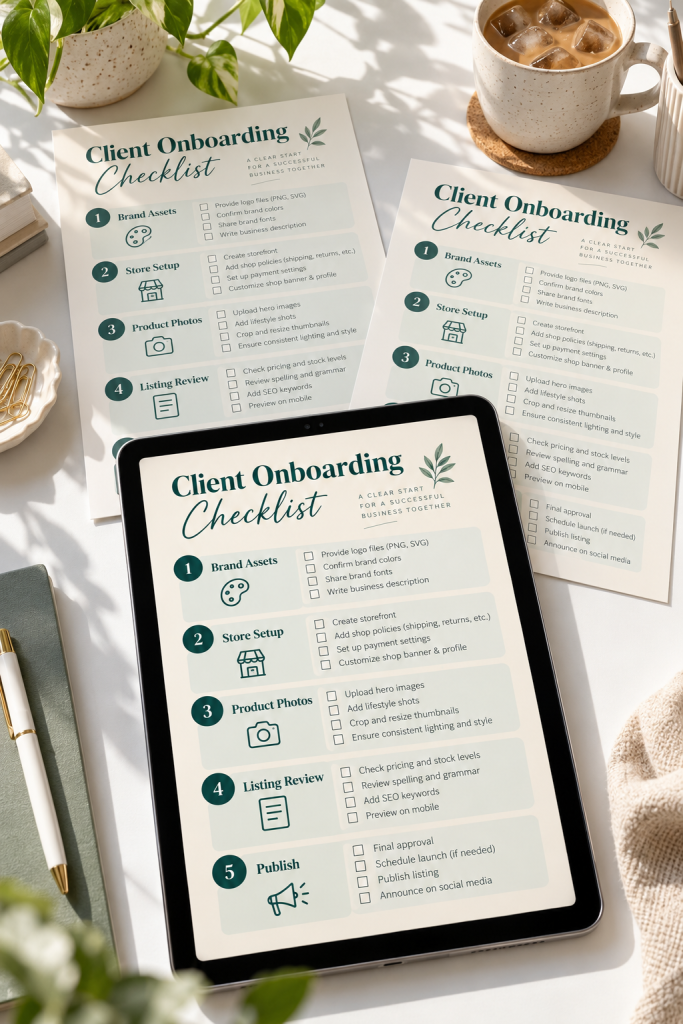
Your first printable does not need advanced drawing tools. The iPad with the A16 chip can handle straightforward Canva work, such as business checklists, daily planners, thank-you cards, and simple worksheets.
Start With One Reusable Template
Make a one-page small business checklist with a clear title, five task sections, and enough space for handwritten notes.
Once the layout works, you can create matching pages by changing the headings and tasks while keeping the same design.
Its strength is simplicity. It suits beginners who mostly work with text, shapes, and ready-made layouts.
The main drawback is its more limited Apple Pencil support compared with higher-end iPads. Check which pen and Canva features you need before buying.
✅ Beginner Canva Template Checklist
Check these details before publishing your first printable.
3. Apple iPad Pro 13-Inch (M5) for Detailed Creative Work
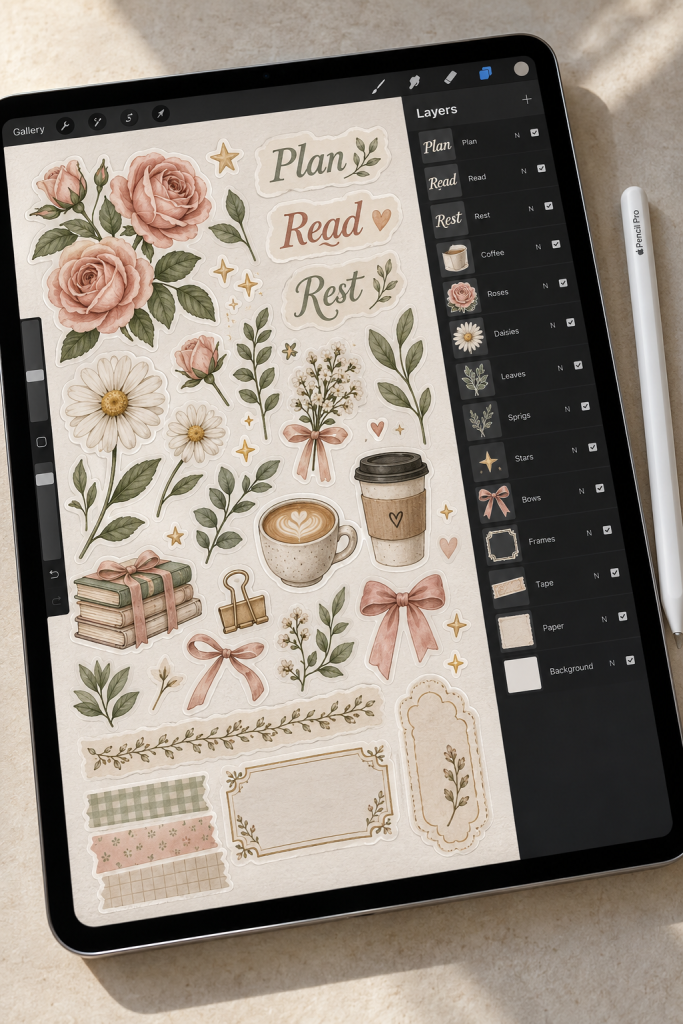
Fine details are easier to check when your design has room to breathe. The 13-inch iPad Pro with the M5 chip gives illustrators a large, sharp display for drawing stickers, decorative artwork, and detailed planner elements.
It also supports Apple Pencil Pro for precise drawing and editing in compatible apps.
Who Needs the Extra Room?
This model makes more sense if your products involve:
– Layered illustrations with many small details.
– Sticker sheets with carefully shaped outlines.
– Digital planner covers featuring original artwork.
Its strength is the drawing workspace, especially when you need to examine edges and tiny details.
Its limitation is simple: sellers making basic checklists and text-based templates may have little need for this level of hardware.
4. Apple iPad Mini (A17 Pro) for Portable Design Sketches

A planner idea might come to you while traveling or sitting away from your usual desk. The iPad mini with the A17 Pro chip is small enough to keep nearby for quick creative work.
Its Apple Pencil Pro support makes it useful for sketching page layouts, marking up notes, and testing handwritten headings.
Keep the Work Small
Use it to draft one idea at a time:
– Sketch a daily planner with three main sections.
– Draw a few sticker icons for a future collection.
– Review a printable cover before editing it later.
The advantage is portability. The drawback is the compact display, which means frequent zooming when you work with full-size printable layouts.
💡 Quick Tip: Sketch Small, Finish Large
Use a mini tablet to plan the structure of a printable rather than squeeze every final detail onto its screen.
Example: Sketch the title, seven daily boxes and a notes section for a weekly planner. Move to a larger workspace when you need to align margins and check text size.
5. Samsung Galaxy Tab S11 Ultra for Large Planner Layouts

Monthly planners contain lots of small details. Dates, tracking boxes, notes, and weekday labels all need to line up. Checking these on a cramped screen can mean constant zooming.
The Galaxy Tab S11 Ultra has a large 14.6-inch display and S Pen support, giving Android creators more space to review detailed layouts.
A Useful Layout Check
Open a complete monthly planner and examine the spacing between dates, headings, and writing boxes. Then zoom in only where the labels look crowded.
This suits sellers creating detailed calendars, digital notebooks, or multi-section planner pages.
The trade-off is its size. It is less convenient to hold and carry than smaller tablets, and some desktop design programs are not available on Android.
Only part of a monthly planner is visible while editing.
Easy to miss: uneven date boxes, inconsistent columns and crowded notes.
See more of the planner at once and compare sections side by side.
Check: consistent grid spacing, even margins and balanced writing areas.
6. Samsung Galaxy Tab S10 FE for Hand-Drawn Printable Designs

Hand-drawn stickers can give your printable shop something different from standard shapes and icons. The Galaxy Tab S10 FE includes an S Pen, letting you sketch flowers, borders, labels, and simple illustrations directly on the screen.
A Simple Sticker Project
Start with six matching flower illustrations. Use the same line style, then create a coordinated sticker sheet with enough space around each design.
This tablet suits beginner illustrators who want pen input without needing the largest Galaxy screen.
Its strength is accessible pen-based creation. Its limitation is that complex layered artwork and certain professional design tasks may be better handled on more powerful hardware or desktop software.
| ✏️ Create on the Tablet | 📄 Check Before Selling |
|---|---|
| Draw matching floral sticker illustrations. | Inspect outlines and transparent edges if using PNG files. |
| Arrange stickers into a printable sheet. | Leave space between designs for cutting. |
| Add decorative labels and small shapes. | Test print to check the size and clarity of each detail. |
7. Microsoft Surface Pro 12-Inch for Desktop-Style Design Work
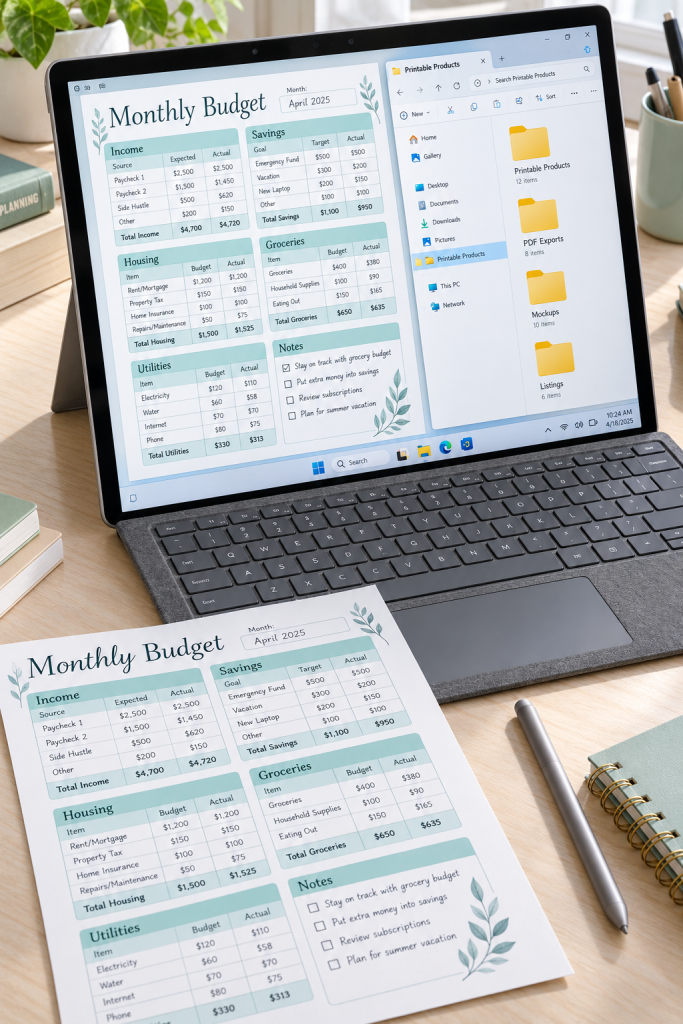
A tablet becomes more useful for selling printables when you can also organize folders, rename exports, and prepare product files.
The Surface Pro 12-inch runs Windows 11 and supports keyboard and pen accessories, making it an option for sellers who prefer a computer-style workflow.
Who It Suits
Consider it if you regularly:
– Create printables with Windows design software.
– Organize multiple PDF files into product bundles.
– Write longer instructions or customer download guides.
Its main strength is access to the Windows desktop environment.
The limitation: Surface Pro 12-inch models use ARM-based processors, so some older software, drivers, and plugins may not work as expected. The keyboard and pen are also separate accessories.
Check whether your main design app runs properly on Windows on ARM.
Confirm support for your printer, cutting machine or other accessories.
Check which keyboard and Slim Pen model fits your Surface.
Assuming every Windows app and plugin will run exactly as on an older laptop.
Assuming all printer and cutter drivers have ARM support.
Assuming the pen and keyboard are included with the tablet.
8. OnePlus Pad 3 for Research and Template Design
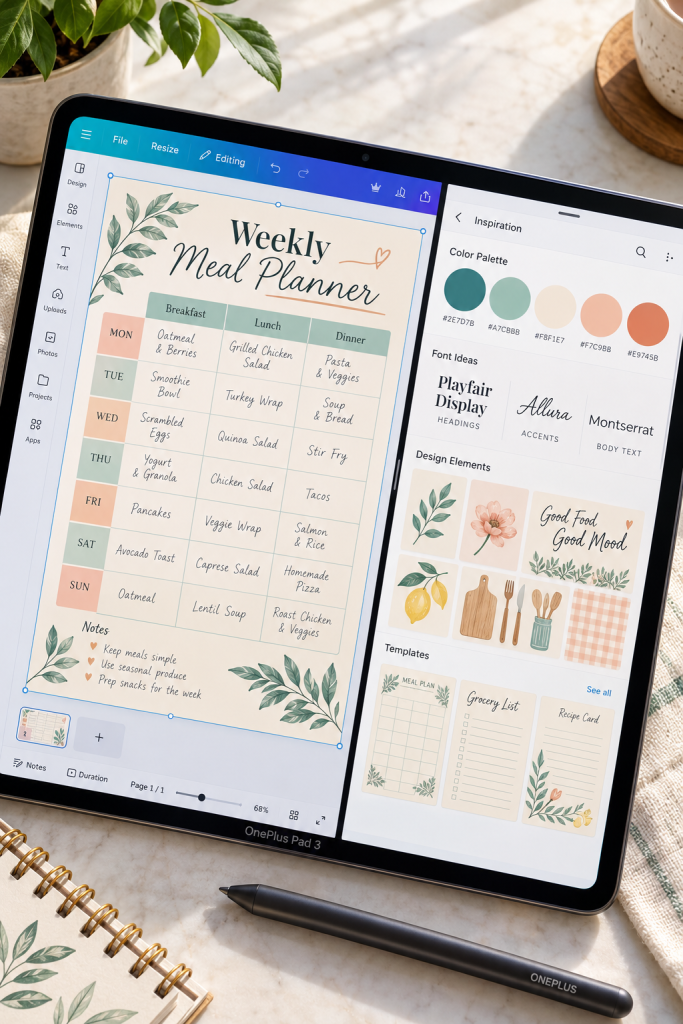
Switching between a color reference and a template editor can interrupt your work. The OnePlus Pad 3 offers Open Canvas multitasking, which lets compatible apps share its large display.
When It Helps
A seller creating meal planners could keep a color palette or sample layout visible while editing headings, icons, and grid spacing in another app.
The larger display also gives you room to examine worksheets without constantly changing orientation.
The strength is multitasking, especially when your work involves comparing references with an active design.
The limitation is app support. Some Android design apps have fewer features than their desktop versions, and certain apps may not behave well in split-screen mode.
🖥️ A Practical Split-Screen Design Session
Open Your Reference
Keep a saved palette visible with three colors for a matching meal planner collection.
Match Your Design
Apply the same heading style and accent colors to the menu, grocery list and recipe pages.
Review the Full Collection
Check all pages together for consistent fonts, spacing and page sizes before export.
9. Lenovo Yoga Tab Plus for Pen and Keyboard Projects
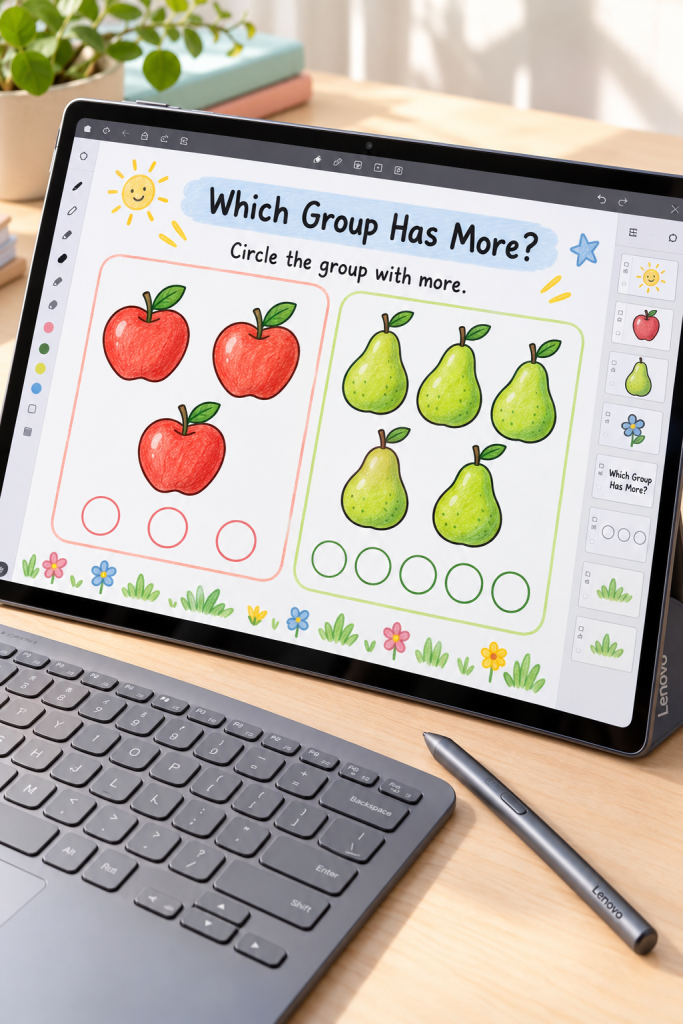
Keep the drawing and typing stages of a worksheet close together. The Lenovo Yoga Tab Plus has a 12.7-inch display and supports the Lenovo Tab Pen Pro and compatible keyboard accessories, making it useful for creators who mix illustrations with longer text.
Try a Children’s Counting Page
Sketch ten fruit icons, arrange them into two counting rows, then type an instruction such as “Circle the group with more.” Review the line thickness and writing space before exporting.
This suits sellers building activity packs and learning worksheets. Its strength is room for both pen and keyboard work.
The limitation: Pen and keyboard bundles vary by model and region. Check the exact accessories included before buying.
Make one complete worksheet before drawing an entire activity pack.
Print your sample at actual size. Can a child clearly see which pictures to count and where to circle? If not, enlarge the illustrations or simplify the instructions before creating matching pages.
10. Xiaomi Pad 7 Pro for Visual Templates and Layout Editing
Three matching printable pages can be more useful than three unrelated designs. The Xiaomi Pad 7 Pro has a sharp 3:2 display and a Workstation mode that opens apps in adjustable floating windows.
Build a Coordinated Product Set
Create a meal planner, grocery list, and recipe card with the same headings, margins, and accent colors. Compare the pages to catch uneven spacing before you export them.
This tablet suits sellers who create reusable visual templates. Its strengths include flexible windowing and support for the Xiaomi Focus Pen and compatible keyboard accessories.
The limitation: Workstation mode does not add desktop features to Android design apps. Check that your preferred software can handle the editing and exporting tasks you need.
📋 Printable Bundle Quality Checklist
Use this check before publishing a matching meal-planning collection.
Choose the Tablet Around Your Products
A tablet should make your product easier to finish, not just more enjoyable to browse. If you build simple Canva checklists, focus on comfortable editing and reliable PDF exports. For hand-drawn stickers, pay closer attention to pen support and how your illustration app handles layers. If you sell large planner bundles, screen space, file handling, and a keyboard may save more frustration than extra drawing features.
The best tablet for digital products is the one that fits your actual workflow, including the final file checks. Confirm app compatibility, accessories, and current selling-platform rules before deciding.
Save this list on Pinterest so you can compare your shortlist later.