
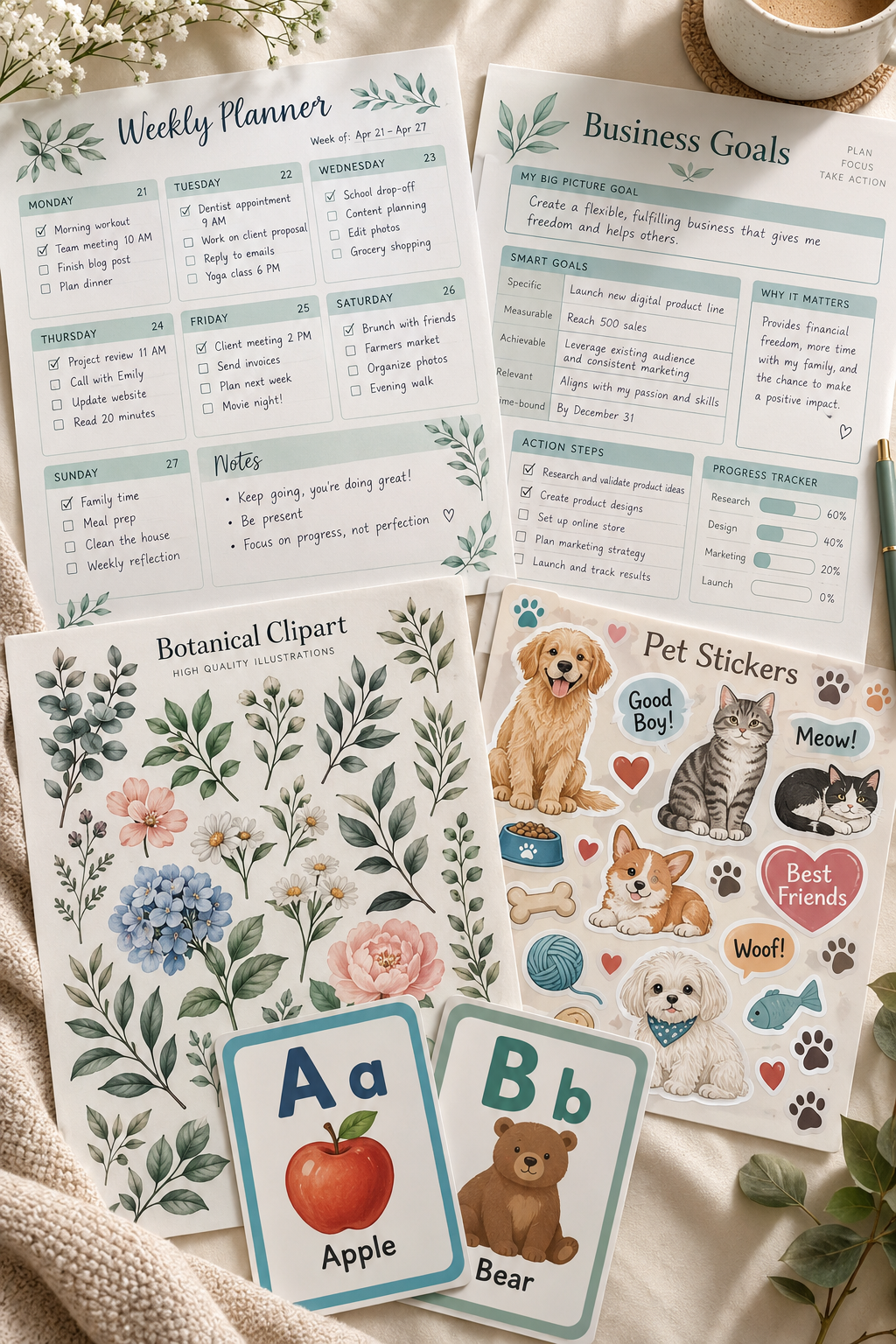
A design tool cannot fix a digital product that is confusing, hard to read, or missing useful content. Yet beginners often spend more time comparing software than deciding what their customers actually need.
The truth is, you do not need the most advanced program to create something worth selling. A simple weekly planner made with clear sections can be more useful than a heavily decorated planner with nowhere to write. The same goes for worksheets, coloring pages, printable art, and digital templates.
The tricky part is choosing the right software for the product you want to make. Some apps are easier for arranging text and boxes. Others are better for drawing original illustrations, editing images, or keeping several pages consistent. Picking the wrong one can turn a small project into hours of frustrating adjustments.
These design tools for digital products cover different types of downloadable files, from beginner-friendly printables to detailed artwork. Each option has a useful strength and a limitation worth knowing before you commit to it.
1. Create Printable Planners With Canva
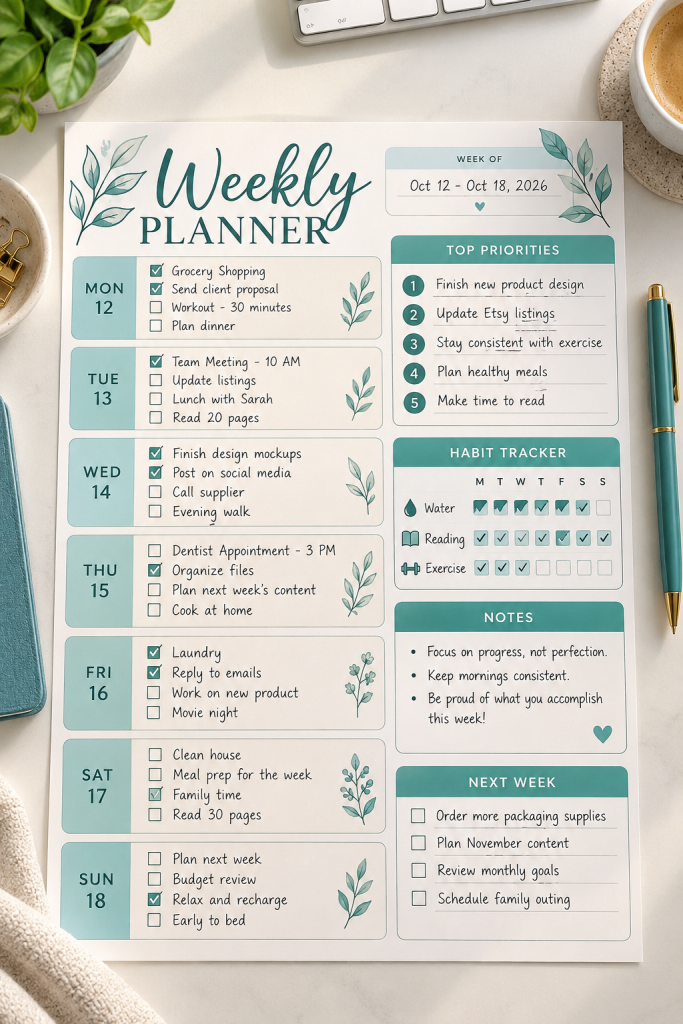
Canva is a sensible starting point for a beginner who wants to make printable planners without learning complicated design software.
You can arrange dated sections, checklists, habit trackers, and notes panels on one page. Its templates also give you a starting layout instead of making you place every box from scratch.
Where Canva Works Best
Start with a weekly planner that has seven daily sections, a small priority list, and space for unfinished tasks. Check how much writing room each section gives the buyer.
The main strength is quick layout editing. The limitation is that using ready-made elements does not automatically make a design original or suitable for resale. Check Canva’s current licensing rules before listing your planner.
2. Design Downloadable Worksheets in Adobe Express
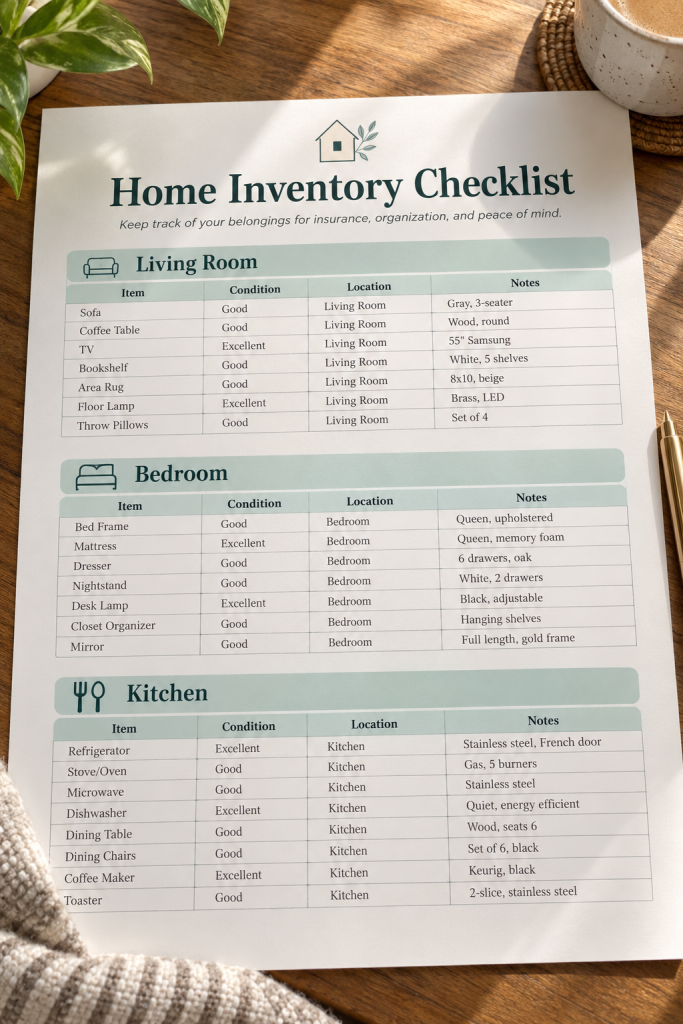
A worksheet needs to be easy to fill in before it needs to look decorative.
Adobe Express works well for beginners making downloadable worksheets with headings, instructions, simple graphics, and organized writing areas. Its editable layouts make it easier to build a page around one clear task.
For example, a home inventory worksheet could include columns for the item name, room, condition, and replacement notes.
- Strength: Easy visual styling for individual worksheets.
- Limit: Worksheets with many small rows and detailed form fields may need extra manual alignment.
Keep labels short and leave enough room for handwritten answers. Print a sample before selling it. A worksheet that looks readable on a laptop can feel cramped on paper.
| Simple Worksheet | Detailed Worksheet |
|---|---|
| One main activity | Several related activities |
| Short instructions and larger fields | More labels, rows, and answer spaces |
| Good first project: daily expense log | Try later: full monthly expense review |
3. Design Type-First Wall Art in Kittl

Bold lettering can be the main feature of a printable wall art design, especially when the words matter more than the illustrations.
Kittl has tools for decorative lettering, curved text, shadows, and other typography effects. That makes it useful for creating vintage-style quote prints, kitchen signs, and coordinated poster collections.
Give the Words Room
Choose a short original phrase, make the main words large, and use smaller text only where it adds meaning. A three-print set could share the same fonts and border style while using different messages.
Its strength is detailed text styling. Its limitation is that it is not the most natural choice for worksheets filled with tiny writing fields or complicated tables.
Check font and artwork permissions before selling your finished prints.
4. Make Printable Checklists With Google Slides
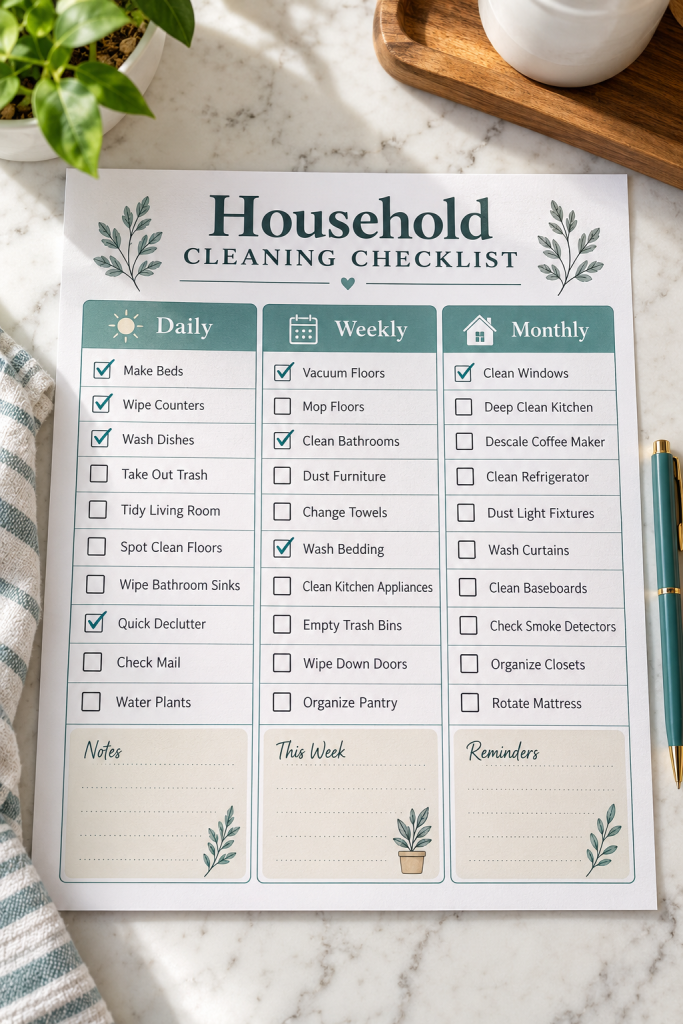
Google Slides is often overlooked because it is built for presentations, but a slide can also become a useful printable checklist.
Set a custom page size before designing, then add text boxes, lines, and checkboxes. A cleaning checklist could separate daily chores from weekly and monthly tasks.
- Strength: Simple shapes and text are easy to arrange and duplicate.
- Limit: Small spacing changes and detailed print layouts can take patience.
This option suits beginners who prefer a simple editing workspace. Keep the task names short and use enough space between rows for someone to mark each completed chore. The finished checklist should feel practical, not crowded.
✅ Checklist Ready for Printing?
5. Build Multi-Page Workbooks in PowerPoint
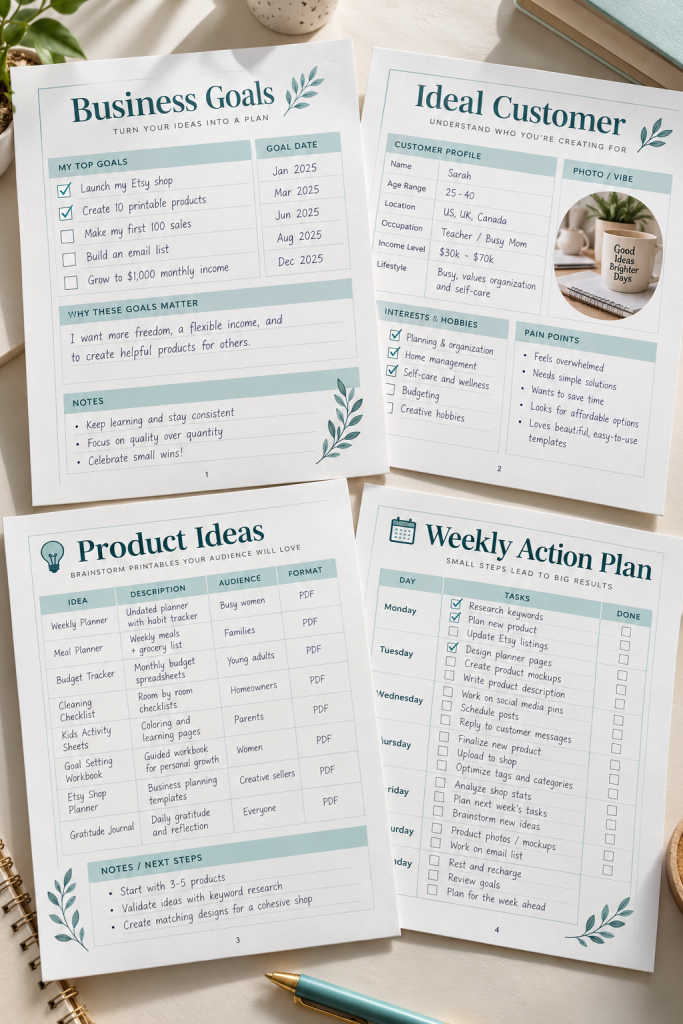
A workbook with several pages needs more than matching colors. Each page should have a clear purpose and feel like part of the same product.
PowerPoint is useful for arranging workbook pages with text, diagrams, shapes, and writing spaces. You can set custom slide dimensions and build repeated layouts for different activities.
Keep the Pages Connected
For a small business planning workbook, make separate pages for business goals, ideal customers, product ideas, and weekly actions. Use the same heading placement, page numbers, and writing areas throughout.
Its strength is organizing connected page designs. Its limitation is that moving individual shapes and text boxes can become slow on complicated pages.
Export a sample PDF and check the page order before packaging the workbook.
One crowded worksheet with goals, audience notes, product ideas, and action steps.
Problem: Not enough room to work through each topic.
A short workbook with a separate page for each task and space for written answers.
Benefit: The buyer can complete one activity at a time.
6. Create Consistent Reading Journal Pages in Figma
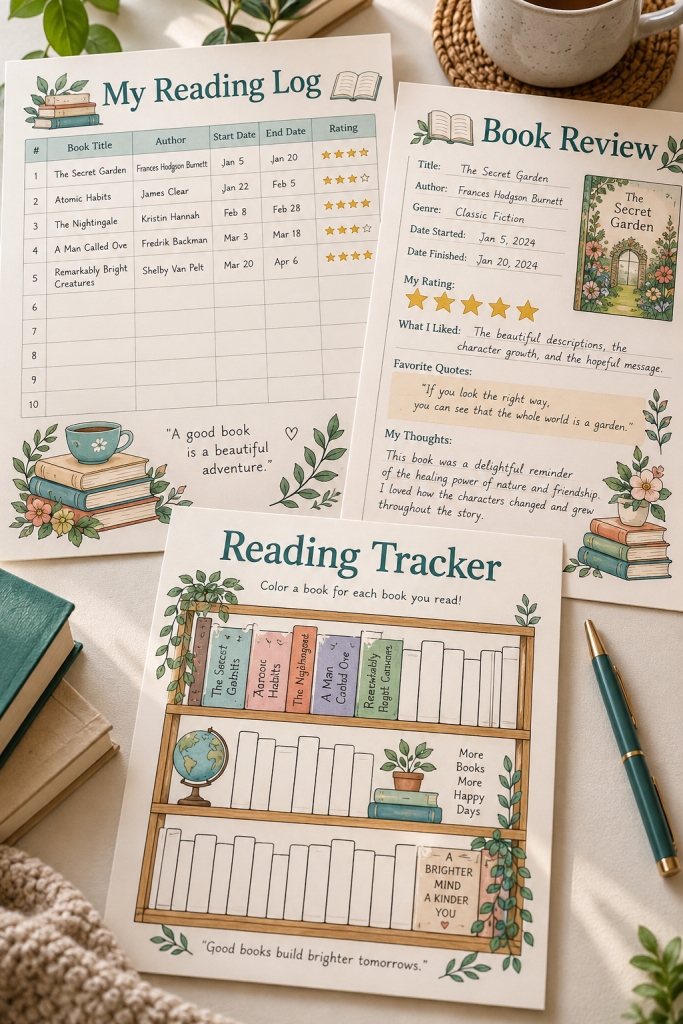
Figma makes more sense when you want several pages to follow the same design system, rather than making unrelated sheets.
Its reusable components can help keep repeated design elements consistent. This is useful for a reading journal with a book log, review pages, a reading tracker, and a bookshelf tracker.
Start with one page size and create matching heading styles, book information fields, and rating sections. Then reuse those elements across your pages.
Who It Suits
Figma suits sellers willing to learn a more detailed design workspace.
Strength: Reusable elements help keep a collection consistent.
Limit: The extra layout controls can feel complicated for someone making their first printable.
Check the exported page sizes carefully, especially when combining several designs into one download.
Build a Matching Reading Journal
Set the page frame. Choose the final printable dimensions before adding content.
Create common elements. Make a reusable page heading, section label, and book information area.
Build the page variations. Add fields suited to reviews, reading goals, and completed books.
Check the complete set. Compare spacing and type size before exporting the finished pages.
7. Make Scalable Clipart Packs in Inkscape

Tiny flowers and leaves can look lovely on a screen but become blurry when enlarged. That is why the drawing format matters for a clipart collection.
Inkscape is a vector drawing program that suits sellers who want to create their own icons, botanical illustrations, and simple decorative graphics.
Start With a Small Collection
Draw a few related items, such as a daisy, eucalyptus branch, small leaf, and flower bud. Use matching line thickness and colors so they belong together.
Its strength is scalable vector artwork. Its limitation is that learning shapes, paths, and nodes takes practice.
Keep your editable vector originals and export suitable customer files, such as PNGs, separately. Check transparency and image resolution before packaging the downloads.
Create your own illustrations with editable paths.
Give every clipart file a clear name, such as Daisy Flower or Eucalyptus Branch.
Check that transparent files have no unwanted white background.
Tracing artwork you do not have permission to sell.
Putting every illustration into one file without individual versions.
Exporting tiny images and expecting them to stay sharp when enlarged.
8. Polish Printable Sticker Sheets in Photopea

Sticker art can look finished until you notice a rough outline, an unwanted background, or uneven spacing between the designs.
Photopea is useful for cleaning up image-based stickers before arranging them into a printable sheet. Its layers, selections, and masks allow more detailed edits than a basic drag-and-drop layout tool.
For a pet-themed sticker sheet, you could work with original illustrations of dogs, cats, paw prints, and food bowls.
- Strength: Precise edits to layered artwork and image edges.
- Limit: The many editing tools can feel difficult at first.
This option suits sellers who already have artwork that needs polishing. Check the outlines at full size and review the printed sheet before offering the download.
💡 Quick Tip: Check the Sticker Edges
Place a temporary dark background behind light-colored sticker artwork to spot leftover white pixels and rough edges. Inspect the outline around ears, tails, and paws. Remove the temporary background before saving a transparent sticker file.
9. Draw Original Coloring Pages in Procreate
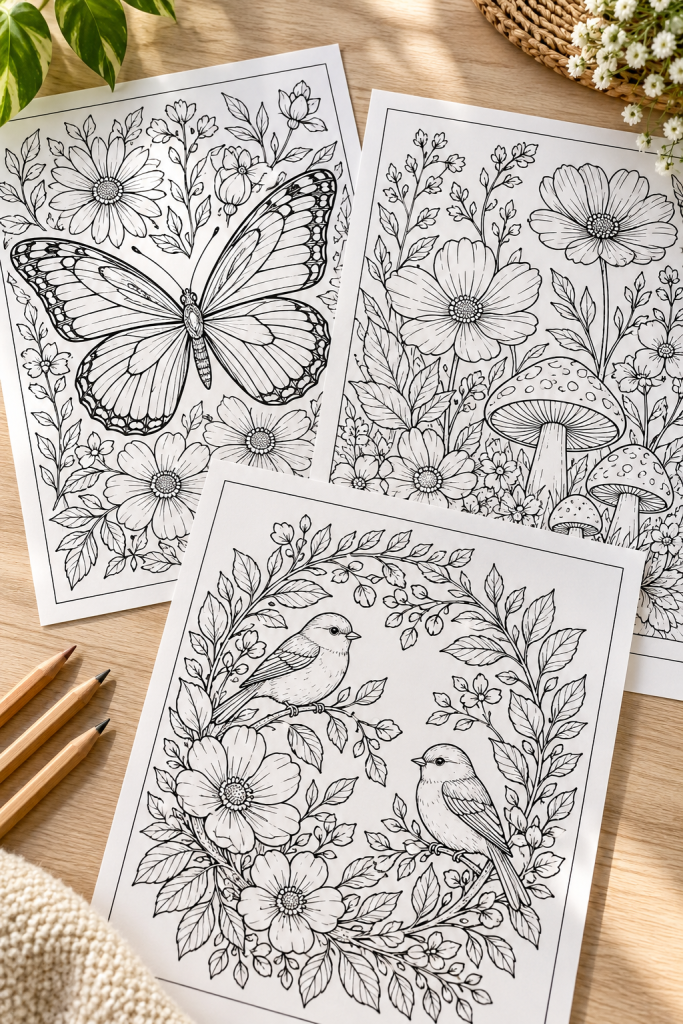
Start with a simple drawing that someone would actually enjoy coloring, such as a butterfly surrounded by flowers or a garden filled with leaves.
Procreate is useful for sellers who want to draw original coloring pages instead of arranging ready-made graphics. Its brushes and layers let you sketch ideas, refine outlines, and clean up unwanted marks.
Who It Suits
This tool suits beginners who enjoy digital drawing and already have an iPad.
Its strength is control over hand-drawn illustrations. Its limitation is that it requires an iPad, and you need to plan your canvas size and resolution carefully for printing.
Keep the outlines clear, close small gaps, and test the finished page on paper.
A good coloring page needs clear shapes, not extra detail in every corner.
🖍️ Before exporting, check for closed outlines, comfortable coloring spaces, and dark lines that remain visible when printed in black and white.
10. Design Printable Flashcards in VistaCreate

An alphabet flashcard should help a child connect a letter with a familiar object without searching through too many decorations.
VistaCreate has editable templates, text tools, and graphic elements that can help beginners design coordinated educational cards. You can create a card with a large letter, a simple illustration, and a short word underneath.
Keep Every Card Consistent
For an alphabet set, use the same card dimensions, font sizes, and illustration placement throughout.
Strength: Template-based editing makes it easier to develop a matching visual style.
Limit: Large flashcard sets still need careful manual checks for alignment, spelling, and print size.
This tool suits sellers making simple educational downloads. Check the current licensing rules for any supplied graphics before offering the finished cards for sale.
| Easy-to-Read Flashcard | Hard-to-Read Flashcard |
|---|---|
| One large letter, such as A | Several letters competing for attention |
| One clear apple illustration | Too many unrelated pictures |
| The word APPLE in readable type | Tiny or heavily decorated lettering |
| Consistent margins across the set | Different spacing on every card |
Choose the Tool That Fits the File
The best software is the one that helps you make a clear, useful download without adding unnecessary work.
Canva and Adobe Express are approachable choices for simple printables. PowerPoint and Figma suit products with several connected pages, while Inkscape and Procreate make more sense when original illustrations are the focus.
Before choosing between these design tools for digital products, decide what your first finished file should look like. Then make one sample, check how it prints or displays, and review the tool’s current licensing terms.Save this list to your Pinterest board so you can compare the options when you’re ready to create your next digital down