
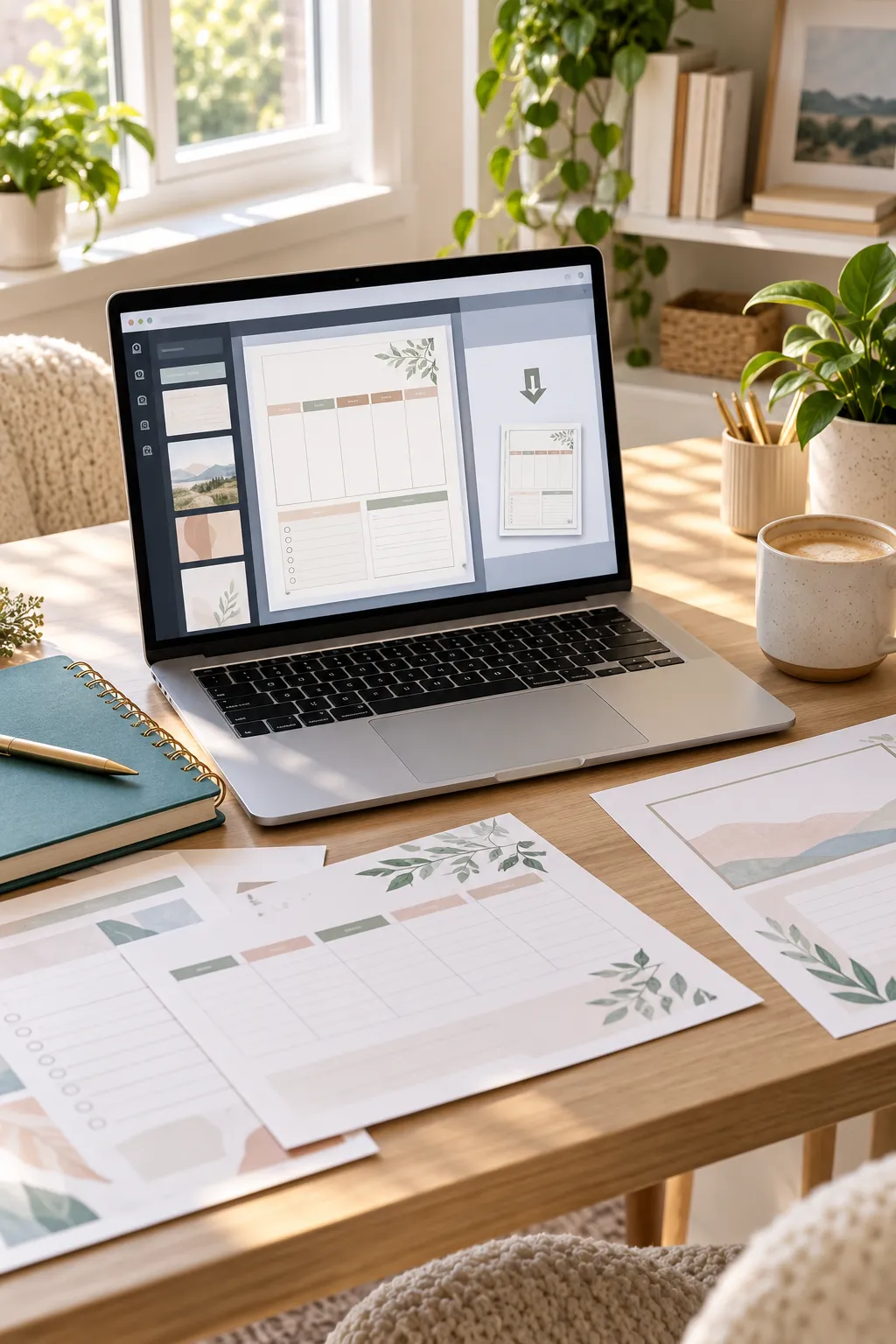
Creating a Canva template is one thing. Making sure customers can open it, change the text, and save their own version is another. That last part can be confusing when you’re selling your first digital product.
You might finish a beautiful planner or invitation, copy a sharing link, and assume the job is done. But a regular editing link is not the same as a template link. Send the wrong one, and customers could end up working inside your original design instead of their own copy.
The good news is that creating editable Canva template links follows a clear process once you know where to look. You don’t need design training or complicated software to understand the steps. You do need an eligible Canva plan to create a Template link, so it’s worth checking your account before you begin.
We’ll start with a simple design, check the parts buyers need to change, and work through the sharing and testing steps. By the end, you’ll know how to prepare a template link that customers can use without touching your original work.
Open Canva and Choose the Right Design Size
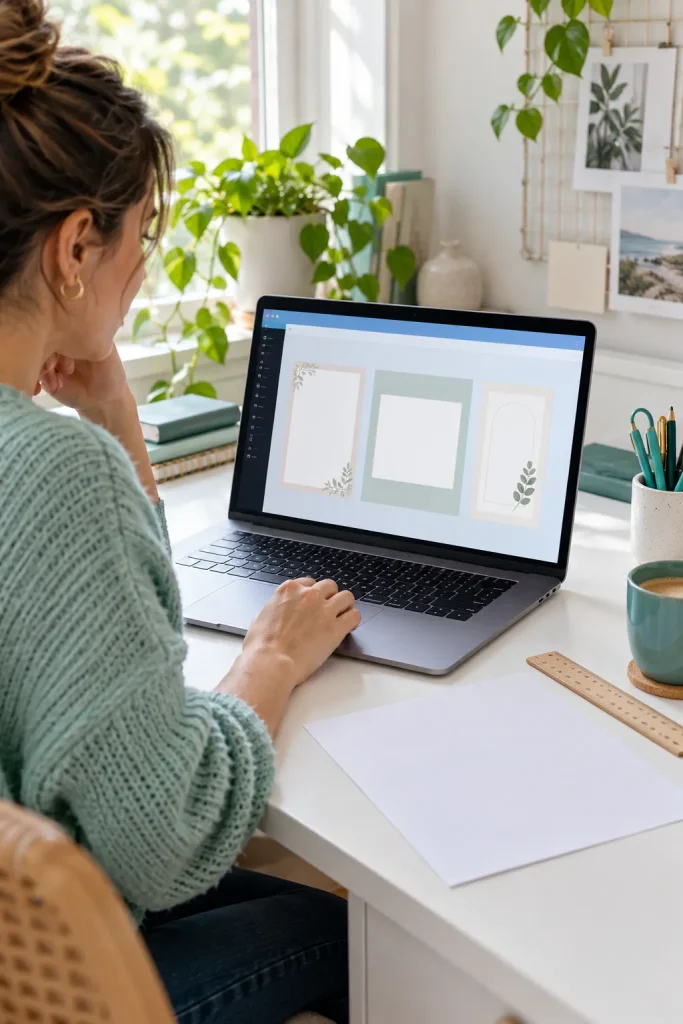
The size you choose at the beginning affects how useful your finished template will be.
Open Canva and select Create a design. Choose a size that matches what your customer needs. A printable planner might use US Letter or A4, while a social media post needs a size suited to its platform.
Match the Size to the Product
- Printable worksheets: Choose US Letter or A4 based on your target buyers.
- Instagram posts: Start with a suitable square or portrait layout.
- Invitations: Check the intended print dimensions before designing.
Avoid picking a size just because its preview looks attractive. A worksheet designed for a social media canvas can be frustrating to print.
The correct size now saves extra work later.
Create a Simple Design Customers Can Customize
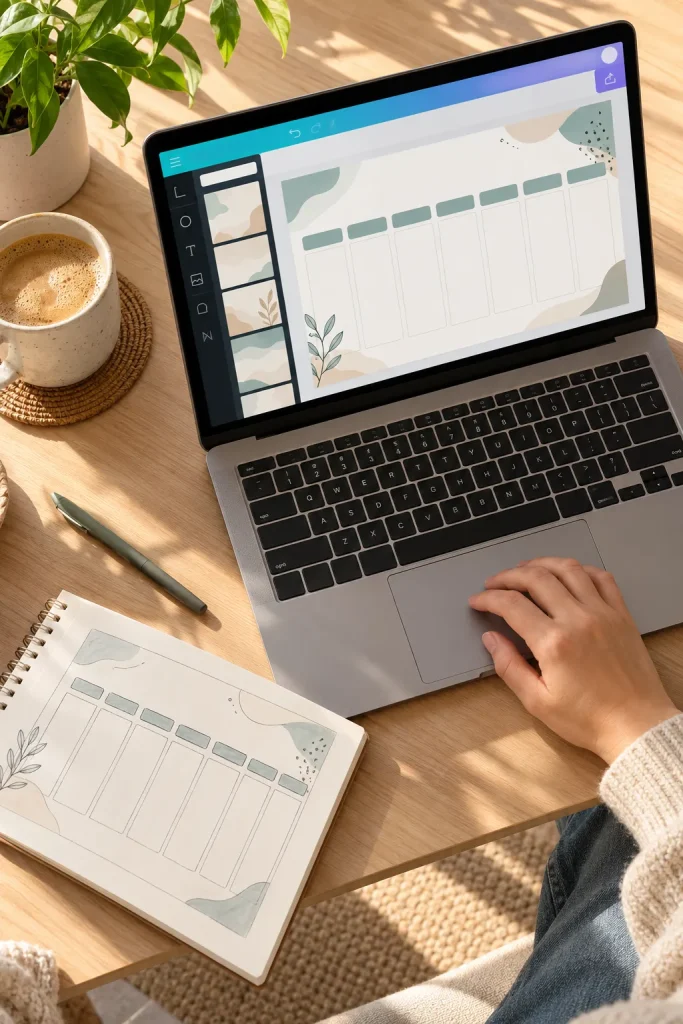
A customer shouldn’t need to rebuild your design just to change a name or date.
Start with a clean layout that has enough room for different words and details. For a weekly planner, use clear day labels, generous writing spaces, and a small number of colors.
Build Around What Buyers Will Change
Use this simple approach:
- Add sample text where customers will type their own details.
- Keep headings easy to recognize.
- Leave room for longer names or entries.
- Use readable fonts instead of tiny decorative lettering.
Common mistake: Filling every empty corner with graphics. A crowded template leaves little space for real customer information.
Before adding decoration, ask whether a beginner could understand which parts to edit.
✅ Beginner-Friendly Template Checklist
Check Every Text Box, Image, and Design Element
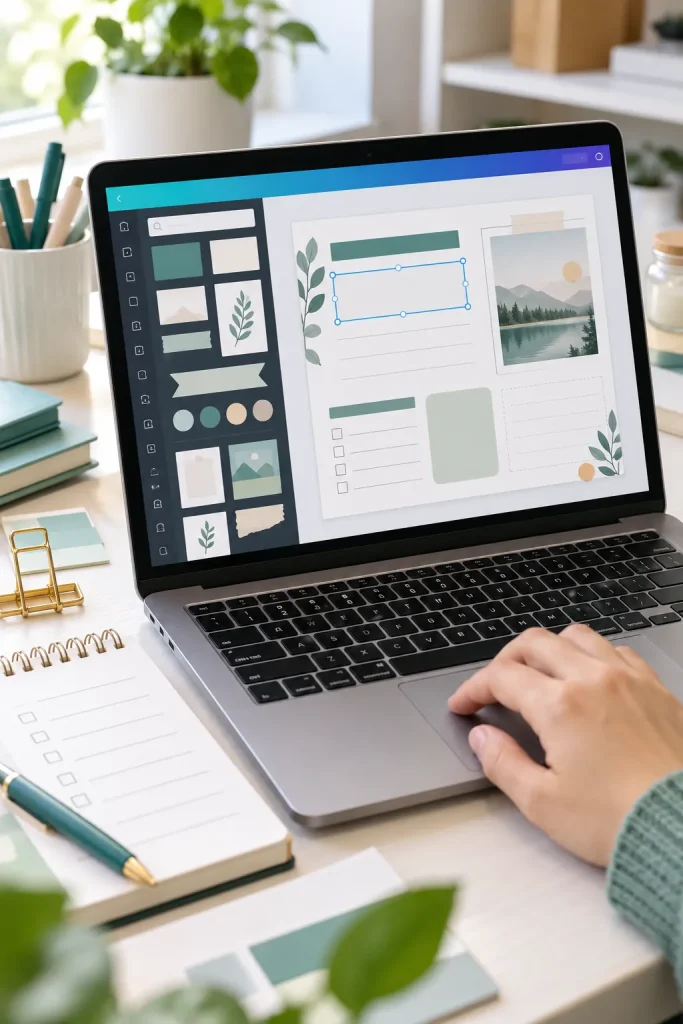
Small design problems become much easier to spot when you try editing the template yourself.
Click each sample name, heading, and date. Make sure the right text can be selected and replaced. Then check the photos, shapes, and background elements.
Run a Quick Editing Check
- Replace a short sample name with a longer one.
- Change the color of a heading.
- Check whether sample pictures can be replaced.
- Look for text hidden behind decorations.
If you grouped several objects together, check whether that grouping makes editing confusing.
Common mistake: Leaving the template looking finished but difficult to customize.
A customer should be able to change the important details without accidentally moving half the layout.
Test longer customer names inside text boxes.
Use clear placeholders for photos and dates.
Check the layout after replacing sample content.
Tiny text boxes that cut off longer words.
Decorations covering information buyers need.
Complicated groups that are hard to adjust.
Review Canva Content and Template Licensing Rules

Before selling a design, check what you’ve used to make it.
Canva has rules about how its photos, graphics, and other content can be included in products for sale. An original template design can use permitted Canva content, but that doesn’t mean you can resell individual library elements as your own product.
Review Your Design Assets
Look through your template for:
- Canva photos and illustrations.
- Elements marked as Pro.
- Designs that started from an existing Canva template.
- Fonts, graphics, or images imported from another source.
Canva places special conditions on templates containing Pro Content, including how those templates may be delivered.
Common mistake: Assuming every asset inside Canva is automatically cleared for every type of resale.
Read Canva’s current license terms before selling anything made with Canva content.
⚠️ Licensing Check
Make your own original design rather than reselling a Canva template unchanged.
For templates containing Canva Pro Content, use a permitted Canva template link instead of delivering that template as a standalone PDF. Check the current rules for your specific content.
Keep Your Original Canva Design Organized
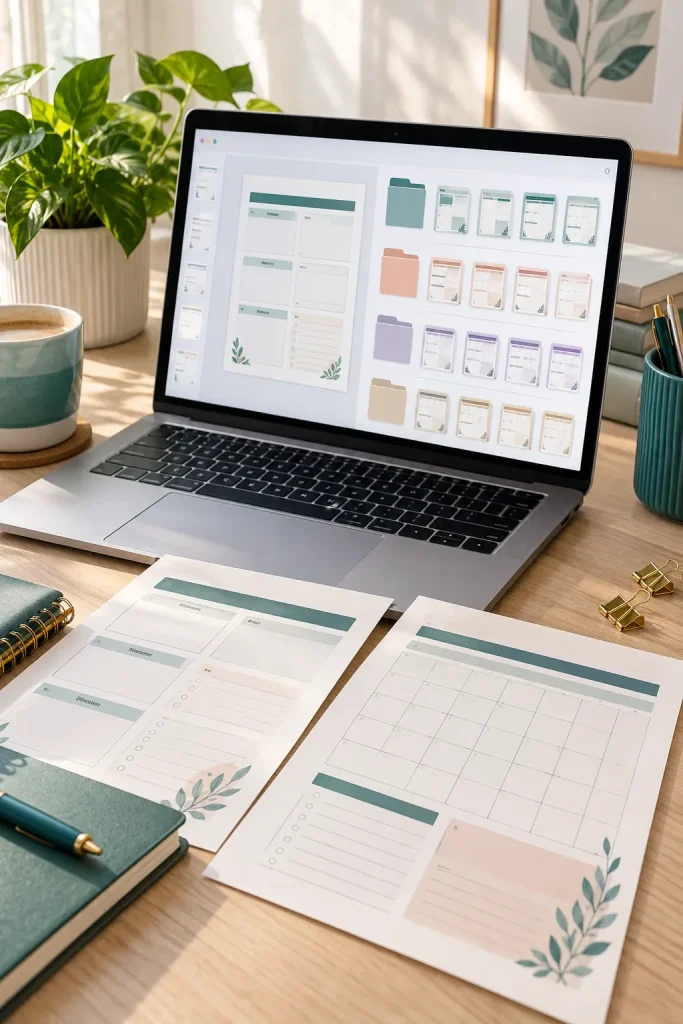
A tidy project folder makes it easier to manage templates after they’re ready to share.
Give your design a name that describes the product. Something like “Weekly Meal Planner Master” is more useful than “Untitled Design 12.”
Make Your Master Easy to Find
Open Canva’s Projects area and organize your working designs into a suitable folder. Keep the original design clearly named, along with any alternate versions you make.
You could use simple labels such as:
- Weekly Meal Planner Master
- Weekly Meal Planner Pink
- Weekly Meal Planner Neutral
Common mistake: Mixing draft files, customer previews, and original designs under similar names.
Customers should receive a template link created from the correct design. Clear file names help you find that design when a customer needs assistance.
Untitled Design 12
Copy of Design 12
New Planner Final
Weekly Planner Master
Weekly Planner Neutral
Weekly Planner Preview
Open the Share Menu and Find Template Link
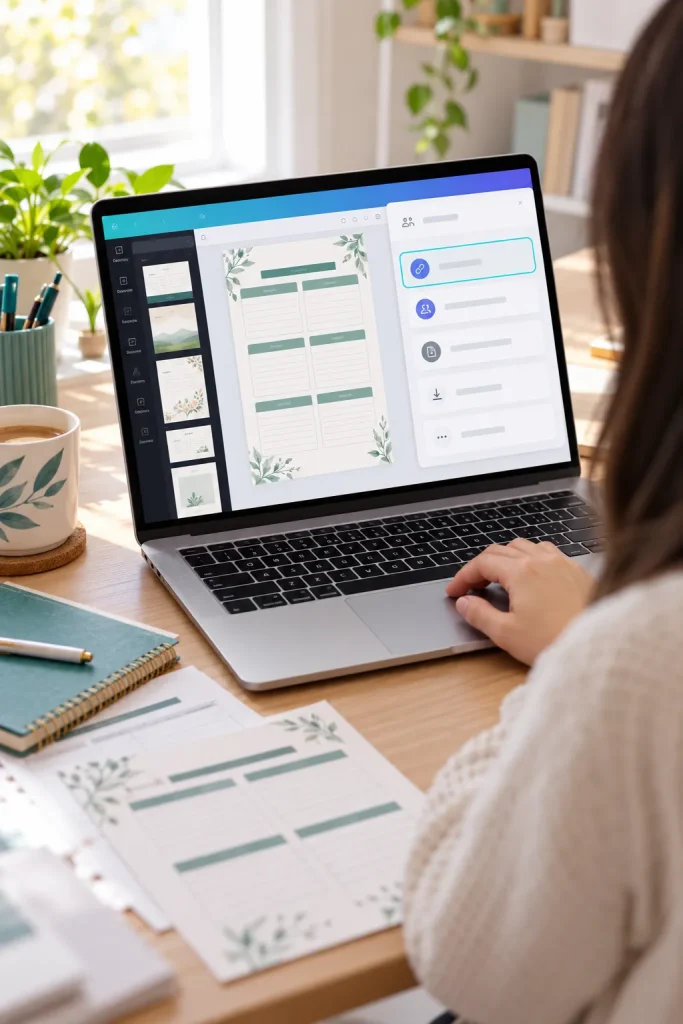
Now you’re ready to find the sharing option that lets customers make their own version.
Open your finished design in Canva. At the top of the editor, select Share. Look for Template link in the sharing options. If it isn’t visible straight away, select See all.
Check Your Account First
Creating Template links is available on eligible Canva plans, including Canva Pro, Teams, Enterprise, Education, and Nonprofits.
If you cannot find the option, check your account’s plan and available sharing features.
Common mistake: Choosing a regular “Can edit” sharing link. That can allow people to edit the original design rather than receive a separate template copy.
Make sure the option specifically says Template link.
Open the design you want to share with buyers.
Select Share in the top menu.
Choose Template link. Check See all if needed.
Create and Copy Your Canva Template Link
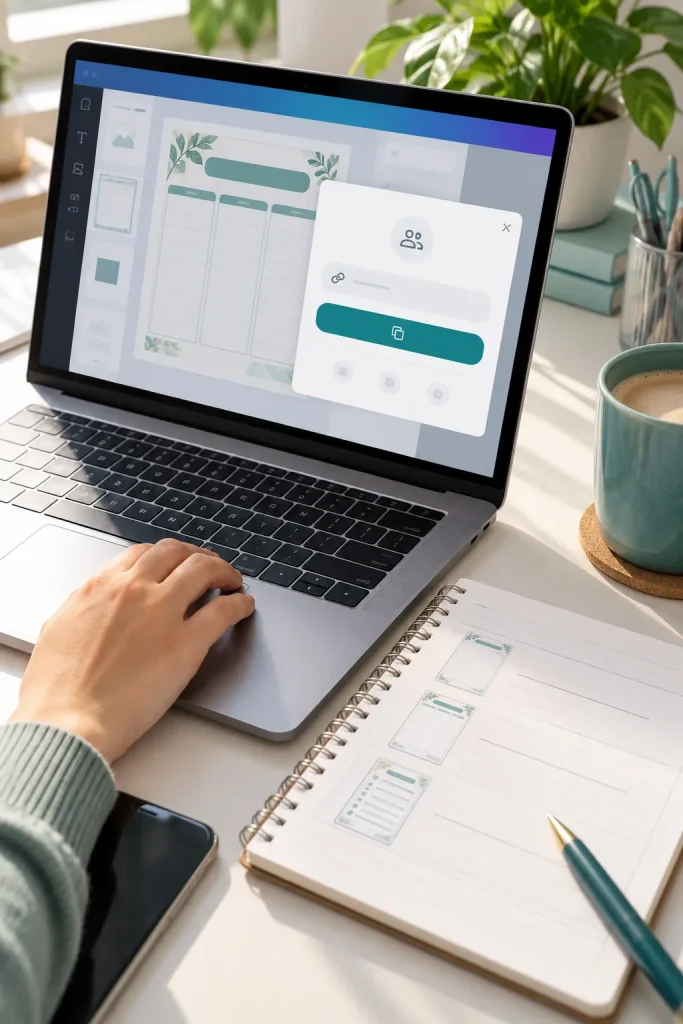
Once you find the Template link option, you’re close to having a shareable product.
Select Create template link. Canva will generate a link for that design. Then select Copy to place the link on your clipboard.
Save the Link Somewhere Safe
Paste the copied link into a private working document alongside the matching product name. This makes it easier to tell which link belongs to each design when you have several templates.
You can use a simple record with the product name, link, and whether you’ve checked it.
Common mistake: Copying an older link from a different template.
Be careful when replacing links, too. Deleting a Canva Template link makes that URL inactive, so previously delivered copies of the link may stop opening.
Test the Template Link With a Separate Account
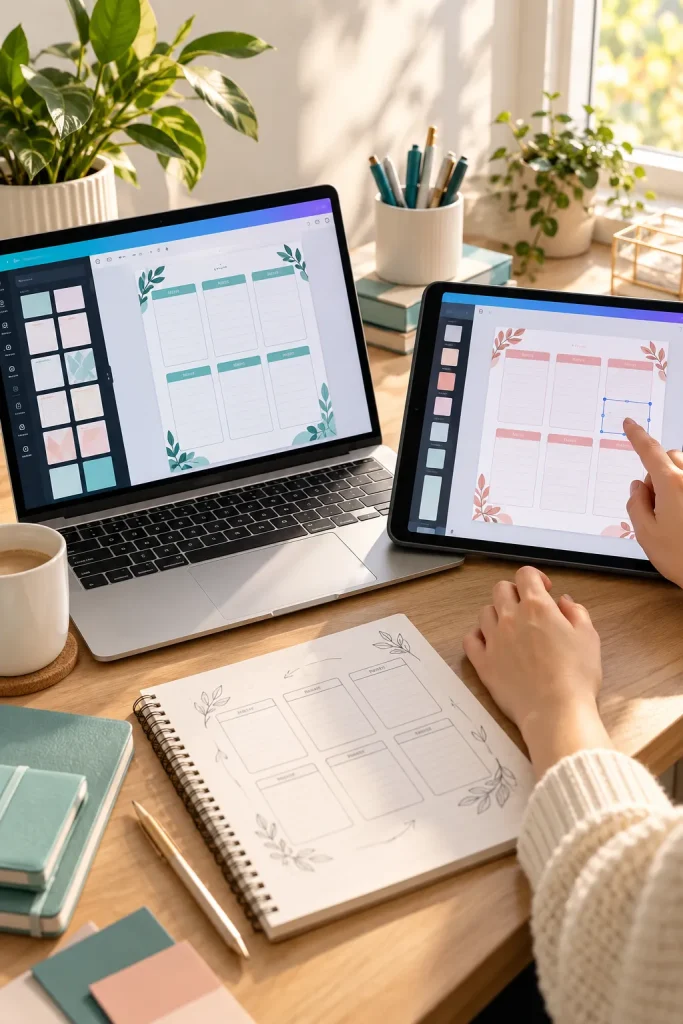
A link that works for you might behave differently for someone who isn’t signed into your account.
Before using the link in a product listing, open it with a separate Canva account that doesn’t already have access to your original design.
Check the Customer Experience
Follow the link as a new buyer would.
- Confirm that the template opens.
- Make sure the account can create its own editable copy.
- Change a sample heading or date.
- Check that your original design remains unchanged.
- Look for any premium-content restrictions or access messages.
Common mistake: Testing only while signed into the account that created the design.
A separate account helps reveal issues that can be hidden by your own access permissions. Don’t publish the link until you’ve confirmed that it works as intended.
🧪 Customer Link Test
Add Your Template Link to a Delivery PDF
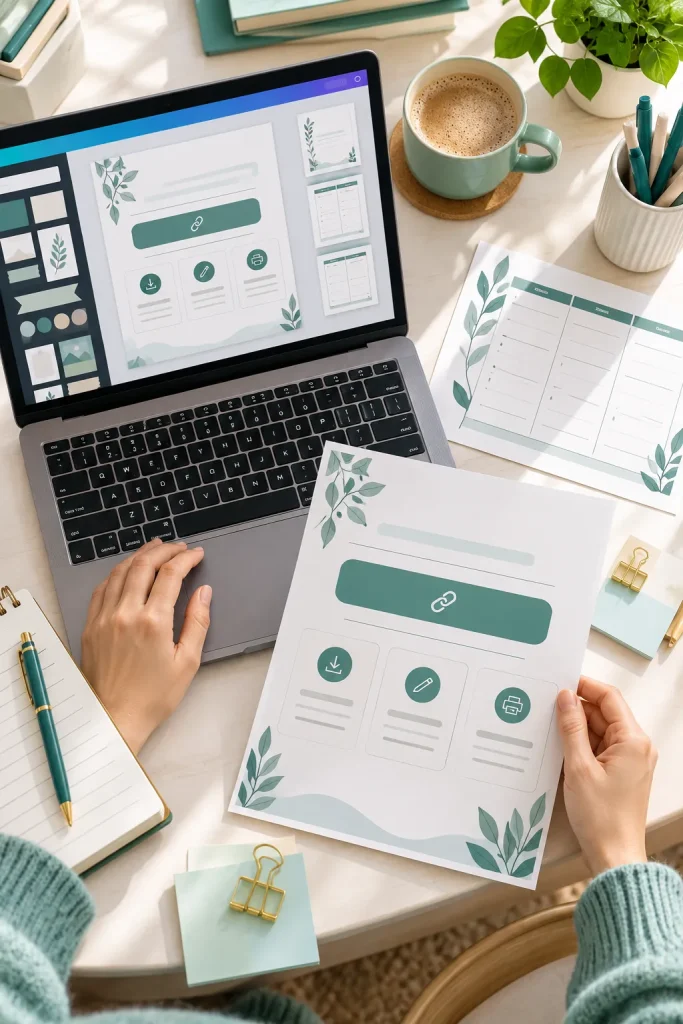
A delivery PDF gives customers one clear place to find their editable template.
Open a new document in Canva and create a simple one-page instruction sheet. Add the product name, a short welcome message, and a button or text label such as Open Your Canva Template.
Select that text or button and add the template link you copied earlier.
Make the Instructions Easy to Follow
Include three short directions:
- Open the PDF and select the template link.
- Sign in to Canva or create an account if prompted.
- Open your own copy and replace the sample content.
Download the delivery sheet as a PDF, keeping its hyperlinks active.
Common mistake: Adding the link as plain text without making it clickable. Customers should not have to type a long web address.
Check Your Delivery File Before Publishing

One last check can prevent a lot of confusing customer messages.
Open the actual PDF you plan to upload to your store, not just the working Canva document. Select its template link and check that it leads to the correct product.
Review the File Like a Buyer
Make sure the PDF opens properly, the instructions are readable on a phone, and the link works outside your seller account.
Next, look at your product listing. The title and description should explain what customers receive and make it clear that they need Canva to edit the design.
Common mistake: Uploading an earlier version of the PDF with an old or incorrect link.
Check your selling platform’s current rules for digital-file delivery before publishing. Keep a copy of the final delivery PDF so you can identify which version customers received.
💡 Final Upload Check
Open the exact PDF you will deliver and select its link using an account that does not own the template.
Check especially: The PDF is readable, the link is clickable, the correct design opens, and a separate editable copy can be created.
Your Template Is Ready to Share
You’ve now worked through the steps needed to create a Canva design, prepare its editable parts, and deliver it through a template link.
The most important part is making the customer’s experience simple. Clear instructions and a working link matter just as much as the design itself.
Once your first set of editable Canva template links is ready, keep your master files and delivery PDFs organized. That way, you can check a product, update its instructions, or answer a customer question without searching through old files.
Save this tutorial to your Pinterest board so you can follow the steps again whenever you create another digital template.