
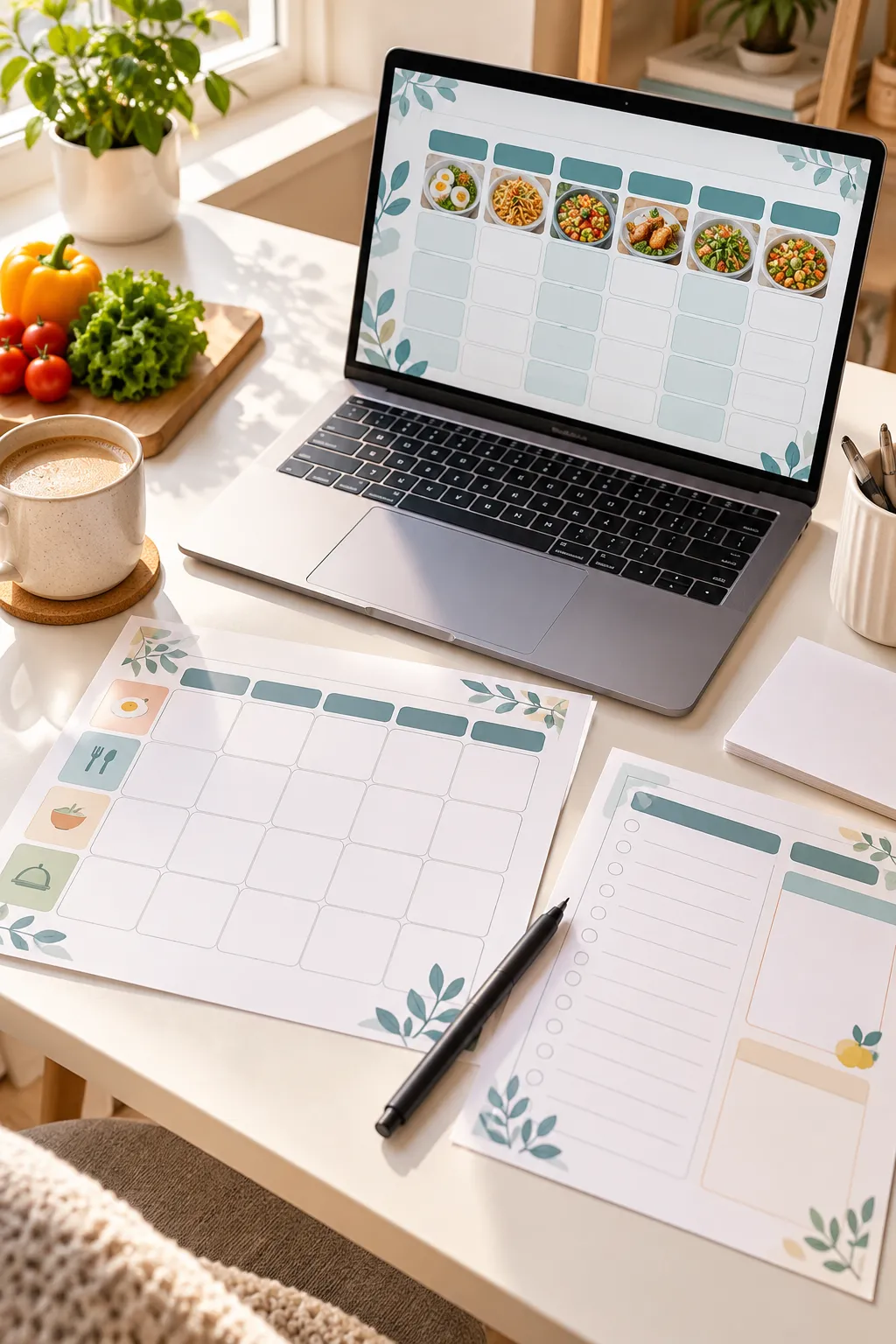
A printable meal planner does not need fancy graphics or professional design skills to be useful. In fact, a simple page with enough room to write meals and groceries can work better than a crowded design filled with decorations.
The tricky part is knowing where to begin. Should you use Canva? What sections belong on the page? How do you make sure the finished file prints clearly? These small decisions can feel confusing when you have never created a digital product before.
The good news is that you can build your first printable meal planner one step at a time. Start with a clear purpose, create a basic layout, and focus on making each section easy to use. You do not need expensive software or a background in graphic design.
This walkthrough will help you plan your product, design the pages, prepare a printable PDF, and get the files ready for an online listing. By following the steps in order, you can create something practical without making the process more complicated than it needs to be.
Choose Who Your Meal Planner Will Help
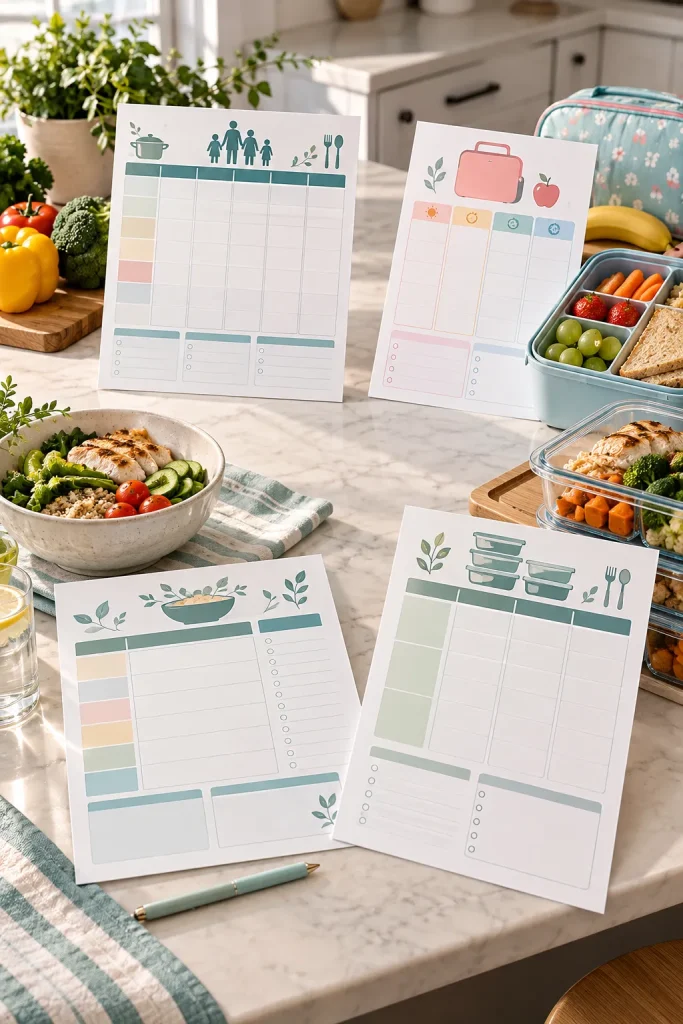
Before choosing colors or drawing boxes, decide who will use your planner. A parent planning family dinners has different needs from someone preparing lunches for one person.
Picking a clear audience helps you decide what belongs on the page and what can be left out.
Start With One Everyday Need
Think about a common task your customer wants to make easier. It might be planning quick dinners, organizing weekly groceries, or preparing meals ahead of time.
Write down one audience and one main purpose before you start designing.
A common mistake is trying to serve every type of customer in a single planner. That usually leads to too many sections and not enough writing space.
Decide Which Planning Pages to Include
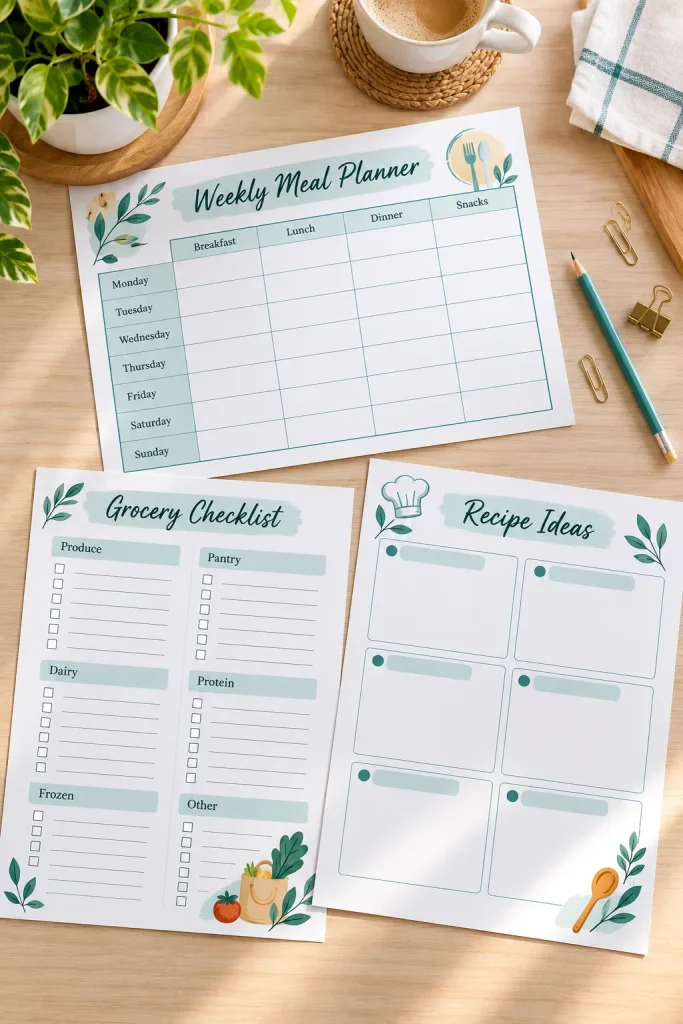
A meal planner can contain several pages, but your first version should stay manageable.
Start with a weekly meal planning page. This gives customers a place to organize meals for each day. A separate grocery list is another useful addition because it connects the meal plan with shopping.
Keep the First Version Small
For a beginner product, consider making two or three pages instead of a large collection. You can always create extra pages after the basic layout works.
The mistake to avoid is adding sections simply because other planners have them. Each page should solve a clear problem. If you cannot explain why a section is needed, leave it out for now.
Your starter page checklist
Sketch a Simple Weekly Meal Planner Layout
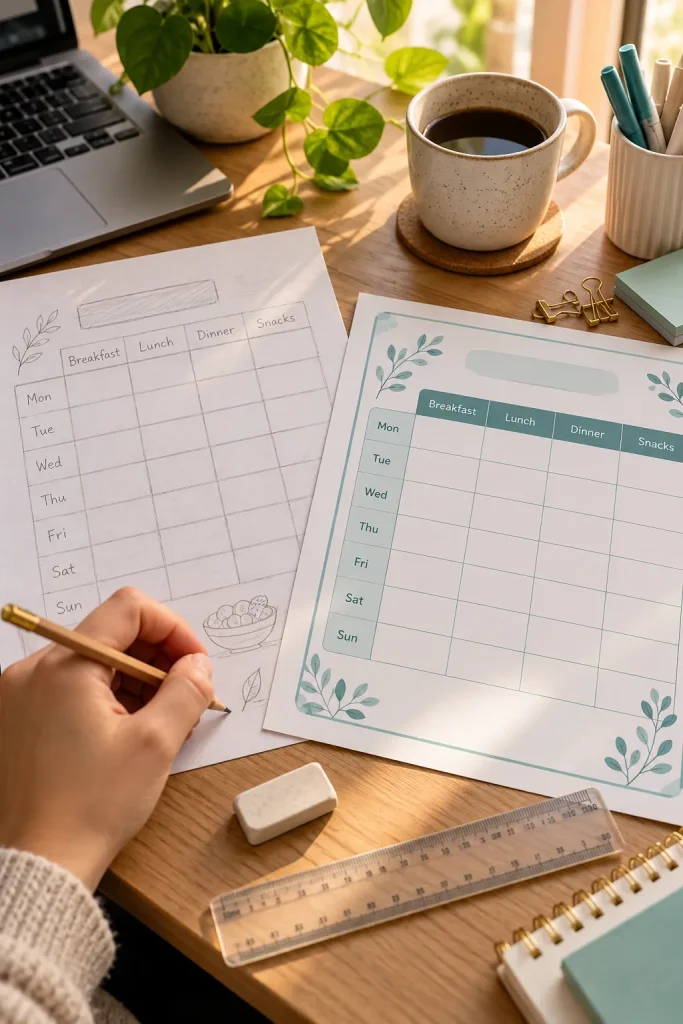
Grab a blank sheet of paper and draw seven rows, one for each day of the week. Then decide where the meal names will go.
A quick pencil sketch helps you notice spacing problems before spending time in design software. You can erase sections, move labels, or make the writing boxes larger in seconds.
Give Each Meal Enough Room
For a simple dinner planner, one large box per day may be enough. If your customer needs breakfast, lunch, and dinner, divide the page into more columns.
Do not squeeze every possible meal category onto one sheet. Small boxes might look tidy on a screen but become frustrating when someone writes in them.
Three tiny meal columns
Large decorative heading
Almost no writing room
One roomy dinner column
Small, readable heading
Space for handwritten meals
Set Up Your Printable Page in Canva
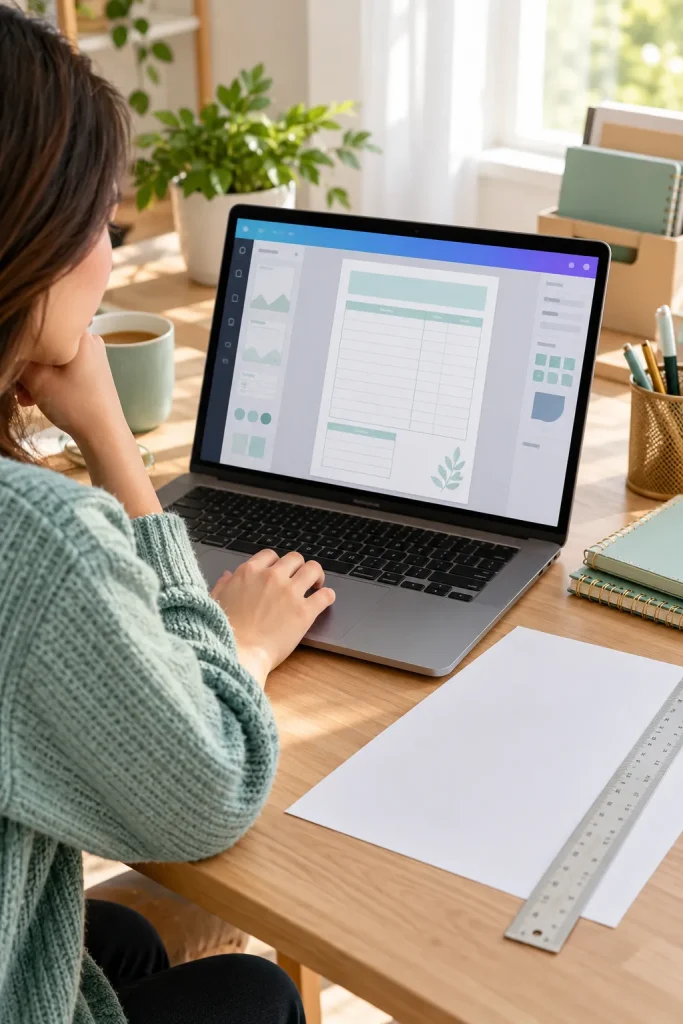
Open Canva and create a blank document for your planner. Starting from an empty page makes it easier to control the layout instead of trying to adjust a busy template.
US Letter and A4 are both common paper sizes. Choose the one that suits your intended customers, and keep that size consistent across the pages.
Build on a Clean Canvas
Use a portrait page for a simple weekly planner unless your layout genuinely needs more horizontal space.
Leave a little room around the outside for printing, and keep important labels away from the edges.
A common mistake is designing right up to the page border. Some printers cannot print that close to the edge.
Create a new blank design using your chosen paper dimensions.
Choose portrait or landscape based on the meal grid.
Keep important content inside a comfortable print margin.
Use the same size and margins for every page in the product.
Build the Weekly Meal Planning Grid
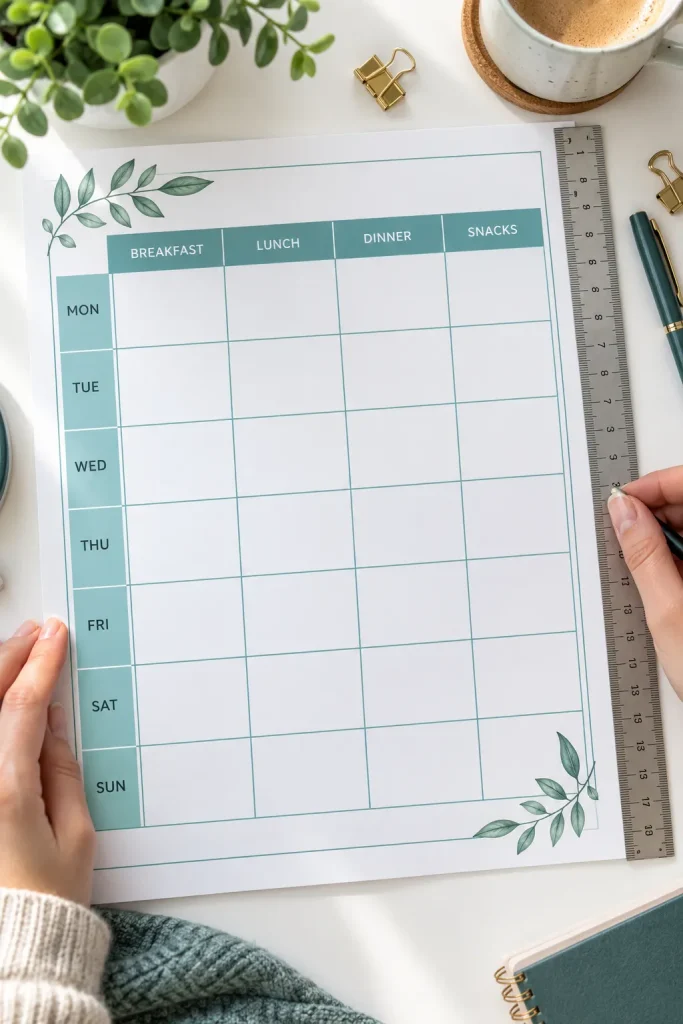
The weekly grid is the part your customer will use most often, so make it easy to understand at a glance.
In Canva, add text boxes for the days of the week and use simple lines or shapes to create the meal sections. Keep the rows evenly spaced so the finished page looks organized.
Make Writing Space a Priority
Use clear labels such as Monday, Tuesday, and Wednesday. Keep the same spacing and text style throughout the grid.
Check whether someone could comfortably write a full meal name inside each box.
The mistake here is making the grid look attractive while forgetting its main job. A meal planner should be easy to fill in, not just nice to look at.
Add Grocery Lists and Helpful Planning Sections
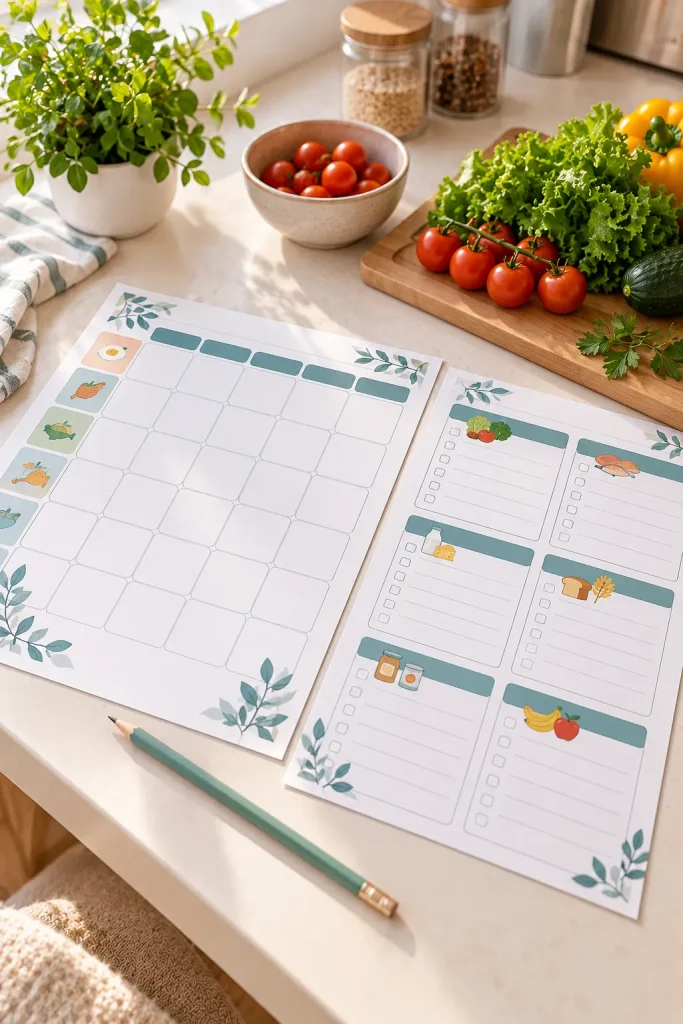
A separate grocery list makes your planner more useful because customers can turn their meal choices into a shopping checklist.
Create a simple list with enough lines for ingredients. You might divide it into categories such as produce, pantry items, and refrigerated foods.
Choose Where the List Belongs
For a one-page planner, a small grocery section can sit below the weekly grid. If the layout feels crowded, move the shopping list to another page.
You can also add a small notes area for meals that need early preparation or ingredients already at home.
Avoid adding too many tiny sections. The grocery list should help someone shop, not require extra work to fill out.
| Grocery List on the Same Page | Separate Grocery List Page |
|---|---|
| Useful for short shopping lists | Better for longer ingredient lists |
| Meal plan and groceries stay together | More room for grocery categories |
| Good for simple weekly planning | Useful for detailed family shopping |
Choose Readable Fonts and Simple Colors
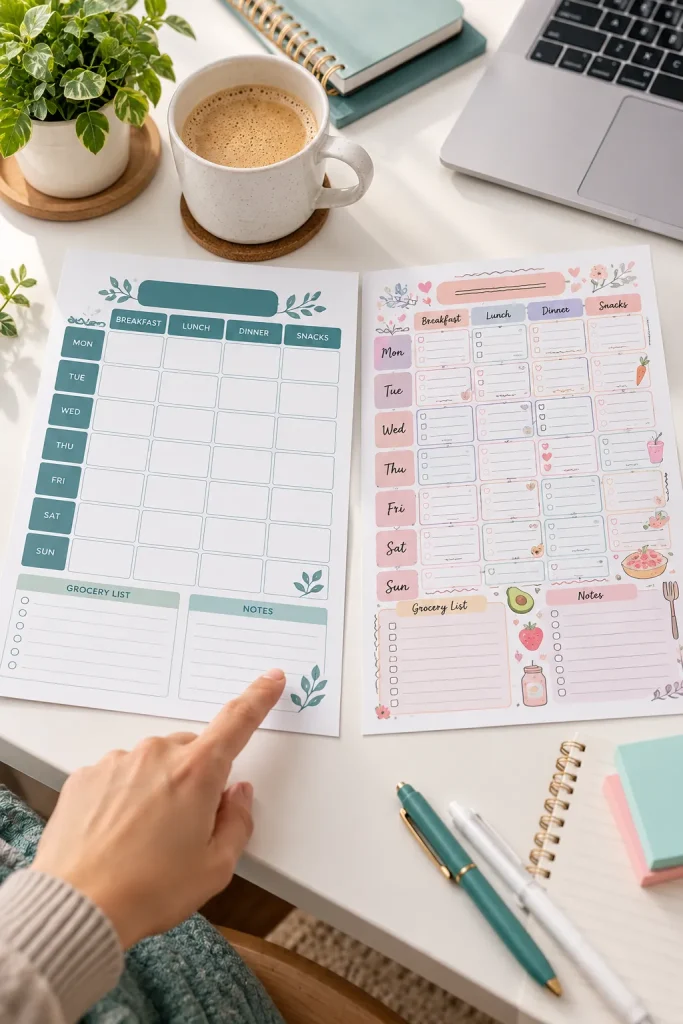
Tiny text and pale colors might look attractive on a computer screen, but they can become difficult to read after printing.
Choose one clear font for the main text and, if needed, another for headings. Canva includes various font options, but simple choices are usually easier to work with.
Check the Design at Normal Size
Use dark text on a light background. Make the day labels easy to spot without making them much larger than the writing boxes.
Keep decorative colors limited to headings, borders, or small highlights.
A common mistake is choosing style before readability. Print a sample page in black and white to see whether the layout still makes sense without color.
Clear headings with familiar letter shapes
Dark gray or deep teal text
Thin, visible borders around writing boxes
Decorative script fonts for daily labels
Very light gray text on white paper
Heavy backgrounds that use lots of printer ink
Download Your Planner as a Printable PDF
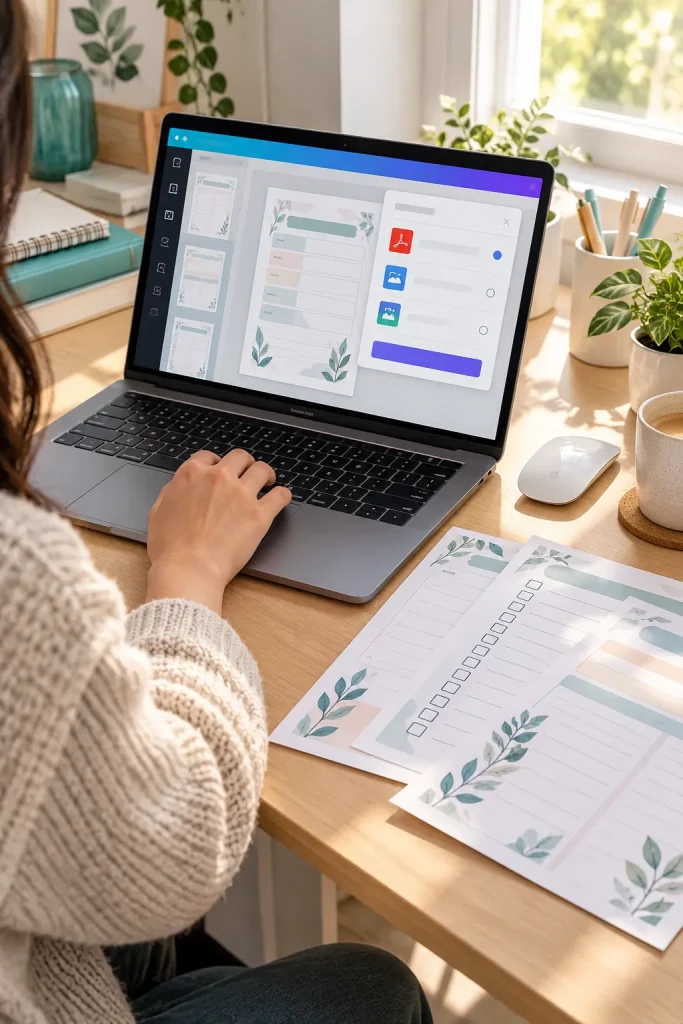
Your design may look finished in Canva, but it still needs to become a file that customers can print.
Open the download options and choose a PDF format suitable for printing. Canva offers a PDF Print option, which is a useful choice for printable documents.
Check the File Before Sharing
Make sure you have included all the pages intended for your product. Save the file with a clear name so you can identify it later.
Open the downloaded PDF and inspect the page order, text, and spacing.
Do not assume the downloaded file looks exactly like the editing screen. Export mistakes can be easy to miss when you skip this check.
💡 Quick PDF Check
Before moving on, open the exported file in a PDF viewer rather than checking only the Canva design.
Look for: missing pages, cut-off edges, unreadable text, unusual spacing, and a page size that matches your intended paper.
Print and Check Your Planner for Mistakes
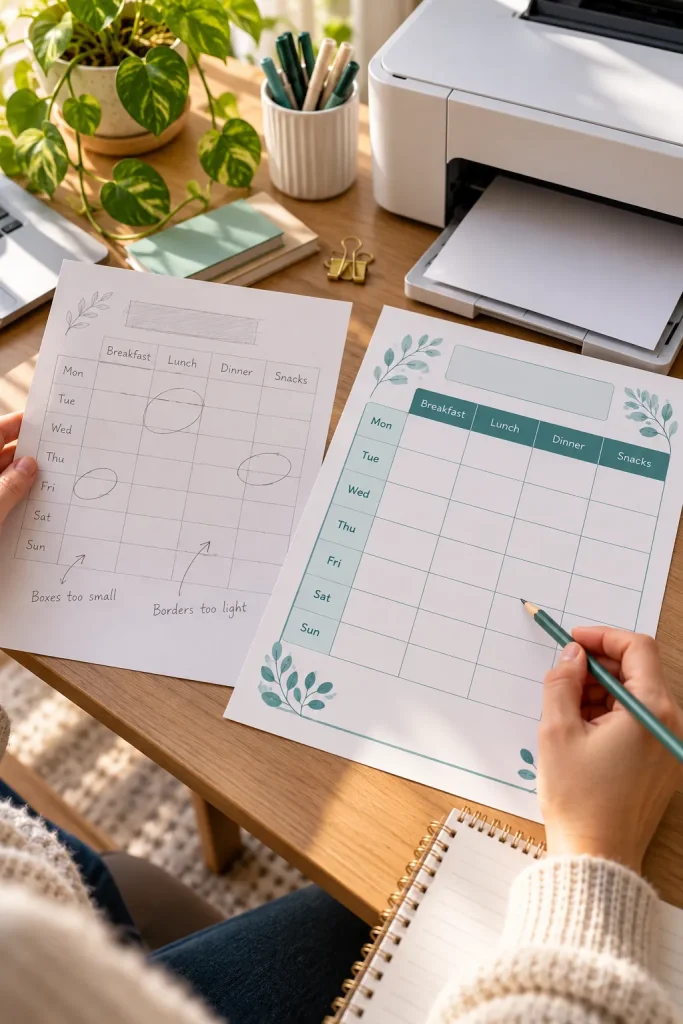
Even a neat PDF can print with clipped borders, faint lines, or cramped writing spaces. Print one sample at actual size before calling your planner finished.
Use the paper size you chose while designing, and check every page, not only the first one.
Check It With a Pen
Fill in a few meal names, tick grocery boxes, and look for labels that are too small. Try a black and white copy as well, since customers may not have color printers.
The common mistake is checking only the screen preview. A page that looks spacious on a laptop can feel crowded when someone writes on it.
Fix any problems in Canva, export a fresh PDF, and check again.
The Saturday row sits too close to the bottom edge.
Grocery checkboxes are difficult to mark.
Pale divider lines nearly disappear on paper.
All seven rows fit comfortably inside the margins.
Checkboxes have room for clear pen marks.
Darker lines remain visible in black and white.
Prepare Your Meal Planner for an Online Listing
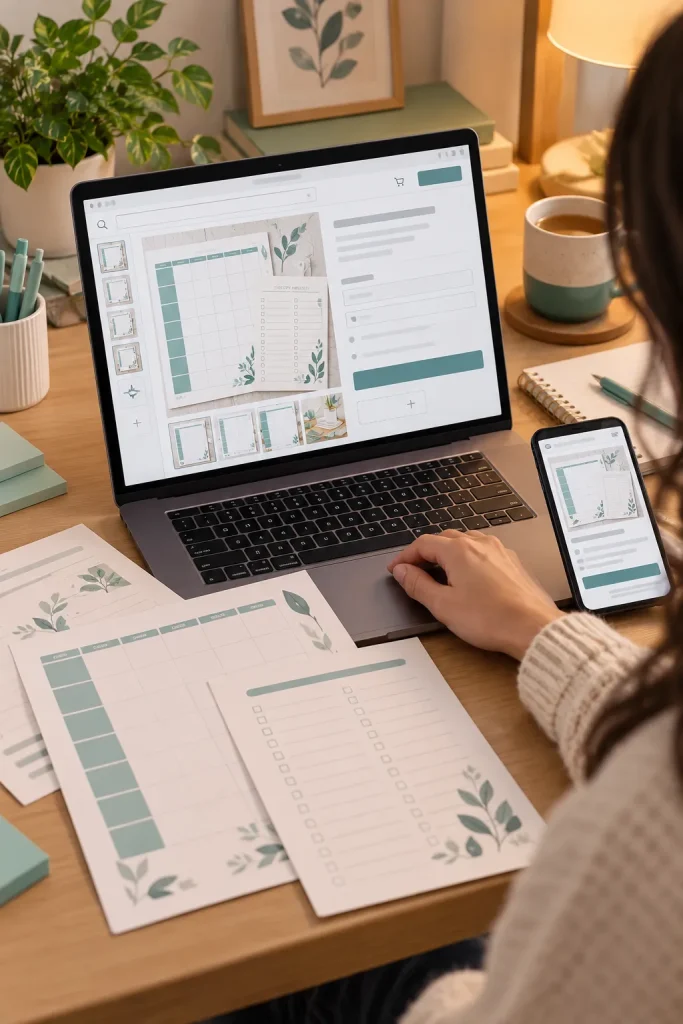
Product previews should show what a buyer is getting, not just a pretty cover.
Create a clean preview of the weekly planning page and another showing the grocery list. Write a simple product title and description that explain what is included, the paper size, and the file format.
Package the Files Clearly
Give the finished PDF a sensible name and make sure the file you upload matches the preview images.
Check your selling platform’s current rules for digital downloads, product images, and licenses before publishing, especially if your design includes Canva elements.
A common mistake is leaving buyers to guess what they will receive. Clear previews and accurate file details help prevent confusion.
Before You Publish Your Listing
Start Simple and Keep Improving
Your first meal planner does not need a large collection of extra pages. It needs clear labels, room to write, and a PDF that prints cleanly. Once the basic version works, you can adapt it for different needs, such as quick family dinners or a week of meal prep.
Keep your editable Canva design so you can correct mistakes or change a page without starting again. Before sharing or selling your printable meal planner, review the finished PDF and confirm that its details match the listing. A useful product starts with small, careful choices, not complicated design work.
Save this step-by-step walkthrough to your Pinterest board so you can follow it when you are ready to create your first meal planner.