
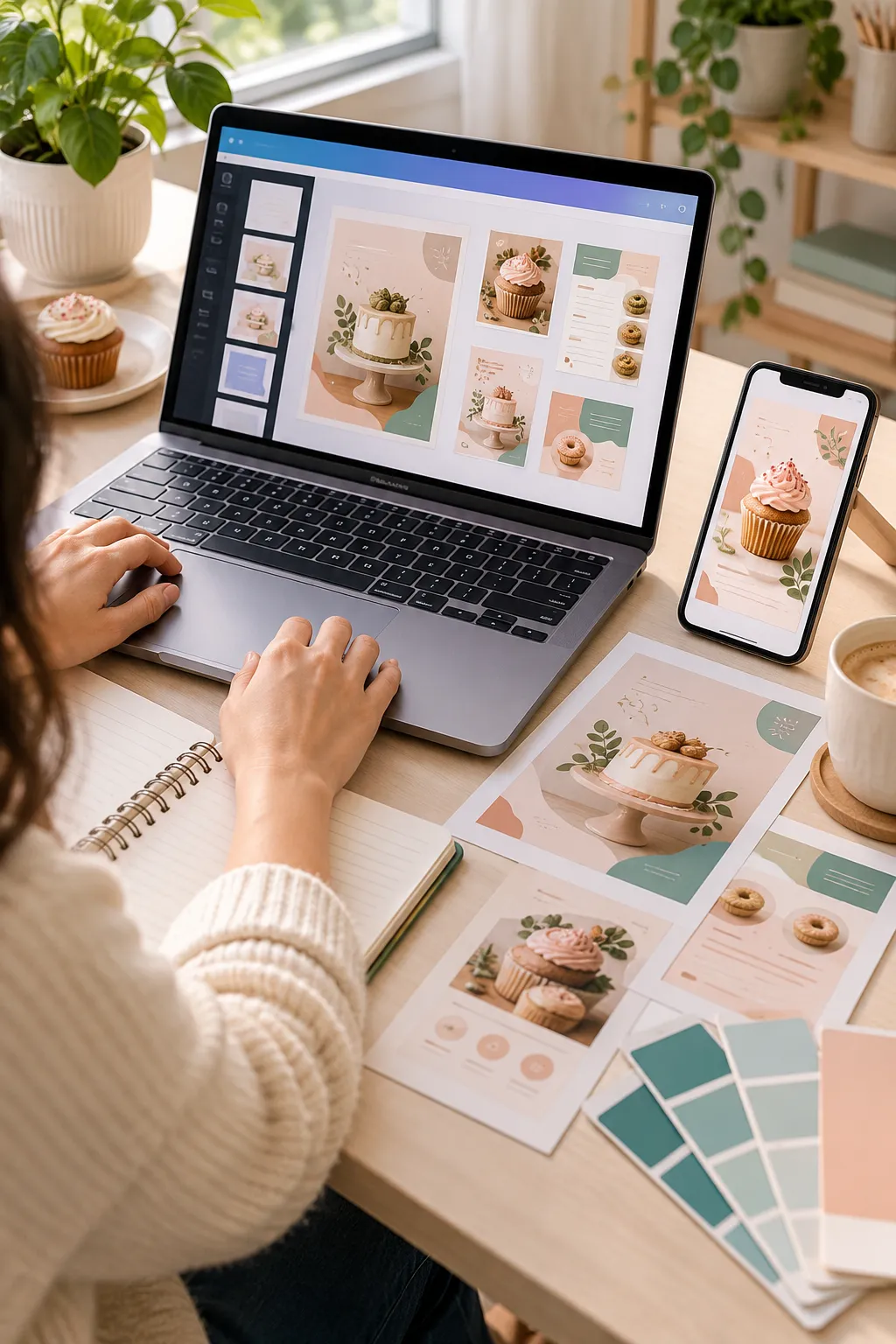
Your first Canva design might look good on your screen but feel confusing to someone else. The text is hard to change, the photo does not fit, or the customer cannot figure out how to open their copy. What started as a simple digital product can quickly become a frustrating project.
The good news is that you do not need design training to make a useful template. You need a clear plan, an easy layout, and a few checks before sharing it. Once those pieces are in place, customers can replace the sample details with their own words, photos, and colors without rebuilding everything.
That is the real goal of making editable Canva templates. You are giving someone a helpful starting point, not just a pretty finished picture.
This walkthrough takes you through the process one step at a time. We will use a simple small-business social media design as an example, but the same basic method works for flyers, planners, invitations, and other digital templates.
1. Choose One Customer and One Template Purpose
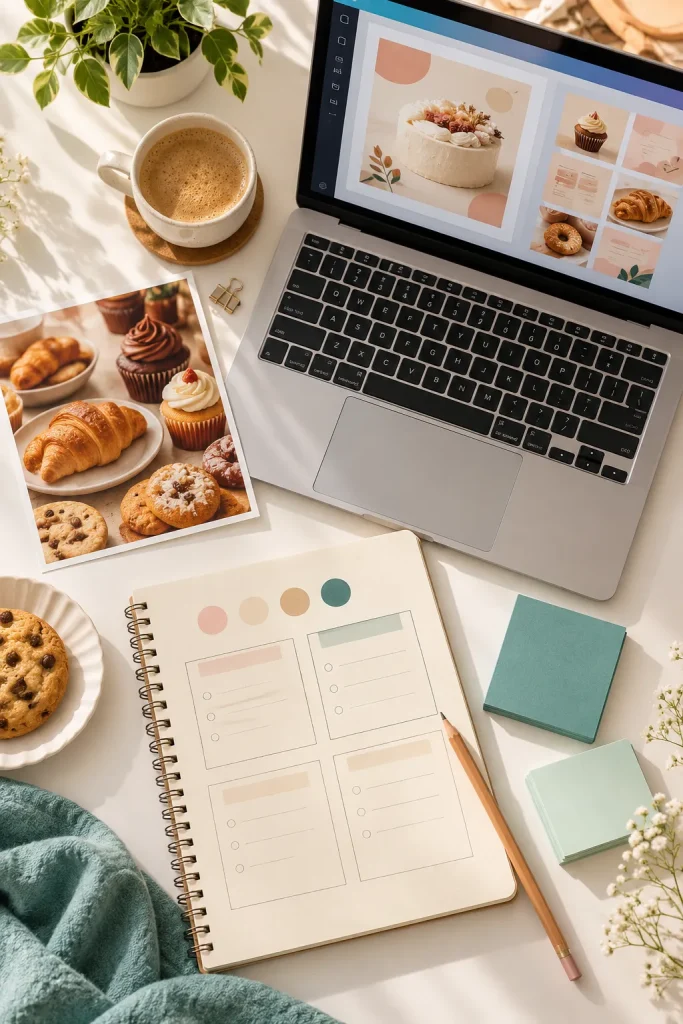
A template is easier to create when you know exactly who will use it. Start with one customer type, such as a baker, photographer, or small shop owner.
Then choose one task they need help with. A baker might want a weekly menu post, while a photographer might need a booking announcement.
Write a Simple Customer Brief
Before opening Canva, answer these questions:
- Who will use this template?
- What will they create with it?
- Which details should they be able to change?
For a bakery menu post, the customer may need to update the item names, photos, and opening hours.
Common mistake to avoid: Making a general template with no clear purpose. Specific designs are easier to plan and explain.
2. Pick the Right Canva Design Size
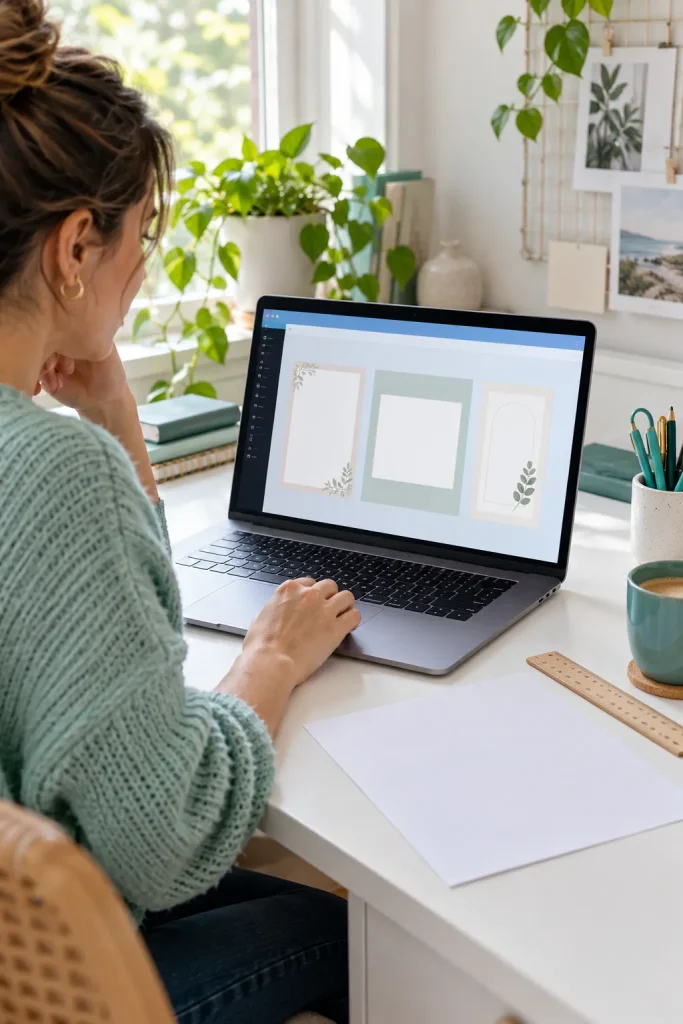
The right design size depends on where your customer plans to use the finished template.
A social media post needs a different shape than a printable flyer. Choosing the wrong size early can lead to awkward spacing and extra editing later.
Match the Size to the Final Use
Open Canva and look for the option to create a new design. Choose a suitable preset or enter custom dimensions.
For example:
- A square design suits many feed posts.
- A tall layout works for story-style content.
- A standard paper size makes more sense for a printable sheet.
Common mistake to avoid: Picking dimensions because the blank page looks attractive. Start with how the customer will use the finished file.
| Template type | Good starting format |
|---|---|
| Feed announcement | Square canvas |
| Story promotion | Tall portrait canvas |
| Printable checklist | A4 or US Letter |
| Event flyer | Print size or agreed digital size |
3. Start a New Design With a Blank Canva Page
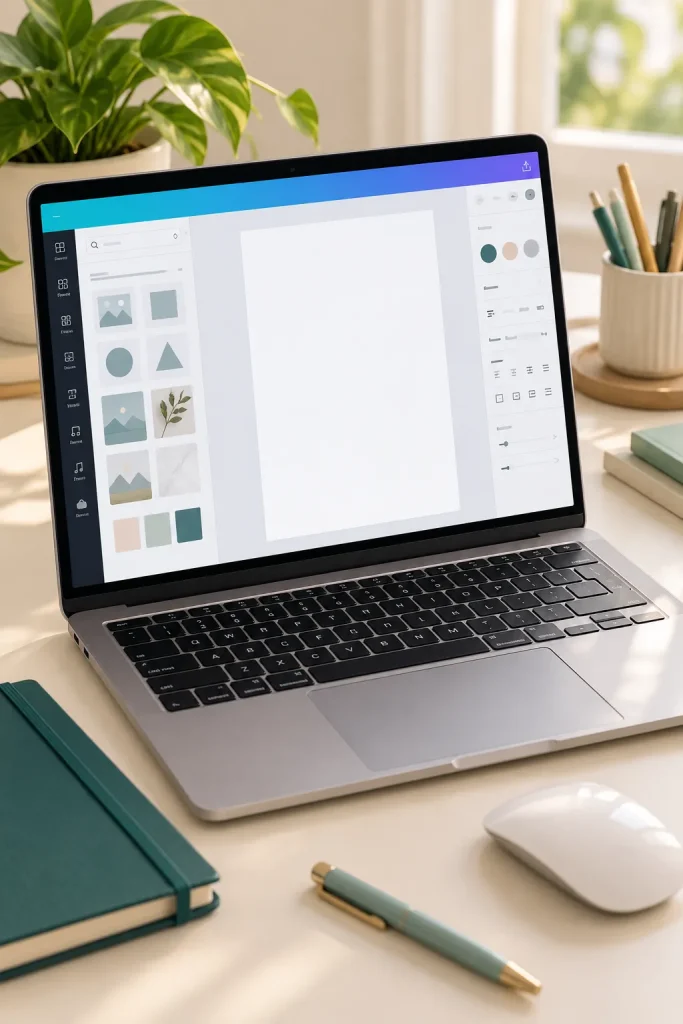
A blank page gives you control over what the customer will eventually edit. It also helps you understand how each piece of the design works.
Open a new Canva design using the size you selected. Give the file a clear name, such as “Bakery Weekly Menu Template.”
You can now add your own text, shapes, and photo areas instead of trying to untangle a busy premade layout.
Keep the Starting Page Simple
Begin with a plain background and space for the main message. Leave decoration until the basic structure works.
Common mistake to avoid: Starting with a detailed design and spending most of your time removing unwanted elements. A simple beginning makes the next steps easier.
Start with a clean blank page.
Name your design clearly.
Build only the parts your customer needs.
Adding decoration before planning the layout.
Leaving files with confusing names.
Copying every detail from a complex sample.
4. Divide the Page Into Clear Content Sections
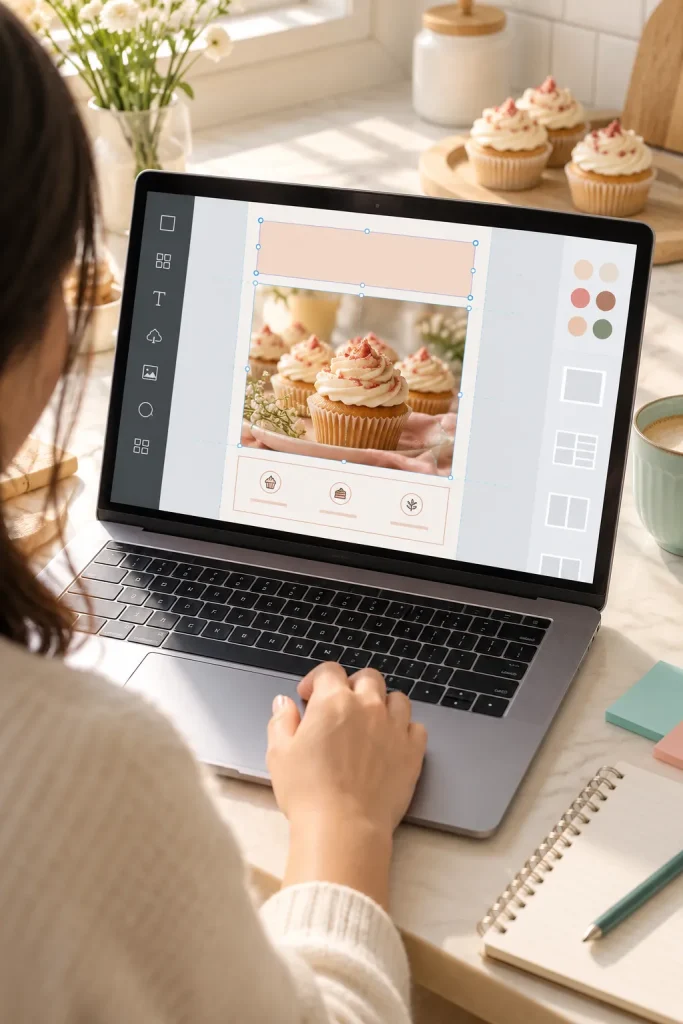
Most useful templates have a clear order. The reader should notice the main message first, find the supporting details next, and understand what to do after that.
For a bakery menu post, the business name could sit at the top, the weekly specials in the middle, and the ordering details at the bottom.
Build the Layout in Three Passes
- Add a clear heading area.
- Make room for the main photo or important information.
- Leave a smaller space for contact details or instructions.
Keep some empty space between these areas. It makes the content easier to read after customers replace your sample text.
Common mistake to avoid: Filling every corner with words or decorations. Give each part enough breathing room.
Heading zone
Reserve space for the main offer or announcement.
Main content zone
Give the photo or key details the most room.
Details zone
Place contact details or a short call to action here.
5. Choose Readable Fonts and Matching Colors
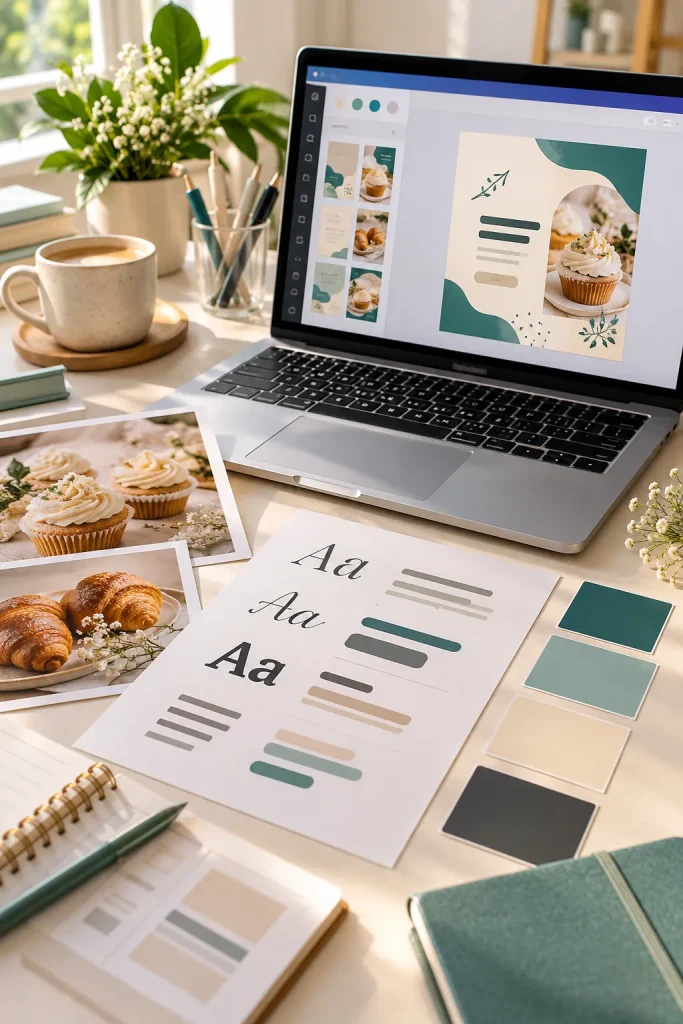
Fancy fonts can look interesting, but customers need to read and replace the text without struggling.
Choose one clear font for headings and another for smaller details. If you prefer, use different weights of the same font. Keep your colors simple, too.
Make a Small Design Style Guide
For a bakery post, you might use a dark green heading, a soft cream background, and charcoal text.
Check that the words are easy to read against the background. Then make sure the smallest text is still clear when the design is viewed on a phone.
Common mistake to avoid: Mixing several decorative fonts and unrelated colors. A smaller set of styles is easier for customers to keep consistent.
6. Add Text Boxes and Replaceable Photo Areas
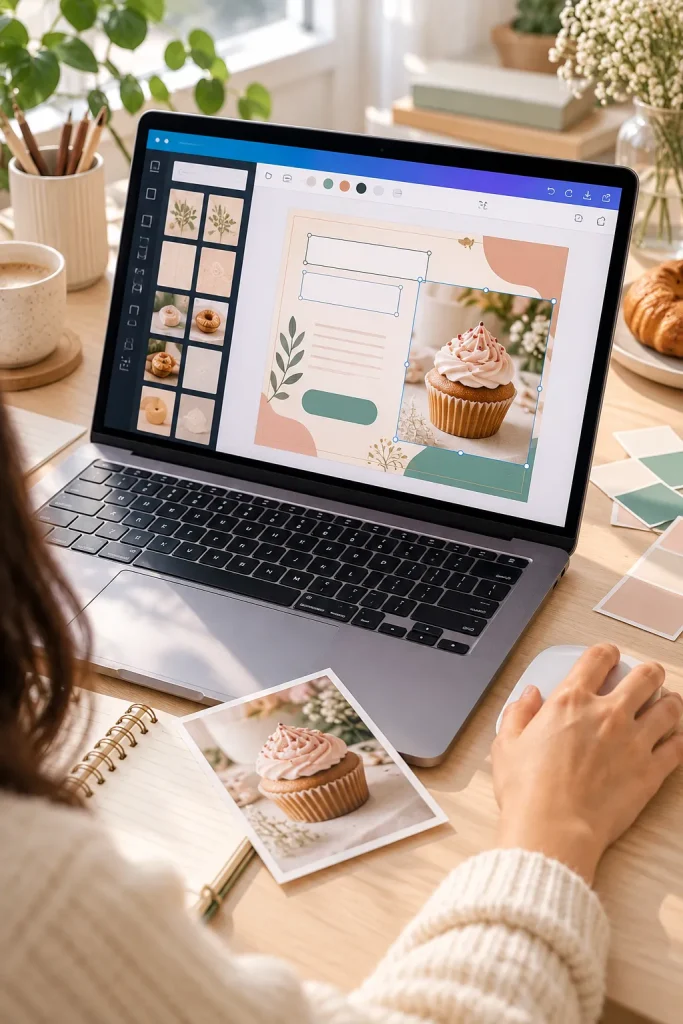
Customers should be able to click on the information they want to change. That means keeping important parts of your template as separate editable elements.
In Canva, add text boxes for the business name, product details, and contact information. Use a photo frame where customers will place their own pictures.
Make the Editable Parts Obvious
Use helpful sample wording, such as “Your Business Name,” so customers recognize what belongs in each area.
Check these details as you work:
- Can the heading be changed without moving the photo?
- Can a new picture fit inside the frame?
- Is there enough room for longer customer text?
Common mistake to avoid: Saving the whole layout as one flat image. That makes individual words and photos harder to replace.
✅ Editable Template Checklist
7. Clean Up the Template Before Sharing
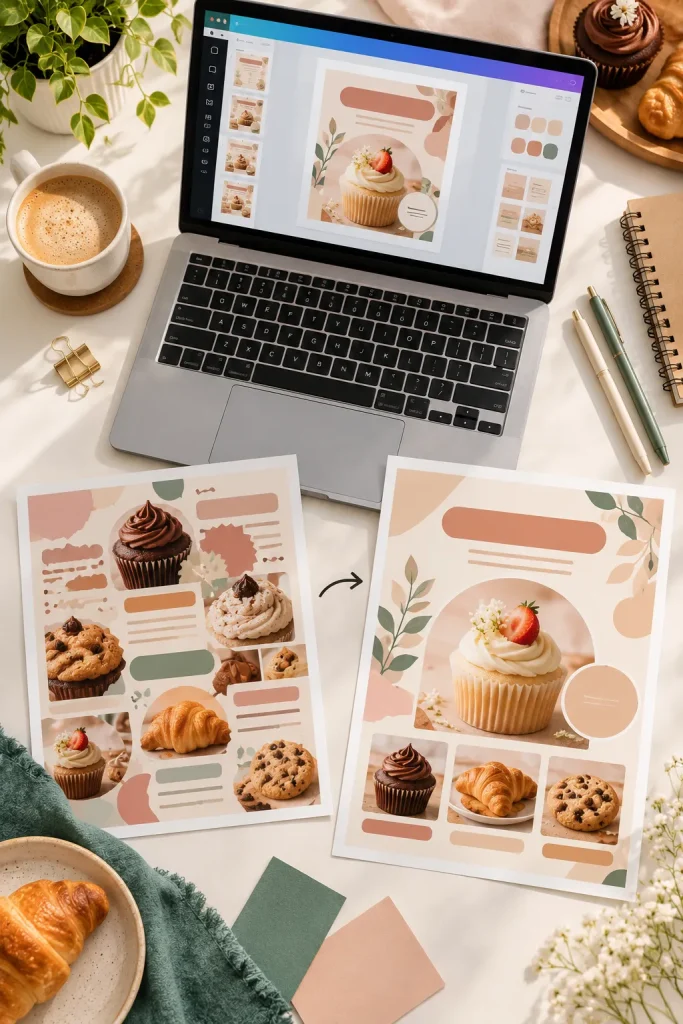
A design can look finished while still containing little problems that make editing awkward.
Look closely at your template before sharing it. Check for text that sits too close to the edge, uneven spacing, and pictures that are not aligned properly.
Remove any extra pages or unused items. Make a clean copy for sharing, and inspect it for hidden content or details you do not want customers to receive.
Give the Design a Final Check
Zoom out to see the full page, then zoom in to catch small mistakes. Read every sample line.
Common mistake to avoid: Assuming the template is ready because the main picture looks good. Small layout problems often become obvious when someone changes the content.
❌ Uneven gaps between sections
❌ Stray shapes outside the page
❌ Unneeded sample pages
✅ Consistent spacing and alignment
✅ Clean, organized design elements
✅ Only the pages customers need
8. Create a Canva Template Link for Customers
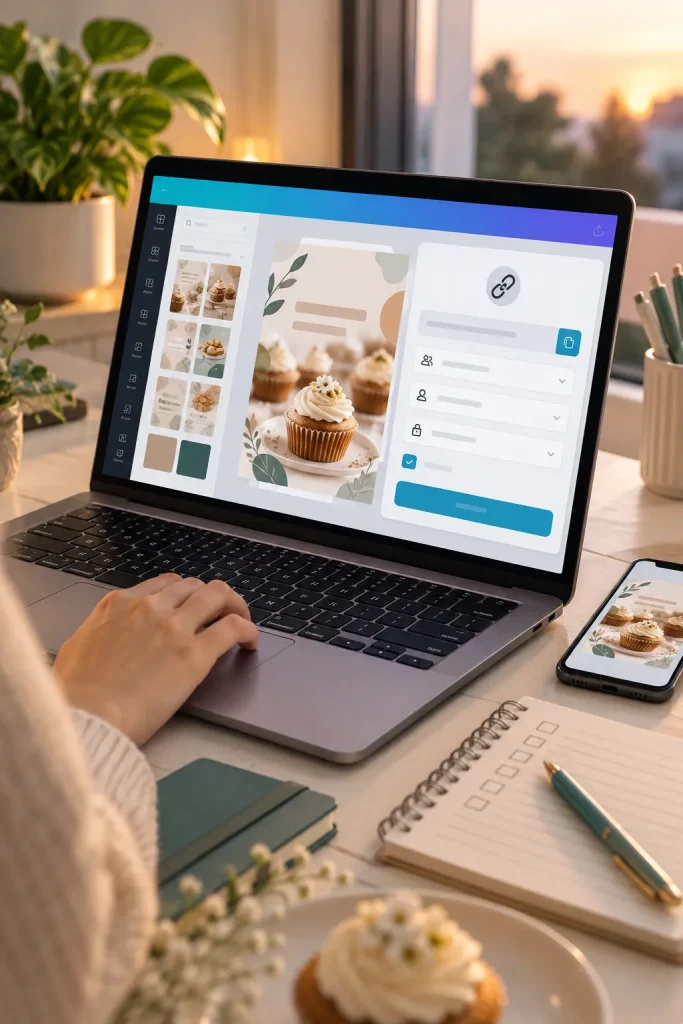
The link you send determines how customers access your design. For a reusable product, you need a Template link rather than a normal editing link.
Canva currently makes Template links available through Pro, Teams, Enterprise, Education, and Nonprofits accounts. Free accounts cannot create them.
Find the Template Sharing Option
Open your finished design and select Share. Look for Template link, or select See all if that option is hidden. Then choose Create template link and Copy.
Save the copied link somewhere easy to find. This is the link you will prepare for customer delivery.
Common mistake to avoid: Sending a regular link with editing access. Customers could change the shared design instead of starting with their own copy.
💡 Quick Tip: Check the Link Type
A Template link is meant to give customers their own editable copy. A normal link with editing permission can expose your shared working design.
Before sending the link:
Confirm your Canva account supports Template links, then check that you copied the correct sharing option.
9. Test the Customer Copy and Write Simple Instructions
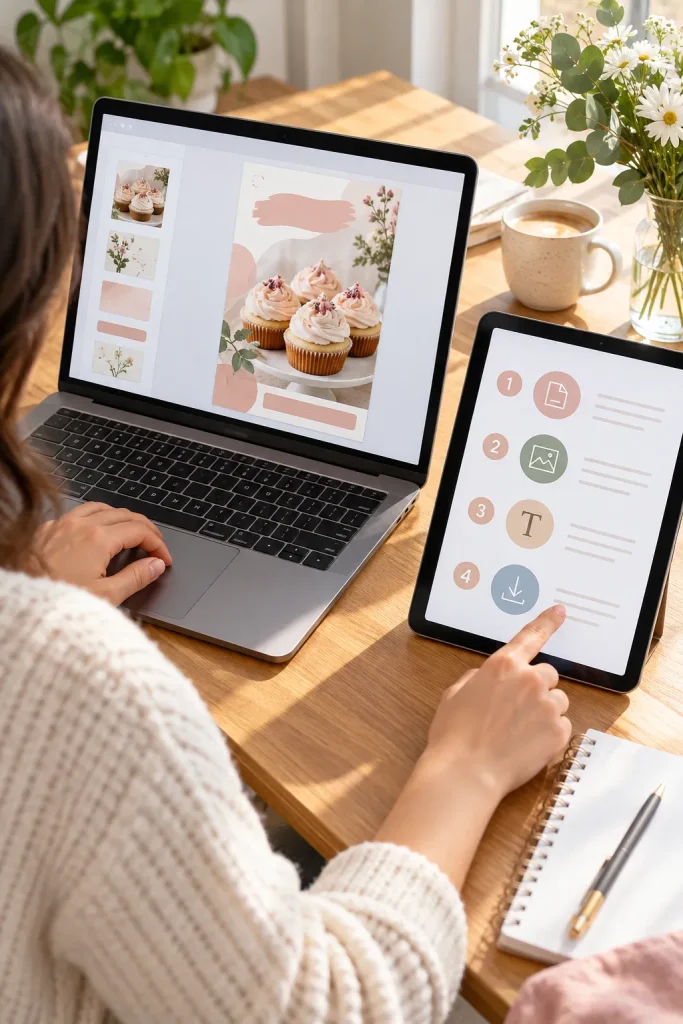
An editable design is not ready just because it looks finished. You need to see what happens when someone opens the customer link and starts changing the sample content.
Run a Simple Customer Test
Open the link in a separate browser session, or ask someone you trust to try it. Check that they can create their own copy, replace the bakery name and photo, and download the finished design.
Then write a short instruction sheet explaining how to open the link, edit the content, and download the result. Mention any account requirements that apply.
Common mistake to avoid: Writing instructions based on what you expect customers to see. Test the actual steps first.
Test the template as a new customer, not as its creator.
The customer should receive a separate editable copy, make changes without touching your original, and produce a usable finished design.
10. Create Product Previews and Check Selling Rules
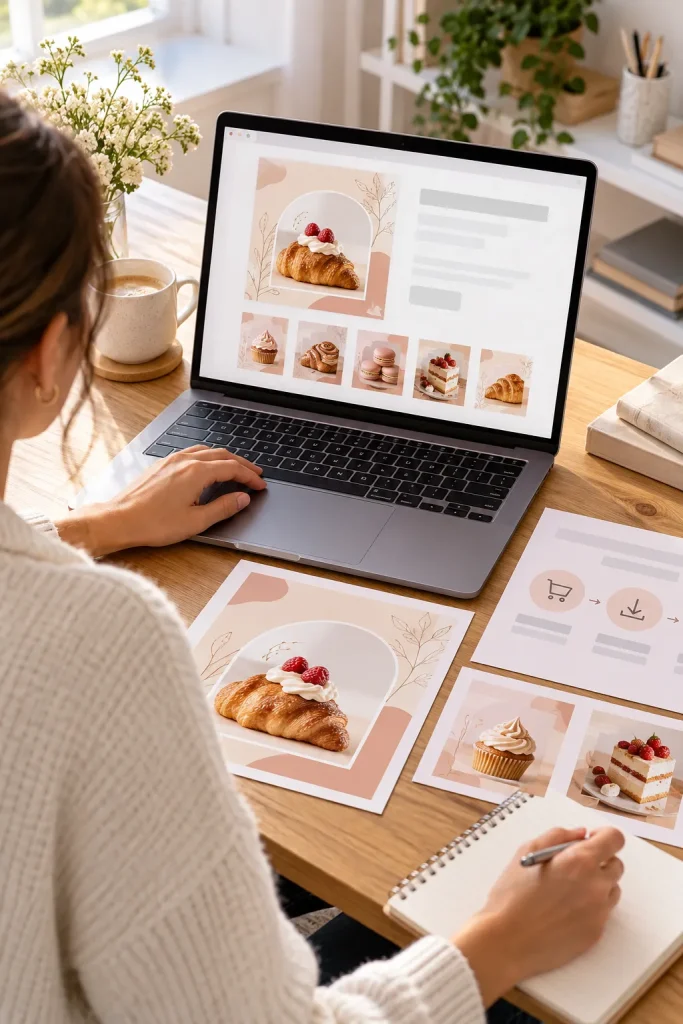
A customer cannot judge a digital template by its file name. Clear preview images help show what the finished design looks like and which parts can be changed.
Create a few product images showing the template on its own and with sample content. Keep the previews faithful to the actual product.
Prepare the Product Listing
Explain what the buyer receives, how the template is delivered, and what they need to edit it. Prepare a delivery document containing the correct template link and basic instructions.
Before selling anything made with Canva content, read Canva’s current license terms and check your selling platform’s current rules.
Common mistake to avoid: Publishing attractive previews without checking that the listing and delivery file match the product.
🛍️ Product Listing Checklist
Start Small and Make the Next Template Easier
Making editable Canva templates becomes much simpler when you focus on one customer’s needs at a time. Choose a clear purpose, build an organized layout, and leave the important parts easy to change.
Before selling, check the customer experience from opening the link to downloading the finished design. Clear instructions and accurate product previews can prevent confusion later.
Start with one useful template instead of a large collection. Once you understand the process, you can create more designs for different customer needs without starting your planning from scratch.
Save this step-by-step guide to Pinterest so you can follow it while creating your next digital product.