
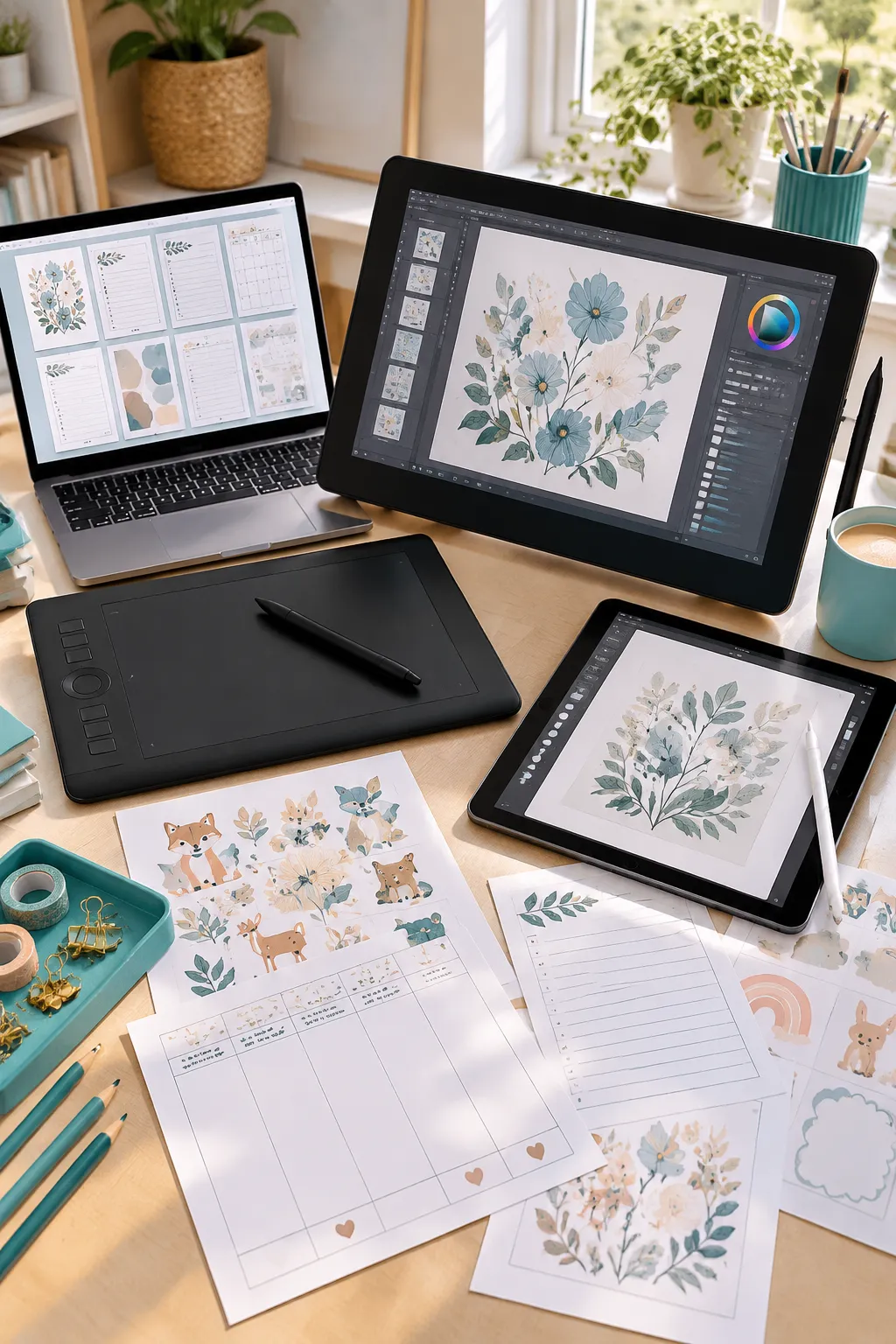
Buying a drawing tablet for printables can feel more complicated than it needs to. Product photos show beautiful artwork, but they rarely explain whether the pen works on a blank tablet, on a connected screen, or on a device you can carry around.
If you mainly make checklists and simple Canva templates, a drawing tablet may not be necessary at all. But if you want to draw your own stickers, borders, worksheet characters, or floral details, a pen can give you more control than a mouse.
The hard part is working out which type fits your desk, your software, and the way you design. The best drawing tablet for designers who work on a laptop may not suit someone who wants to sketch while traveling. A larger screen can also create more clutter than it solves.
Below are ten real options, from small pen tablets to drawing displays and portable devices. Each has a clear use, a useful strength, and a limit worth knowing before you buy.
1. Wacom Intuos Small for First Printable Sketches
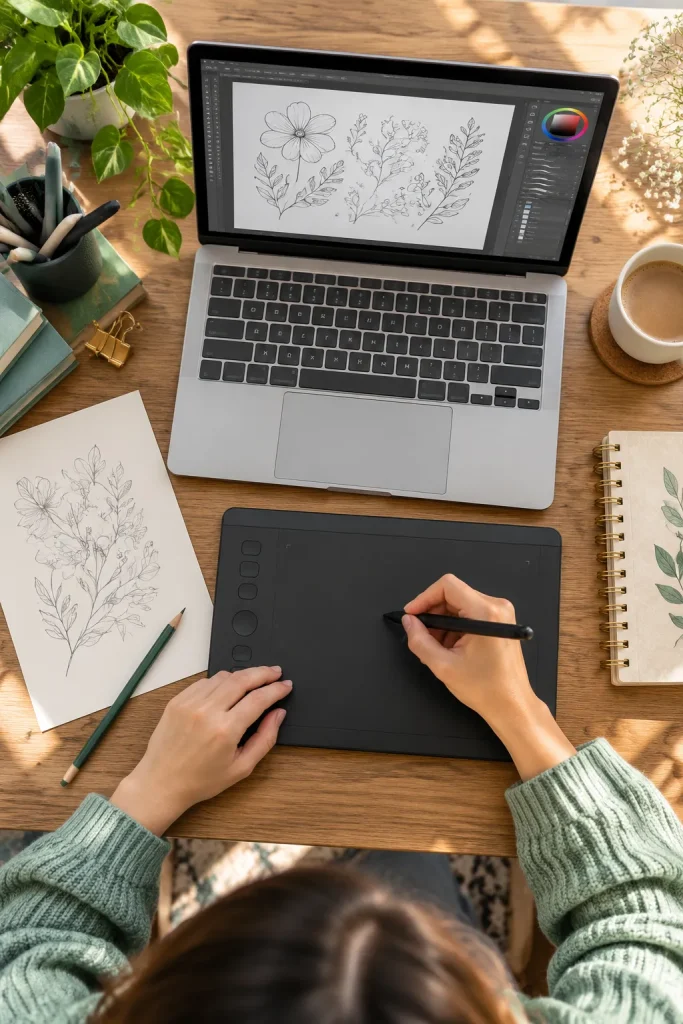
Some printable projects start with a few hand-drawn stars, borders, or tiny icons. The Wacom Intuos Small gives you a compact surface for making those marks while your drawing appears on a connected computer screen.
It suits beginners who already work at a laptop and want to add original artwork without filling the desk.
Where It Fits Into Your Workflow
- Sketch simple icons before placing them in a planner.
- Trace your own pencil ideas in a compatible drawing app.
- Practice smooth borders for worksheets or printable labels.
Its small drawing area keeps the setup tidy, but broad arm movements can feel cramped. Looking at the monitor while moving the pen also takes practice.
2. Huion Inspiroy 2 M for Shortcut-Based Design Work
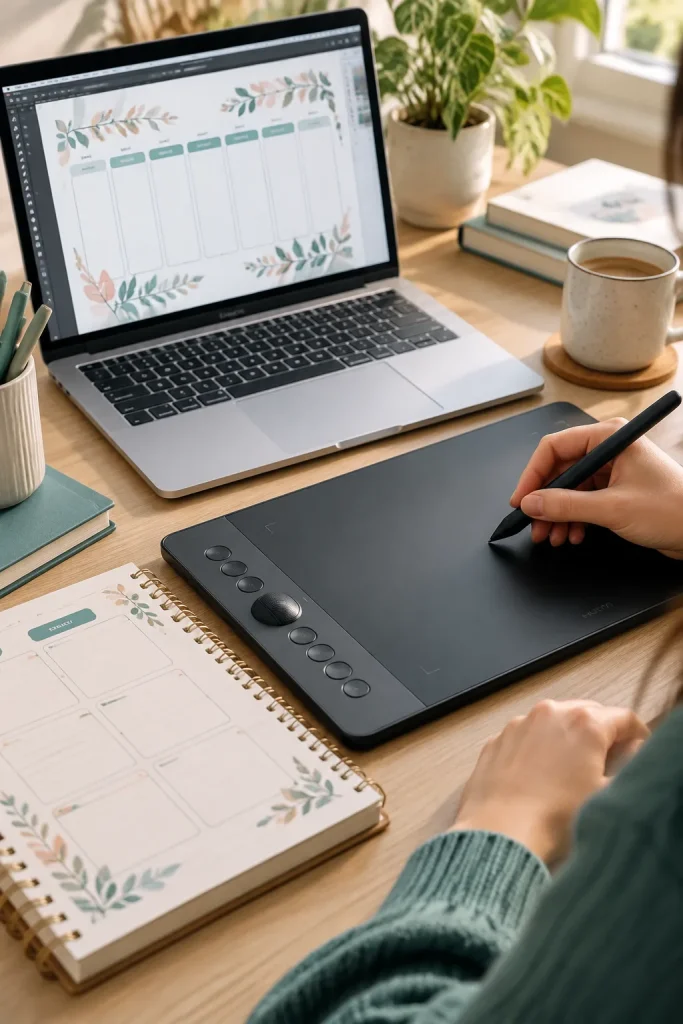
Switching between your pen, keyboard, and drawing tools can interrupt a simple design session. The Huion Inspiroy 2 M has programmable buttons, group keys, and a scroller that can help organize repeated actions.
It suits printable designers who switch between drawing, zooming, and editing the same artwork.
Make the Controls Useful
Start by assigning only the actions you reach for most often.
- Set one shortcut for undoing a stroke.
- Use the scroller for zooming around detailed artwork.
- Keep a shortcut group for your main drawing app.
The controls are its strength, but there is a learning curve. Setting up too many shortcuts at once can make the tablet harder to remember.
✅ Shortcut Setup Checklist
3. XPPen Deco 01 V2 for Roomier Drawing Space
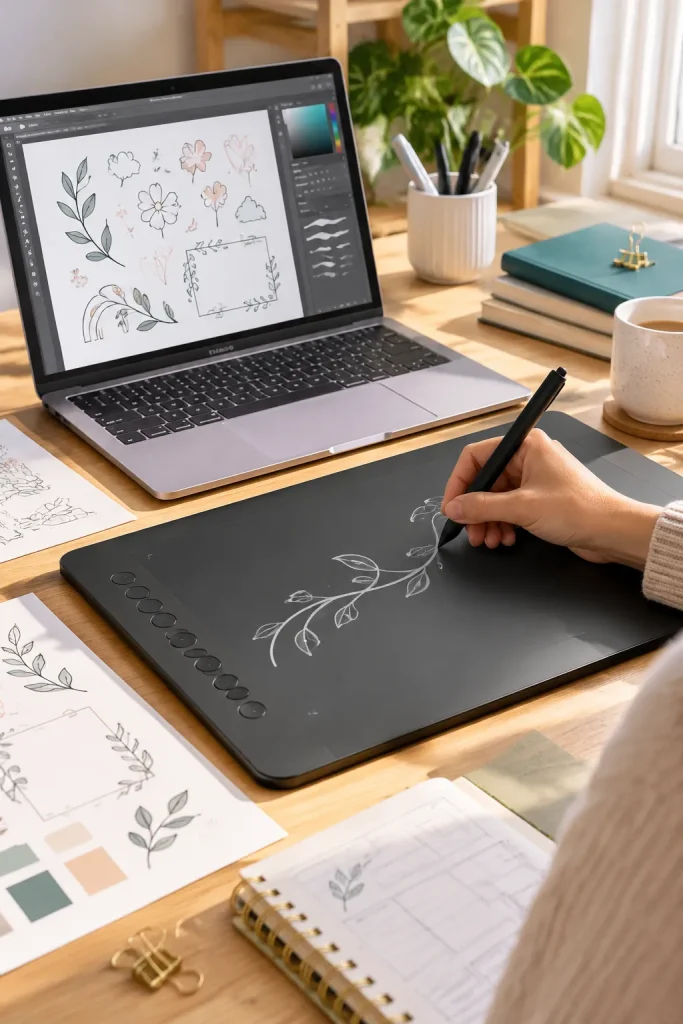
Long flower stems, curved borders, and large decorative shapes can feel awkward on a tiny drawing surface. The XPPen Deco 01 V2 offers a wider active area for making those movements without reaching the edge so quickly.
This screenless tablet suits creators who draw their own printable clipart, coloring pages, or hand-lettered decorations.
Why the Extra Room Matters
A wider drawing surface can make it easier to:
- Sketch longer lines with your wrist and arm.
- Build larger illustrations before reducing them for a printable.
- Work around detailed shapes without constantly repositioning.
The tradeoff is desk space. It still requires you to watch a separate screen while drawing.
Crowded Drawing Surface
Long strokes reach the edge of a smaller tablet, making large decorative shapes harder to draw in one movement.
Roomier Drawing Area
More physical room for sweeping lines, large illustrations, and wide decorative borders.
4. Xencelabs Pen Tablet Small for a Compact Design Desk
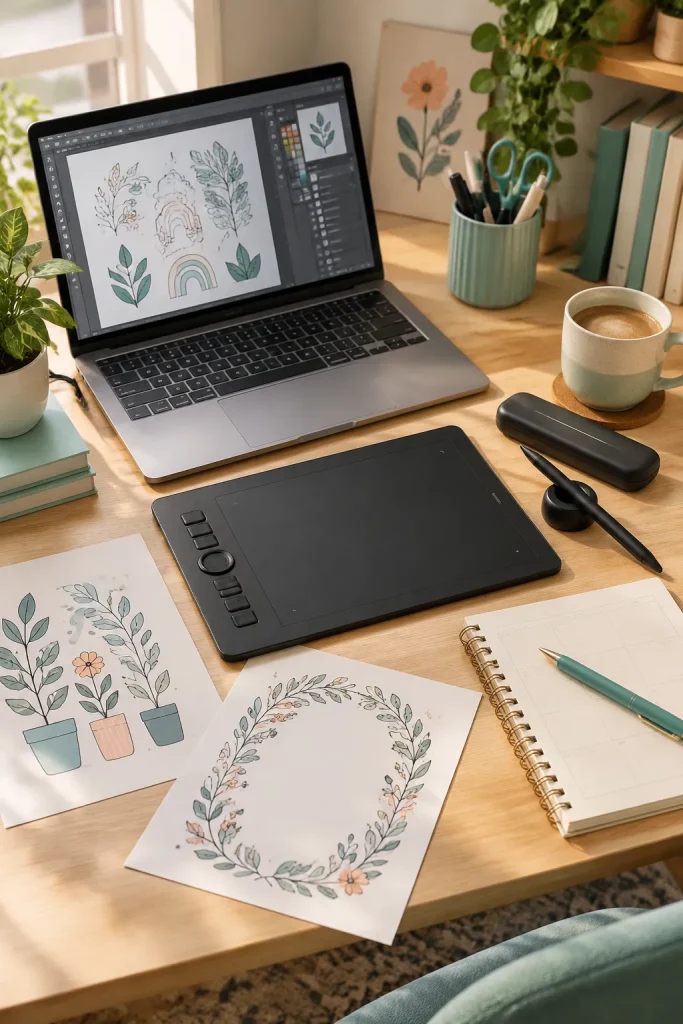
A serious drawing setup does not have to cover the whole desk. The Xencelabs Pen Tablet Small is a slim, screenless option for creators who move between a laptop workspace and other tasks.
Its compact body and wireless connection suit people who sketch printable artwork but still need room for notebooks, samples, and everyday work.
What to Keep in Mind
The tablet comes with different pen options, which can be helpful for changing how the pen feels in your hand.
Its limitation is the smaller drawing area. You also need a connected device to see your artwork, and the separate Quick Keys accessory is not included with every package.
💡 Quick Tip: Check the Package Contents
Before choosing this tablet, confirm which pens, cables, wireless accessories, and shortcut controls come with the exact package. Product bundles can differ, even when the tablet name stays the same.
5. Wacom One 12 for Drawing Directly on Screen
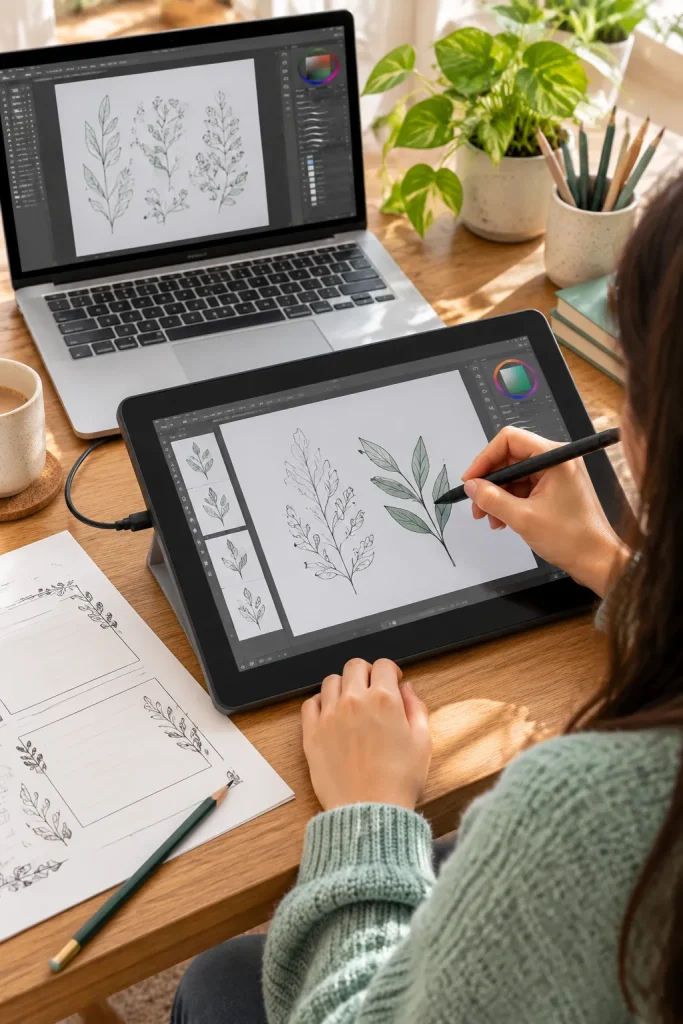
Drawing on a blank tablet while looking at a laptop feels strange to some beginners. The Wacom One 12 offers a different approach. You place the pen directly on its display and watch the artwork form under the tip.
This makes it worth considering for printable designers who create illustrations, worksheets, or custom lettering and prefer a more direct drawing experience.
Check the Connection First
The Wacom One 12 is a pen display, not a standalone computer. It needs a compatible connected device to run the drawing software.
Its screen makes pen placement easier to follow, but the connection requirements and smaller display area may limit certain workspaces. Check your ports before ordering.
6. XPPen Artist 12 (2nd Gen) for Hand-Drawn Sticker Sheets
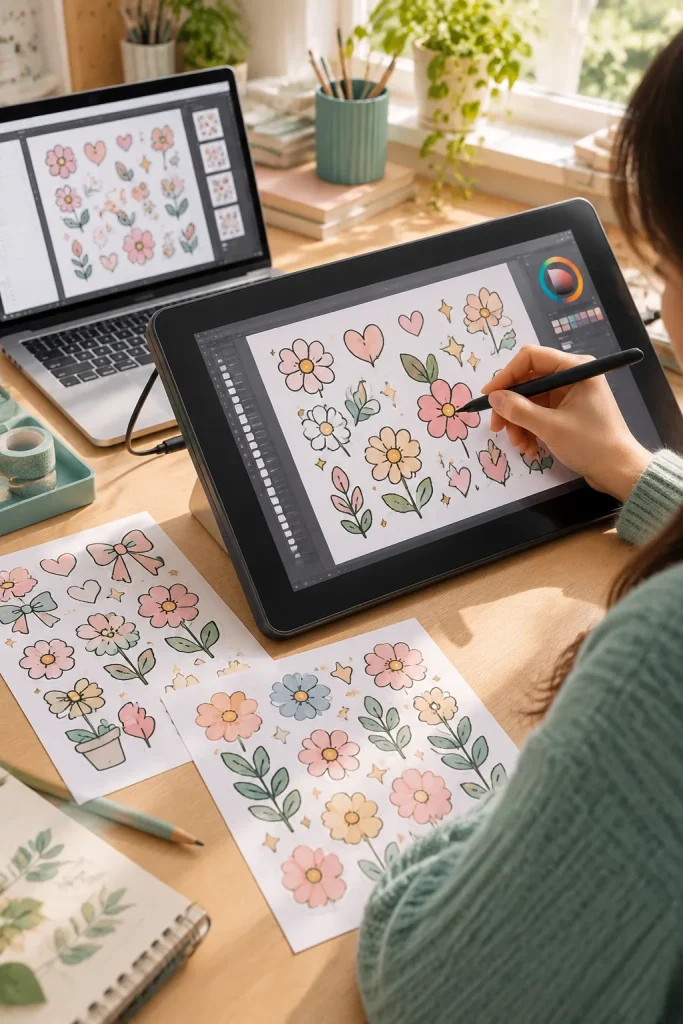
A sticker sheet often begins with rough sketches that need cleaner outlines and consistent details. The XPPen Artist 12 (2nd Gen) provides a drawing screen where you can work directly over those shapes.
Its compact display and programmable shortcut keys suit creators making digital stickers, decorative planner elements, or small printable illustrations.
Working With Sticker Designs
- Draw each sticker as a separate element.
- Zoom in to clean uneven edges.
- Keep enough space between designs for the intended cutting method.
The direct drawing surface is useful for detail work. However, it still connects to a compatible computer or device, and its smaller screen may feel crowded when viewing a whole sticker sheet.
| Artist 12 Display | Screenless Pen Tablet |
|---|---|
| Draw on the displayed artwork. | Draw on a blank surface while viewing another screen. |
| Useful for tracing sticker outlines visually. | Useful for sketching once hand-eye coordination develops. |
| Needs a compatible video connection. | Does not need a separate drawing-screen connection. |
7. Huion Kamvas 13 (Gen 3) for Detailed Printable Illustrations
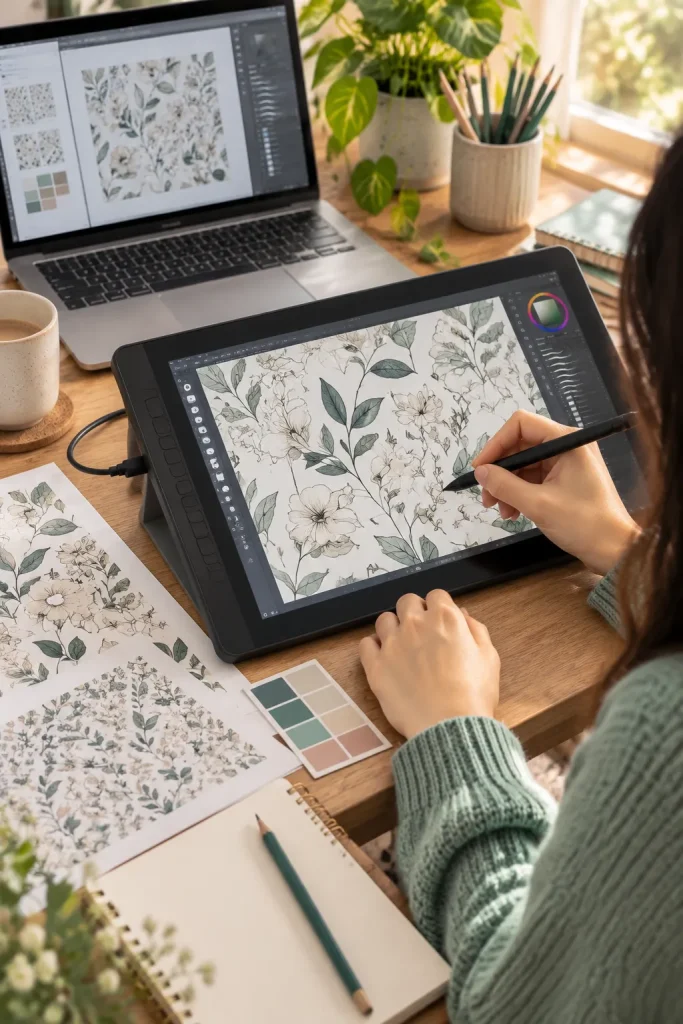
Tiny leaves, repeating flowers, and detailed worksheet characters need careful linework. The Huion Kamvas 13 (Gen 3) combines a drawing display with programmable controls and dials for adjusting parts of your workflow.
It suits creators who make their own illustrated printables and spend more time drawing than arranging ready-made graphics.
Remember the Printed Page
The screen helps you see fine details as you draw, but the finished artwork still needs a print check.
- View thin outlines at the size they will appear on paper.
- Print a sample before preparing the final download.
The main limitation is that it needs a compatible connected device. Screen colors may also differ from printed results.
Keep important outlines thick enough to remain visible when printed.
Check small illustrations on the actual paper size before publishing.
Do not judge tiny details only while zoomed in on the screen.
Do not assume every printed color will match the display exactly.
8. Wacom Cintiq 16 (2025) for a Larger Drawing Workspace
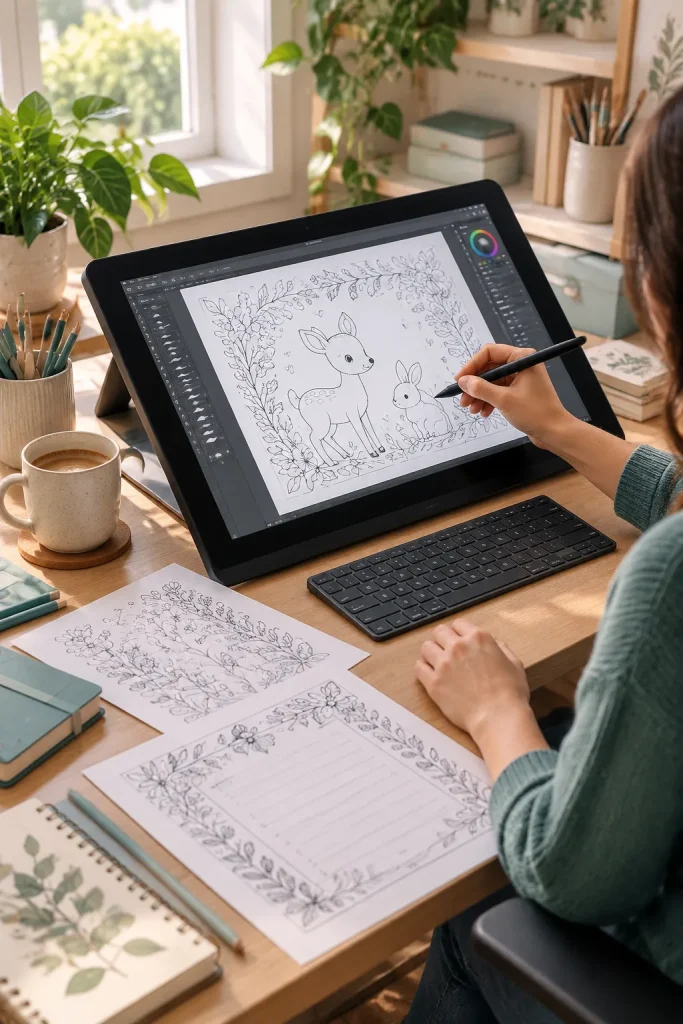
A larger drawing display can be useful, but it should fit the kind of artwork you actually make. The Wacom Cintiq 16 (2025) offers a 16-inch screen with a detailed 2.5K resolution and the Wacom Pro Pen 3.
It suits printable designers who regularly draw full illustrations, coloring pages, or collections of matching artwork at a dedicated desk.
Plan the Desk Around the Screen
Give yourself room for the display, keyboard, and a comfortable drawing angle. Keep printed samples nearby so you can compare small details without changing windows constantly.
The larger display is its strength. The tradeoff is a more involved desk setup, since it still needs a compatible connected computer and enough space for comfortable use.
Check the Computer Ports
Confirm that your computer supports the required display, data, and power connections.
Arrange the Drawing Position
Place the display at a comfortable angle and leave room for your drawing hand.
Set Up Your Drawing Software
Install the correct tablet driver and adjust the pen settings for your preferred app.
Check a Sample Printable
Review the design at its intended print size and make a paper test before exporting the final product.
9. iPad Air 11-inch (M4) With Apple Pencil Pro for Portable Design
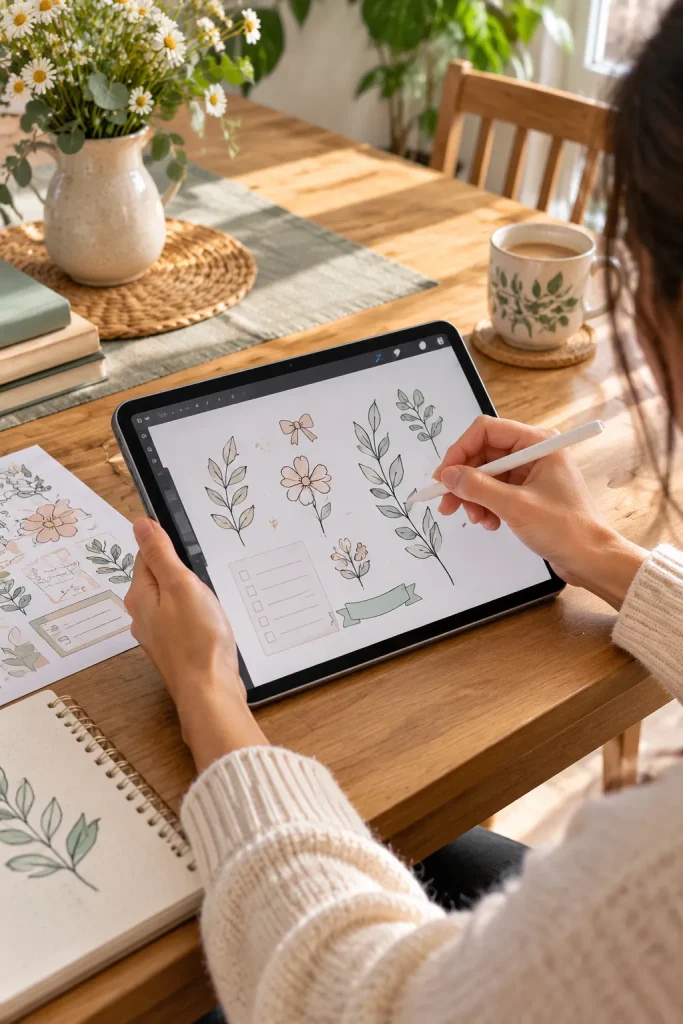
A dining table can become a sketching spot with the iPad Air 11-inch (M4) and Apple Pencil Pro. Unlike a drawing display connected to a computer, this tablet runs drawing apps on its own. It suits creators who like sketching sticker characters, borders, or printable decorations away from their main desk.
Before You Choose an App
- Check that your preferred drawing app can export files you can use in your printable designs.
- Make sure the artwork can move easily into your layout software.
- Remember that Apple Pencil Pro is sold separately.
The portable setup is its strength. Its limit is software: an iPad app may not offer the same tools or workflow as a desktop program.
Check your full printable workflow before choosing an iPad app. You need to sketch, export your artwork, and move it into the software where you build the finished printable.
10. Samsung Galaxy Tab S10 FE for Android-Based Sketching
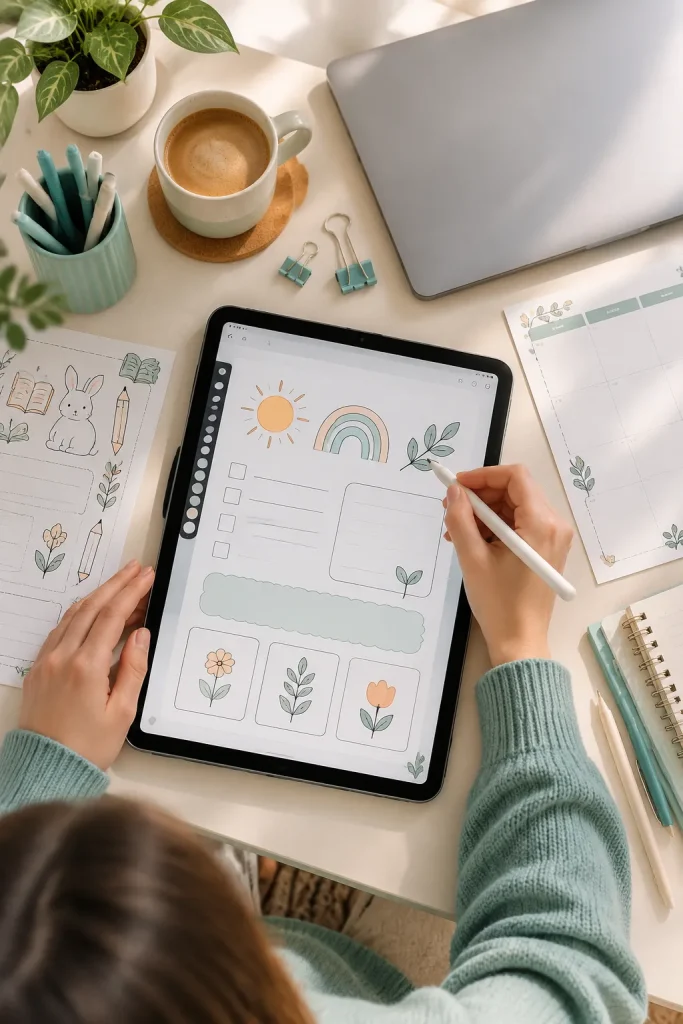
Check the drawing app before choosing the tablet. The Samsung Galaxy Tab S10 FE includes an S Pen and works as a standalone Android device, which makes it useful for sketching worksheet characters, planner decorations, and simple clipart without a computer.
Who It Suits
- Creators who prefer Android can draw at a kitchen table or carry the tablet to another room.
- The included pen means there is no separate stylus purchase needed for basic sketching.
The limit is app choice. Some desktop drawing programs are not available on Android, and moving artwork into your usual printable design software may need extra steps.
It fits best when your preferred drawing and export apps are already available on Android.
📌 Good to Know: Check Your Export Options
Before buying an Android drawing tablet, check whether your chosen app can export a transparent PNG for stickers or a suitable high-resolution image for printable artwork. Test how the exported file opens in your main design software.
Choose a Tablet That Fits Your Actual Work
A drawing tablet should support the artwork you actually create. If you mostly arrange text and boxes in Canva, you may be better off keeping your current setup. For original stickers or borders, a screenless tablet can be a sensible starting point. A pen display makes it easier to draw on the image itself, while a standalone tablet gives you room to work away from your desk.
The best drawing tablet for designers is the one that works with their software, space, and habits. Check current app requirements and the rules of any selling platform you use before publishing your files.
Save this list to Pinterest so you can compare tablet types, pen features, and software compatibility before choosing your drawing setup.