

A printable that looks clean on your laptop can still cause trouble when someone downloads it. Pages may shift, pictures can look blurry, and a simple worksheet can become a file too large to share. Buying a complicated PDF editor will not fix every one of those problems.
The common mistake is looking for one PDF program that promises to do everything. Designing a planner, correcting a typo, adding fillable fields, and checking a file for professional printing are different jobs. A tool that handles one task well may feel clumsy for another.
The best PDF tools are the ones that match the product you want to sell and the problem you need to solve. A weekly planner needs clear page layouts. A printable activity pack needs pages in the right order. A digital worksheet may need fields customers can type into.
Below are eight established options, with a practical strength and a limit for each. Start with the job that slows you down most, then choose the tool that makes that part easier. Before listing a product, check your selling platform’s current file and product rules.
1. Canva for Designing Printables and Exporting PDFs
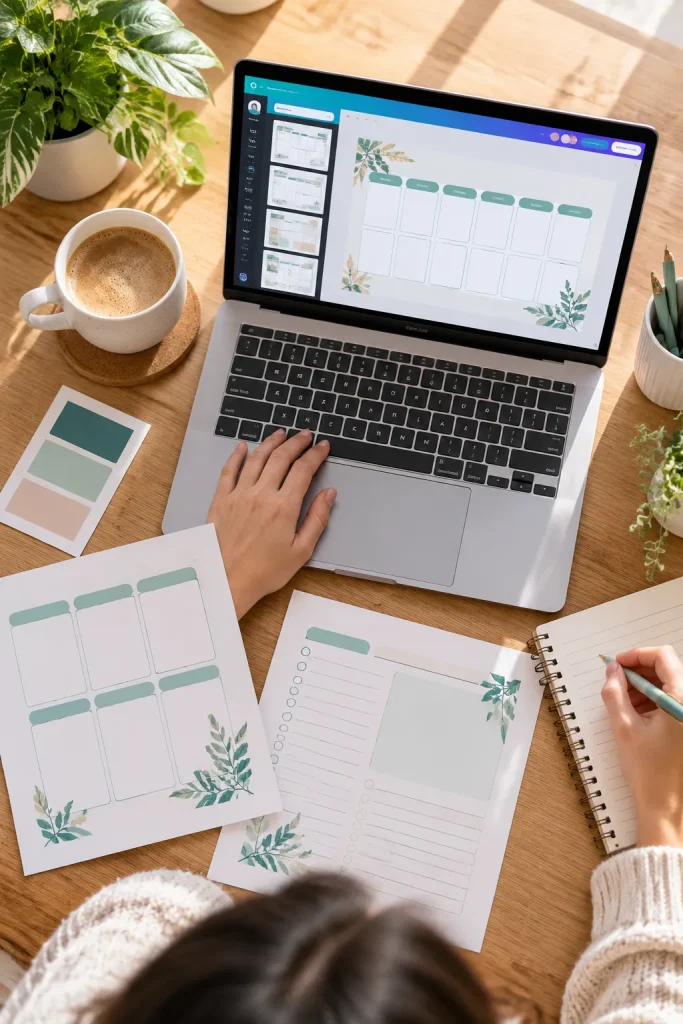
Canva makes sense when your printable still needs to be designed. You can build weekly planners, habit trackers, or worksheet pages with text, shapes, and simple layouts, then download the finished design as a PDF.
Pick the Export That Fits Your Product
- PDF Standard: Useful for documents customers mainly view on screens.
- PDF Print: Better suited to printable pages where clear text and images matter.
Its main strength is how easy it is to arrange a page without learning complex design software. The limit is that Canva is not a full editor for changing existing PDF files. Keep your original design so you can return to it when something needs fixing.
2. Adobe Acrobat Pro for Checking Print-Ready PDFs
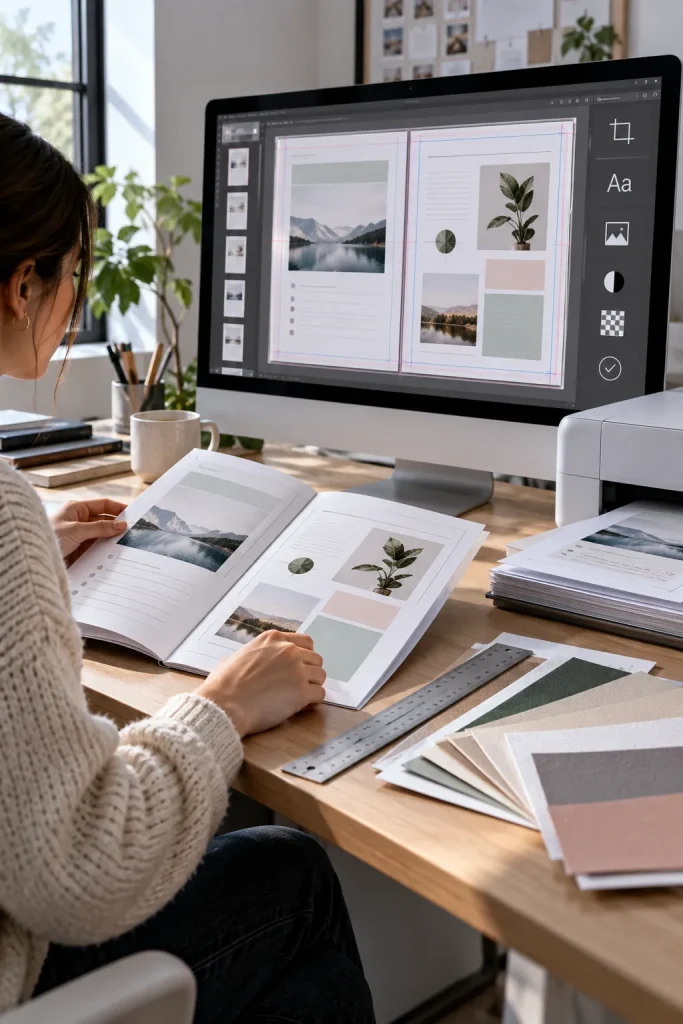
A planner can look fine on screen but still have problems when sent to a printer. Small text may be difficult to read, and a missing font can change how a page appears.
Adobe Acrobat Pro has a Preflight tool that can inspect PDF details such as fonts, image resolution, and color settings.
Before Sending a Workbook to Print
Open the finished PDF and choose a suitable print inspection profile. Review any warnings before making changes.
The strength here is detailed print checking, especially for workbooks meant for professional printing. The limit is complexity. Someone selling simple home-printable checklists may not need so many technical controls.
Keep an untouched copy before applying any corrections.
🖨️ Print Proof Checklist
3. PDFgear for Correcting Text in Finished PDFs
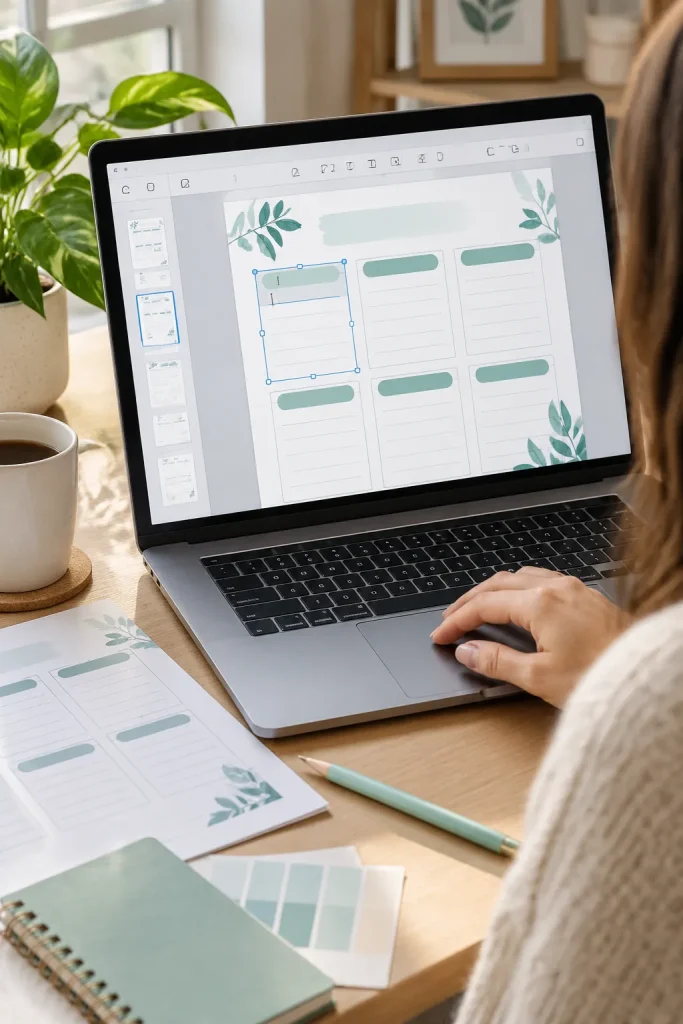
Finding a spelling mistake after exporting a printable is frustrating, especially when the original design is no longer available.
PDFgear offers desktop tools for changing existing PDF text. That makes it useful for correcting a short label, a date, or a sentence in a finished worksheet.
Check the Text After Editing
Open the file in the desktop application, select the existing text, and make the correction. Save a separate version before checking the page again.
Its strength is direct text editing without rebuilding the whole document. The limit is that scanned pages, unusual fonts, and complicated layouts can make editing harder.
For large design changes, returning to the original project is usually safer.
A planner contains an incorrect date or misspelled heading.
The text is corrected directly in an editable PDF.
4. Smallpdf for Compressing Large Printable Files
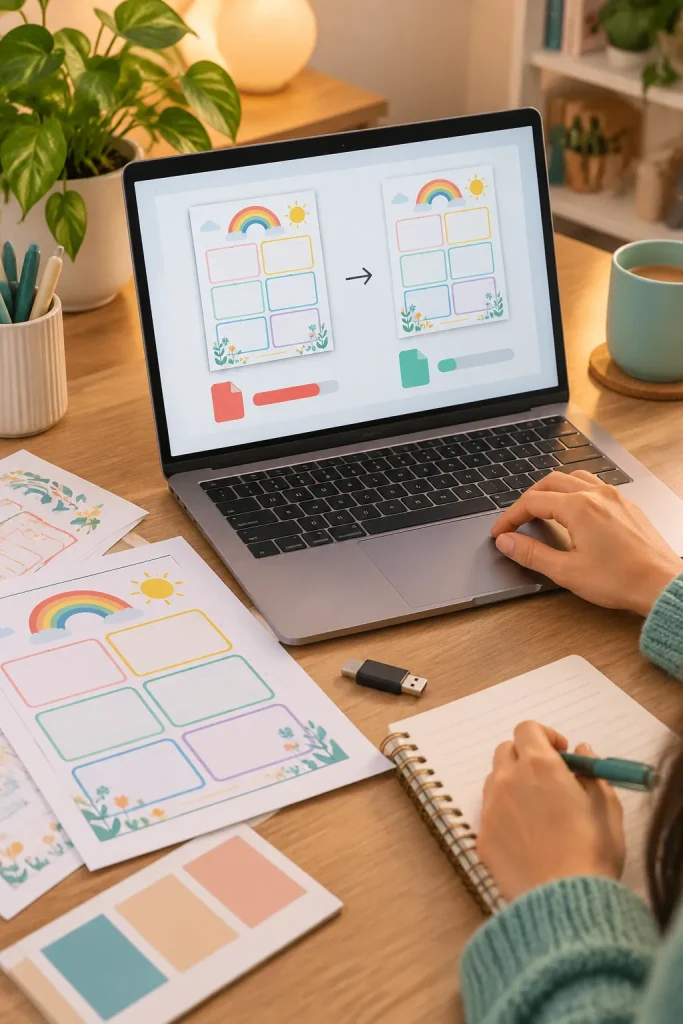
A printable bundle with several illustrated pages can become difficult to upload or download. Smallpdf helps reduce PDF file size without requiring you to rebuild the pages.
For example, a seller preparing a children’s activity pack can compress the completed PDF, then inspect whether the drawings and small instructions still look clear.
Start With the Gentler Setting
Try a basic compression option first. If the file remains too large, review the other available settings and check the results carefully.
Its strength is a simple browser-based workflow. Its limit is that stronger compression may reduce image quality, and some options depend on the available plan.
Compare the original and compressed versions before giving customers the file.
| Original PDF | Compressed PDF |
|---|---|
| Keeps the original file quality. | May reduce file size for easier delivery. |
| May be larger to upload. | May lose detail at stronger settings. |
| Keep as the master export. | Use after checking print clarity. |
5. iLovePDF for Combining Printable Pages Into One File
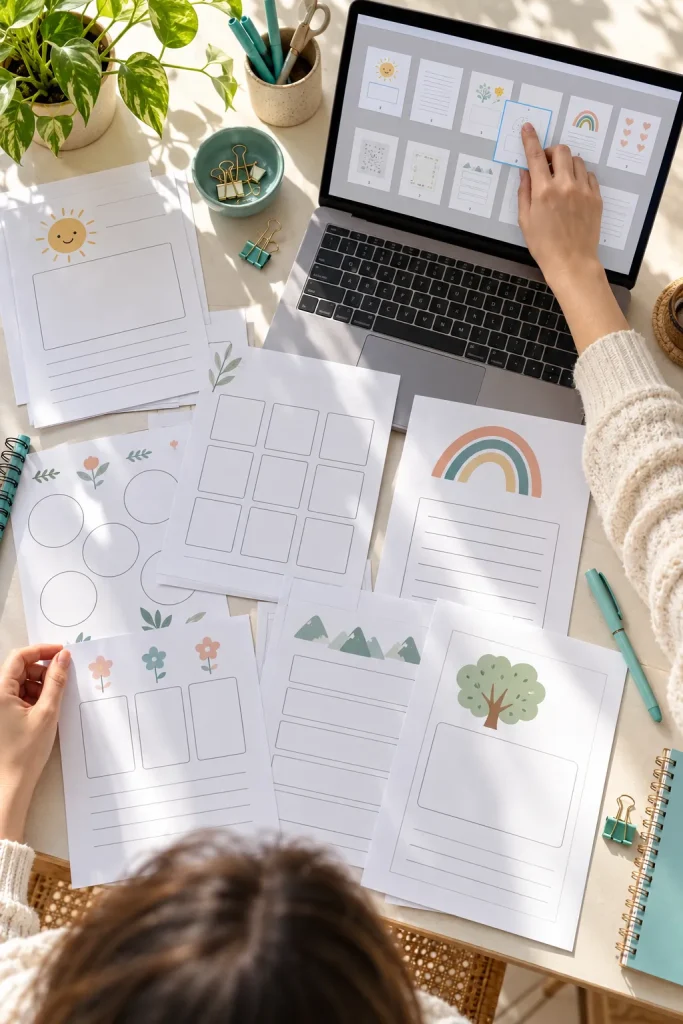
Separate PDF pages can make a printable bundle awkward for customers. A reading worksheet, answer sheet, and instruction page may work better as one organized document.
iLovePDF has a Merge PDF tool that combines multiple files and lets you arrange their order before merging.
Organize the Download Before Merging
Give each source file a clear name, such as instructions, activities, and answers. Arrange them in the order customers should use them.
The main strength is simple file combining without opening a full design editor. The limit is that merging does not correct poor layouts or spelling mistakes inside those pages.
Open the combined PDF afterward and check the first page, last page, and page order.
6. Sejda for Making Fillable PDF Worksheets
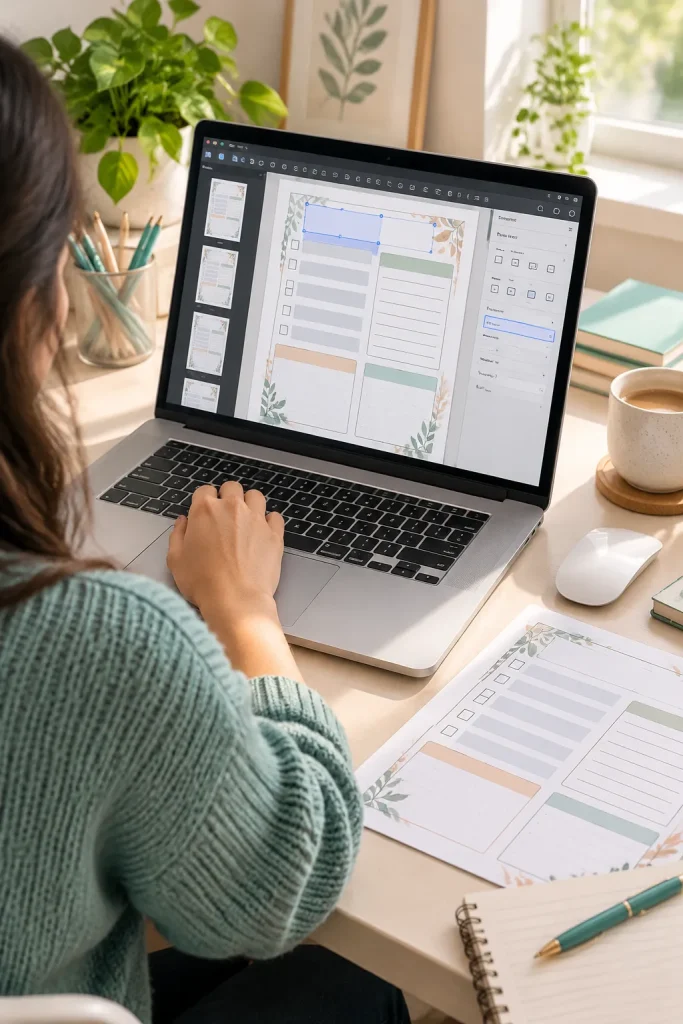
A printable worksheet does not always need to be completed with a pen. Some customers prefer typing their answers directly into a PDF.
Sejda can add fillable text fields, checkboxes, and other form elements to an existing PDF. This makes it useful for digital planners, client questionnaires, and worksheets meant for screen use.
Build a Simple Fillable Page
Start with a finished PDF, then place fields over the blank spaces where customers should type or select an answer.
Its strength is adding interactive form fields without redesigning the page. Its limit is that usage restrictions may interrupt longer editing sessions.
Test the saved form in a PDF reader before selling it. A visible blank box is not always a working form field.
📝 Fillable Worksheet Workflow
Upload the finished worksheet PDF.
Place text fields and checkboxes where needed.
Save the completed fillable document.
Type into every field and test the saved answers.
7. PDF24 Creator for Organizing PDFs Offline
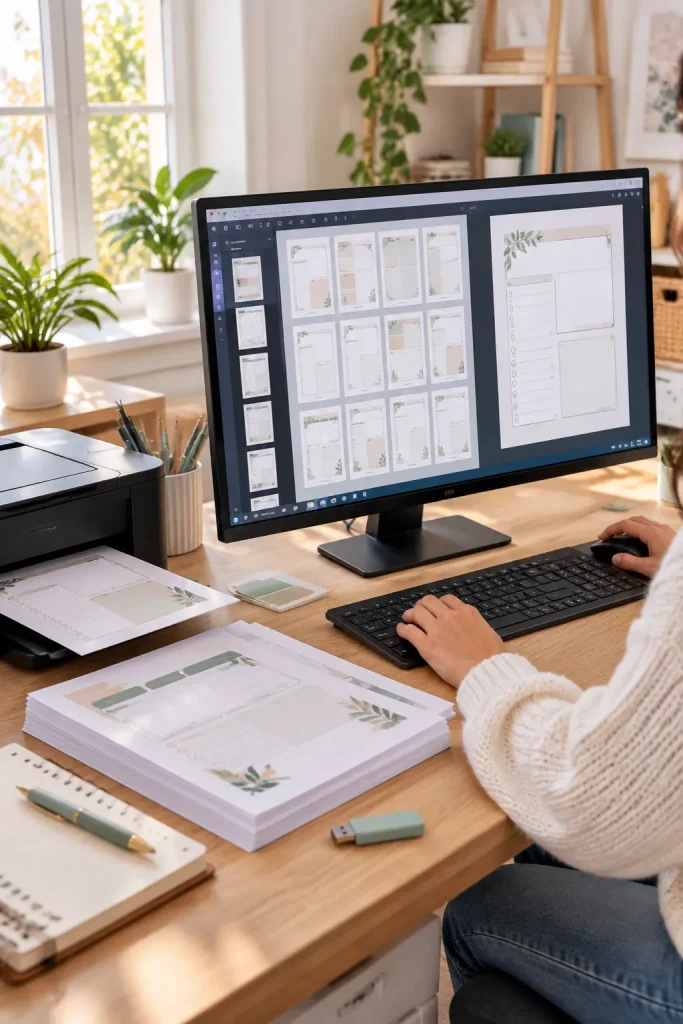
An internet connection should not always be necessary to organize your printable files. PDF24 Creator gives Windows users desktop tools for arranging, merging, splitting, and working with PDFs locally.
That can help when you are preparing a planner bundle at your desk and prefer not to upload documents to a website.
Keep Your Files in Order
Store the original exports in one folder and the finished customer files in another. Then use PDF24 Creator to sort or combine pages as needed.
Its strength is offline file processing with several PDF tools in one place. Its main limit is operating system support. The desktop Creator application is for Windows, not macOS or Linux.
Keep a separate folder for original PDF exports.
Save organized customer copies with clear file names.
Do not overwrite the only copy of your master PDF.
Do not assume page order is correct without checking.
8. LibreOffice Draw for Adjusting Simple PDF Layouts
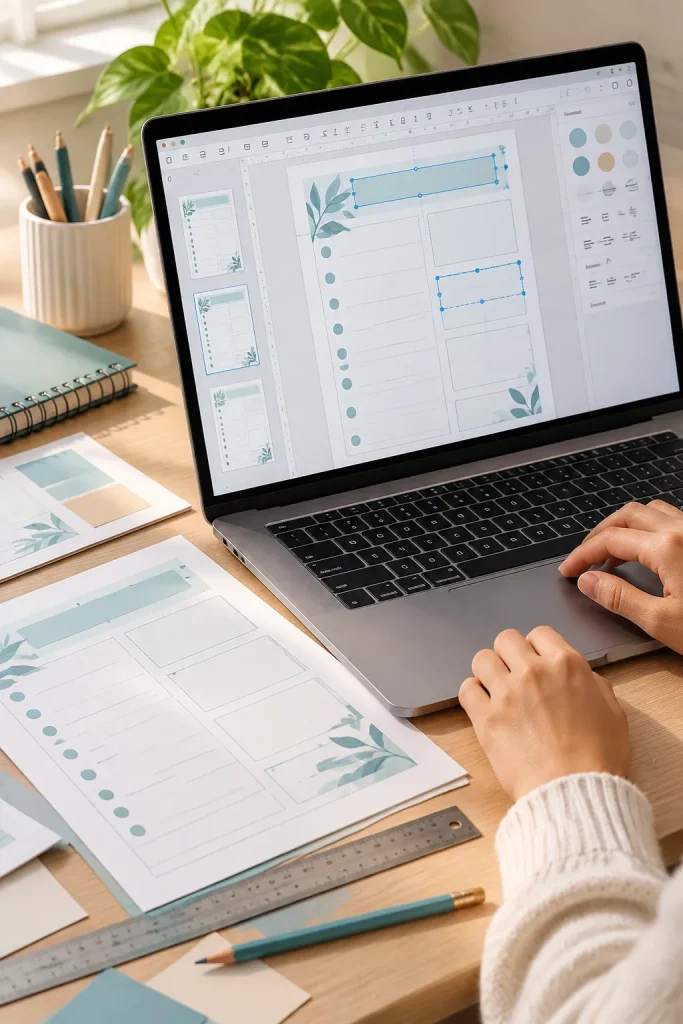
Sometimes a PDF needs more than a spelling correction. A box may sit too close to the page edge, or a simple graphic might need moving.
LibreOffice Draw can open PDFs for basic layout work, giving you access to drawing and object-editing tools.
For example, you might open a simple checklist and adjust a line or shape before exporting it again.
Use It for Small Layout Jobs
This tool suits sellers working with simple pages and basic graphics. Its strength is offering drawing controls without a dedicated professional PDF design package.
Its limit is PDF import accuracy. Complex designs can break into separate objects or shift unexpectedly, so inspect every changed page after exporting.
💡 Quick Tip: Check the Imported Layout
Before editing an imported PDF, inspect the text, shapes, and page edges. Some elements may no longer behave like they did in the original design.
Best practice: Change one page, export a test PDF, and compare it with the original.
Choose the Tool That Fits Your Printable
You do not need every PDF program on this list to create useful digital products. Start with the task your current project requires. Canva handles page design, while tools such as iLovePDF and Smallpdf help with file delivery. Sejda is more relevant when customers need to fill out a document on screen.
The best PDF tools should make your workflow simpler, not give you more settings to learn. Keep an original copy of every product, inspect the finished download, and test a printed page when printing matters. Check current platform requirements before publishing.
Save this list to Pinterest so you can compare the tools when your next printable is ready.