
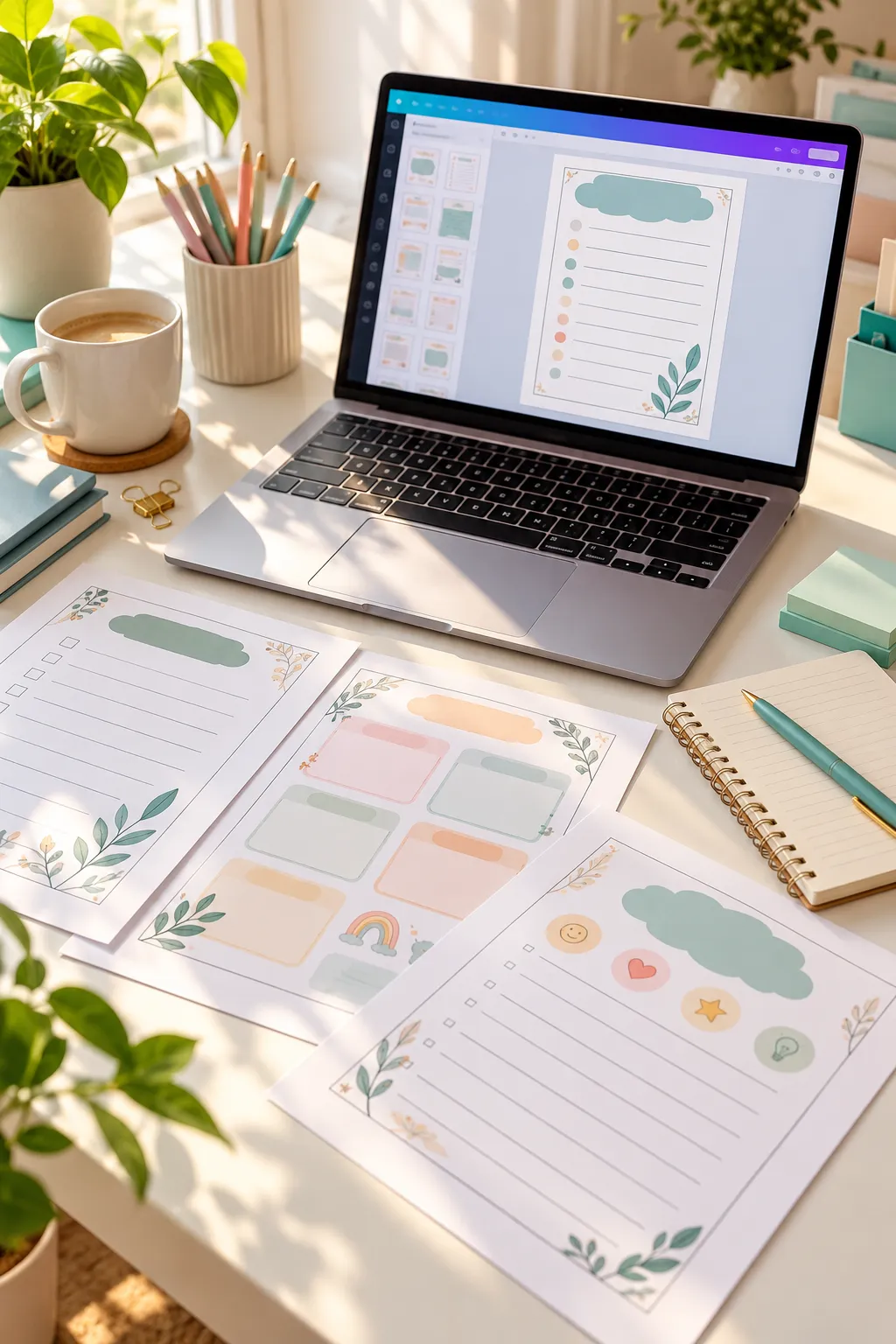
Making your first worksheet can feel surprisingly messy. You open a blank design, then get stuck choosing a page size, a font, and the right kind of activity. Before long, you have decorated the page but still have no idea where the answers should go.
Many beginner tutorials jump straight into colors and shapes. That skips the part that matters most: what a person is supposed to do with the sheet. A useful worksheet needs one clear goal, simple instructions, and enough space for someone to write their answers.
If you searched for digital worksheets Canva, this walkthrough starts a little earlier than the design screen. You will choose a focused topic, sketch your questions, build an easy-to-read layout, and check that the pages match. We will use a simple plant vocabulary activity as a running example, but the same steps work for planning sheets, practice pages, and other printable activities.
You do not need to be a designer. You need a clear activity and a few small decisions in the right order.
1. Choose One Clear Topic for Your Worksheet
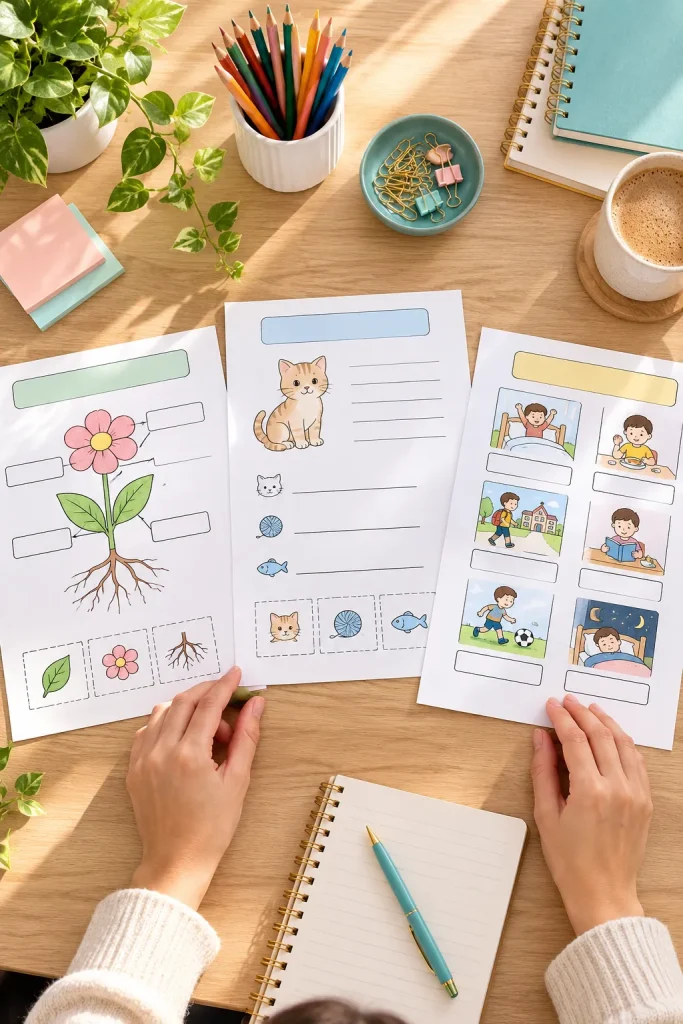
Starting with a broad topic like science leaves too many directions to choose from. Pick one small skill, such as naming the parts of a plant, before you open a design. A narrow topic makes it easier to decide what belongs on the page.
Pick a Worksheet Goal
Ask yourself:
- Who will use it? Early readers learning basic words, for example.
- What should they do? Label a picture, match a word, or write a short answer.
- What should they learn? Three plant words, not a whole science unit.
Write your goal in one sentence. If you need several activities to explain it, split them into separate worksheets.
2. Write the Questions Before You Open Canva
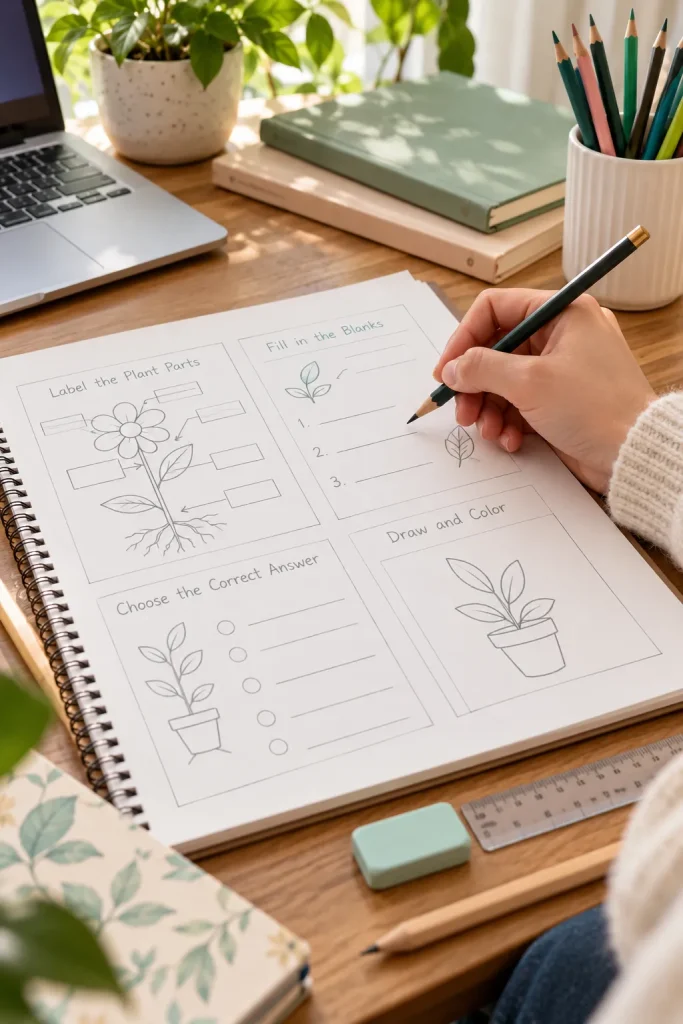
Grab a notebook before opening Canva. Sketch the activity in the order someone will see it. For a plant worksheet, that might mean a short word bank, a picture to label, and two lines for a simple sentence.
Draft the Learner’s Actions
- Write each instruction in words you would say aloud.
- Put the questions in a sensible order, starting with the simplest.
- Note what kind of answer each needs, such as a circle, a line, or a written word.
Do not wait until the layout is finished to invent the questions. It is much easier to change a pencil sketch than squeeze an extra activity into a crowded page.
📝 Check Your Worksheet Draft
3. Create a New Worksheet Page in Canva
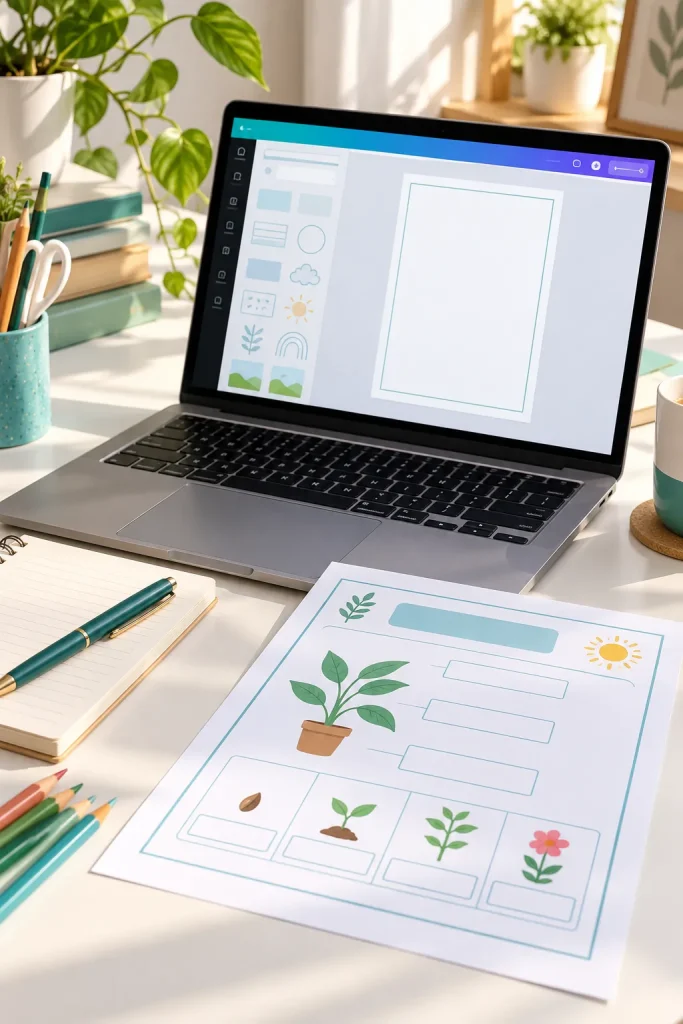
Starting with the right page size saves you from awkward printing later. Open Canva and create a new design in a standard paper size, such as US Letter or A4.
Choose the Page Before Decorating
You can search for a document size or use Canva’s custom size option to enter the dimensions you need. Choose portrait orientation for a typical worksheet with questions running down the page. Landscape can work better for wide matching activities or larger diagrams.
Avoid starting with a presentation slide or social media template just because you like its design. The proportions may not fit ordinary printer paper.
Check the measurement units before adding anything. Changing the size later can mean fixing the layout again.
Wide Screen Layout
Designed for a screen, with activities spread horizontally and little room for printed answers.
Print-Ready Page
Uses a common paper size, with content arranged top to bottom and space around the edges.
4. Set Up Margins and a Simple Page Layout
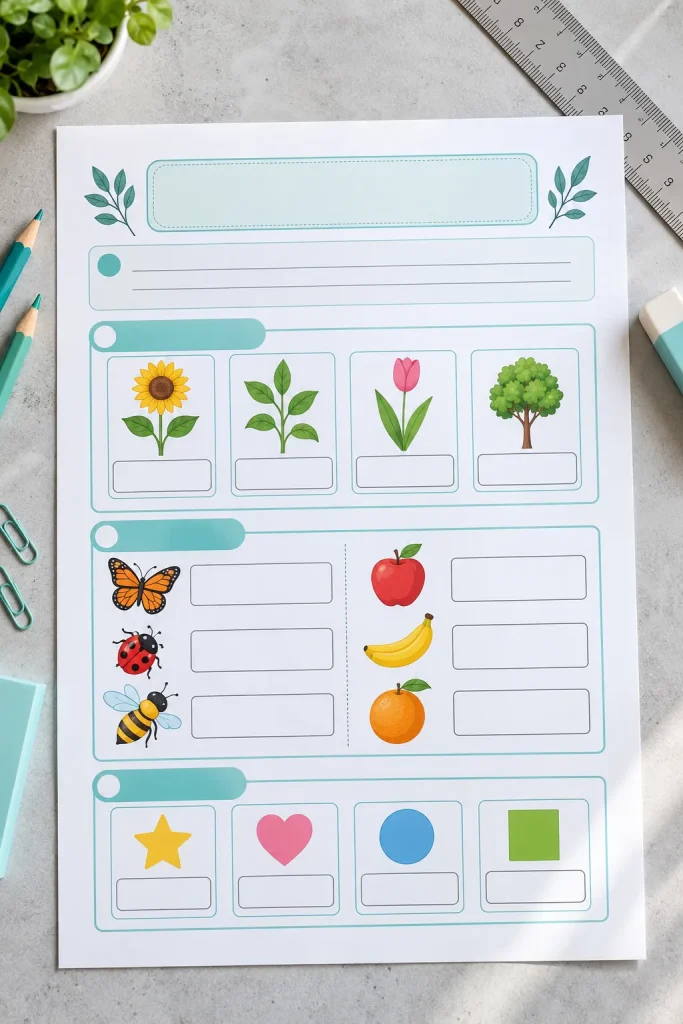
Give every page breathing room before adding the activities. Keep the title near the top, directions below it, and the main questions in the largest part of the page.
A worksheet should be easy to follow without searching around for the next task.
Build a Simple Page Structure
Leave a clear margin around the outside. Keep question numbers aligned and use similar spacing between each activity. A small name and date area can sit above the instructions if your worksheet needs one.
You can use guides or temporary shapes in Canva to help line things up.
The common mistake is pushing boxes and words against the edges. Move content inward rather than shrinking everything until it becomes difficult to read.
📄 Build the Page From Top to Bottom
Top Area
Place the worksheet title and optional name and date fields here.
Directions Area
Reserve a short, separate space for instructions and one example if necessary.
Activity Area
Use the largest section for questions, pictures, and answer spaces.
5. Add a Clear Title and Short Instructions
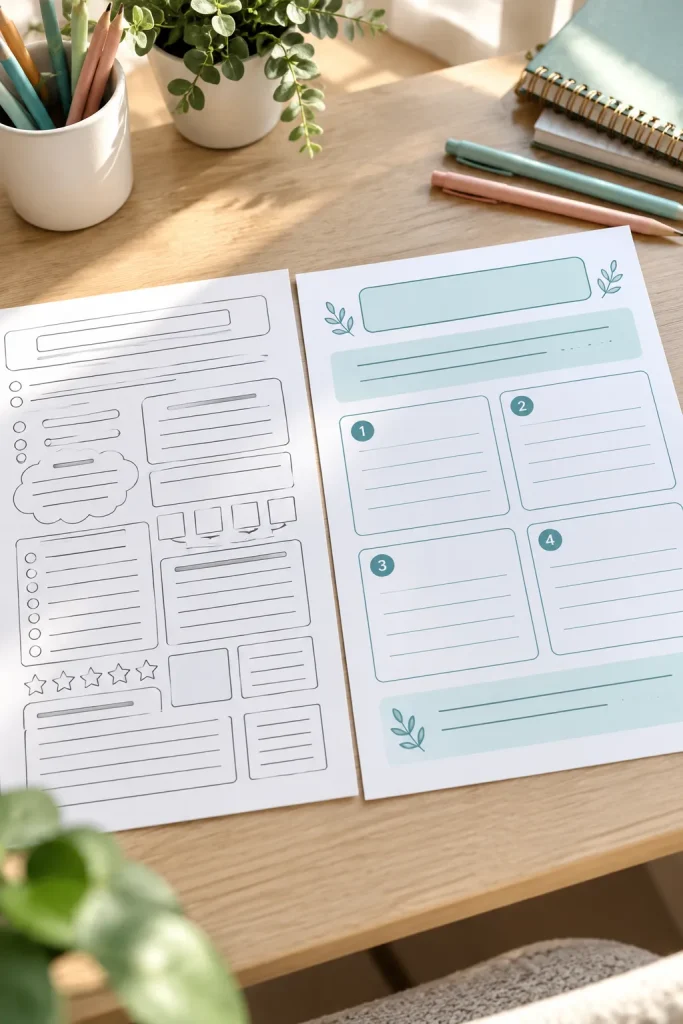
A bold heading will not fix confusing directions. Your title should tell people what the activity is about, while the instructions should explain exactly what to do.
For the plant worksheet, a title like “Parts of a Plant” is clearer than “Science Fun.”
Make Every Direction Easy to Follow
Use action words such as circle, match, draw, label, and write.
For example, “Draw a line from each plant part to its name” gives a clear task. A long paragraph explaining the same activity can make beginners hesitate.
Keep instructions close to the questions they describe. Before finishing, ask someone to read them without your help. If they need an explanation, simplify the wording.
Use one action per instruction.
Put directions beside the activity.
Example: “Circle the word that matches the picture.”
Mix several tasks into one sentence.
Place directions far from the questions.
Use words the intended reader may not understand.
6. Build Questions and Spaces for Answers
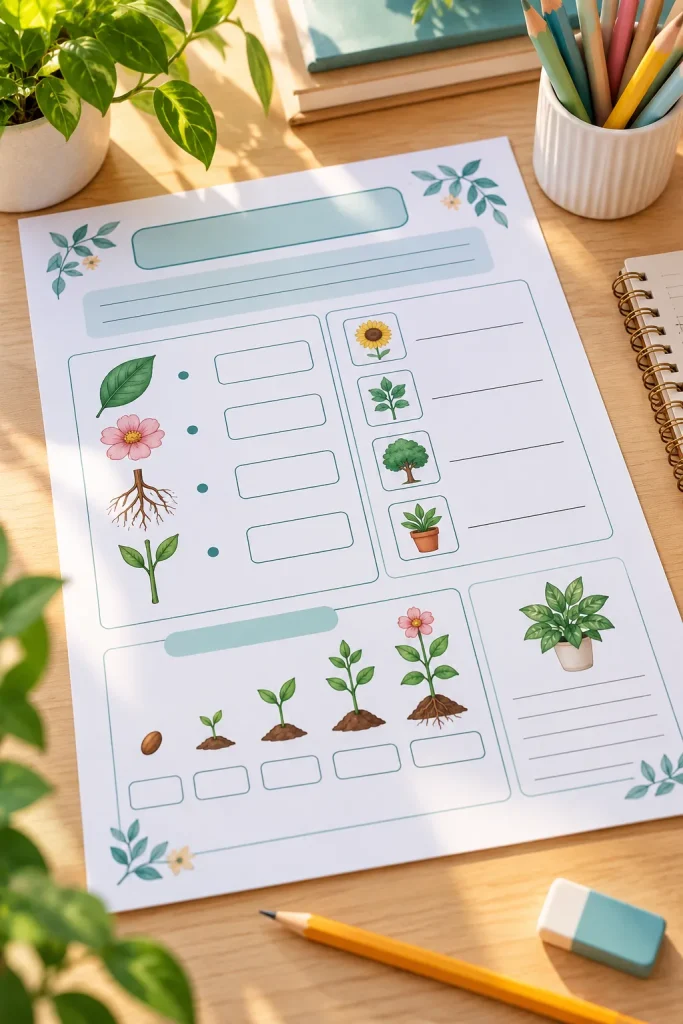
A row of empty lines tells you where the writing will happen. An answer box, meanwhile, can show where someone should draw or label a picture.
The space you give an answer should match the activity.
Add Questions in Canva
Use text boxes for the questions. For writing areas, add lines or simple outlined rectangles using Canva’s elements. You can copy matching shapes to keep the layout consistent.
- Short answers: Leave a small line beside the question.
- Full sentences: Allow several writing lines.
- Drawing activities: Provide a larger, empty rectangle.
The mistake is making every answer area the same size. A sentence needs more room than a single word. Print one sample to check.
| Activity Type | Useful Answer Space |
|---|---|
| Circle the correct word | Keep options separated so circles do not overlap. |
| Match two items | Leave a clear gap between the two columns. |
| Write a sentence | Add writing lines with comfortable vertical spacing. |
| Draw and label | Provide an open drawing box with a separate label line. |
| Choose an answer | Place checkboxes or circles where marks will be easy to see. |
7. Choose Readable Fonts and Simple Colors
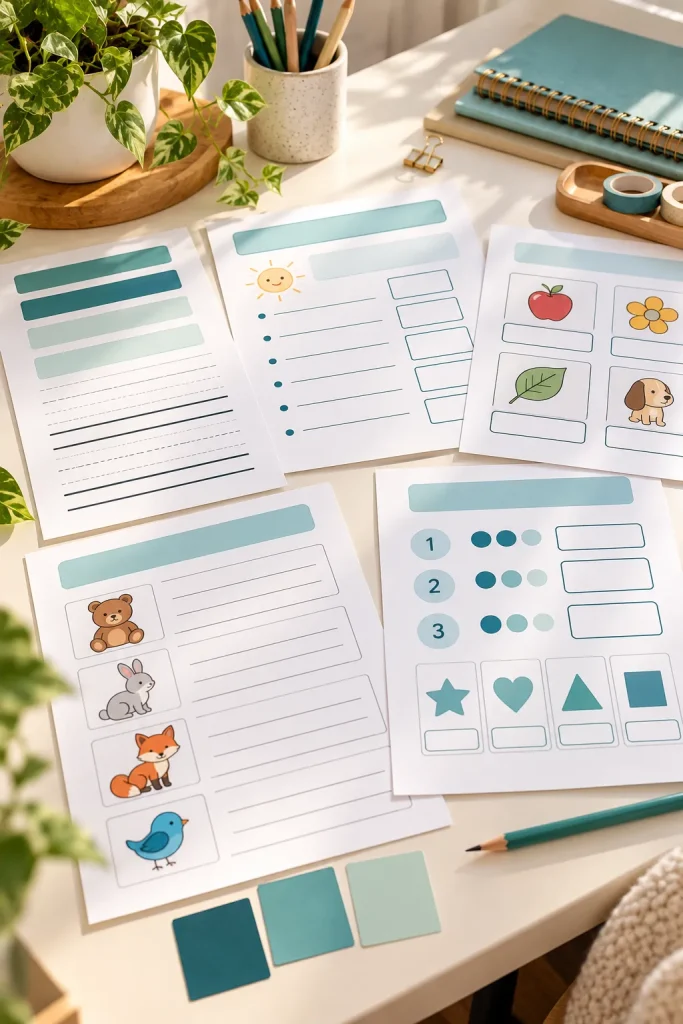
A curly display font might look fun on a poster, but a plain font makes worksheet questions easier to read.
Start with one simple font for the main text. Canva includes familiar choices such as Arial and Open Sans. Use larger bold text for the title and a consistent smaller size for questions and instructions.
Keep the Page Easy on the Eyes
Choose a dark text color against a light background. You can add a little teal, blue, or another gentle color to section labels, but the activity should still make sense when printed without color.
Avoid filling every box with a different shade. Too many colors can distract from the questions, especially on a busy page.
8. Duplicate Pages and Check the Design
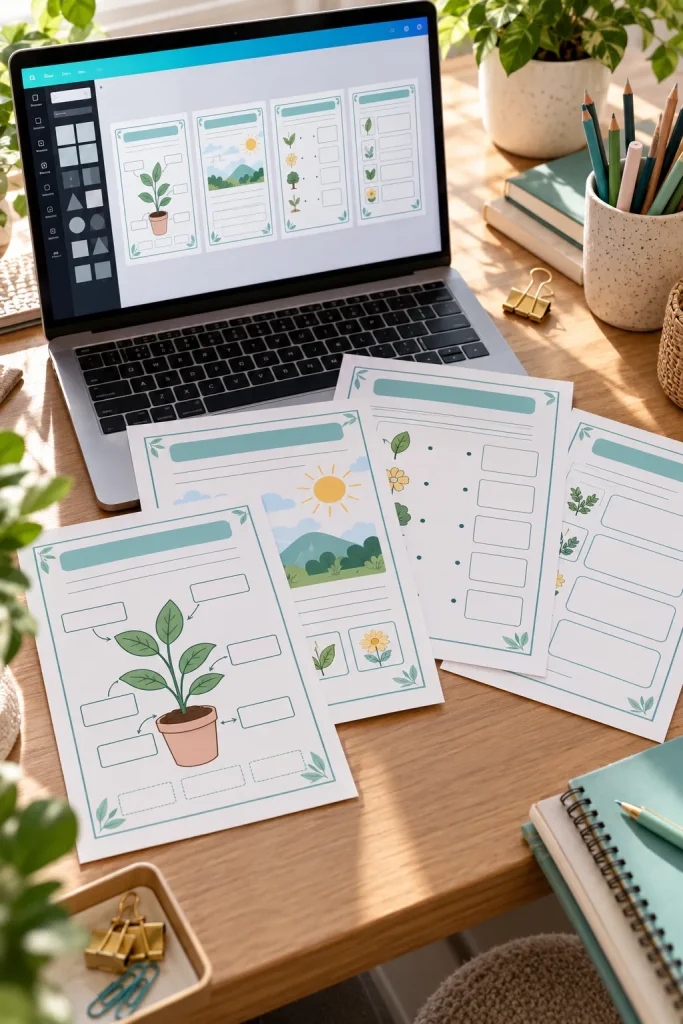
It is easy to spot a shifting title when several pages sit beside each other. Matching layouts make a worksheet set easier to follow and help you keep the design tidy.
Once your first page looks right, use Canva’s duplicate page option to make another page with the same basic structure.
Check Each New Page
Replace the questions and pictures, then look at the pages together.
Check that the titles, fonts, spacing, and margins remain consistent. Change the activity area when a question needs more room, but keep the basic page structure familiar.
A common mistake is changing sizes and spacing without noticing. Before exporting, scan the pages in order and check that every question and instruction belongs to the right activity.
💡 Quick Page Review
Before you finish a worksheet set, review the first and last pages side by side.
Check the top: Do headings begin in the same place?
Check the bottom: Is anything cut off or crowded?
Check the sequence: Are page numbers and activity labels correct, if used?
9. Print a Sample and Fix Any Problems
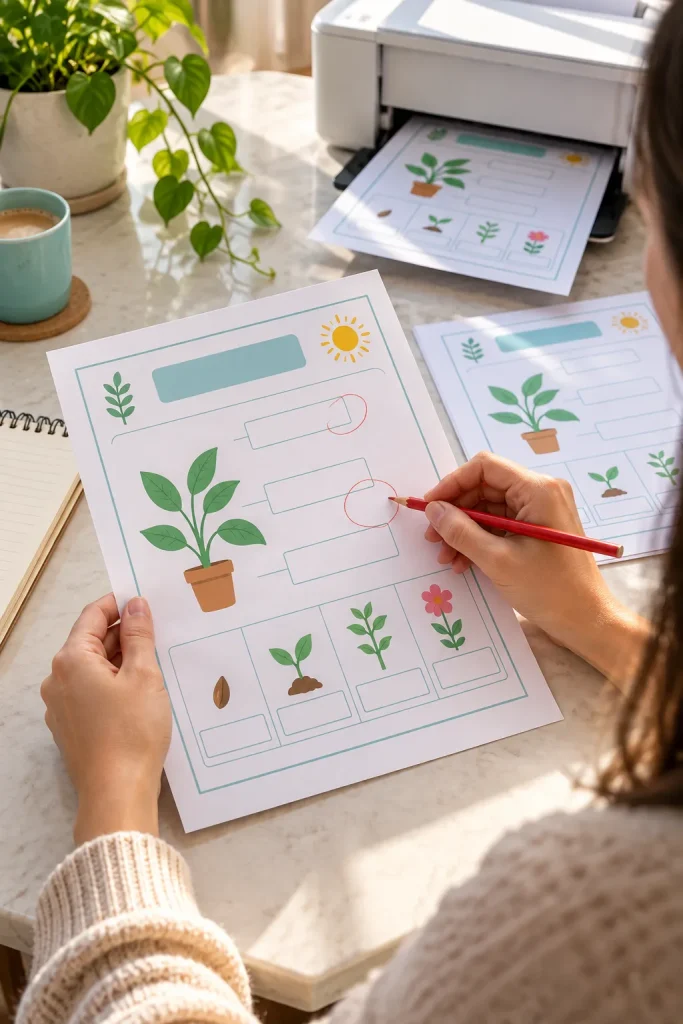
A worksheet may look tidy on your laptop and still print with a missing line or tiny instructions. Before sharing the plant activity, print one copy on the paper size you chose in Canva.
Check the Paper, Not Just the Screen
Look at the margins first. Are any words or boxes cut off?
Next, check that pale lines are visible and the font is easy to read without zooming in. Try filling in a few answers with an ordinary pencil.
If the writing spaces feel cramped, return to Canva and make them larger. Do not assume a clear screen preview means the printed page is ready.
Test your worksheet at its intended paper size before sharing the finished file.
Check the actual print settings, including scaling. A page printed smaller than intended may make even readable text difficult to use.
10. Export Your Finished Worksheet as a PDF
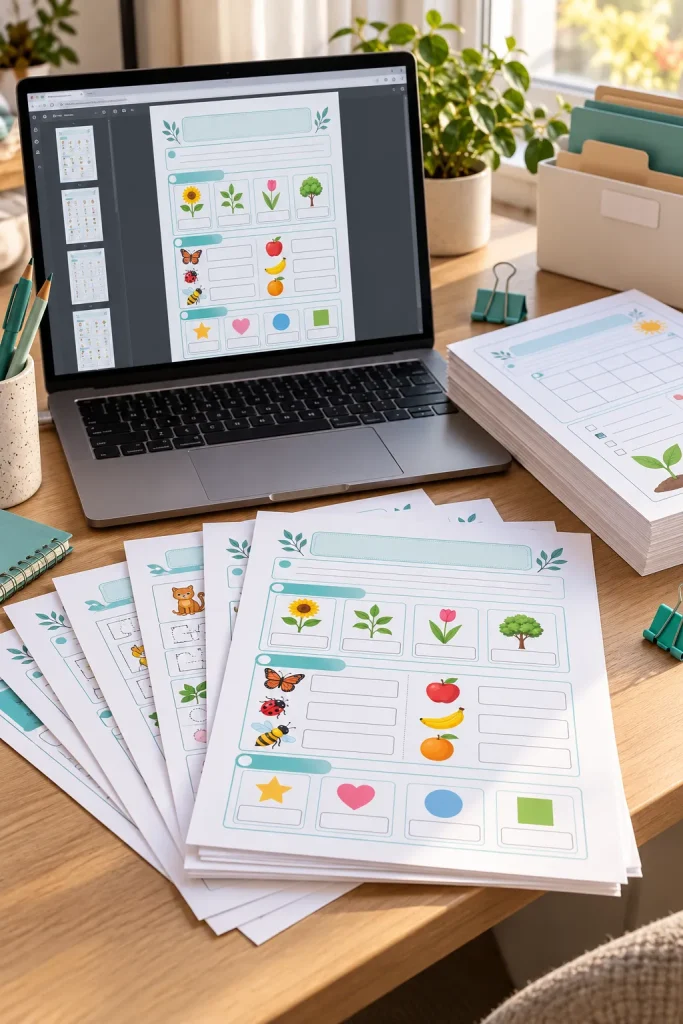
Saving the first PDF is not the finish line. A forgotten draft page or clipped answer box can travel with the file if you export without checking.
Download and Open the PDF
In Canva, choose Share, then Download, and select a PDF option suitable for your worksheet. For pages meant to be printed, PDF Print is a useful choice when offered.
Confirm the page selection, download the file, and give it a clear name such as Plant_Parts_Worksheet.pdf.
Open that downloaded copy and scroll through every page before sharing it.
If you plan to sell it, read Canva’s current license terms for content used in your design and check the selling platform’s current rules.
📄 Final PDF Export Checklist
Your First Worksheet Is Ready to Take Shape
Your first worksheet does not need ten kinds of activities or a page filled with decorations. A single clear goal, simple questions, and enough room for answers will do more for the reader.
Once you have a printable page that works, keep its layout and create another activity using the same structure. That makes it easier to build a small, consistent set without starting from a blank screen each time.
Making digital worksheets with Canva is mostly about planning carefully and checking the finished pages. Small details like readable text and useful answer spaces make a real difference.
Save this walkthrough to your Pinterest board so you can follow the steps when you make your next worksheet.