
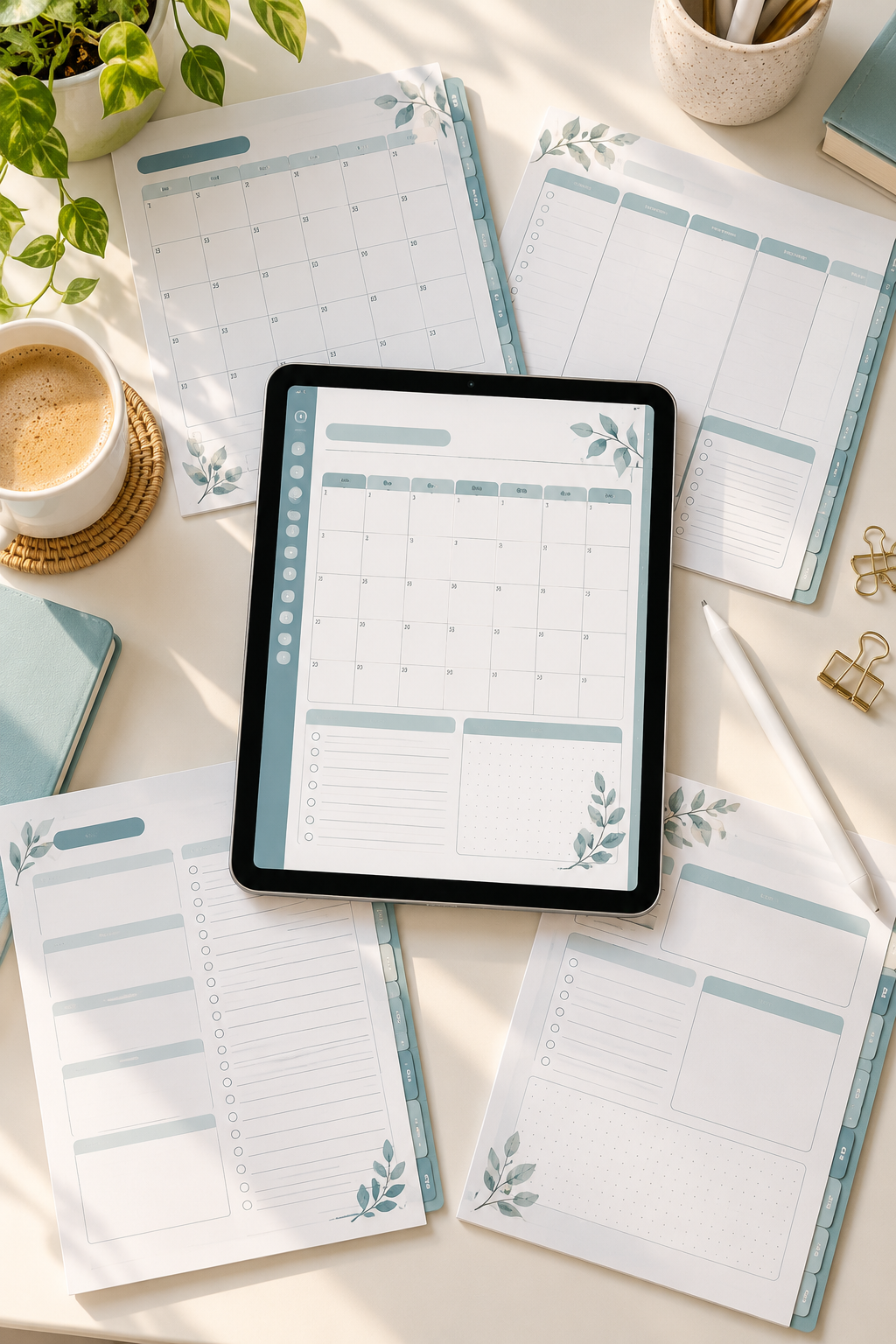
You don’t need to be a graphic designer to make a digital planner. You don’t even need fancy software or years of experience. What you do need is a clear plan, a few basic tools, and an understanding of how the pages should work together.
Many beginners get stuck because they think they must design a beautiful planner before figuring out what goes inside it. That usually leads to crowded pages, confusing tabs, and a file that’s difficult to use.
The easier approach is to create a digital planner one small step at a time. Start by choosing who the planner is for. Then build the pages, keep the design consistent, and add the features that make it useful on a tablet.
Canva is a helpful starting point because you can arrange shapes, text boxes, and page layouts without learning complicated design software. You’ll still need to check how your finished file works.
Below, you’ll learn how to build your first planner from a blank page, including the small details that are easy to miss.
1. Choose a Clear Purpose for Your Digital Planner
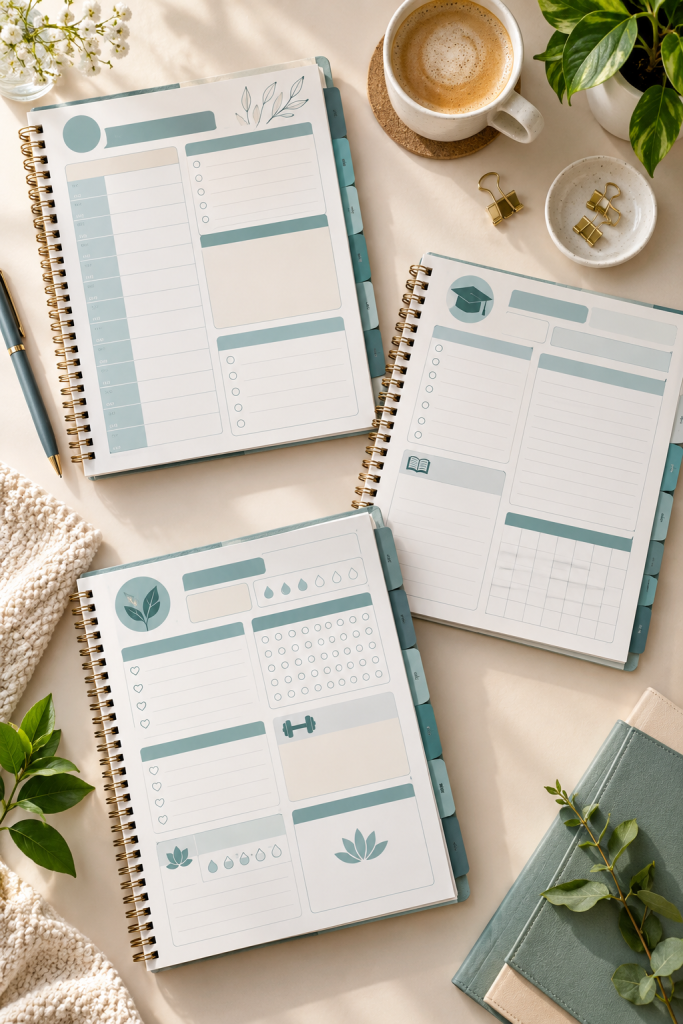
Before opening Canva, decide what your planner will help someone organize. A general planner sounds useful, but it’s often harder to design because you keep adding pages for different needs.
Start with one specific reader and one main purpose.
For example:
- Busy parents: Daily schedules, family tasks, and appointments.
- Students: Assignment deadlines, study sessions, and exam dates.
- Small business owners: Weekly priorities, project tasks, and client work.
Write down the reader’s biggest planning problem. That will guide your page choices later.
Mistake to avoid: Trying to fit meal planning, budgeting, fitness, schoolwork, and business tasks into your first planner. A focused product is easier to finish and explain.
2. Decide Which Planner Pages You Actually Need
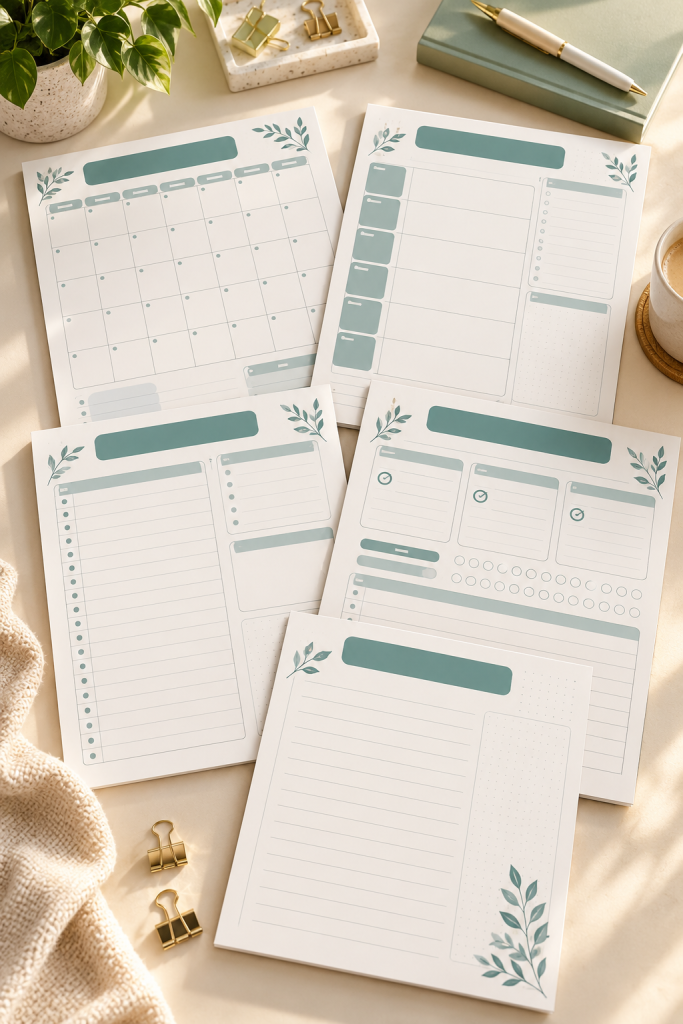
A digital planner doesn’t need dozens of different layouts to feel complete. It needs pages that help the reader plan without searching through unnecessary sections.
Make a simple page list before designing anything.
A basic productivity planner might include:
- Monthly calendar for important dates.
- Weekly planner for upcoming tasks.
- Daily page for schedules and priorities.
- Goal tracker for larger projects.
- Notes page for extra thoughts.
You can reuse undated layouts rather than drawing every day separately, depending on how you want the planner to work.
Mistake to avoid: Adding every tracker you find online. Extra pages make navigation harder and create more work when you’re building links.
📋 First Planner Page Checklist
3. Pick Your Planner Size and Page Orientation
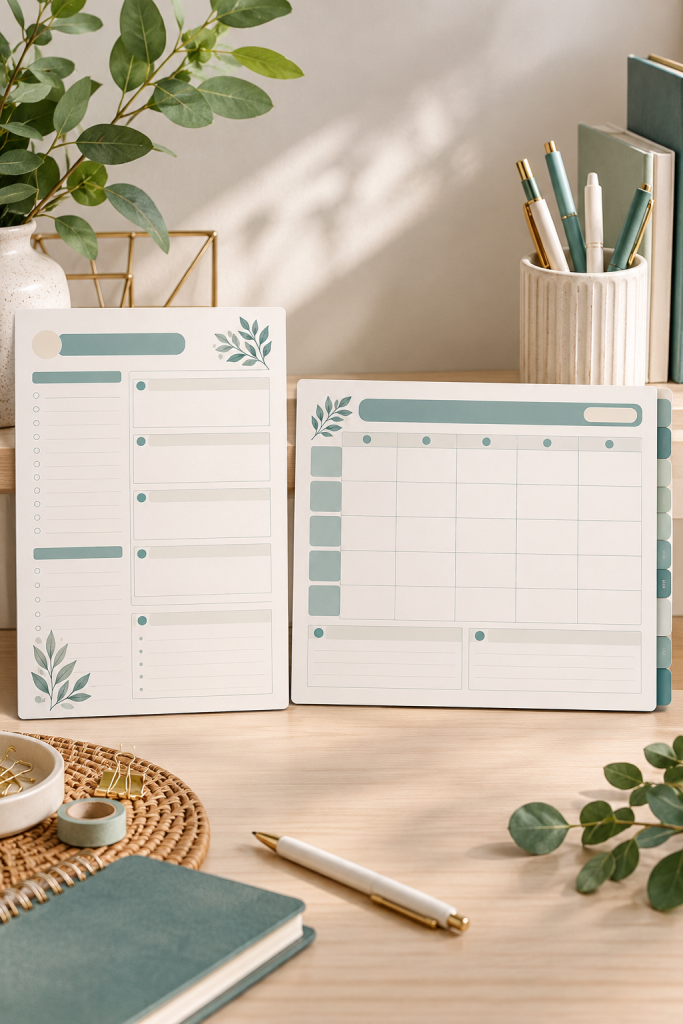
The shape of your pages affects how much writing space you have and how the planner appears on a screen.
Two common choices are portrait and landscape.
Portrait pages are taller than they are wide. They work nicely for vertical daily schedules, checklists, and notes.
Landscape pages are wider than they are tall. They give you more horizontal room for weekly layouts, calendar grids, and side navigation tabs.
Before choosing, sketch where your planner sections will sit. Leave space for tabs if you plan to add them.
Mistake to avoid: Picking a page size only because another planner uses it. Test your layout at a realistic tablet viewing size so the text and writing areas remain comfortable.
Portrait: Choose it for vertical schedules and long checklists.
Landscape: Choose it when columns and navigation need more room.
Keep the page orientation consistent throughout the planner.
Choosing dimensions before planning your page layout.
Making text tiny to squeeze more sections onto one page.
Placing tabs too close to the edges where they may be difficult to select.
4. Set Up Your First Planner Design in Canva

Open Canva and create a new design using the dimensions and orientation you chose. You can use a custom size when you need a specific layout.
Start with a blank page instead of filling it with decorations.
Set up the basics first:
- Choose a simple background color.
- Add a clear heading area.
- Leave comfortable margins around the edges.
- Reserve space for any navigation tabs.
- Pick one or two readable fonts.
Create a working page that you can duplicate later. This will help keep your spacing and colors the same.
Mistake to avoid: Spending too much time choosing icons, patterns, and fancy fonts before the page structure works. Build the layout first.
Your First Canva Page Setup
Create: Open a new design with your selected dimensions.
Structure: Add heading areas, margins, and basic page divisions.
Style: Apply your chosen fonts and colors.
Duplicate: Save the basic layout to reuse on matching pages.
5. Design a Clean Daily Planner Page
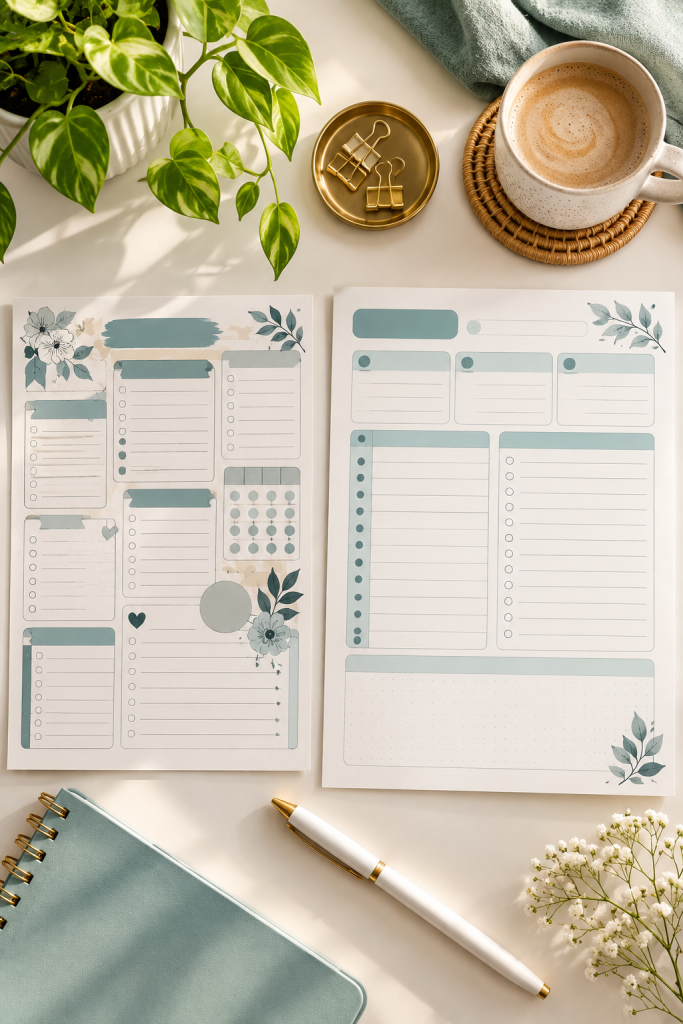
Your daily planner page is a good place to start because it teaches you how to balance headings, writing space, and useful sections.
Divide the page into clear areas.
Put the date near the top, followed by a short section for the day’s main priorities. Add a task checklist and a schedule with enough space to write appointments or time blocks.
Leave a small notes area at the bottom for anything that doesn’t fit elsewhere.
Keep the lines light enough that handwriting or typed notes remain easy to read.
Mistake to avoid: Filling every empty corner with decorative elements. A planner needs open space because people will add their own information.
Too many decorative boxes competing for attention.
Tiny task checkboxes and narrow writing lines.
No clear place for the day’s most important tasks.
A clear date heading and priority section.
Comfortable writing spaces for schedules and tasks.
A separate notes area for extra information.
6. Create Matching Weekly and Monthly Pages
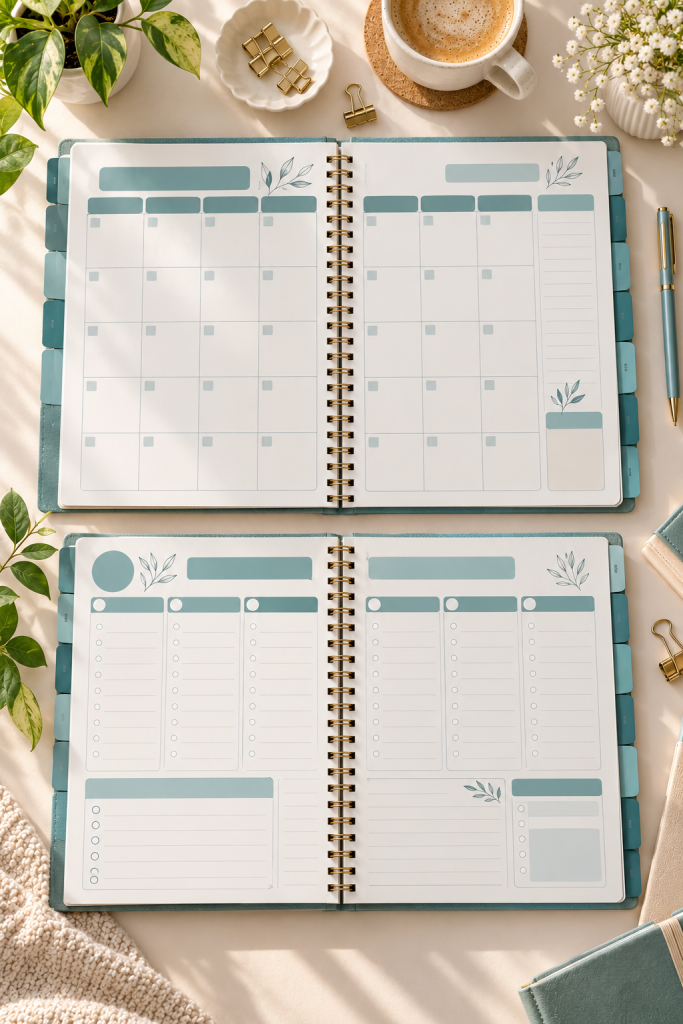
Once your daily layout looks good, build the pages that help users plan further ahead.
A monthly page works well as a calendar grid with room for appointments, deadlines, or important dates. A weekly page can use separate boxes for each day, along with a space for weekly priorities.
Reuse your daily page’s colors, headings, borders, and fonts. This gives the whole planner a consistent appearance.
You can duplicate a page in Canva and rearrange the sections rather than starting from nothing each time.
Mistake to avoid: Designing every spread in a different style. Small changes in line thickness, fonts, and margins can make the planner feel disconnected.
| Weekly Page | Monthly Page |
|---|---|
| Seven daily planning areas | Full calendar grid |
| Weekly priority list | Monthly goal section |
| Space for appointments and tasks | Space for major dates and deadlines |
| Best for short-term planning | Best for seeing the bigger picture |
7. Add Tabs and Clickable Page Links
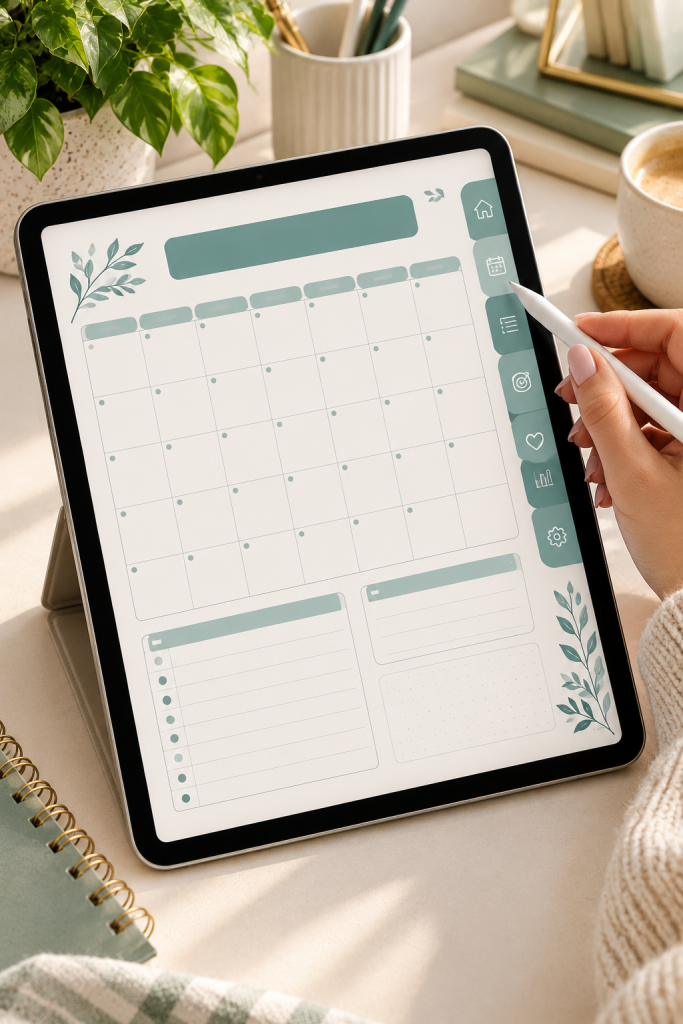
Clickable tabs make a digital planner easier to move through. Instead of scrolling through many pages, the reader can select a tab to jump to a section.
Start by placing simple tab shapes along one edge of your planner.
Label them with short names such as Monthly, Weekly, Daily, and Notes. Keep the tabs in the same position on the pages where they appear.
In Canva, select a tab element and use the link option to connect it to the correct page in your design, where supported. Repeat the links on the pages that need navigation.
Mistake to avoid: Assuming that adding a tab shape makes it clickable. Every tab needs a working destination, and you’ll need to test the links after exporting.
8. Export Your Planner as a PDF File
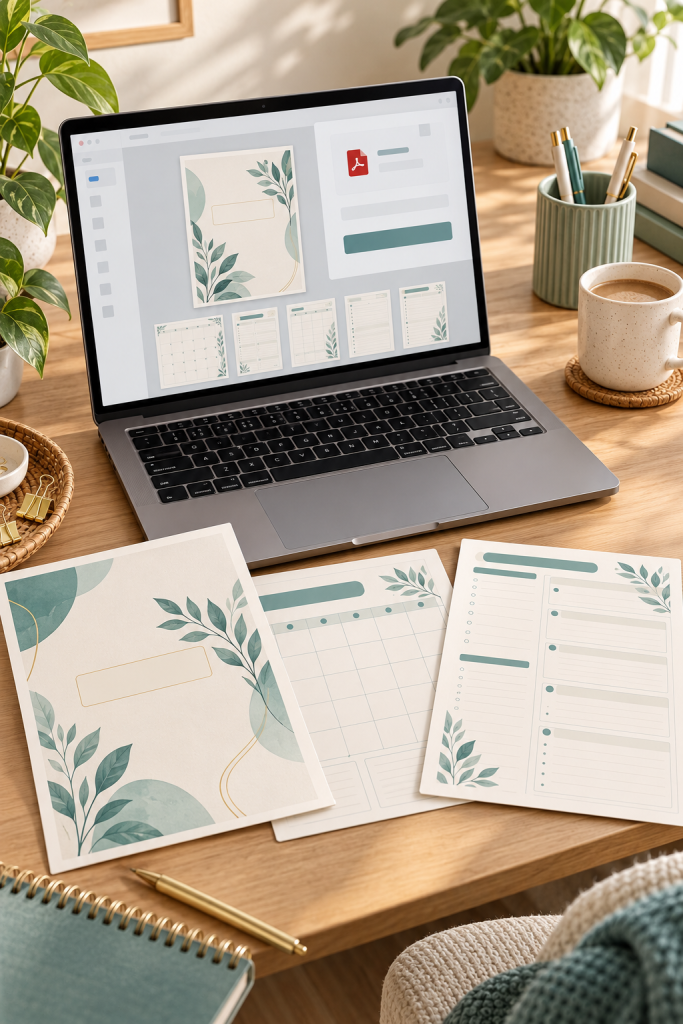
After finishing your planner pages and navigation, it’s time to turn the design into a file people can open.
In Canva, open the sharing or download options and choose a PDF format that fits your intended use. PDF Standard is a sensible starting option for a digital-only planner when that export choice is available.
Download the full design, including the cover, planning pages, and navigation sections.
Give the file a clear name so you can recognize it later, especially if you create updated versions.
Mistake to avoid: Believing the exported PDF will automatically work exactly like the Canva design. Check the page order, visible layout, and clickable links in a PDF viewer before calling it finished.
💡 Quick PDF Export Check
Before sharing your digital planner, open the downloaded PDF and check these details:
✓ Page order matches the navigation structure.
✓ Fonts, colors, and layout elements display correctly.
✓ Clickable tabs still lead to their intended pages.
✓ Writing spaces remain easy to see at normal viewing size.
Keep your editable Canva design so you can fix anything the PDF check reveals.
9. Test Your Digital Planner Before Selling
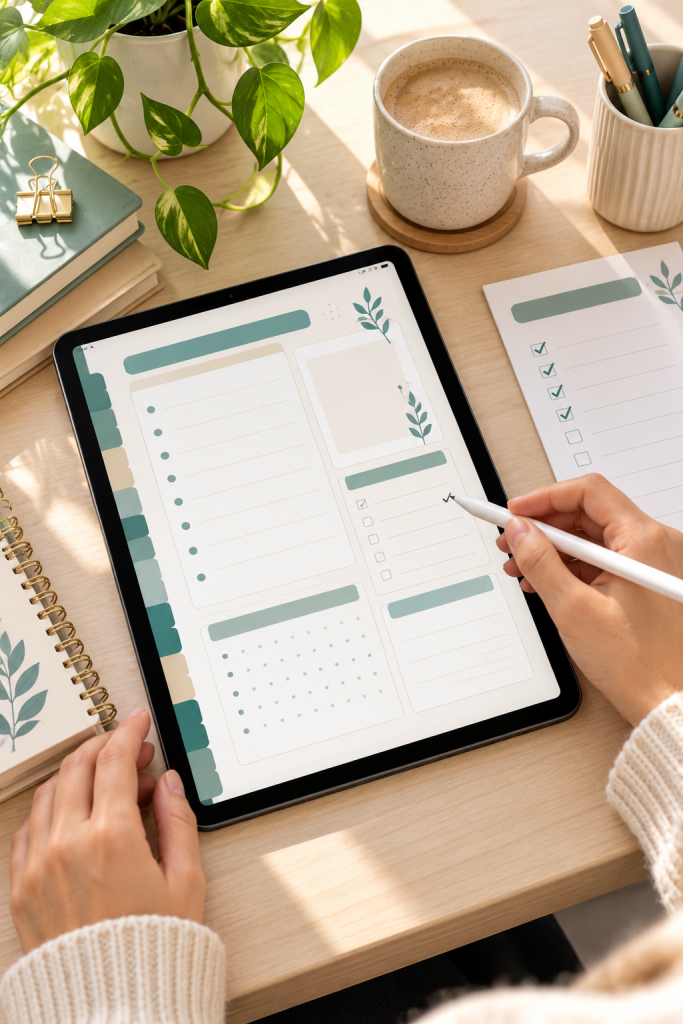
A planner that looks good on your computer might be frustrating to use on a tablet. Small tabs, broken links, and cramped writing spaces are easy to miss until you open the finished PDF.
Check your exported file in a compatible PDF annotation app, preferably on the type of device your buyers will use.
Work through these checks:
- Tap every navigation tab and confirm its destination.
- Write or type in the planning sections where supported.
- Zoom in and out to check readability.
- Move between pages and look for missing design elements.
Mistake to avoid: Testing only the cover and first few pages. Check repeated layouts and every linked section before sharing the file.
Test navigation: Open every tab and check where it leads.
Test writing: Add sample notes in a compatible annotation app.
Test readability: View pages at normal tablet size.
Checking the planner only inside Canva.
Assuming decorative tabs are automatically clickable.
Ignoring small text or narrow writing spaces.
10. Prepare Your Digital Planner for Your Online Shop

Your finished PDF needs a clear presentation before it becomes an online product. Buyers should understand what they’re getting, which apps they may need, and how the planner works.
Start by organizing your product files. Keep the final PDF separate from your editable Canva design.
Then prepare:
- Preview images showing the cover, calendar, and planning pages.
- Product description explaining the included layouts and navigation.
- Instruction sheet covering compatible apps, downloading, and basic use.
- File information explaining that this is a digital product, not a printed planner.
Check the current file requirements, listing rules, and commercial-use terms for your chosen selling platform and design assets.
Mistake to avoid: Uploading only the PDF without previews or instructions. Clear product details help buyers understand what they will receive.
🛍️ Digital Planner Listing Checklist
Final Thoughts on Creating Your First Digital Planner
Learning to create a digital planner becomes much easier when you focus on making something useful before worrying about decorations. A simple planner with readable pages, comfortable writing spaces, and working navigation can be more helpful than one filled with features nobody needs.
Keep your first project manageable. Choose a clear purpose, build a few matching layouts, and test the finished PDF carefully. Once those basics work, you can experiment with more page styles, extra trackers, or different planner themes.
You don’t need to get every design choice right on your first attempt. Save your original Canva file so you can make changes as you learn.
Planning to make your own digital product? Save this guide to your Pinterest board so you can return to each step while designing your first planner.