
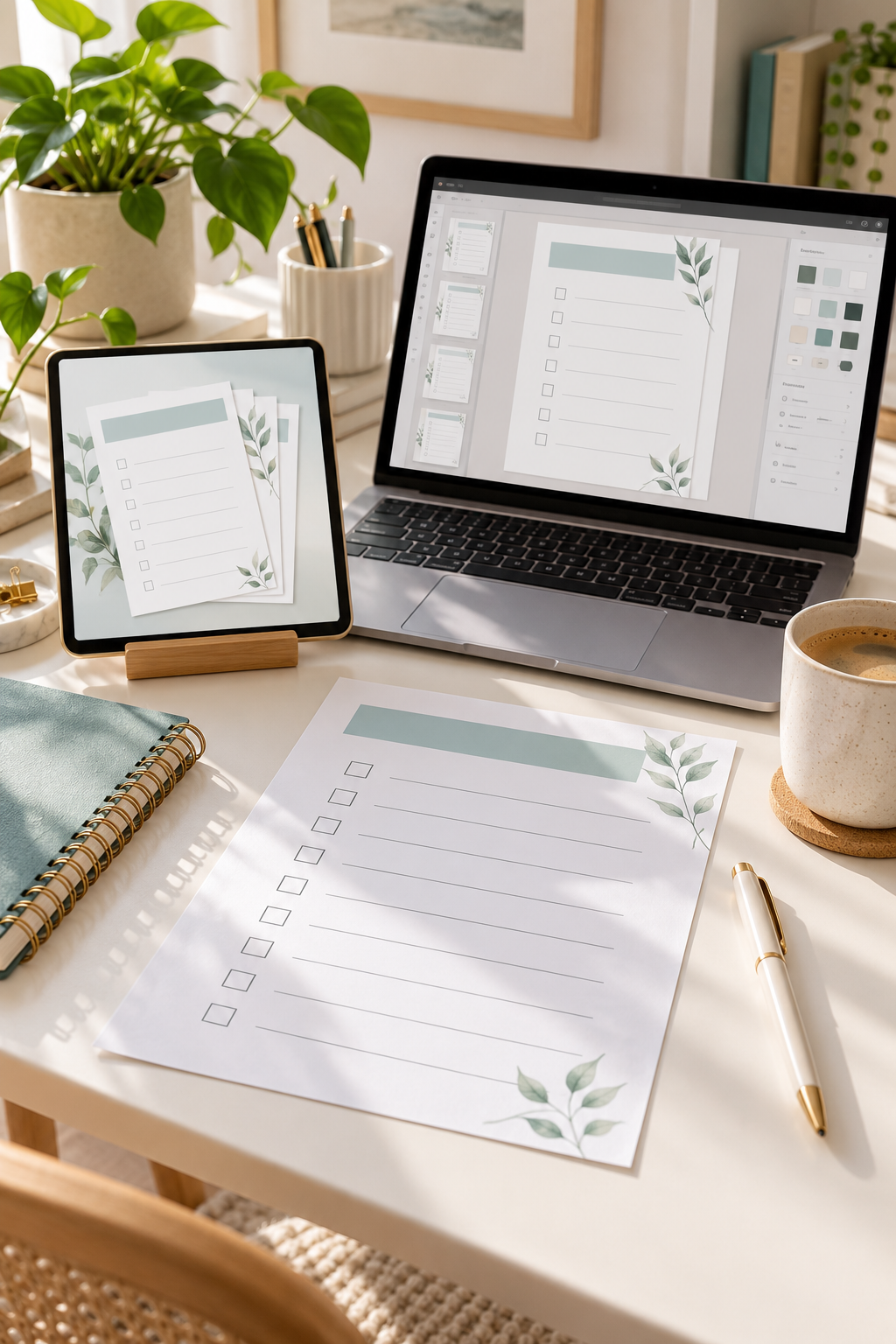
Making your first digital product can feel harder than it needs to be. You may have plenty of ideas but still feel stuck when it comes to choosing one, designing it, and getting it ready to sell.
A simple checklist is a good place to start. You do not need advanced design skills, expensive software, or a long document full of complicated information. You just need a clear problem that people want help solving.
The trouble is that a random list of tasks is not always a useful product. Buyers need something they can understand quickly, follow without confusion, and use in real life. Small details like readable fonts, sensible task order, and clear download instructions matter more than fancy decorations.
That is why checklists can be a practical starting point when learning to make sellable digital products. You can begin with one focused idea, build it in Canva, and prepare a simple file for customers to download.
Here are eight steps to help you make your first checklist product, even if you have never designed anything before.
1. Choose One Problem Your Checklist Will Solve
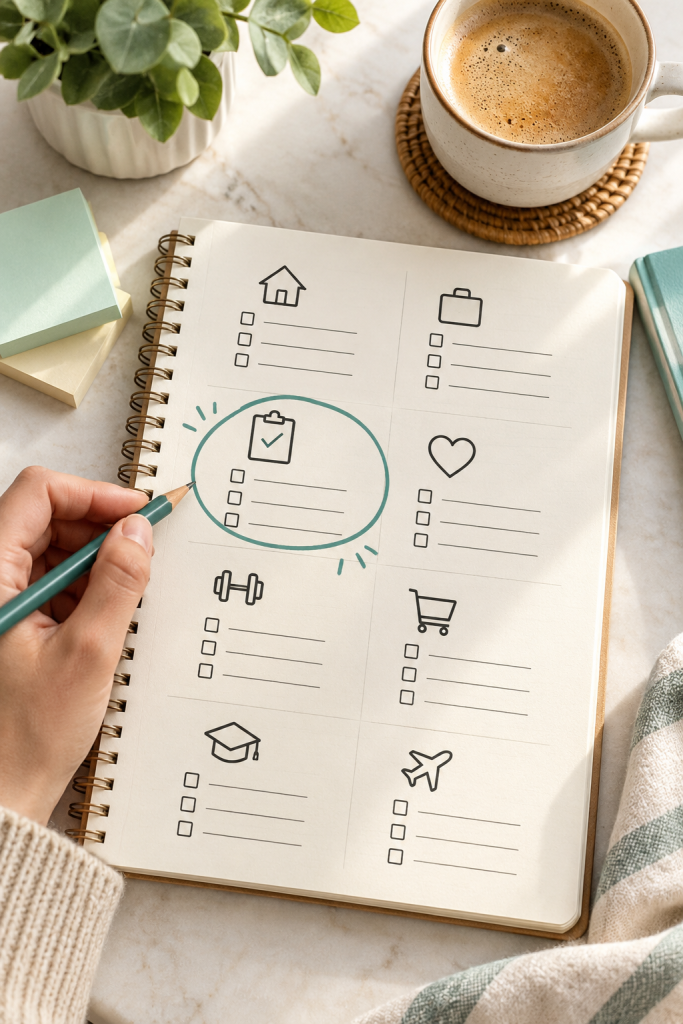
A checklist becomes more useful when it solves one specific problem. Instead of making a general life organization checklist, choose something like a weekly kitchen cleaning checklist or a packing checklist for a family beach trip.
Start by thinking about a task people often forget, rush through, or find stressful.
- Who will use it? A busy parent, a student, or a small business owner?
- What will it help them finish? Cleaning a room, preparing for travel, or planning an event?
- When will they need it? Every week, before a deadline, or during a special occasion?
One common mistake is trying to help everyone with the same checklist. A narrow topic makes it easier to choose the right tasks and explain the product to buyers.
2. Write the Checklist Items in a Useful Order
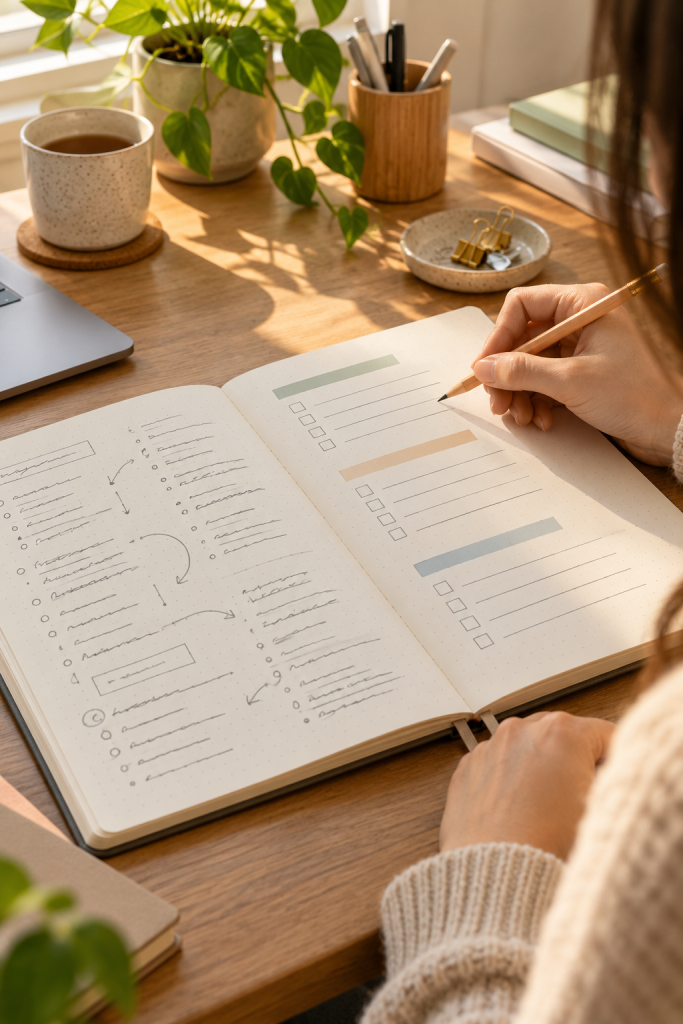
Before opening a design tool, write down everything your buyer needs to do.
For a moving day checklist, this might include packing important documents, labeling boxes, checking utilities, and keeping essential items close by.
Do not worry about making the list look nice yet.
Once your ideas are on paper, arrange them in the order someone would actually complete them. Put preparation tasks first, followed by actions for the day itself.
Keep each instruction short and start with a clear action word, such as pack, check, label, or confirm.
The mistake to avoid is filling the page with every possible task. Remove steps that do not directly help the buyer finish the main job. A shorter, well-organized list is often easier to use.
Write every task needed to complete the main job. Ignore the layout for now.
Keep preparation, main tasks, and final checks together.
Remove repeated tasks and rewrite long instructions as short actions.
3. Design a Simple Checklist Page in Canva
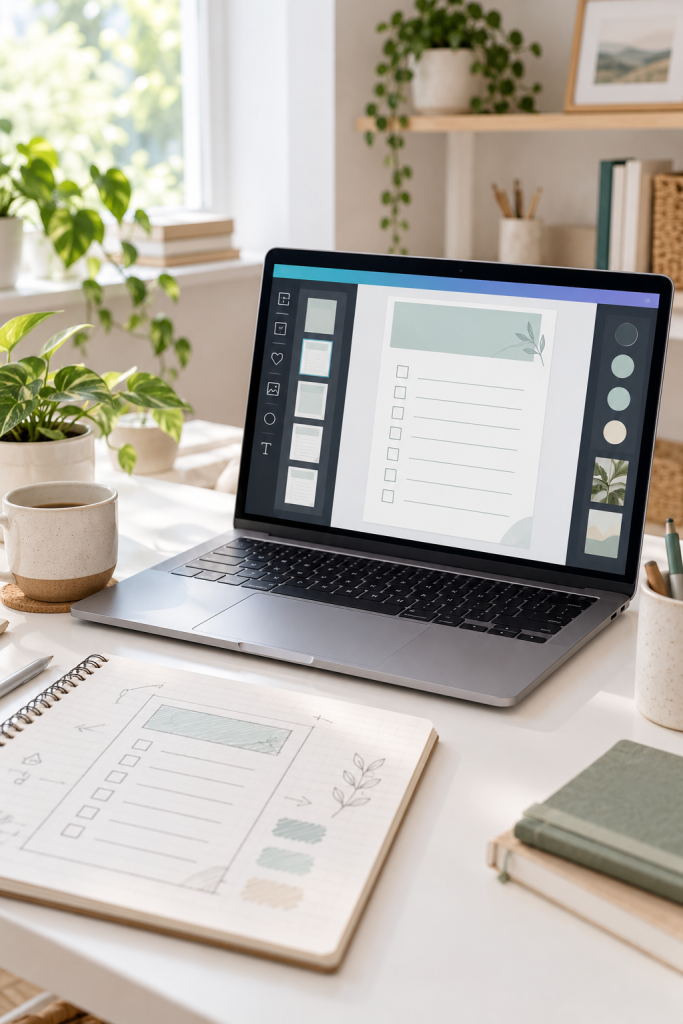
A checklist does not need elaborate graphics to look professional. A clean page with clear sections, readable text, and enough room for check marks usually works better.
Open Canva and create a blank document in your chosen size. Add a short title at the top, then place your checklist tasks underneath.
Keep the design simple:
- Use one easy-to-read font for the tasks.
- Add small boxes beside each action.
- Leave space between the lines.
- Use a limited color palette that still looks good when printed.
A common beginner mistake is spending too much time decorating the page. Large illustrations, tiny text, and crowded borders can make a checklist harder to use.
Check that every design element serves a purpose before keeping it.
A crowded page with too many fonts, decorations, and tightly packed tasks.
A clear title, readable tasks, consistent checkboxes, and comfortable spacing.
4. Choose the Right Page Size and Download Format

Your design may look good on a laptop but still print poorly if the page size is wrong.
Before exporting, decide how your customers will use the checklist. Someone printing it at home may prefer US Letter or A4, while someone using it on a tablet may simply want a clear digital PDF.
For a printable checklist, PDF is a practical starting format because it helps keep the page layout consistent.
If you want to offer both common paper sizes, create and check a version for each one. Do not assume changing the print settings will always produce the result you want.
The main mistake here is choosing a file format without thinking about the buyer. Make it clear whether your product is meant for printing, digital viewing, or both.
| US Letter | A4 |
|---|---|
| 8.5 × 11 inches | 210 × 297 mm |
| Common in the United States | Common in many other countries |
| Useful for home printable products | Useful for international printable buyers |
📌 Export each version as a PDF and check the page layout before selling.
5. Test Your Checklist Before Selling It

A checklist can look tidy inside Canva but still have problems once someone downloads or prints it.
Open the exported PDF on your computer or phone. Check that the title is visible, the text is easy to read, and the checkboxes line up with the correct tasks.
If it is a printable product, print a copy when possible.
Pay attention to these details:
- Are any words too close to the page edges?
- Is there enough room to make a check mark?
- Can you read everything without zooming in?
- Do the tasks make sense in the order shown?
The mistake to avoid is assuming the design is finished just because it looks good in the editor. Fix small problems before buyers encounter them.
Open the final PDF outside the design editor.
Check the print margins and checkbox spacing.
Read each task as if you were using the list for the first time.
Trusting the Canva preview as the only quality check.
Leaving tiny text or crowded checkboxes unchanged.
Uploading the file without opening the exported version.
6. Package Your Checklist as a Digital Download
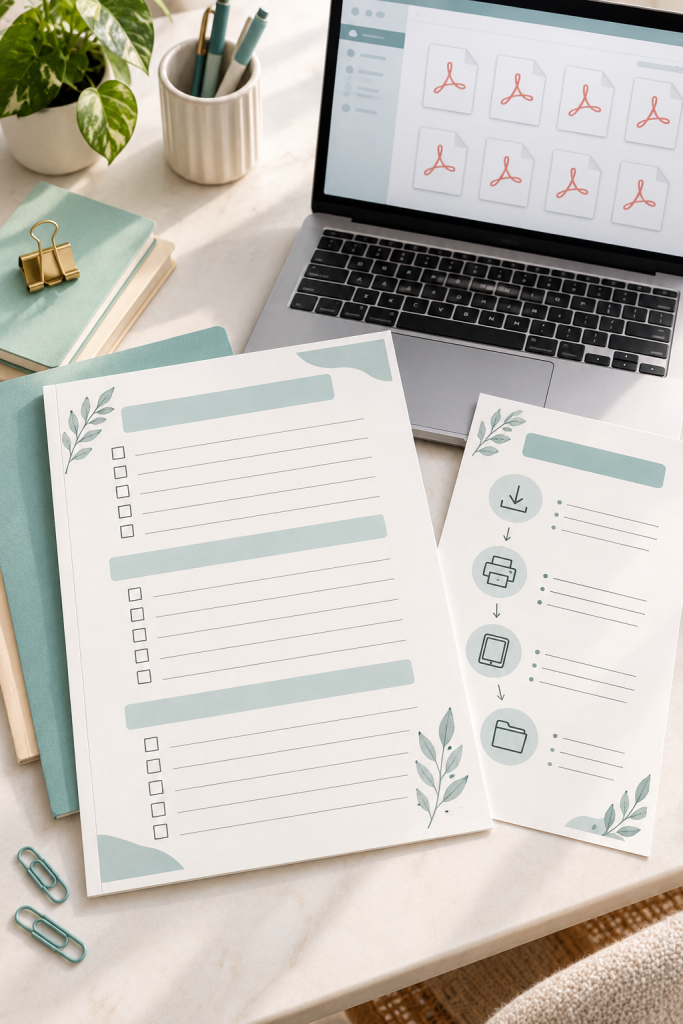
Your checklist is designed and checked. Now it needs to be organized so buyers know exactly what they are downloading.
Give each file a simple name that describes its contents. For example, Weekly_Cleaning_Checklist_Letter.pdf is much clearer than final_design_3.pdf.
If you are including more than one page size, keep the files clearly labeled. You can also add a short instruction sheet explaining which file to print and how to use it.
Before uploading, check that the folder contains only the finished customer files.
Avoid the common mistake of adding unnecessary extras just to make the product seem larger. A clean, useful checklist with clear instructions is better than a confusing bundle full of unrelated pages.
📦 Your Download Package Checklist
7. Create Product Photos and a Clear Listing
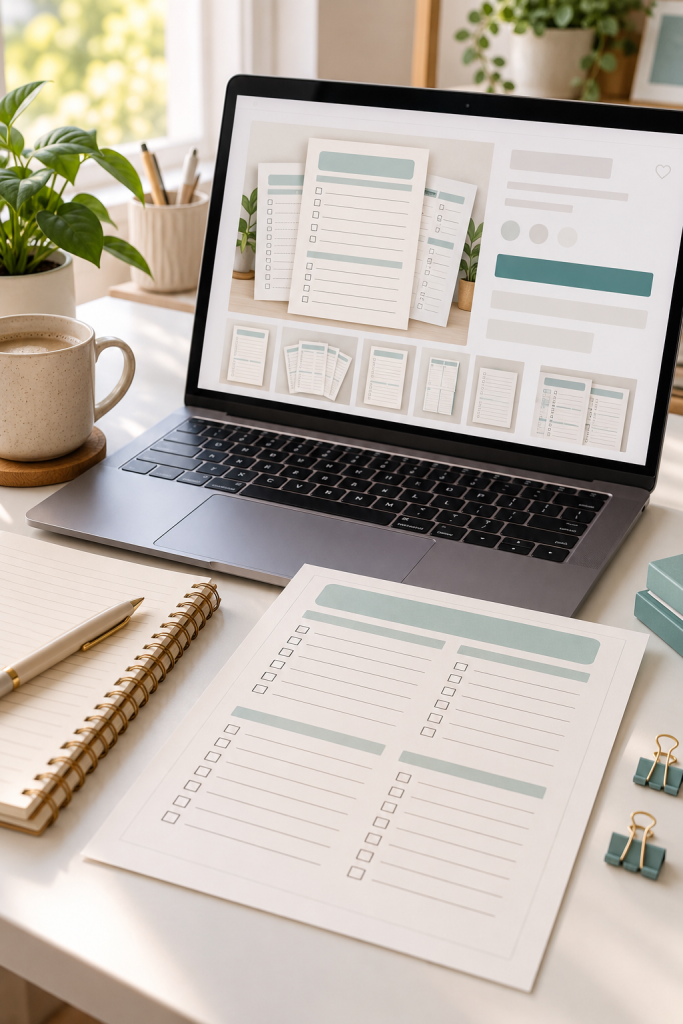
People cannot pick up a digital checklist before buying it. Your product pictures and description need to explain what they will receive.
Create a few simple preview images that show the entire checklist, a closer view of the layout, and an example of how it might look when printed.
A mockup of the checklist on a desk can help buyers understand the product, but the page itself should remain easy to see.
Your listing description should explain:
- Who the checklist is for.
- What tasks or sections it covers.
- Which file formats and page sizes are included.
- Whether the buyer receives a printable file or an editable template.
Do not make the mistake of relying on pretty product photos alone. Clear details help customers understand what they are purchasing.
8. Upload Your Checklist and Prepare It for Sale
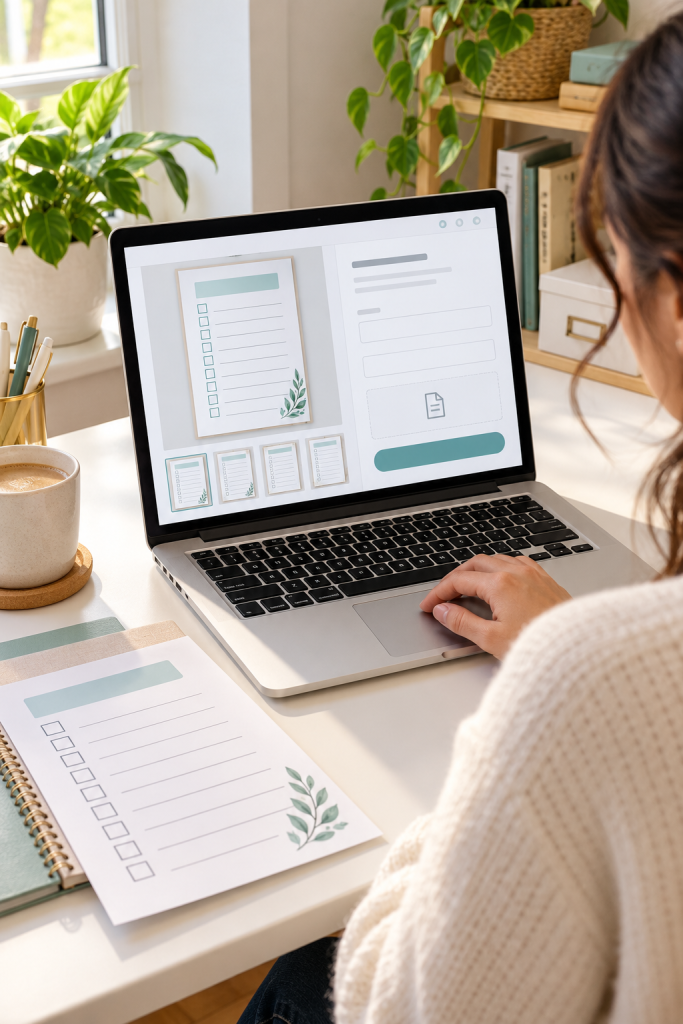
The final step is placing your finished checklist in an online shop where customers can purchase and download it.
You might choose Etsy or your own online store. Before listing anything, read the platform’s current rules for digital downloads, fees, permitted content, and file delivery.
Upload your finished files, add the product images, and fill in the listing information. Make sure your description matches what is actually included.
Take one last look before publishing:
- Is the correct PDF attached?
- Does the title describe the checklist clearly?
- Are the file details accurate?
- Are the download instructions easy to understand?
A common mistake is rushing through these final settings. Check the buyer’s download process and the available preview or test options before making your product available.
💡 Before You Publish
Open your listing preview and check it as a customer would. Confirm the product images, file details, and delivery settings all match the finished checklist.
⚠️ Watch Out
Platform rules and download requirements can change. Check the current instructions for your chosen marketplace before publishing.
Conclusion
Turning a simple checklist into a digital product is mostly about making useful choices. You start with one problem, write clear steps, design an easy-to-use page, and prepare a file that customers can understand.
Your first checklist does not need a large collection of bonus pages or complicated graphics. It needs to do one job well.
As you learn to create sellable digital products, focus on helping buyers finish real tasks rather than adding features they may never use. Choose one checklist idea from your notes and work through the steps at your own pace.
Save this guide to your Pinterest board so you can come back to it when you’re ready to create your first checklist.