
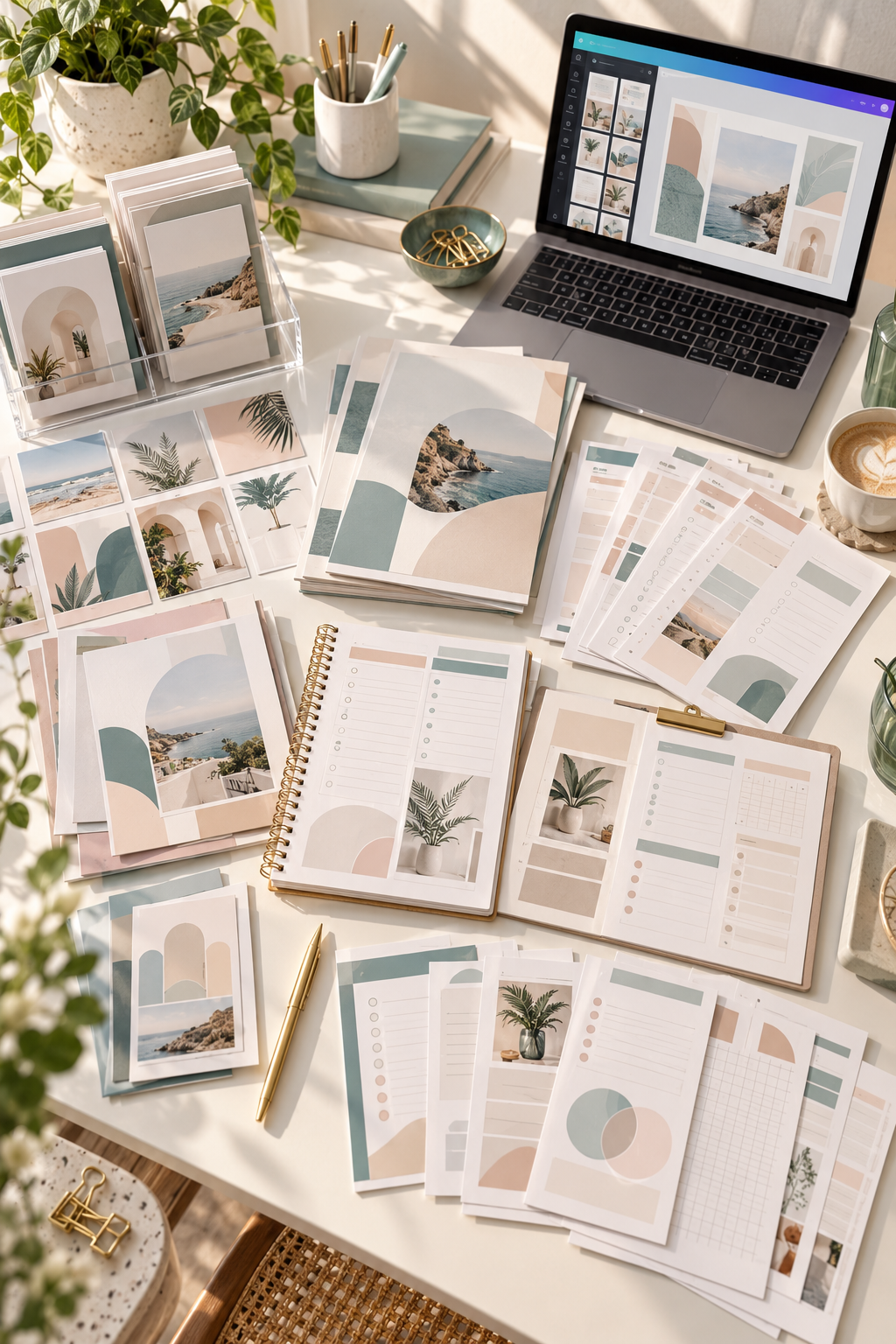
Creating your first digital product can feel confusing when you open Canva and see hundreds of design options. You might spend an hour changing fonts, picking colors, and moving boxes around, only to end up with something you are not sure anyone would buy.
The good news is that you do not need to be a professional designer to create useful templates. You need a clear product idea, a simple layout, and a way for customers to edit what they purchase.
Learning how to make Canva templates to sell starts with solving a small problem for a specific person. A bakery owner might need editable menu boards. A busy freelancer might need invoice templates. A content creator might want matching Instagram post designs.
Instead of making random designs and hoping someone likes them, you can follow a clear process to build something practical.
These ten steps will walk you through choosing a product, creating your template, testing it, and preparing it for sale. Start with one simple design and build from there.
1. Choose a Canva Template Type People Need
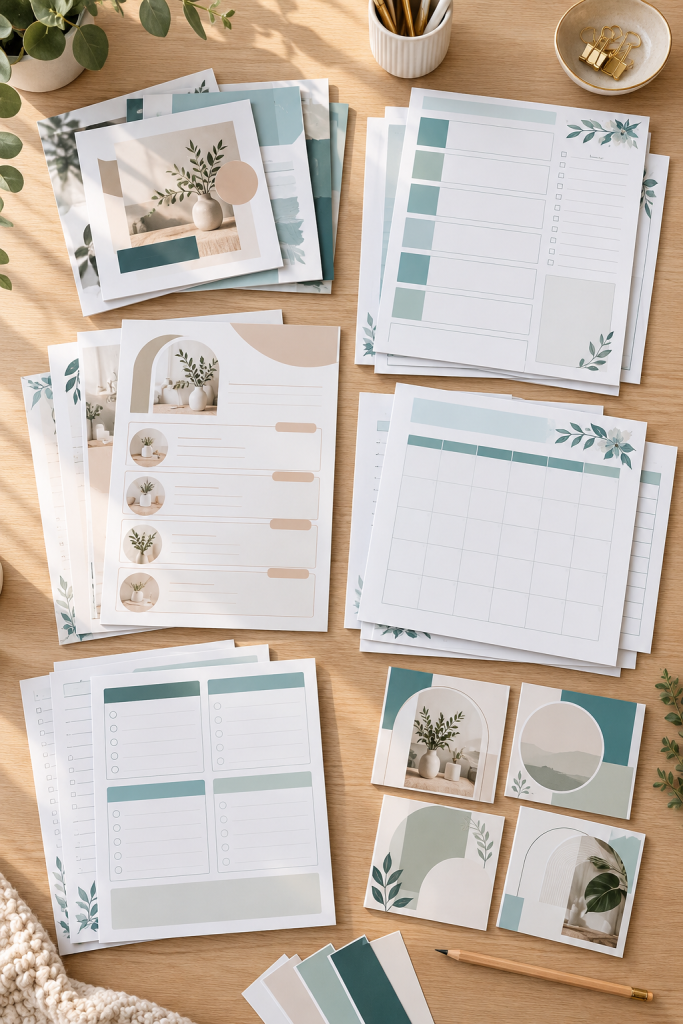
Start with a product that helps someone finish a task faster. A pretty design is not enough on its own. Customers need something they can open, customize, and use.
Think about the kinds of documents people make repeatedly.
- Social media templates: Editable posts for small businesses and content creators.
- Business templates: Price lists, service menus, and client forms.
- Planning templates: Weekly schedules, content calendars, and goal trackers.
Pick one type you feel comfortable making. A simple service price list is often easier to design than a large business planner.
Common mistake: Choosing a product because you like its appearance without checking whether it solves a real problem.
2. Pick One Customer and One Problem to Solve
A template becomes easier to design when you know who will use it.
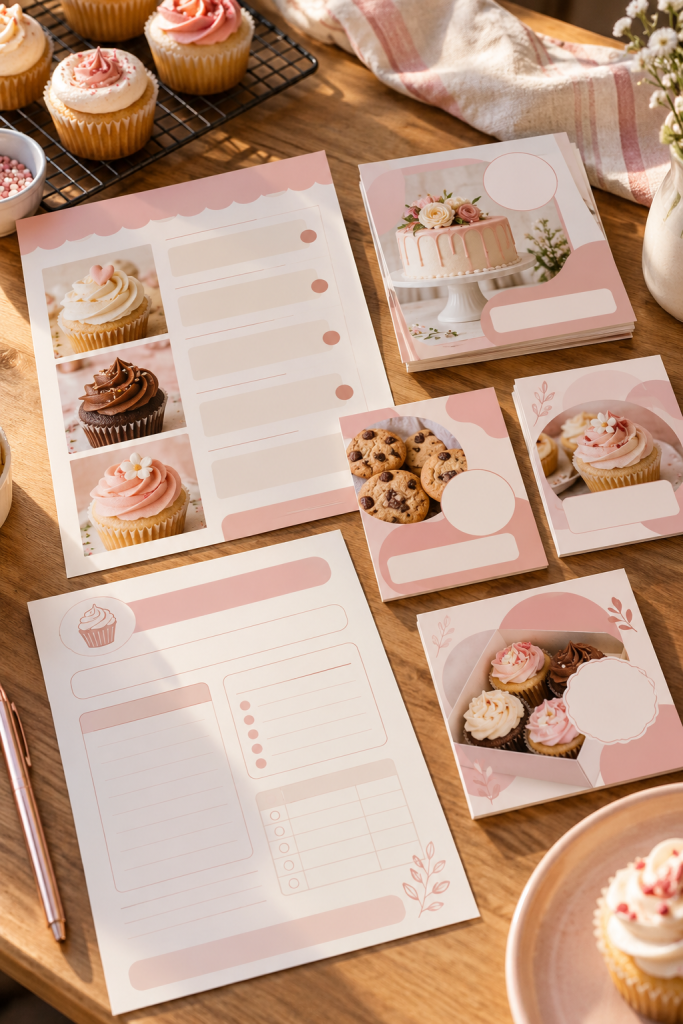
Instead of creating a general social media pack, choose a customer such as a home baker who needs matching graphics for weekly specials.
Ask yourself three questions:
- Who will use this template?
- What task are they trying to finish?
- Which parts will they need to change?
For example, a home baker might want to replace cake photos, update flavor names, and change pickup details without rebuilding the design.
Build your layout around those needs. Keep the editable areas obvious and leave enough space for longer names or descriptions.
Common mistake: Trying to make one template suitable for every business.
💡 Before You Open Canva
Complete this sentence:
“I am making a [template type] for [customer] who needs to [task].”
Example: I am making an editable weekly specials menu for home bakers who need to update their offerings.
3. Look at Similar Templates Before Designing
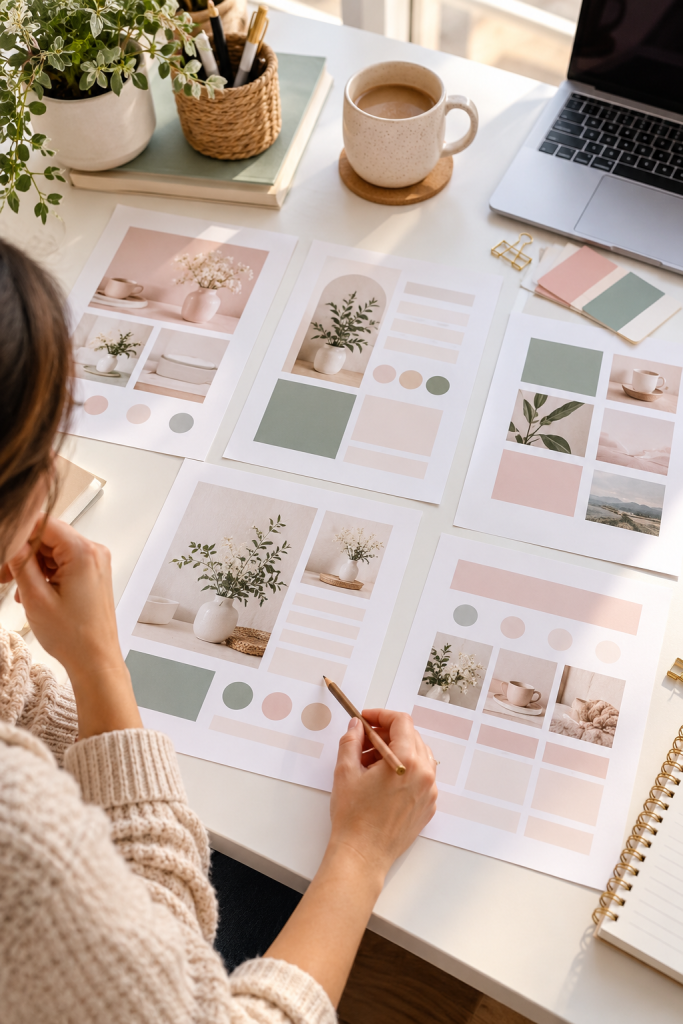
Before creating your design, spend some time looking at products already available on Etsy or other digital product marketplaces.
Search for the template type you chose. Open several listings and compare what buyers receive.
Pay attention to practical details:
- How many editable pages are included?
- Which layouts appear useful?
- Are the product previews easy to understand?
Look for gaps you could address with your own design. For instance, if several bakery menu templates have tiny writing areas, you could create one with more room for descriptions.
Common mistake: Copying another seller’s layout and changing only the colors. Research should help you develop an original product.
Compare features: Count pages, note useful sections, and study product instructions.
Find missing details: Look for customer tasks the existing products may not cover.
Create your own layout: Plan a fresh arrangement around your customer’s needs.
Copying designs: Recreating another seller’s layout with small changes.
Guessing demand: Assuming attractive products automatically attract buyers.
Ignoring usability: Focusing only on colors while overlooking editing problems.
4. Set Up Your Template Size in Canva
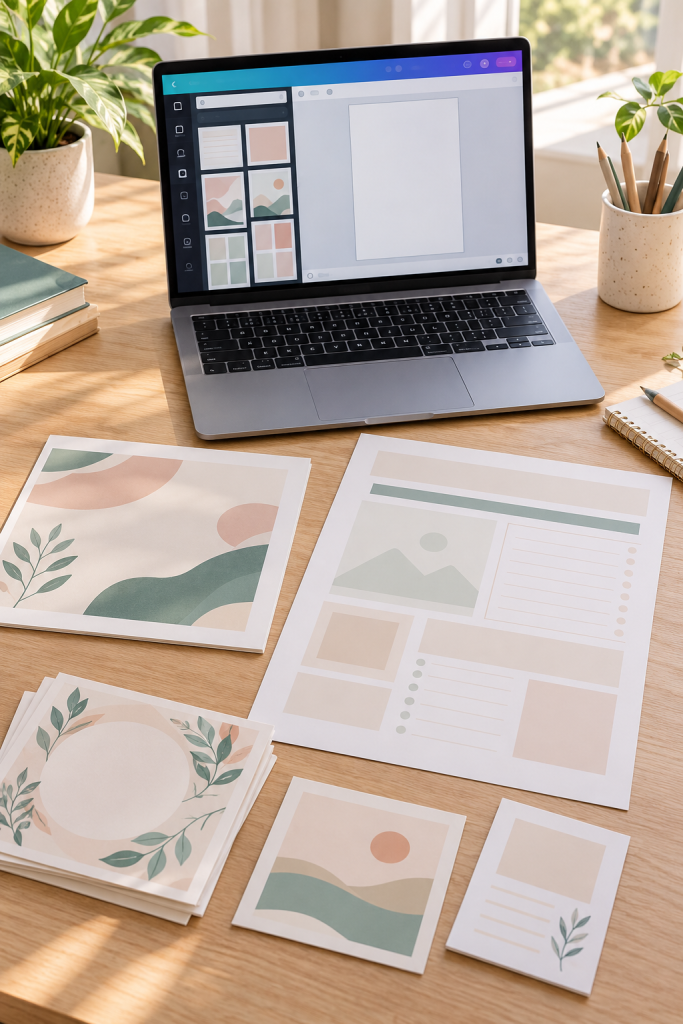
Open Canva and create a new design using dimensions that match your product’s purpose.
For an Instagram post template, choose the size meant for that format. For a printable planner, select a standard paper size such as US Letter or A4.
You can also use Canva’s custom size option when your product needs specific dimensions.
Before adding anything, decide whether the design should be portrait, landscape, or square.
Check the page size carefully because resizing later may require you to rearrange text boxes and images.
Common mistake: Starting with a random canvas size and discovering that the finished design does not fit the customer’s intended use.
Choose the format
Decide whether your buyer needs a social media graphic, printable page, or digital document.
Select the page size
Use a matching Canva preset or enter the dimensions manually.
Name your design
Use a clear working name, such as Bakery Weekly Specials Template, so you can find it again.
5. Build a Simple and Easy-to-Edit Layout
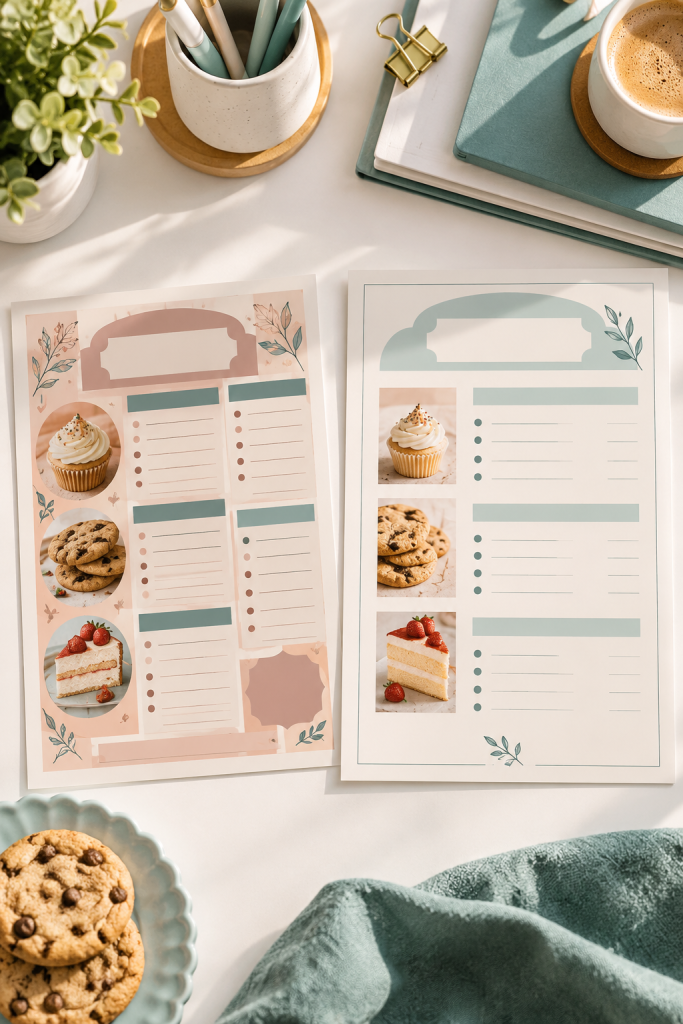
A useful Canva template should be easy to understand as soon as someone opens it.
Start with the main parts your customer needs. For a service menu, that might be a heading, a list of services, descriptions, and a contact section.
Place these elements in a clear order. Keep enough empty space between them so the page does not feel crowded.
Use separate editable text boxes for information customers will replace. Make photo areas large enough to work with different images.
Common mistake: Adding too many decorative details, leaving little room for actual content.
A simple layout with flexible sections is more helpful than a crowded page that takes extra work to edit.
Tight spacing, small text, and decorative areas that compete with the important details.
Clear sections, readable text, and enough room to replace details without rebuilding the page.
6. Choose Fonts, Colors, and Design Elements Carefully
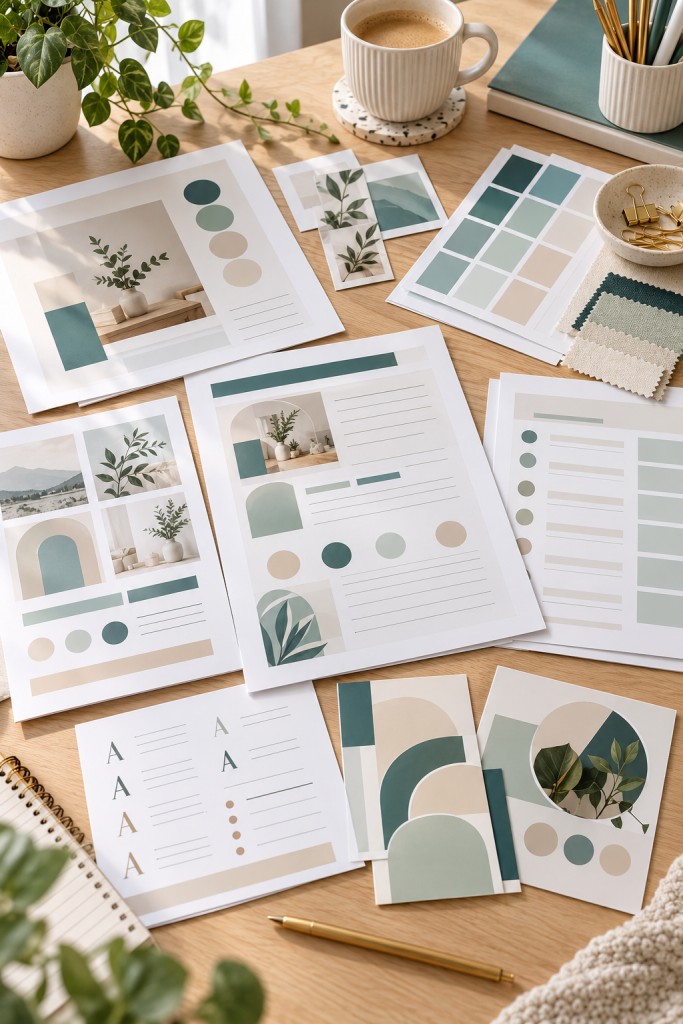
Good templates do not need a different font or color for every section.
Choose one font for headings and another easy-to-read font for body text. Then select a small set of colors that work well together.
For a bakery menu, you might use soft cream, warm brown, and a muted pink. Keep important text dark enough to read clearly.
Be careful when choosing Canva photos, graphics, and other library elements. Read Canva’s current Content License Agreement before selling anything made with Canva content. Original design work matters, and some content has special rules for editable templates.
Common mistake: Filling the design with decorative elements or licensed content without checking whether the intended use is permitted.
🎨 Check Your Design Choices
7. Test Your Template Before Selling It
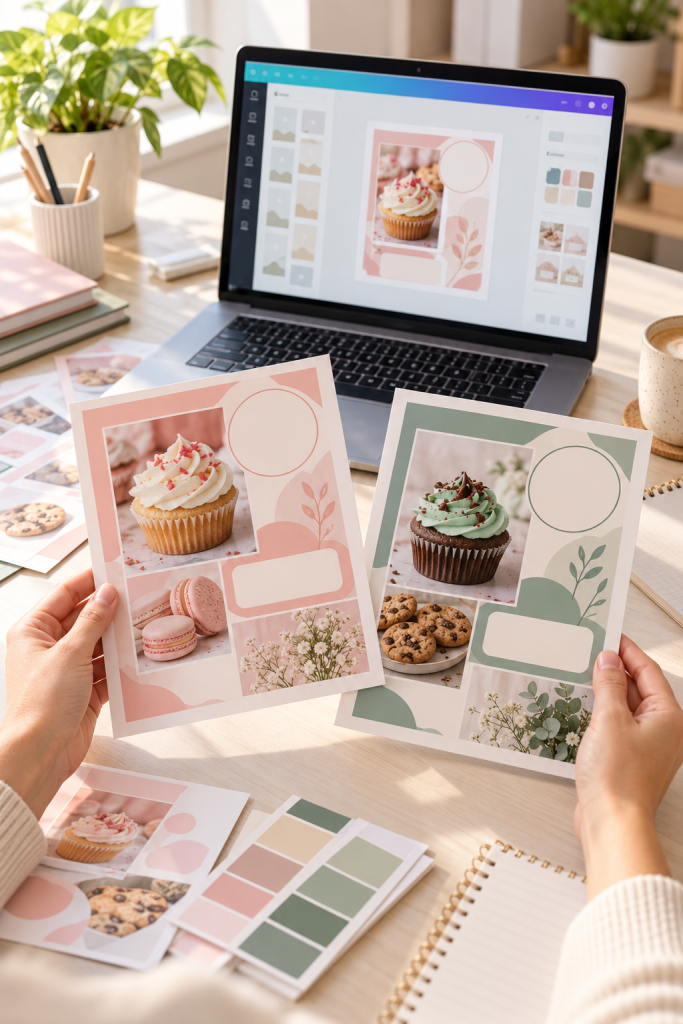
Your design might look finished, but it still needs to work when someone changes the content.
Make a separate test copy of the template. Replace the sample names, switch the colors, and add different photos.
Try entering a longer heading than the original. Does the text still fit? Can you move the photo without covering another element?
Check every page, especially if your product contains several matching layouts.
It also helps to look at the design at a smaller size to see whether important details remain readable.
Common mistake: Testing only the original design rather than checking how it behaves after a customer edits it.
8. Create a Canva Template Link for Buyers
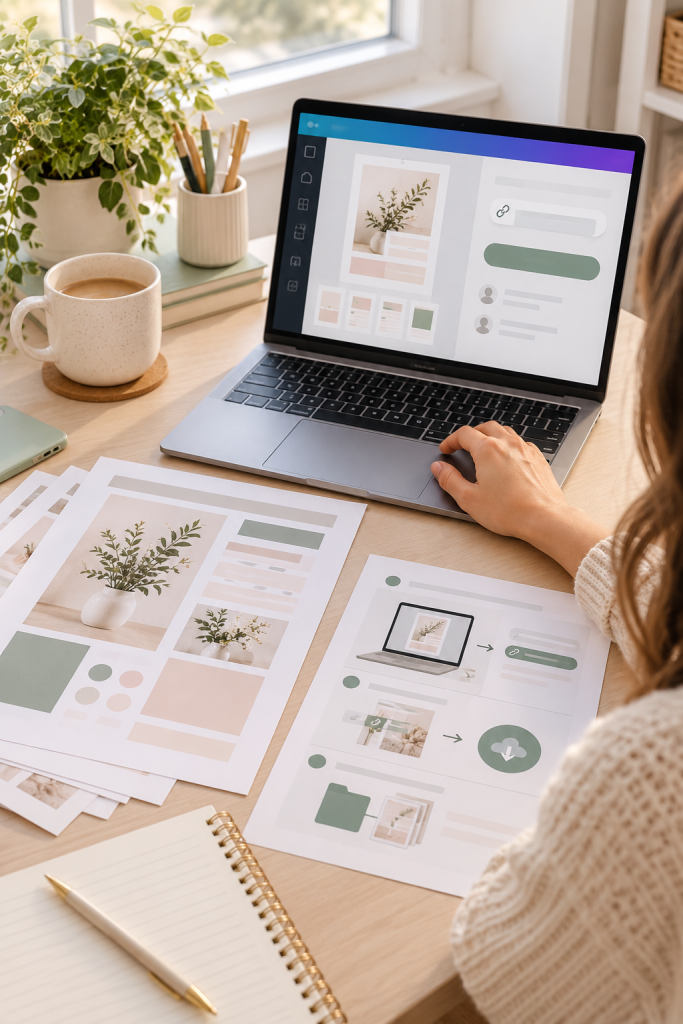
Once your template is ready, you need a way for customers to open their own editable version.
Canva offers a Template link sharing option on supported paid, team, and other eligible plans. Open your design, select Share, and locate the Template link option, checking the available settings in your account.
Copy the template link and test it in a separate browser session. Make sure the buyer can start with their own copy rather than change your original working design.
Save the link in a simple delivery document. The document can explain how to open the template and begin editing.
Common mistake: Sending an ordinary edit-access link, which may let buyers change the original design.
Find the template sharing option
Open Share in Canva and locate the Template link option available with an eligible plan.
Copy and test the link
Check that it opens the intended template and lets the buyer work with a separate copy.
Save the buyer instructions
Place the tested link and clear opening instructions in a delivery document for your product.
9. Make Product Mockups and a Download Guide
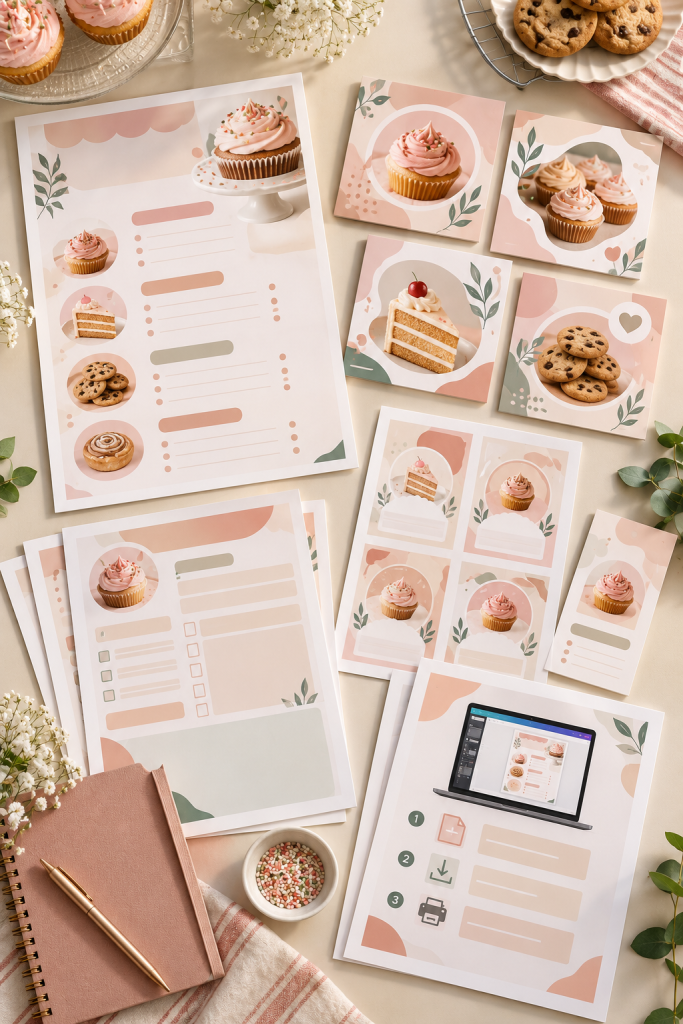
Customers should be able to see what your template includes before buying it.
Create a few clear product mockups that show your actual designs. For example, display a bakery menu template on a realistic paper sheet, alongside close-up previews of its editable sections.
Next, prepare a simple PDF download guide. Include the template link, instructions for opening it in Canva, and a short explanation of how to replace text, colors, and images.
Make it clear that customers are purchasing a digital template, not a printed product.
Common mistake: Showing attractive mockups without explaining what the buyer receives or how to access the editable files.
10. List Your Canva Templates for Sale
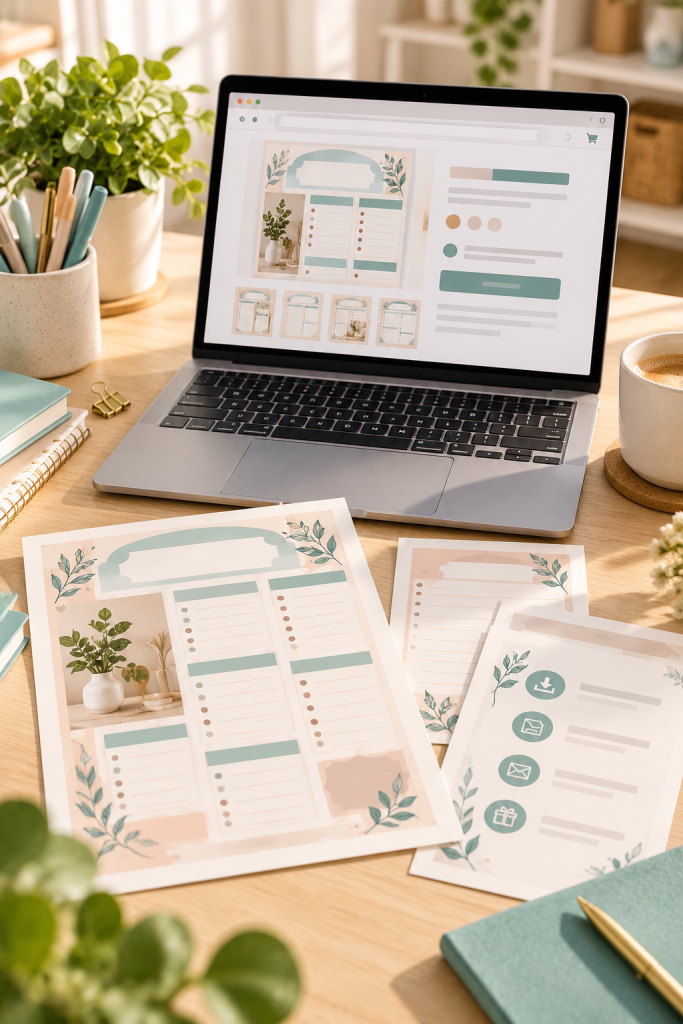
Your finished product needs a listing that tells customers exactly what they are getting.
Choose a selling platform such as Etsy or your own online store. Check its current digital product rules, file requirements, and fees before publishing.
Write a clear title that names the template and its intended user. Add product images, explain what is included, and describe how buyers will access their editable copy.
Upload the PDF delivery guide according to the platform’s instructions. Review the listing as a customer would, checking that the description matches the files.
Common mistake: Publishing with unclear instructions, missing product details, or a download file that has not been checked.
🛍️ Check Before Publishing
Start With One Canva Template and Build From There
Making your first digital template does not need to become a huge project. One useful design, created for one clear customer, is enough to begin learning the process.
As you practice making Canva templates to sell, pay attention to the small things that make a product easier to use. Clear layouts, editable sections, helpful instructions, and accurate product previews all matter.
Once your first listing is ready, you can improve the design, create matching products, or explore another customer need.
Keep your first project manageable. Finishing one well-prepared template will teach you more about the process than collecting dozens of unfinished ideas.
Save this step-by-step guide to Pinterest so you can come back to the checklist while creating your first Canva template product.