
Creating your first printable sounds simple until you sit down to make one. What should you create? Which page size should you use? How do you make it look professional? And what exactly do you give customers after they buy it?
It’s easy to spend hours choosing fonts, browsing templates, or watching tutorials without finishing a single product.
The good news is that learning how to create printables doesn’t require expensive software or design experience. You can start with one useful idea, build a clean layout in Canva, and prepare a downloadable file that customers can print at home.
The trick is to make a few decisions in the right order. Choosing your product before opening a design tool saves time. Checking your page size early prevents printing problems. And testing the finished file helps you catch small mistakes before customers find them.
Below, we’ll work through ten practical steps, from choosing your first printable to getting it ready for an online shop. By the end, you’ll know what to make, how to design it, and what to check before publishing.
1. Choose One Printable Idea People Need
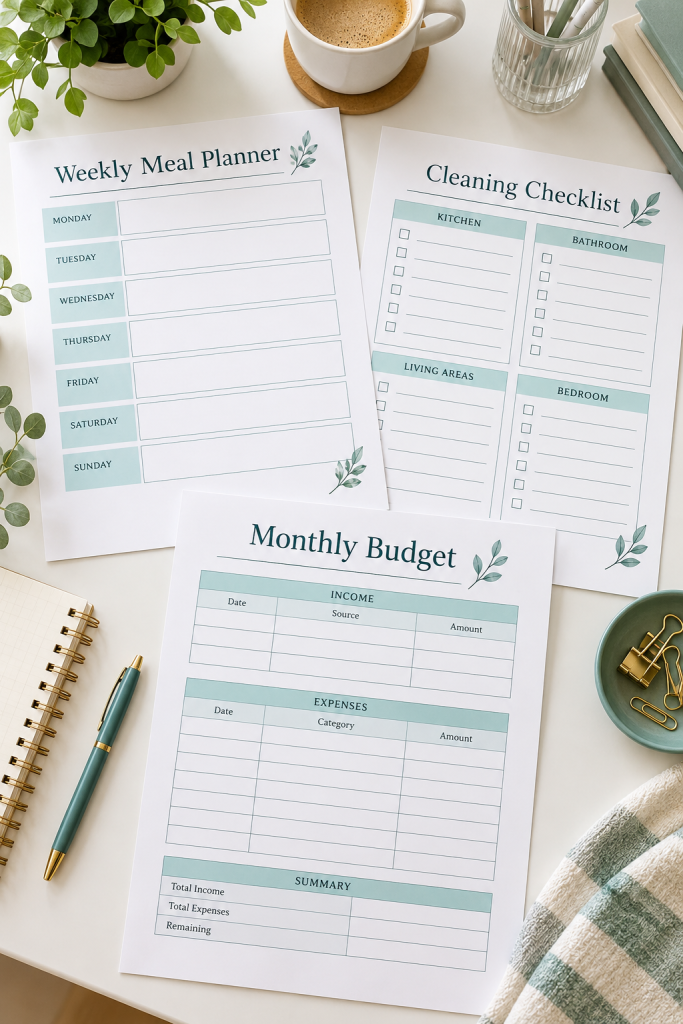
Start with a simple problem someone wants to solve on paper. A weekly meal planner helps organize dinners, while a cleaning checklist makes it easier to remember household chores.
Your first printable doesn’t need several pages or complicated features.
Look for something with a clear purpose:
• Meal planner: Helps families plan meals and shopping.
• Cleaning checklist: Breaks household jobs into manageable tasks.
• Budget worksheet: Gives users a place to record income and spending.
Choose one idea and identify who will use it. A meal planner for busy parents, for example, could include space for quick dinners and grocery notes.
Common mistake to avoid: Trying to build a large printable bundle before finishing one useful page.
2. Check Whether People Are Looking for It
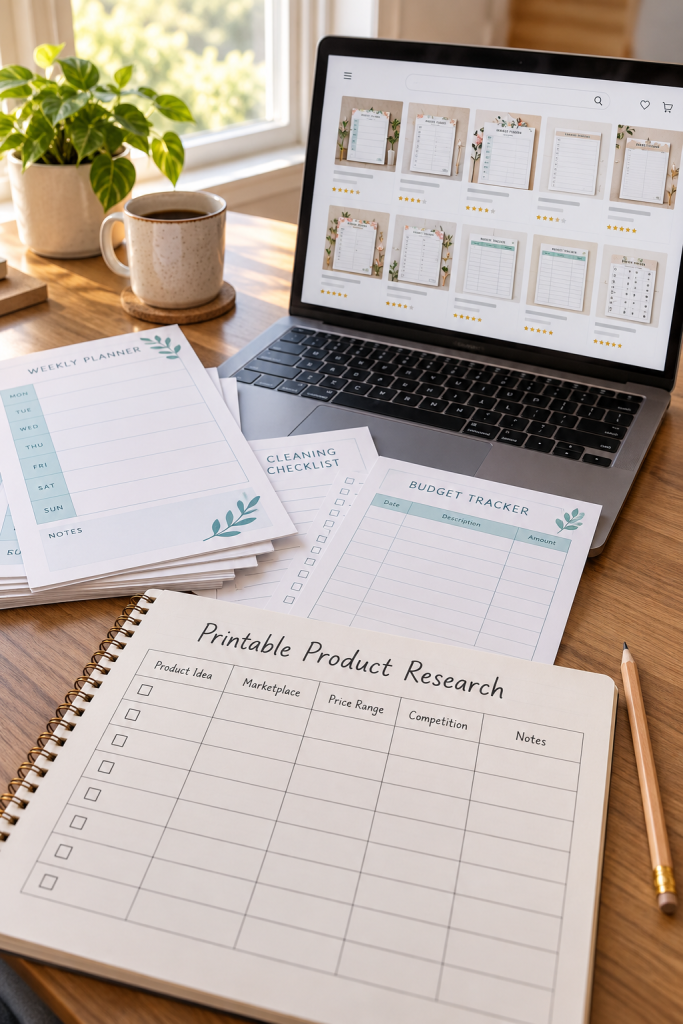
Before designing, spend a little time looking at similar products on Etsy or another marketplace.
Search for the printable you want to create. Notice which features appear repeatedly, how sellers show their products, and what information buyers seem to need.
For example, some meal planners include grocery lists, while others focus on weekly menus.
Pay attention to customer reviews when they’re available. A complaint about small writing spaces may help you spot an opportunity to make your version easier to use.
Common mistake to avoid: Assuming that a product will sell simply because similar listings exist. Search results show competition and product ideas, not guaranteed demand.
Use this quick research checklist before moving on.
🔎 Printable Research Checklist
3. Decide What Your Printable Will Include
A printable works better when you plan its content before worrying about colors and decorations.
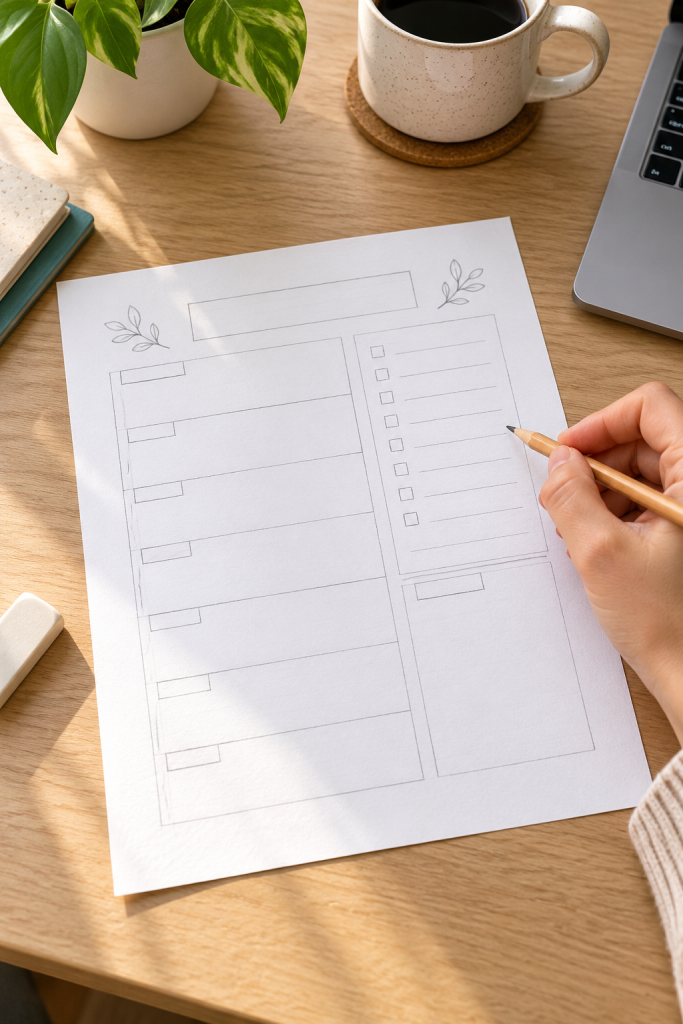
Take a blank sheet of paper and sketch a rough layout. Mark where the title, main sections, and writing spaces will go. You don’t need drawing skills. Simple rectangles are enough.
For a weekly meal planner, your sketch might include:
1. Seven spaces for daily meals.
2. A grocery list along one side.
3. A small notes area for meal preparation.
Think about how someone will actually fill in the page. Leave enough room for handwriting and keep the most important sections easy to find.
Common mistake to avoid: Adding too many boxes, instructions, or decorative details until the page feels crowded.
4. Pick the Right Page Size Before Designing

Page size is one of those small choices that can cause trouble later.
Two common options are US Letter, used widely in the United States, and A4, used in many other countries. Both work for planners, checklists, worksheets, and household organizers.
Decide which size fits your intended customers before you create the design. For beginners, starting with one size keeps the process manageable.
If you plan to offer both, check each version separately. Resizing a finished page can change margins, line spacing, and text placement.
Common mistake to avoid: Designing without checking the page dimensions, then discovering that important parts of the printable get cut off when printed.
| US Letter | A4 |
|---|---|
| 8.5 × 11 inches | 210 × 297 mm |
| Common in the United States | Common in many other countries |
| Slightly wider and shorter | Slightly narrower and taller |
| Useful for US-focused buyers | Useful for international buyers |
5. Build Your Printable Layout in Canva
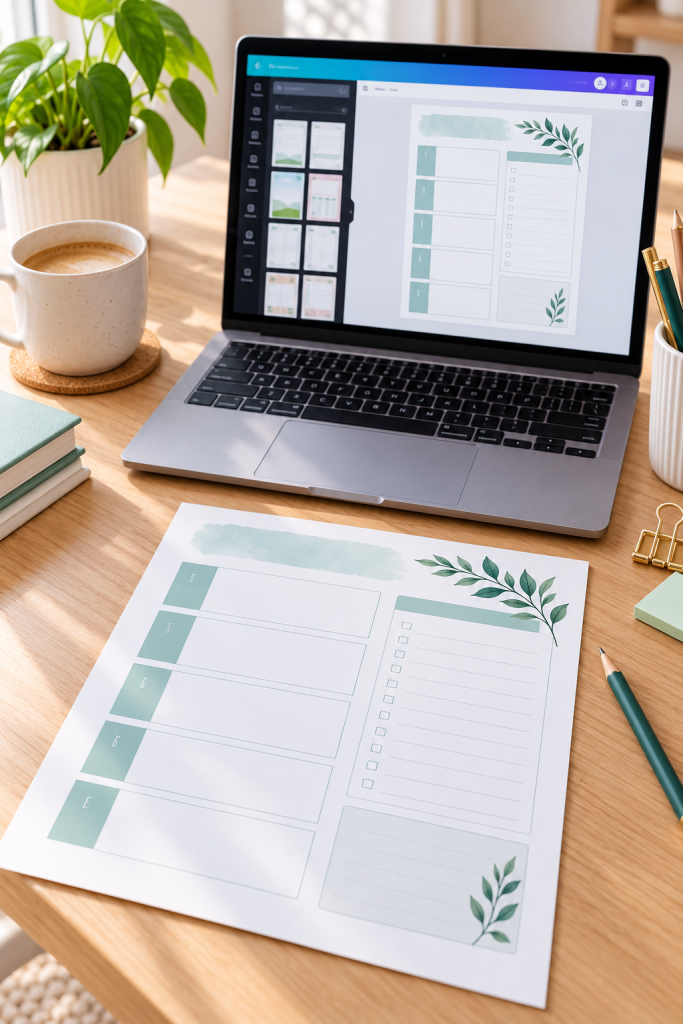
Now you’re ready to turn your sketch into a real printable.
Open Canva and create a design using the page dimensions you chose earlier. You can begin with a blank page or use a suitable template as a starting point.
For a meal planner, add your heading first. Then create spaces for each day, followed by the grocery list and notes area.
Keep checking your original sketch as you work. It helps you focus on function instead of getting distracted by decorative elements.
Make sure you have permission to use any templates, graphics, or other design elements in a product you plan to sell.
Common mistake to avoid: Spending too much time decorating the printable before the basic layout works.
Rough paper sketch
Hand-drawn boxes, section labels, and notes about what the page needs.
Clean Canva layout
Aligned sections, readable headings, consistent spacing, and useful writing areas.
6. Choose Readable Fonts and Simple Colors
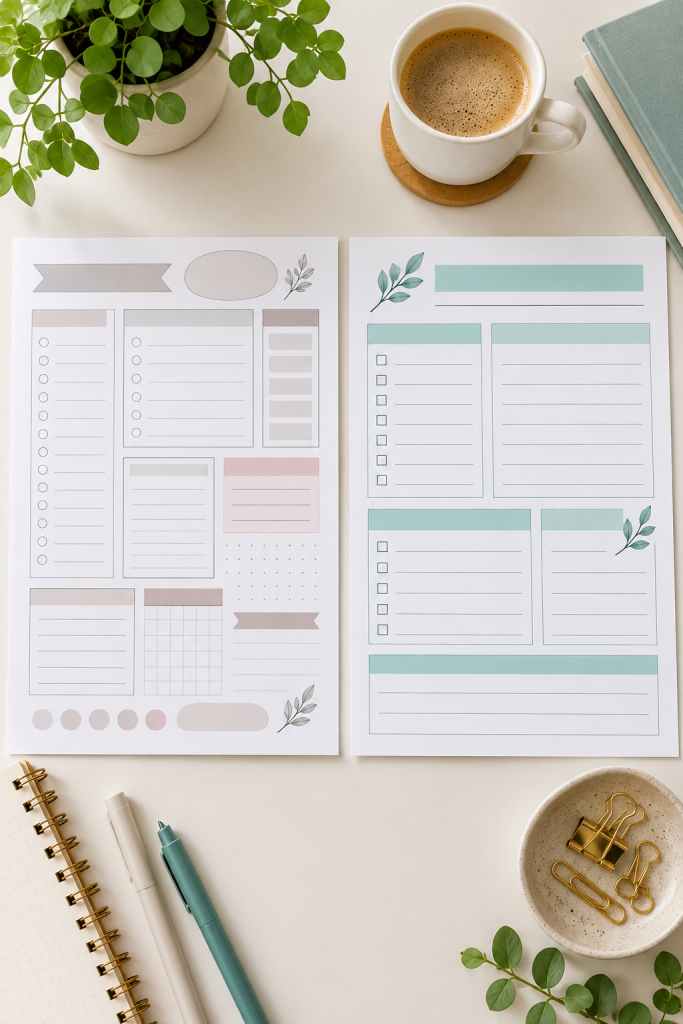
A pretty printable isn’t very helpful if the words are difficult to read.
Choose a clear font for everyday text and, if needed, a second font for headings. Simple fonts like Arial, Open Sans, or Montserrat can work well for worksheets and planners.
Stick to a small color palette. Dark text on a white or very light background is usually easier to read, especially when customers print at home.
Before finishing, check three things:
• Can someone read the smaller labels comfortably?
• Are the lines and checkboxes easy to see?
• Does the page still make sense in black and white?
Common mistake to avoid: Using pale text, tiny labels, or several decorative fonts just to make the design look more interesting.
💡 Quick Design Tip
Make a copy of your finished page and preview it in grayscale before selling.
If headings, lines, or important sections become hard to see without color, increase the contrast or adjust the layout.
7. Check Spacing and Test Print Your Design
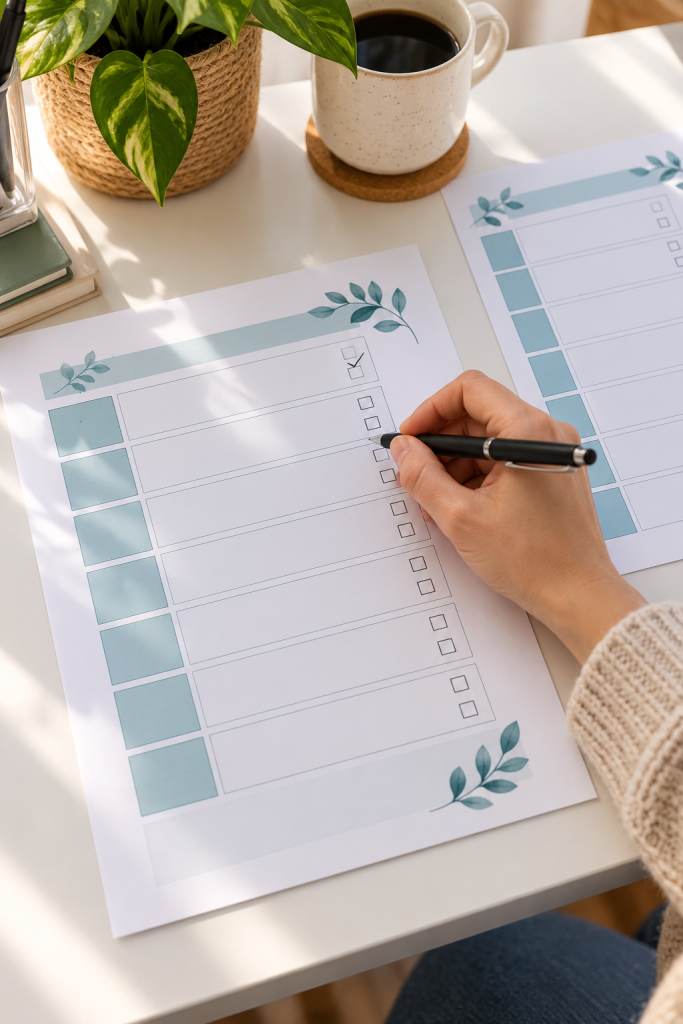
A printable can look fine on a laptop and still have problems once it reaches paper.
Print a sample at its intended size. Check that the text is readable, the margins look balanced, and no important details are cut off.
Use the page as a customer would. Write in the blank spaces, tick the checkboxes, and check whether everything feels comfortable.
Pay extra attention to areas near the paper edges. Home printers often leave an unprinted border, so important details should sit safely inside the page margins.
Common mistake to avoid: Trusting the screen preview without checking a physical print.
If you don’t have a printer, review the PDF at its actual page size and arrange a sample print before publishing.
Print the page at actual size.
Check the margins and page edges.
Fill in the printable to test its writing spaces.
Printing only a scaled-down preview.
Placing text against the paper edges.
Assuming that empty boxes are large enough for handwriting.
8. Download and Organize Your Printable Files
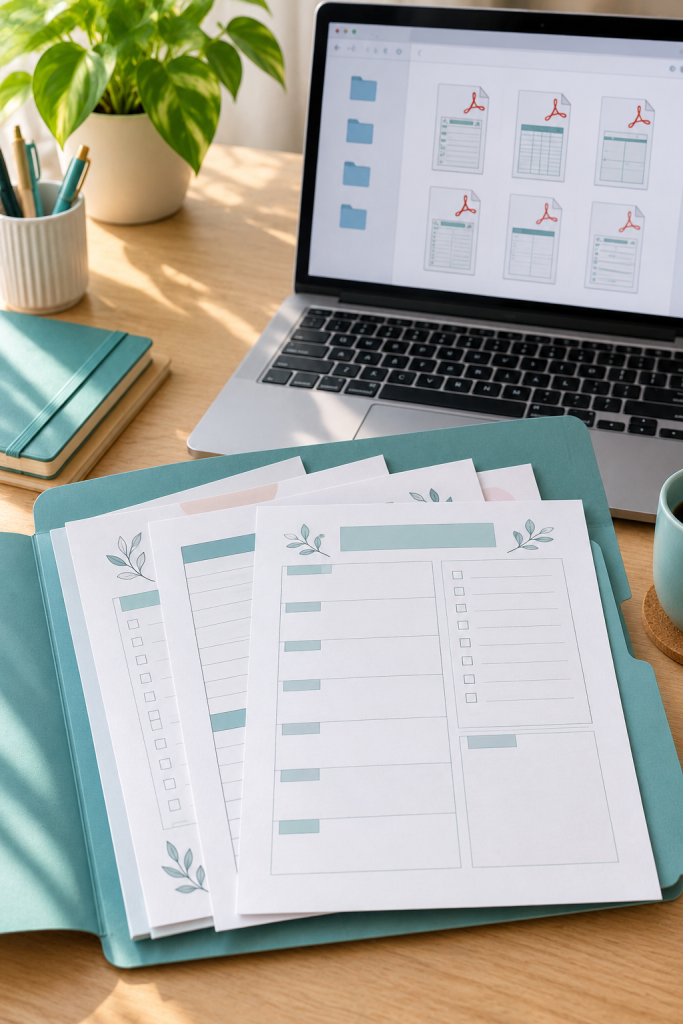
Once your printable passes its final check, prepare the file customers will receive.
In Canva, open the download options and select a PDF format. PDF Print is a useful choice for print-ready files because it is designed for higher-quality printing.
Give the file a clear name, such as Weekly_Meal_Planner_Letter.pdf. If you’re offering another page size, label that version separately.
Keep your files organized:
1. Save the original editable design.
2. Download the customer-ready PDF.
3. Open the downloaded file and inspect every page.
You can also prepare a short instruction sheet if buyers need help choosing a paper size or printing the product.
Common mistake to avoid: Uploading an old draft, the wrong size, or a file you haven’t checked after downloading.
Keep Your Design Original
Save the editable design so you can make corrections or create another size later.
Create the Customer PDF
Download the finished page and name it with the printable type and paper size.
Check the Download Folder
Open the final PDF, verify its pages, and keep only approved files in the customer folder.
9. Create Product Photos That Show What Buyers Get

Customers cannot pick up a digital printable before buying it. Your product images need to show exactly what they will receive.
Start with a clear, full-page preview of your finished design. Then create a close-up that shows the writing spaces, checkboxes, or other useful details.
You can also arrange your printable pages in a realistic mockup to help buyers understand how they look on paper.
A simple product image set might include:
• One clean image showing the complete printable.
• One close-up of its most useful sections.
• One image showing every page included in the download.
Common mistake to avoid: Showing decorative desk scenes while hiding the actual printable. Keep the product large, readable, and easy to recognize.
10. Write Your Listing and Publish Your Printable
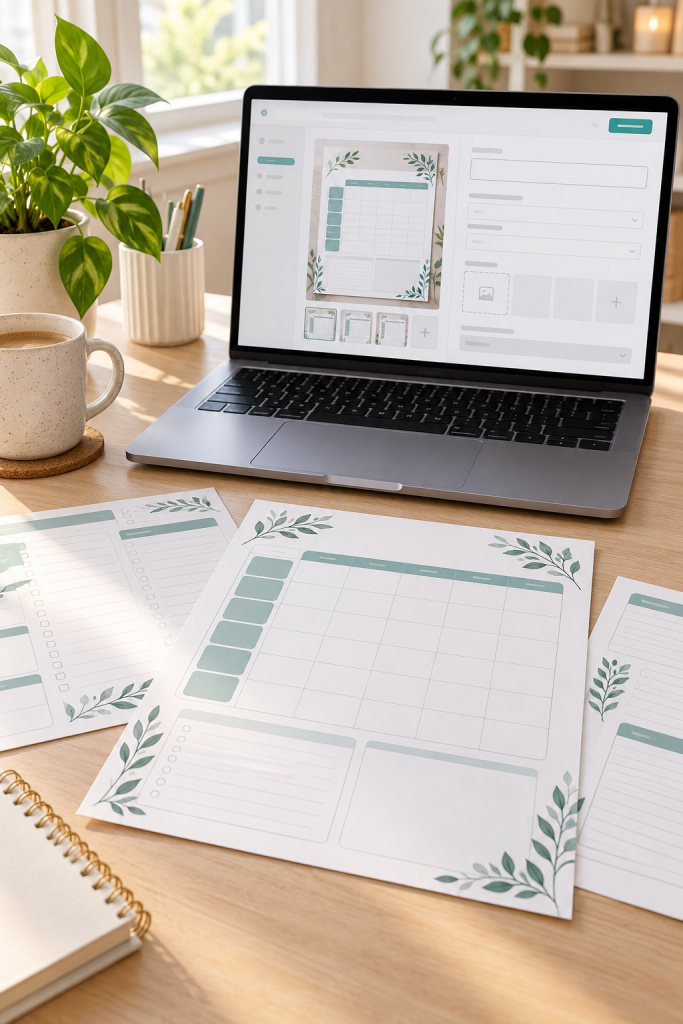
Your printable is designed, tested, and ready to share. The final step is creating a clear product listing.
Choose a selling platform, such as Etsy or your own online store, and select the appropriate digital product option. Check the platform’s current rules, fees, file requirements, and digital delivery settings before publishing.
Give your listing a descriptive title. Instead of calling it “Cute Planner,” use wording such as “Weekly Meal Planner Printable PDF.”
Your description should explain what the customer receives, the available paper sizes, how to download the file, and how to print it.
Upload your product images and finished PDF, then review everything before publishing.
Common mistake to avoid: Forgetting to explain that the product is a digital download, not a physical item shipped to the buyer.
🛍️ Before You Publish
Your First Printable Starts With One Useful Page
Learning how to create printables gets easier when you focus on one decision at a time. You don’t need a large product collection, complicated designs, or expensive equipment to make your first downloadable worksheet.
Start with a useful idea. Give people enough space to write, choose readable fonts, and test the finished PDF before putting it up for sale.
Once you’ve completed one printable, you’ll have a process you can follow again for planners, checklists, trackers, and other digital products.
Keep your first project simple enough to finish. A clear, useful page is a much better starting point than an unfinished collection of elaborate designs.
Save this step-by-step guide to your Pinterest board so you can come back to each step while creating your first printable.