
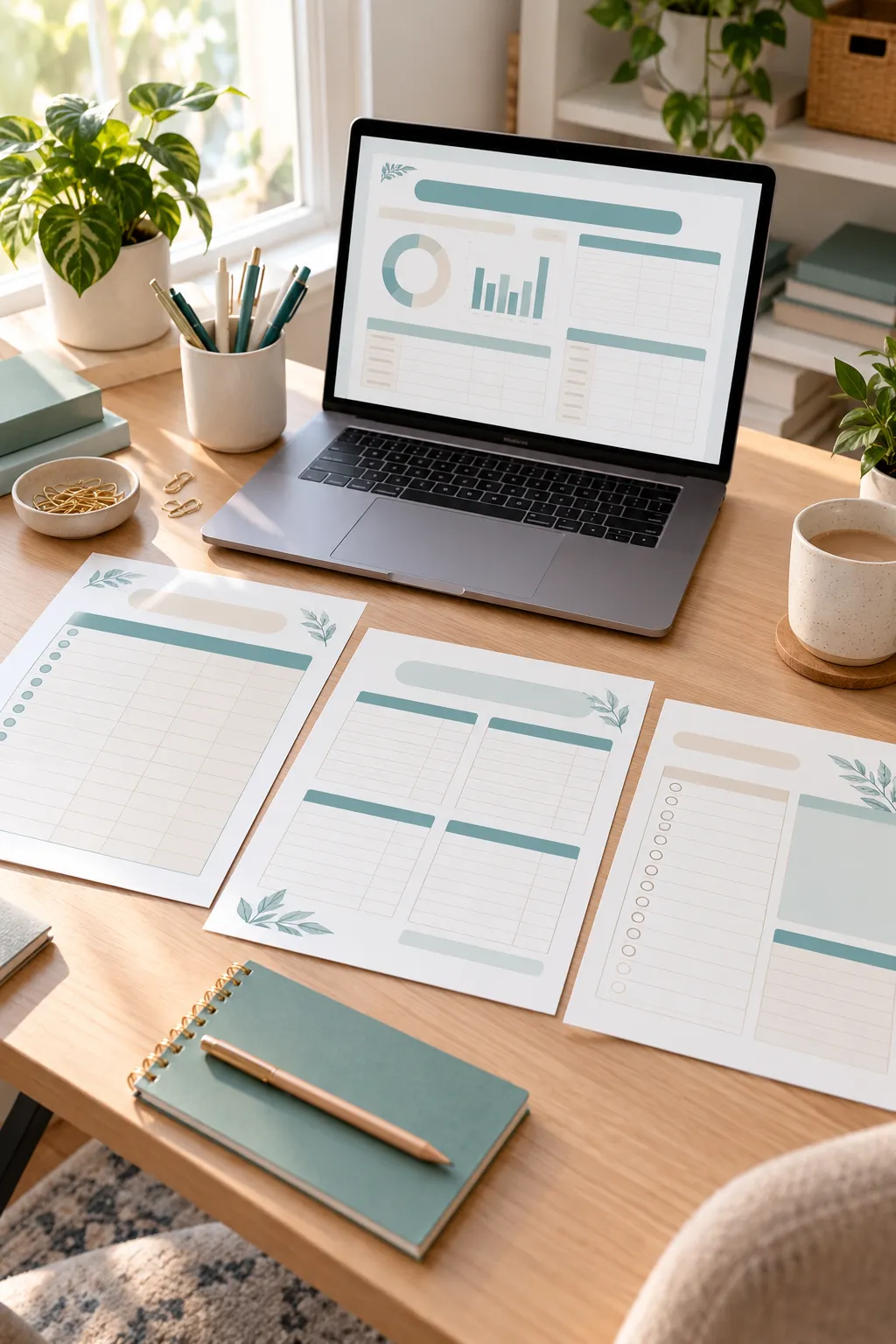
You do not need design experience or expensive software to make a budget planner that people can actually use. A clear layout, simple labels, and enough writing space matter far more than fancy graphics. In fact, some of the most useful printable planners are the ones that keep things simple.
If you have been searching for printable budget planner Canva ideas, you might feel overwhelmed by all the different layouts, colors, and templates. It is tempting to start decorating a page before deciding what should go on it. That often leaves you with a nice-looking planner that feels awkward to fill in.
A better approach is to plan the worksheets first, then build each page around a real budgeting task. You can begin with a monthly budget, a weekly spending tracker, and a bill payment checklist. These three pages give you a manageable project without making the design process complicated.
The steps below show you how to create those pages in Canva, check that they print clearly, and prepare your planner as a digital download.
Choose Who Your Budget Planner Will Help
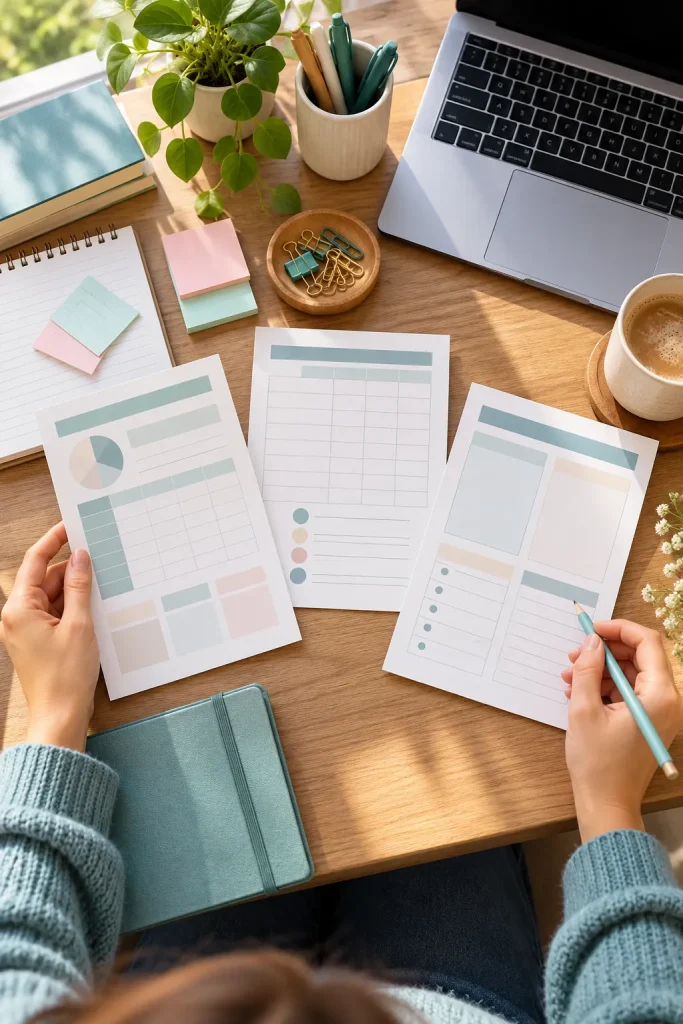
A budget planner becomes easier to design when you know who will use it. A college student tracking weekly expenses may need different sections than a household managing bills and groceries.
Start with one group of people and think about the numbers they need to record most often.
Pick One Clear Purpose
For your first planner, focus on someone who wants to organize monthly income, everyday spending, and upcoming bills.
Write a short note describing that person before opening Canva.
The common mistake is trying to create a planner for every budgeting situation. A smaller, focused design is easier to understand and fill in.
List the Worksheets Before You Start Designing
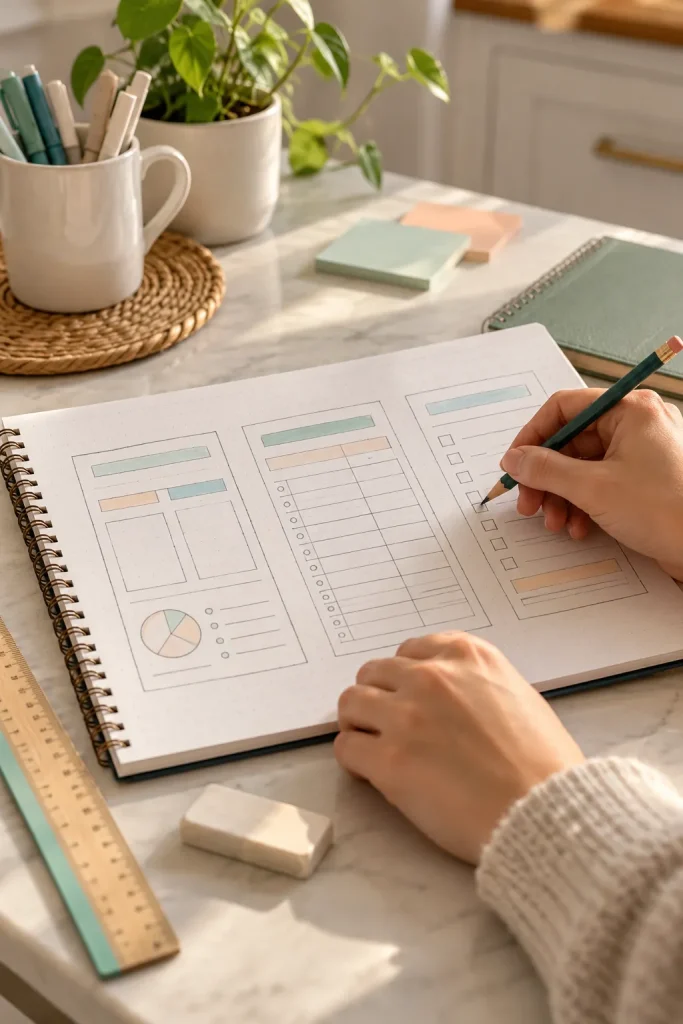
Opening Canva without a page plan can lead to a collection of worksheets that do not work well together.
Grab a notebook and sketch the sections your planner needs. You do not have to draw straight lines or make anything look attractive yet.
Start With Three Useful Pages
Write down a monthly budget worksheet for the bigger financial picture, a weekly spending tracker for daily purchases, and a bill checklist for payment dates.
Give each page one main job. Then decide what information someone will write in each box or row.
Avoid adding extra worksheets just to make the planner longer. Build these three pages first, and only add another page if it solves a clear problem.
Your First Planner Page Checklist
Create a Print Size Design in Canva
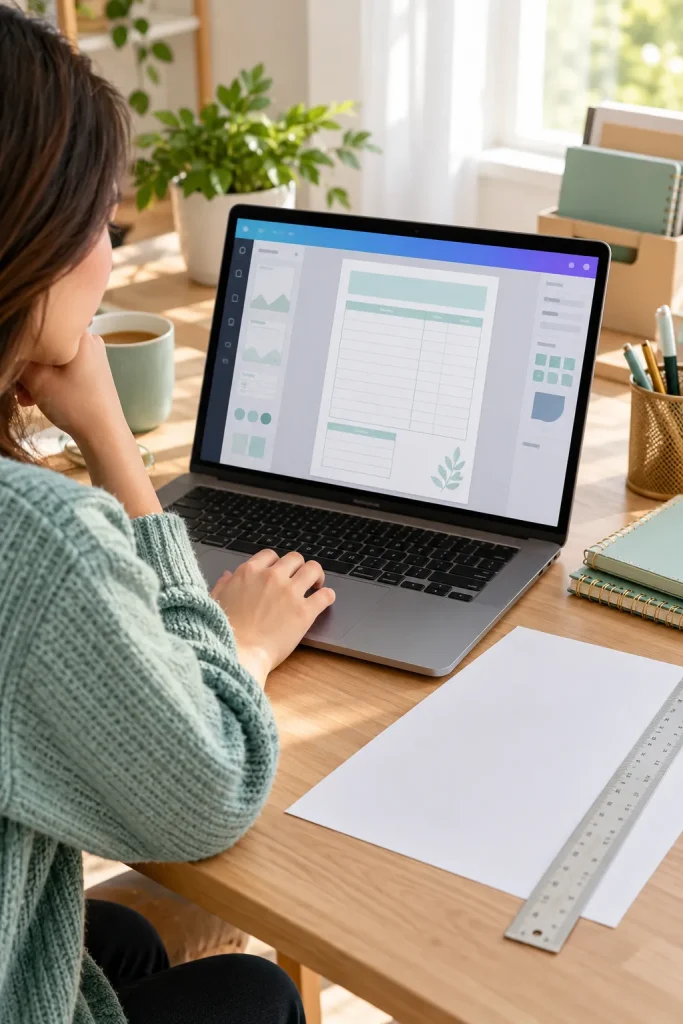
Start by opening Canva and choosing a page size that works with ordinary printer paper.
From Canva’s home page, select Custom size and choose inches or millimeters. Enter your page dimensions and create a new design.
Choose Your Paper Size
US Letter measures 8.5 by 11 inches. A4 measures 210 by 297 millimeters. Pick the size that matches the paper your intended readers are likely to use.
Keep the design in portrait orientation and leave comfortable space around the edges.
Avoid creating the planner in a random social media canvas size. It may look fine on screen but be inconvenient to print.
Set Simple Fonts, Colors, and Page Spacing
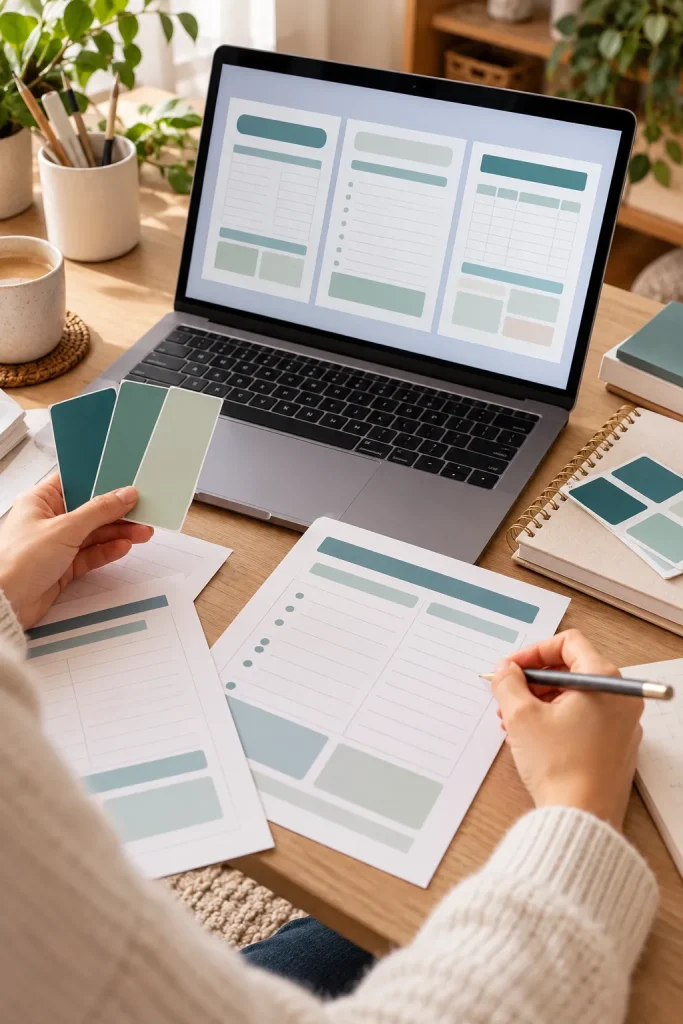
Clean budget planners usually have clear headings, simple lines, and plenty of blank space for handwriting.
Choose one easy-to-read font for your main text. You can use a heavier version of that font for page titles and section labels.
Keep the Layout Consistent
Pick one main accent color, such as deep teal, and use dark text on a white or very light background. Keep the same heading style and page margins throughout your planner.
Leave generous spaces between writing rows. Someone should be able to fill in amounts with a pen without squeezing letters together.
Avoid using tiny decorative fonts or pale gray labels. They can become difficult to read on paper.
💡 Quick Design Tip
Before building the full planner, print a small sample of your heading, body text, and worksheet lines. Check that every label is readable without zooming and that writing spaces are comfortable.
Build the Monthly Budget Worksheet
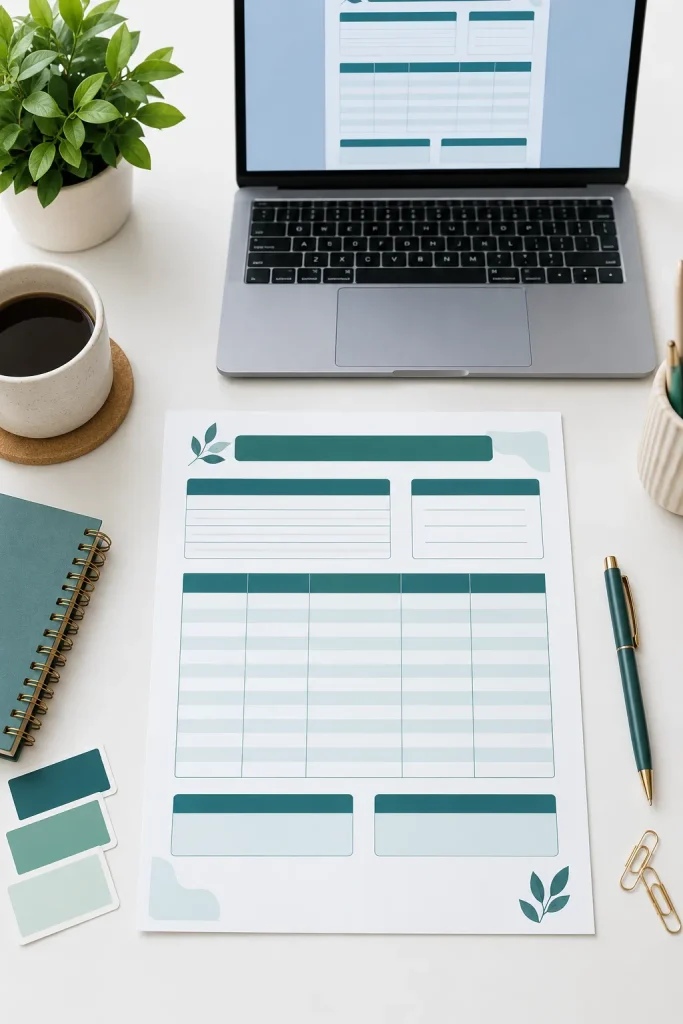
A monthly budget worksheet is often the main page of a budget planner. It helps someone compare the money coming in with the money they plan to spend.
In Canva, add a title at the top, followed by separate areas for income, expenses, and monthly totals.
Make Each Section Easy to Fill In
Use text boxes for headings and simple lines or rectangles to create entry spaces.
For expense rows, include a category, planned amount, and actual amount. Add a total area at the bottom.
The biggest mistake is squeezing too many categories into a small space. Leave enough room for handwritten numbers, even if that means using fewer rows.
One crowded worksheet
Income, expenses, notes, and totals share narrow boxes. It is hard to see where one section ends.
Separate, readable sections
Income comes first, expense rows follow, and monthly totals have their own space at the bottom.
Add a Weekly Spending Tracker Worksheet
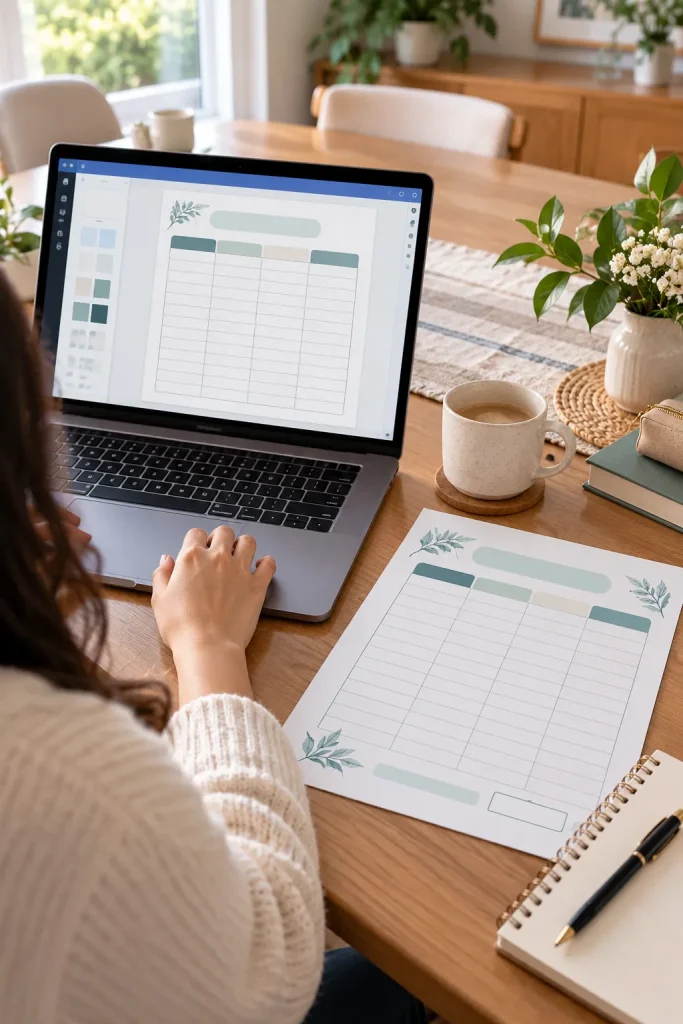
Small purchases can be easy to forget, especially when someone buys groceries, coffee, or household items throughout the week.
A weekly spending tracker gives each purchase its own row, making it easier to review spending habits.
Build a Simple Tracking Table
Add a new page in Canva and place a clear title at the top. Create columns for date, purchase, category, and amount.
Keep the lines evenly spaced and leave enough room for someone to write short notes.
You can also include a weekly total box near the bottom.
Avoid making the table too narrow or leaving out the spending category. That label helps readers see what their money went toward.
Build Your Spending Tracker
Create four columns: Date, Purchase, Category, and Amount.
Duplicate evenly spaced blank rows so readers can record purchases throughout the week.
Add a small weekly total box beneath the table, separate from the entry rows.
Create a Bill Payment Checklist Page
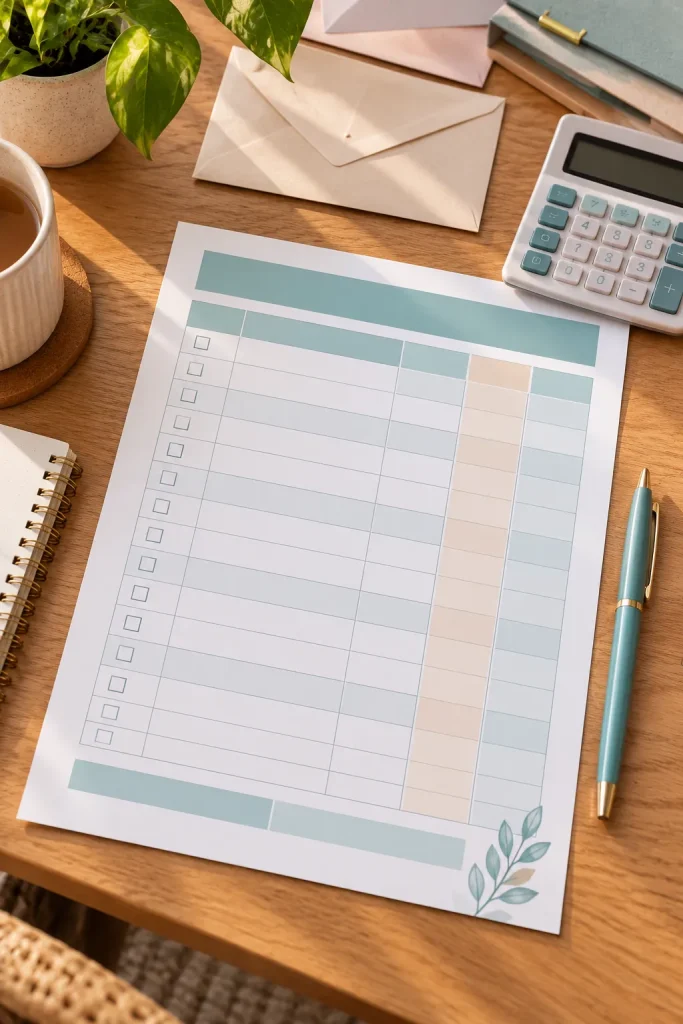
A bill checklist does not need complicated calculations to be useful. Its main job is to help someone see which payments are coming up and which ones are already complete.
Begin with a new page and add a heading for the month.
Organize Bills by Due Date
Create a table with columns for bill name, due date, amount, and payment status.
Leave space for regular expenses such as rent, electricity, internet, or subscriptions. Readers can fill in the names that apply to them.
The common mistake is listing bills without a way to mark them as paid. A simple checkbox makes the worksheet more useful when reviewing monthly payments.
Use a separate checkbox for each payment.
Keep due dates in one clearly labeled column.
Leave space for a payment confirmation note if needed.
Do not combine payment dates and amounts in one small box.
Avoid tiny checkboxes that are difficult to mark.
Do not fill every row with preset bills readers may not have.
Review Every Page and Test Print It
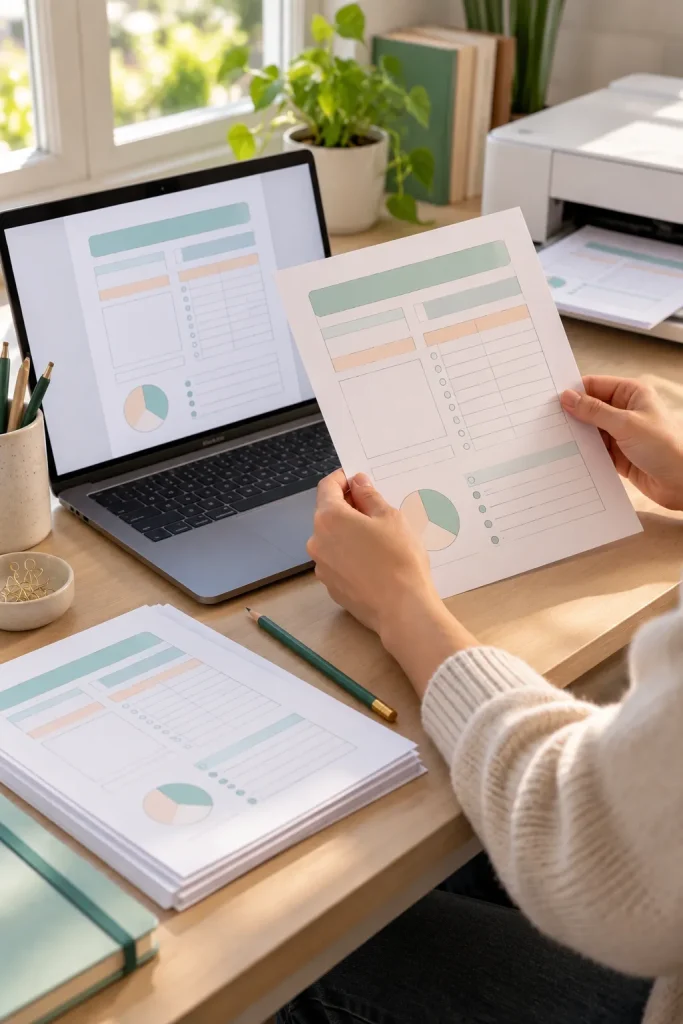
The best way to spot problems in a printable planner is to check how it looks on actual paper.
Before preparing your final download, review all three worksheets in Canva. Look for uneven lines, spelling mistakes, small labels, and writing spaces that seem too tight.
Run a Simple Paper Test
Download a temporary PDF proof and print a sample at its actual size, without automatic scaling. Canva recommends test printing to check text and layout quality.
Try writing a few amounts in the boxes with a regular pen.
Avoid relying only on Canva’s screen preview. A layout that looks spacious on a laptop may feel crowded when printed. Fix those issues before exporting the final file.
Printable Quality Check
Download a Print Friendly PDF From Canva
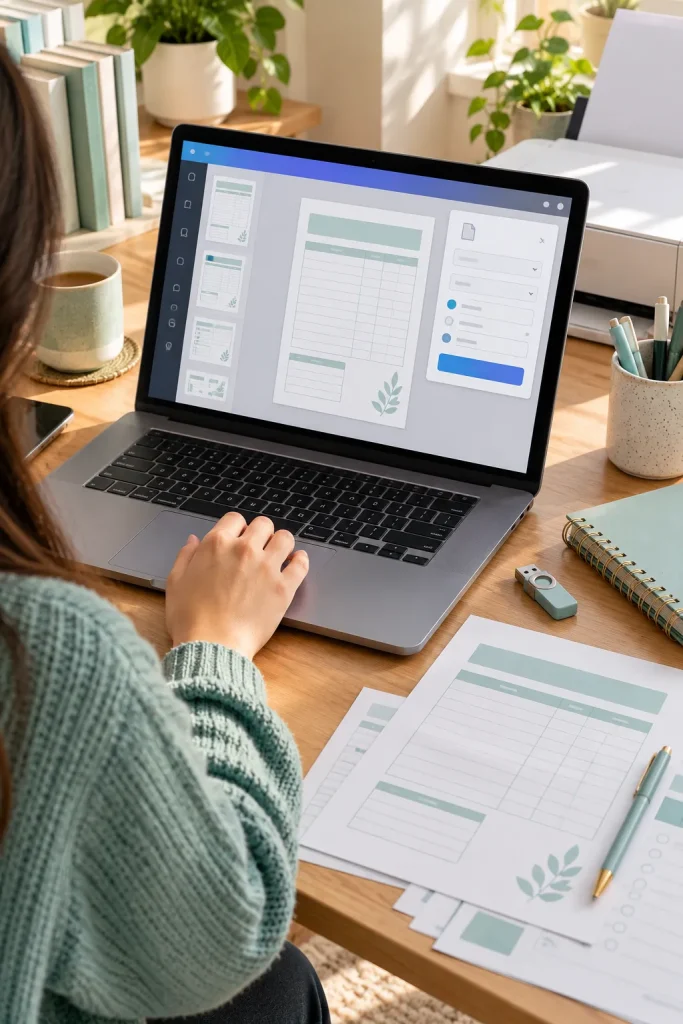
Your planner pages are ready, and now it is time to save the final printable file.
In Canva, open the finished design, select Share, then Download. Choose PDF Print, or select PDF with the Print preset if that is how your editor displays the options.
Check Your Export Settings
Select all the pages you want included in the planner. For an ordinary home printable, leave crop marks and bleed turned off unless your print setup requires them.
Download the file, open it in a PDF reader, and check every page.
Avoid assuming the exported file matches your Canva preview. Check the page order, margins, and text before sharing it.
Prepare Your Planner Files for Selling
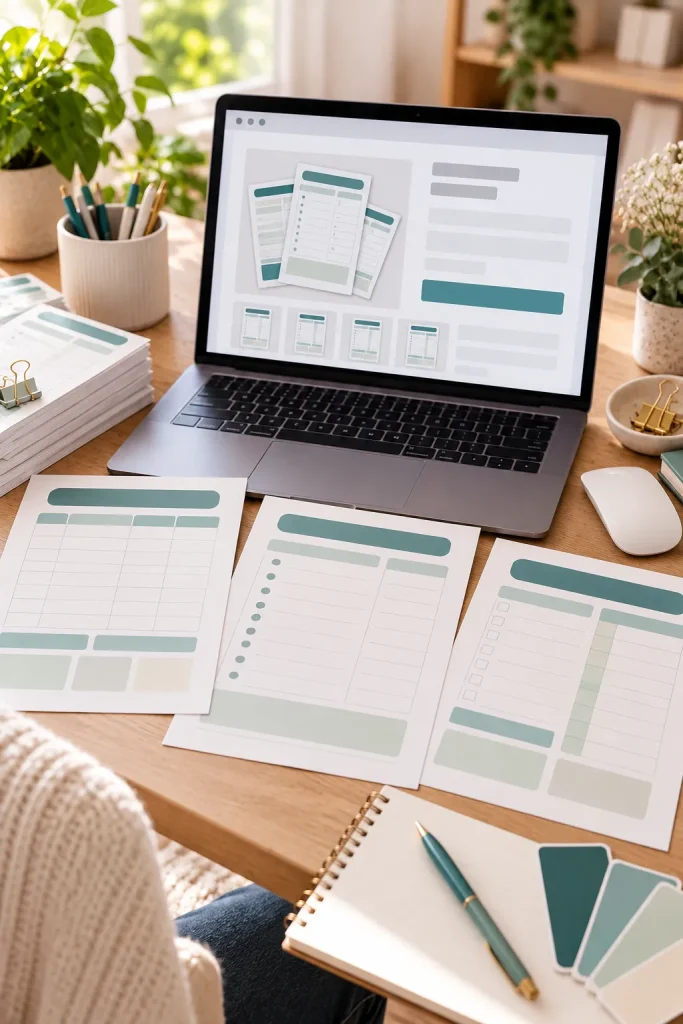
A buyer should be able to open your download and understand what to print without searching through confusing files.
Give the PDF a clear name, such as Monthly_Budget_Planner_Letter.pdf. If you created an A4 version, label that file separately.
Organize the Final Download
Keep the finished PDF files together. Add a short instruction page explaining the included worksheets, paper sizes, and basic printing steps.
Create a simple product preview that shows what buyers will receive.
Before selling anything made with Canva content, read Canva’s current license terms. Check your selling platform’s latest digital product rules too.
Avoid uploading unfinished drafts or mixing paper sizes without clear labels.
Digital Product File Checklist
Your First Budget Planner Is Ready
Your printable budget planner Canva project does not need a long collection of worksheets to be useful. A clear monthly budget, weekly spending tracker, and bill checklist can give someone a practical place to start.
Before calling it finished, open the PDF one more time and check the pages in order. Make sure labels are easy to read and file names clearly show the paper size.
Keep a copy of your original Canva design so you can improve the worksheets or create matching pages later. Start with a small, useful product and build on it when you have a clear reason.
Save this tutorial on Pinterest so you can follow these steps when creating your next printable product.