
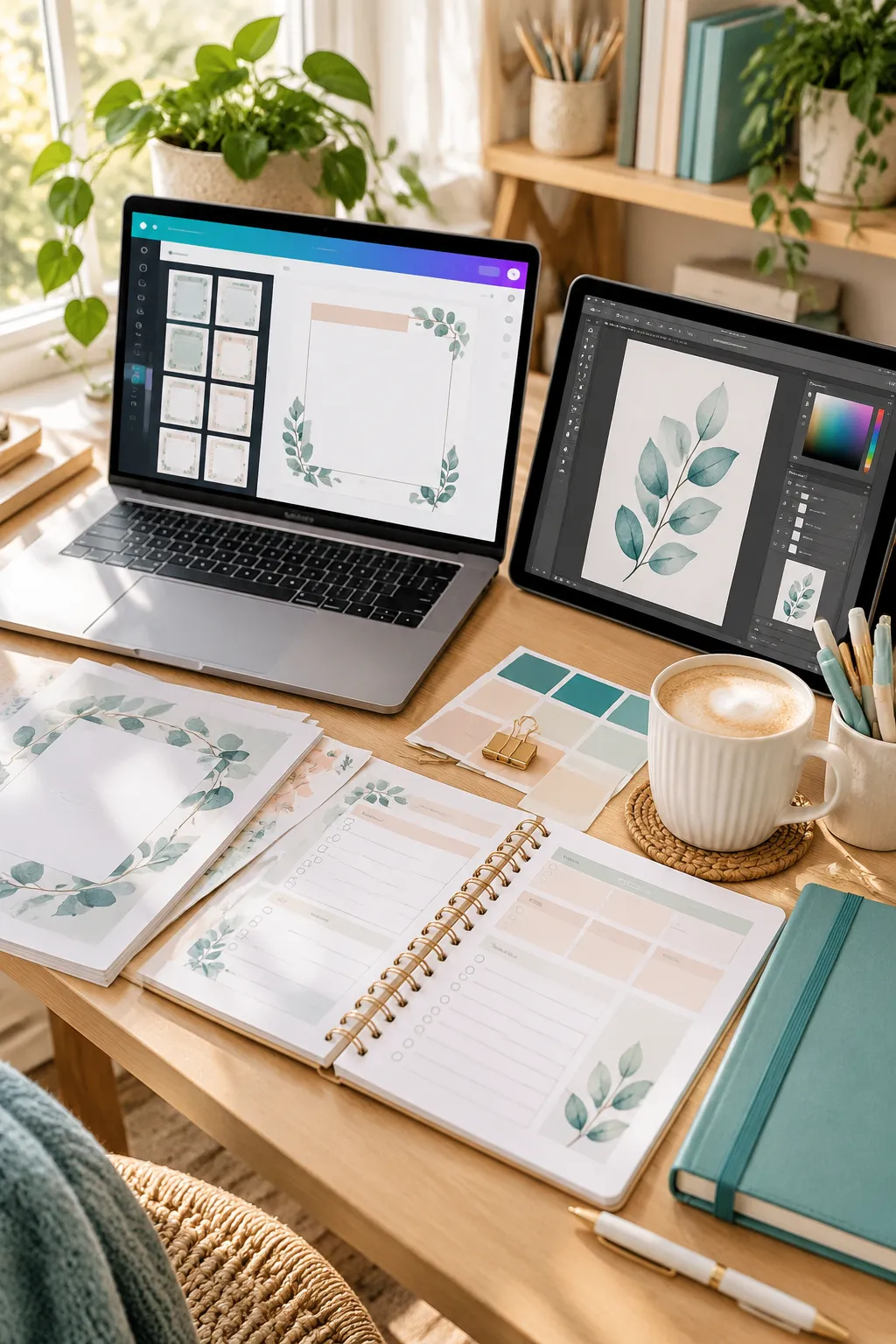
You do not need professional design software to make digital products worth selling. A clean printable planner made with a simple design tool can be more useful to buyers than a complicated design that looks impressive but prints poorly.
The real question is not which software has the most features. It is which one helps you make the products you actually want to sell.
That is where the Canva vs Adobe comparison gets interesting. Canva is known for its approachable templates and drag-and-drop editor. Adobe offers a wider range of tools, from the beginner-friendly Adobe Express to specialized apps like Illustrator, Photoshop, and InDesign.
But more tools do not always mean a better starting point. A seller making editable birthday invitations has different needs from someone drawing original clipart or preparing a detailed workbook for professional printing.
Before choosing, look at how each option handles learning, templates, file exports, customer editing, costs, and commercial use rules.
These eight comparisons will help you make a sensible choice without paying for features you might never need.
1. Canva vs Adobe: Which Is Easier to Learn?
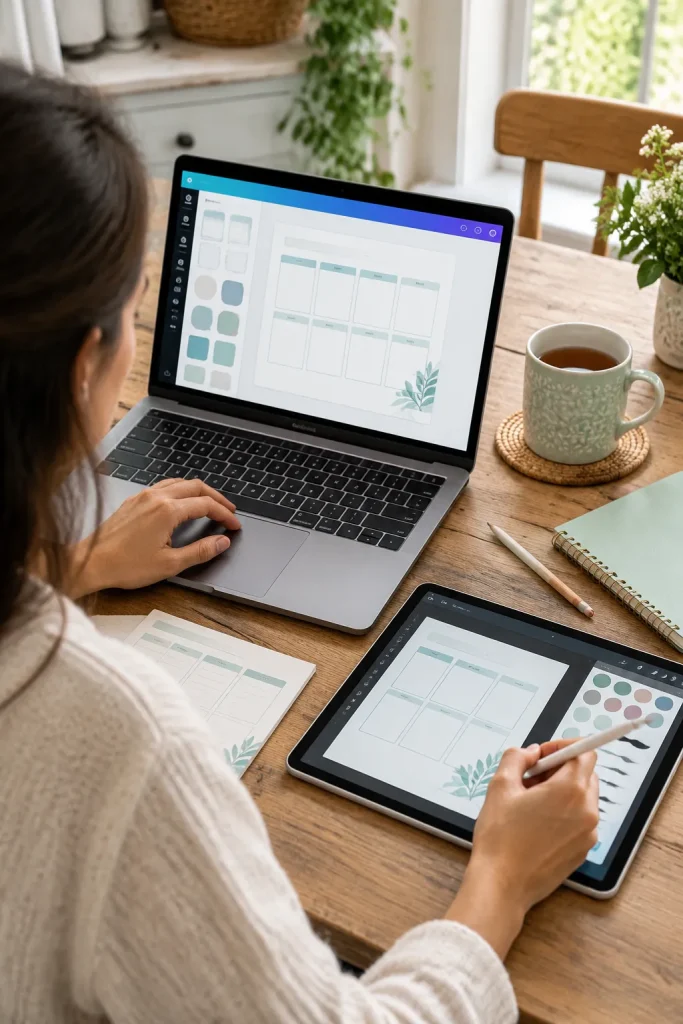
Canva often feels less crowded when you are making your first printable. You can choose a page size, add text boxes, move shapes, and arrange a simple weekly planner without learning many technical controls.
Adobe Express offers a similar starting point with templates and an approachable editor.
Illustrator, Photoshop, and InDesign give you more specialized tools, but their interfaces take longer to understand.
Start with a Small Practice Product
Before committing to either option:
- Make a one-page habit tracker.
- Change its colors and text.
- Export a file you can open and print.
Verdict: Canva and Adobe Express are sensible starting points for beginners. Advanced Adobe apps become more useful when your projects need their extra controls.
2. Ready-Made Templates or More Layout Control?
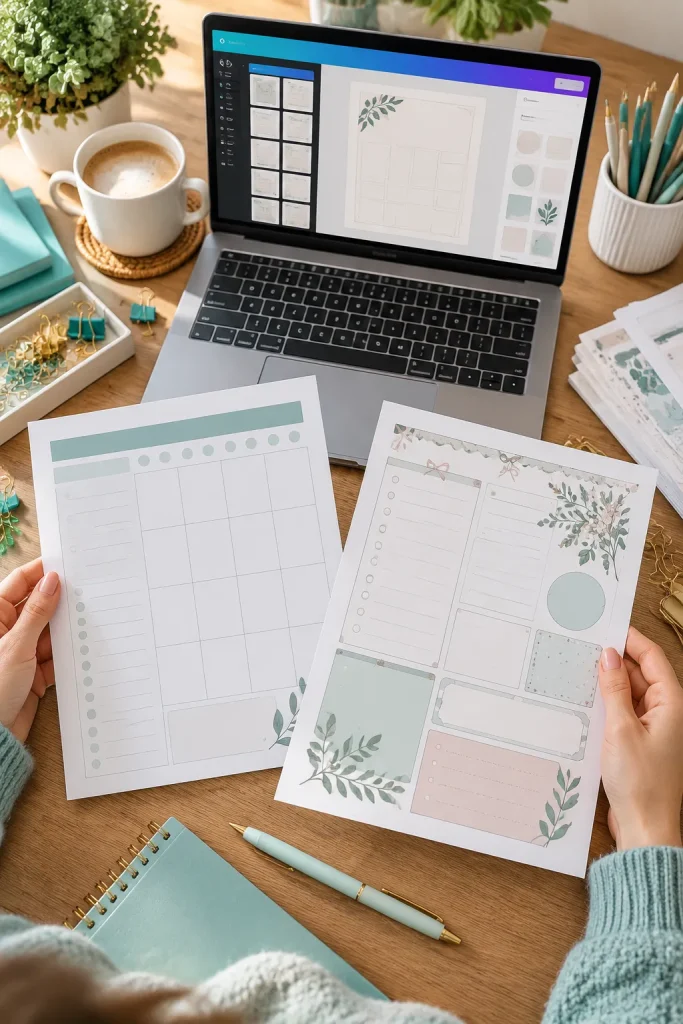
Starting with a template can save you from arranging every heading, line, and box yourself.
Canva and Adobe Express both offer editable starting layouts. You can use them to plan the structure of a meal planner, reading log, or printable invitation.
For a more unusual design, Illustrator gives you detailed control over custom graphics, while InDesign is built for arranging pages and text.
Think About the Product First
A simple daily planner rarely needs advanced layout software. A long workbook with carefully controlled page layouts might benefit from InDesign.
Verdict: Pick Canva or Adobe Express for quick, template-led products. Consider advanced Adobe tools when building detailed designs from scratch.
| Template-First Design | Custom Layout Design |
|---|---|
| Start with prepared page elements. | Build the layout with detailed controls. |
| Useful for basic planners and invitations. | Useful for detailed books and original graphics. |
| Common tools: Canva and Adobe Express. | Common tools: InDesign and Illustrator. |
| Choose when speed and simple editing matter. | Choose when precise layout control matters. |
3. Print Quality and File Types for Digital Downloads

A lovely design on your laptop can look different once someone prints it.
Text may sit too close to the edge, small details can become hard to read, and the wrong page size can leave unwanted white space.
Canva and Adobe Express can export PDFs and image files for common digital products. For detailed commercial print preparation, InDesign and Illustrator offer more specialized settings.
Check the File, Not Just the Editor
Before listing a printable:
- Check the page dimensions.
- Keep important text inside safe margins.
- Open the exported PDF.
- Print a sample at its intended size.
Verdict: A correctly prepared PDF matters more than an expensive design app. Advanced print controls are useful when a professional printer requires specific settings.
4. Sharing Editable Templates with Customers
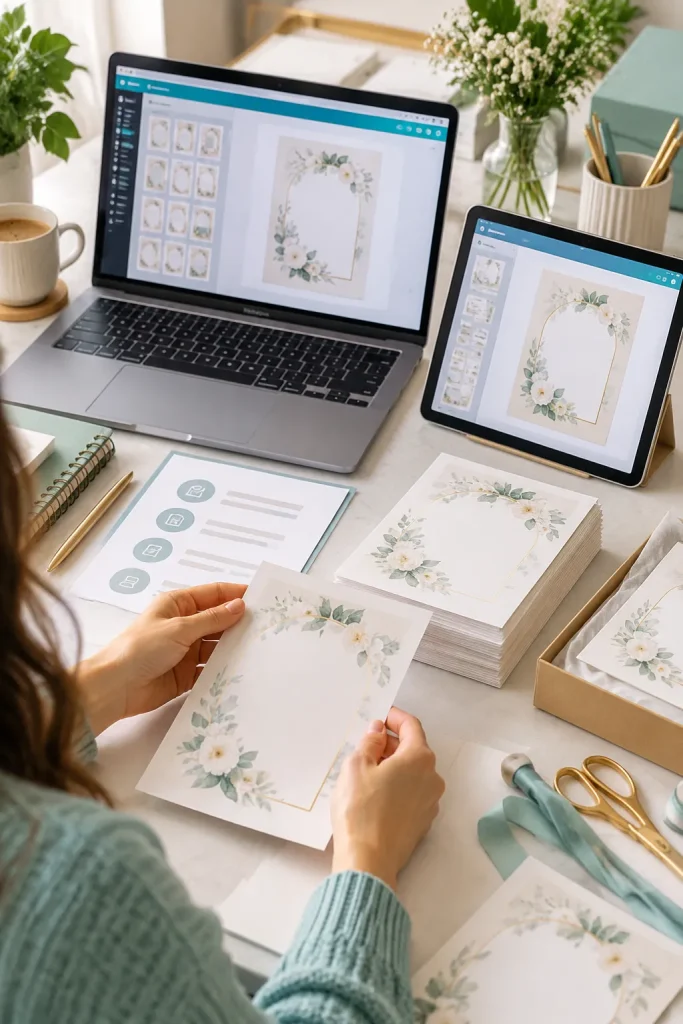
When someone buys an editable invitation, they expect to change the names, dates, and other details themselves.
A finished PDF does not automatically give them that kind of editing access.
Canva supports template links through eligible paid plans. Adobe Express also offers remixable sharing options, although the delivery process is different.
Test the Buyer Experience
Make a sample birthday invitation and check what happens when another person opens it.
Can they create their own editable version? Do they need an account? Are any paid features required?
Include a short instruction PDF explaining what buyers receive.
Verdict: Canva has a straightforward template-link workflow for eligible sellers. Adobe Express is another option, but check its sharing and remix settings before listing.
📦 Editable Template Delivery Checklist
5. When Custom Graphics Make Adobe Worth Considering
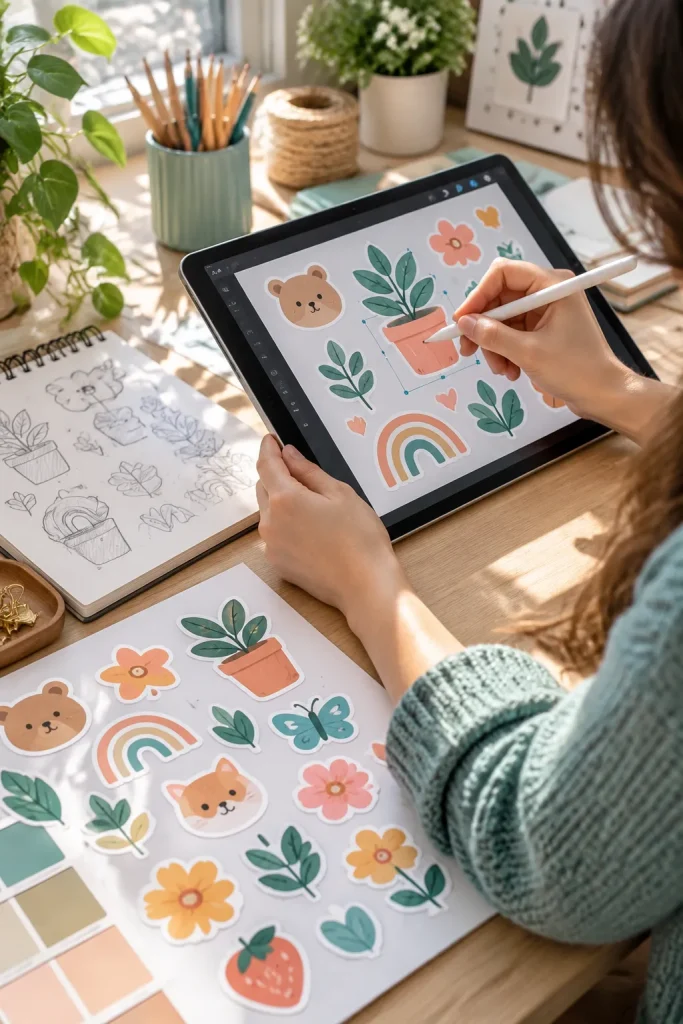
A sticker sheet made from original drawings needs different tools than a weekly planner made from text boxes.
You can arrange and style products in Canva or Adobe Express, but Adobe Illustrator gives you more detailed control when drawing vector artwork.
Vector graphics are useful for creating clean shapes that can be resized without losing their sharp edges. Photoshop is better suited to detailed image editing and artwork that uses pixels.
Where Extra Design Control Helps
Consider advanced tools when creating:
- Original illustrated sticker collections.
- Custom icons with carefully shaped outlines.
- Detailed photo-based digital artwork.
Verdict: Advanced Adobe apps are worth considering when original graphic creation becomes a central part of your products. Basic printables rarely need that much control.
A small PNG drawing becomes blurry when enlarged for a sticker sheet.
Problem: the original image has limited pixel detail.
The artist redraws the shape as vector artwork with smooth, editable outlines.
Benefit: the illustration can be resized for different product dimensions.
6. Free Features, Paid Features, and Subscription Limits

A paid subscription is not automatically necessary when you are starting a digital product shop.
Canva and Adobe Express both offer free ways to begin designing. Some templates, assets, sharing options, and other features depend on your plan.
Specialized Adobe apps such as Illustrator and InDesign have different subscription arrangements from Adobe Express.
Check the Feature Before Paying
Instead of comparing subscriptions by the number of included tools, ask:
- Can I create my intended product?
- Can I export it in the needed format?
- Can I deliver it to my customer correctly?
Make a sample product using the features available to you.
Verdict: Start with the tools you need now. Consider a paid plan only when a specific feature supports your product workflow.
| Canva | Adobe Tools |
|---|---|
| Free design features provide a starting point for basic products. | Adobe Express has a free option for basic designs. |
| Paid plans offer additional content and features, including template-link sharing. | Adobe Express Premium includes additional templates and design features. |
| Check asset licenses and access requirements before upgrading. | Illustrator, Photoshop, and InDesign have their own plan requirements. |
| Review current plan details before deciding. | Check the exact Adobe app and subscription you need. |
7. Commercial Use Rules Before You List a Product
Putting a design together does not automatically mean you can sell every element inside it.
Canva allows certain original designs made with its content to be sold, but that does not mean you can resell individual library graphics as standalone clipart.
There are also special conditions for selling editable templates that contain Canva Pro content.
Adobe assets can have their own usage limits, so check the terms for any stock images, graphics, or fonts you include.
Make a License Check Part of Your Routine
Keep track of where your design elements came from. Use original artwork when selling standalone graphic assets.
Verdict: Neither brand gives you unlimited resale rights. Read Canva’s current license terms before selling anything made with Canva content, and check the relevant Adobe and marketplace rules too.
Check the license for every third-party design asset.
Create original layouts with meaningful creative work.
Check special terms for editable templates and digital assets.
Selling an unchanged library graphic as your own clipart.
Assuming a paid subscription means unlimited resale rights.
Ignoring the rules of the marketplace where you list products.
8. The Final Pick for Printables, Templates, and Custom Art

The right tool depends on what you want to put in your shop first.
For printable planners, trackers, and worksheets, Canva is an approachable choice. Adobe Express is worth comparing if you prefer its editor and available designs.
For editable invitations, compare how each app lets customers receive and change their own copies.
For original illustrations, detailed photo editing, or complex multipage layouts, consider Illustrator, Photoshop, or InDesign.
Make Your Decision with One Product
Choose a single product idea, build a sample, and check the finished file.
Verdict: Canva is a sensible first pick for many beginner printable sellers. Adobe Express offers another approachable route, while advanced Adobe apps are useful when your design needs become more specialized.
Name your first product
A printable, editable template, custom illustration, or longer document?
Identify the editing work
Will you adapt a layout, draw original shapes, edit photos, or manage many pages?
Test the final delivery
Check the export, buyer editing process, and content rights.
Choose the simplest workable tool
Use the software that completes the product correctly without unnecessary features.
Choose the Tool That Fits Your First Product
Choosing between design tools gets easier when you stop comparing every feature and focus on the product you want to make.
A simple printable does not need the same software as an illustrated sticker collection or a professionally printed workbook.
For many beginners, Canva is a practical place to start. Adobe Express deserves consideration for similar everyday design work, and specialized Adobe apps offer more control for specific tasks.
The best Canva vs Adobe decision is the one that fits your product, learning time, and delivery needs.
Save this comparison on Pinterest so you can check it again when planning your next digital product.