

Your first digital product listing is almost ready. The planner pages look neat on your laptop, but then the upload screen asks for a file format. Should you choose PDF or PNG? Is the artwork a template, a printable, or both? It is easy to spend more time decoding those labels than finishing the product.
These words matter because they tell buyers what they will receive and how they can use it. A customer expecting something they can edit may feel confused if the download is meant only for printing. A seller who overlooks a license may share artwork without the right permission.
You do not need a design degree to understand the basics. You just need clear examples that connect each term to a real shop task. These 15 digital product terms cover product types, common files, storefront details, and usage rights. Each explanation shows what the term means and where you might see it while making or selling a download.
Start with the everyday words below, then keep this glossary beside you when you set up your next listing. The next time a screen asks for a file type, you will know what to check before clicking upload.
1. Digital Product
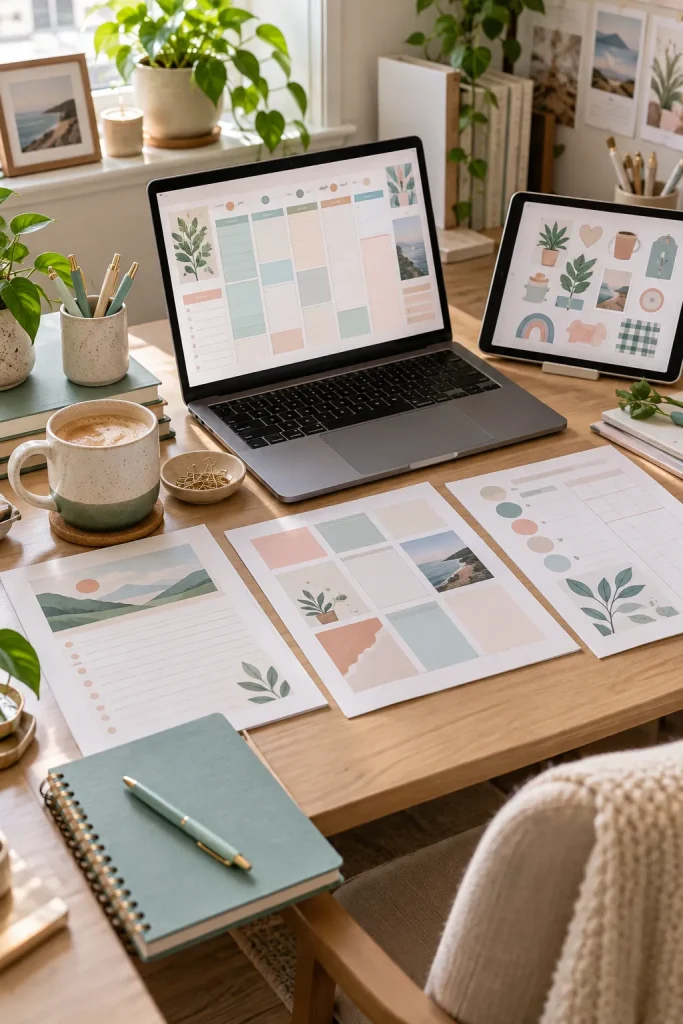
That planner on your laptop can be a product even if nothing is shipped in a box. A digital product is something made and delivered in electronic form. Buyers usually access it through a file, link, or account, depending on what you sell.
What Buyers Receive
Say you create a weekly meal planner. You upload the finished pages to your store, and the buyer gets a digital copy rather than a paper pad.
Common examples include printable planners, editable templates, and digital stickers. The key is to describe exactly what the buyer gets. A product photo showing printed pages does not mean a printed item is included.
Buyer downloads pages and prints them.
Buyer changes parts of a reusable design.
Buyer adds graphics to a digital planner.
2. Digital Download
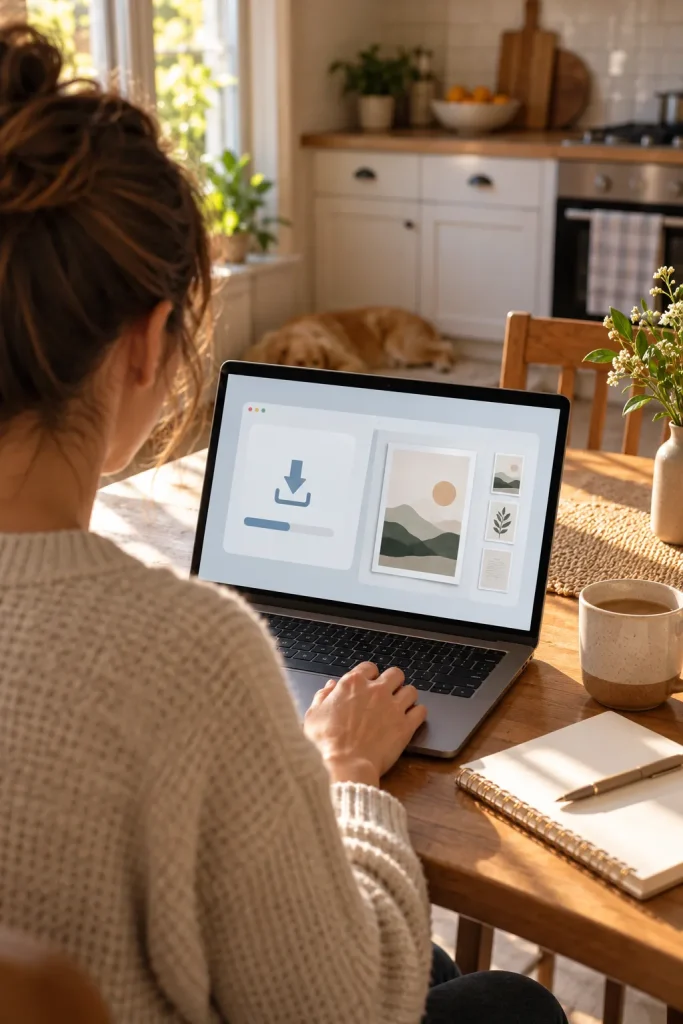
The file arrives on the buyer’s device instead of in a package. A digital download is a file that a customer can save to their device after getting access to it.
A buyer might see a download button after checkout or receive an email with access instructions. The exact steps depend on the store.
What Happens After an Order
Suppose someone orders your printable habit tracker. They open the delivery message, save the PDF, and print a copy at home.
Your job is to make the file easy to find and clearly name it. Before publishing, check how your platform handles file delivery and access limits. The screen you see as a seller may not match the buyer’s screen.
📥 The Buyer’s Download Path
Open the order details. Find the delivery message or download area.
Find the file or access link. Follow the store’s delivery instructions.
Save and check the download. Open the file with a suitable app.
3. Printable
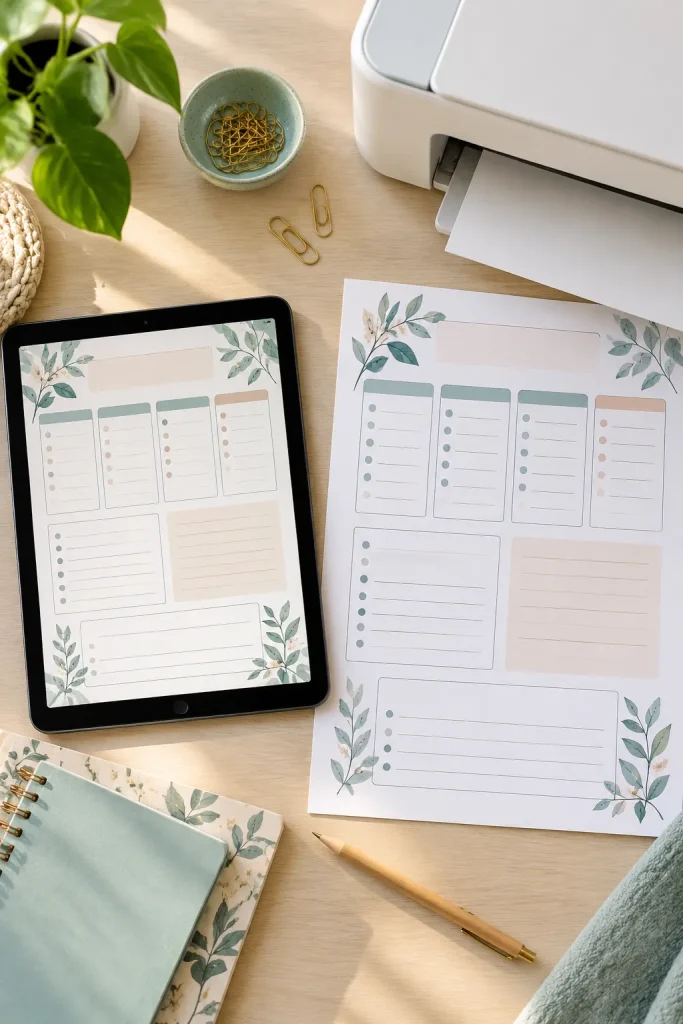
A printable starts as a file on a screen and ends as something you can hold. It might be a chore chart, budget worksheet, or monthly calendar.
The buyer normally prints the pages themselves, so there is no paper product in the order.
Keep the Page Usable
For example, a customer downloads your weekly schedule and prints it for the fridge. If the margins are too narrow, important lines may get cut off.
Give the intended page size in the listing, and check that words and boxes stay readable when printed. A close-up mockup can show the layout, but it cannot replace a real print check.
The planner looks neat in the design app.
Page size, margins, and print quality still need checking.
The page has been printed and checked at its intended size.
Headings, writing spaces, and page edges are easy to use.
4. Template
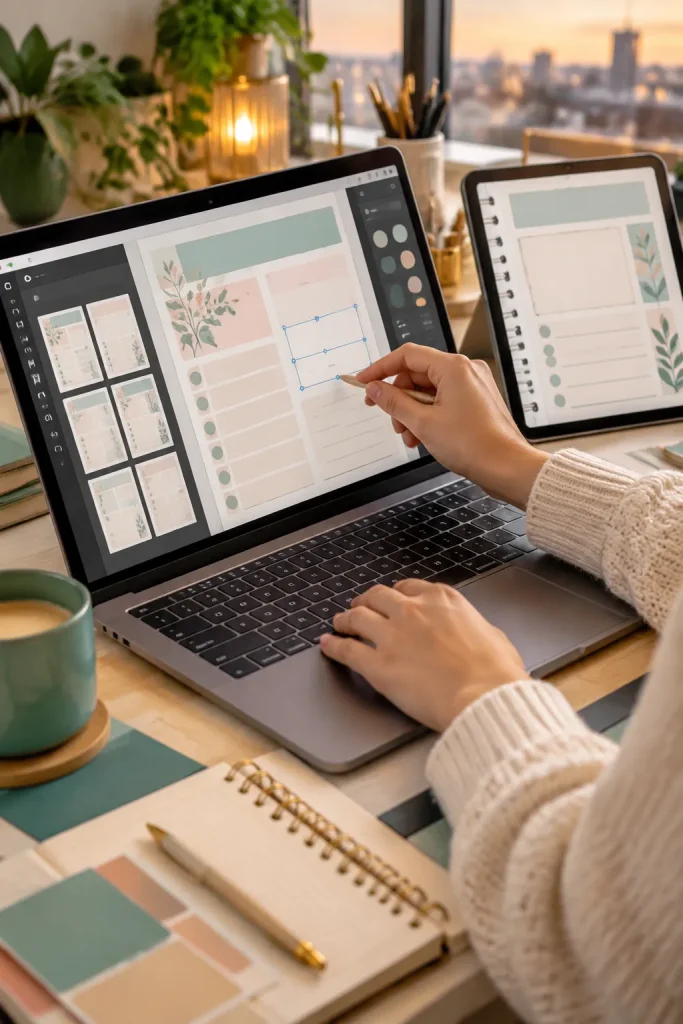
A template is not just a pretty file. It is a starting design that someone can change in an app that supports it.
For example, you sell a party invitation template. The buyer changes the name, date, and colors, then saves their version. That is different from a flat image they can only view or print.
Check What Stays Editable
Before listing a template, write down the app buyers need and which parts they can edit.
Fonts, photos, and extra design elements may have separate license rules. Check those rules before promising buyers full control.
A clear editing note helps customers know what to expect before they order.
✅ Check Before Listing a Template
5. File Format
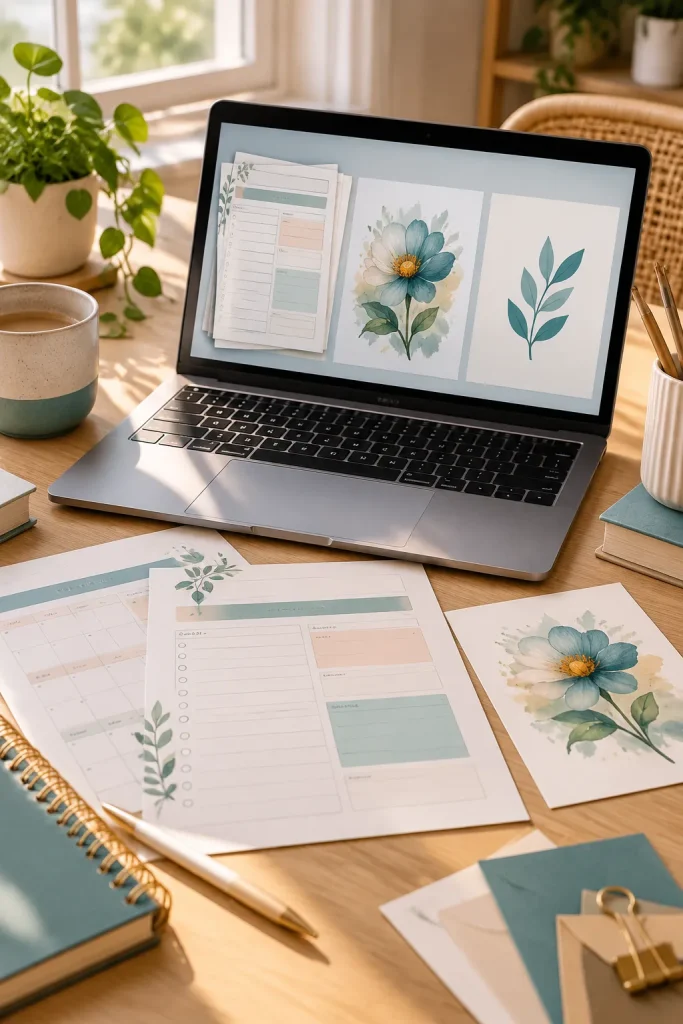
Two files can look the same on a screen and behave differently after download. A file format tells a device or app how the information is stored.
You can often spot it in the ending of a filename, such as .pdf, .png, or .svg.
Choose for the Task
For example, a printable checklist is often shared as a PDF, while a decorative image may be supplied as a PNG.
If buyers need vector artwork that stays sharp when enlarged, an SVG may help.
Do not choose a format only because it looks familiar. Check the software buyers use and provide clear instructions for opening the file.
6. PDF
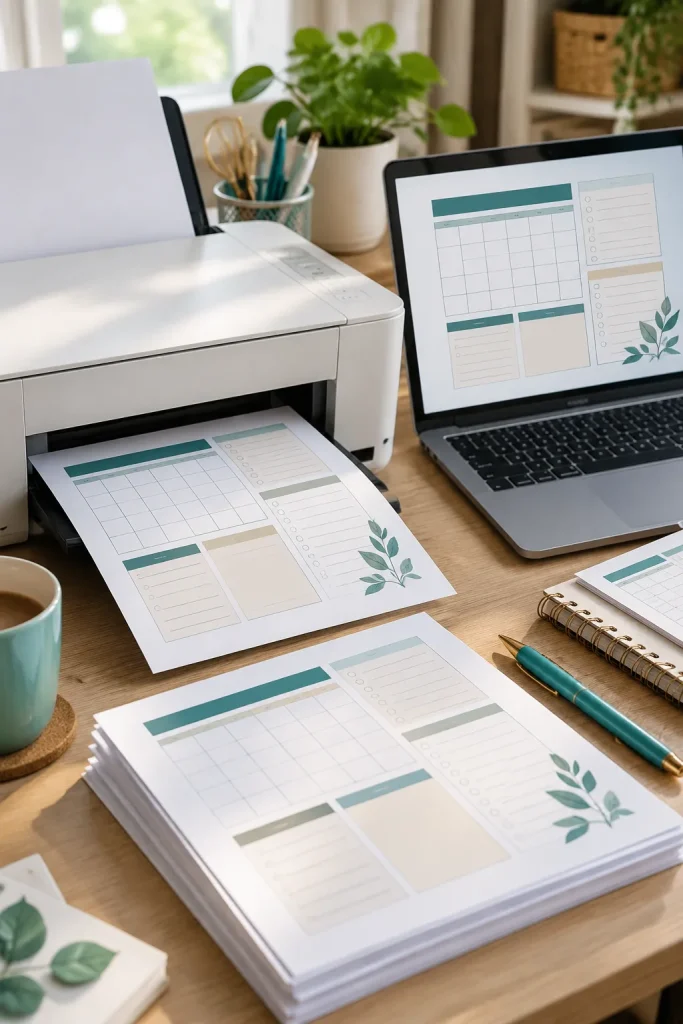
A PDF is often the simplest way to send a page that should keep its layout. PDF stands for Portable Document Format.
It is commonly used for planners, worksheets, and instruction pages because it is designed to display a consistent page arrangement across different devices.
The Print Check
Say you offer a weekly budget tracker with small boxes for handwriting. Export it as a PDF, open the exported file, and print a sample at the intended size.
Watch for missing symbols, cropped edges, and text that looks too small on paper.
A PDF is not automatically an editable template. If buyers are meant to change the design, explain the editing method separately.
💡 Quick PDF Tip
Before uploading a printable PDF, print the exported file at the size you plan to advertise.
Check these details:
✓ Text stays readable on paper.
✓ Page edges and boxes are not cropped.
✓ The printer has not changed the intended page scale.
A clean screen preview is not the same as a checked print.
7. PNG
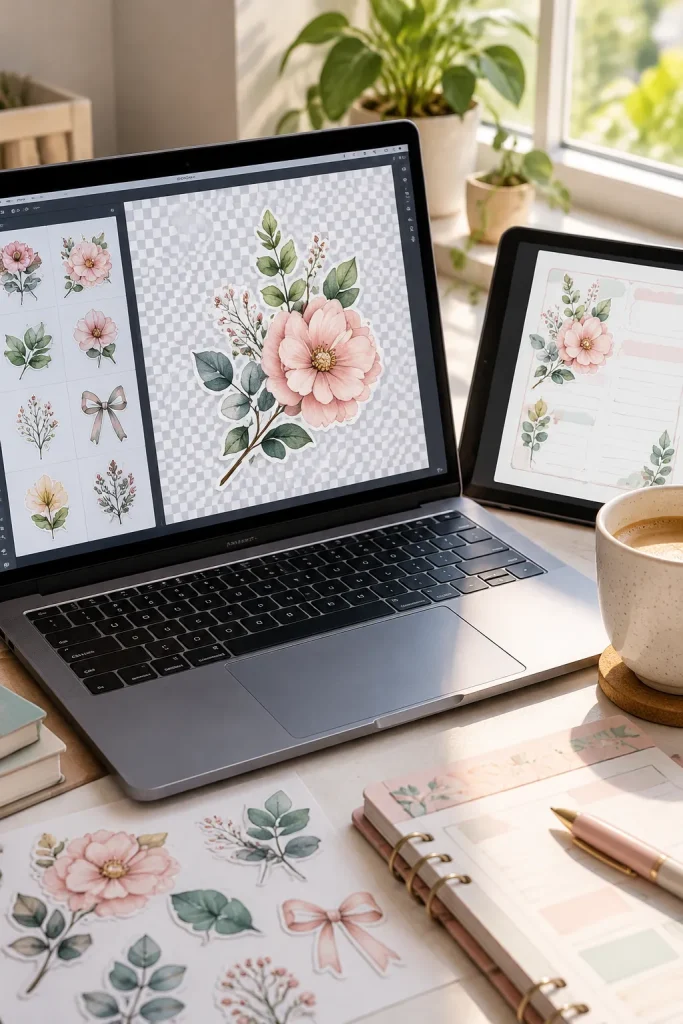
A white box behind a sticker can spoil a digital planner page. PNG is an image file format that can support transparent backgrounds, which helps artwork sit neatly over another design.
Transparency and Sharp Edges
For example, you sell a flower sticker set. Customers may want each flower without a white rectangle around it.
Exporting with transparency can help, but only if the design and export settings support it.
PNG is made of pixels, so enlarging a small image too far can make its edges look soft.
Check the finished file at the size buyers are likely to use. And do not call every PNG transparent. Some have a solid background.
Check transparency. Look at the exported file, not just the design screen.
Check image size. Make sure the graphic looks clear at its intended use size.
Do not assume every PNG is transparent. Some contain a white or colored background.
Do not stretch tiny images. Enlarging them too much may leave blurry edges.
8. SVG
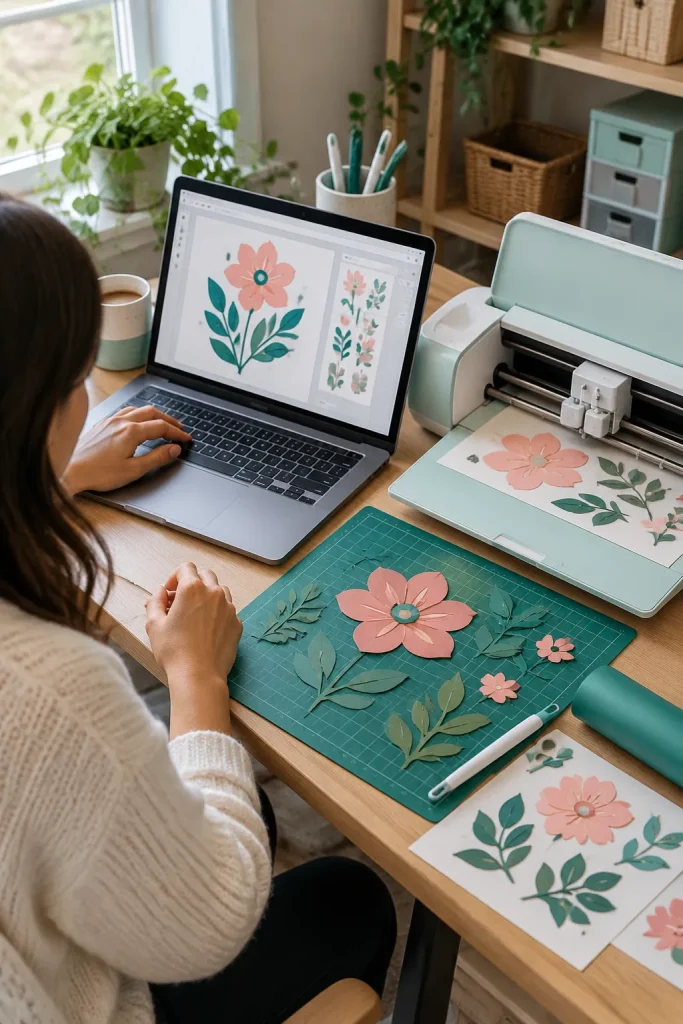
SVG is not simply another name for a PNG. It stands for Scalable Vector Graphics, a format often used for shapes, icons, and cutting designs.
Artwork built from vector paths can grow or shrink without the blocky edges you may see when enlarging a small pixel image.
When Buyers Need It
Suppose you make a simple floral design for a craft cutting machine. An SVG may be useful if the buyer’s software accepts that format.
Some SVG files also contain text, effects, or embedded images that need extra care.
Check your file in the program it is meant for, and tell buyers which format they are receiving. Do not assume every craft app handles SVG files in the same way.
| SVG | PNG |
|---|---|
| Vector-based format that can describe shapes and paths | Pixel-based image format |
| Vector paths can be resized without losing sharp edges | May look blurry when enlarged beyond its useful size |
| Often useful for icons and cutting designs | Often useful for digital stickers and image graphics |
| Check that the buyer’s design software supports the file | Check transparency and image dimensions |
9. ZIP File
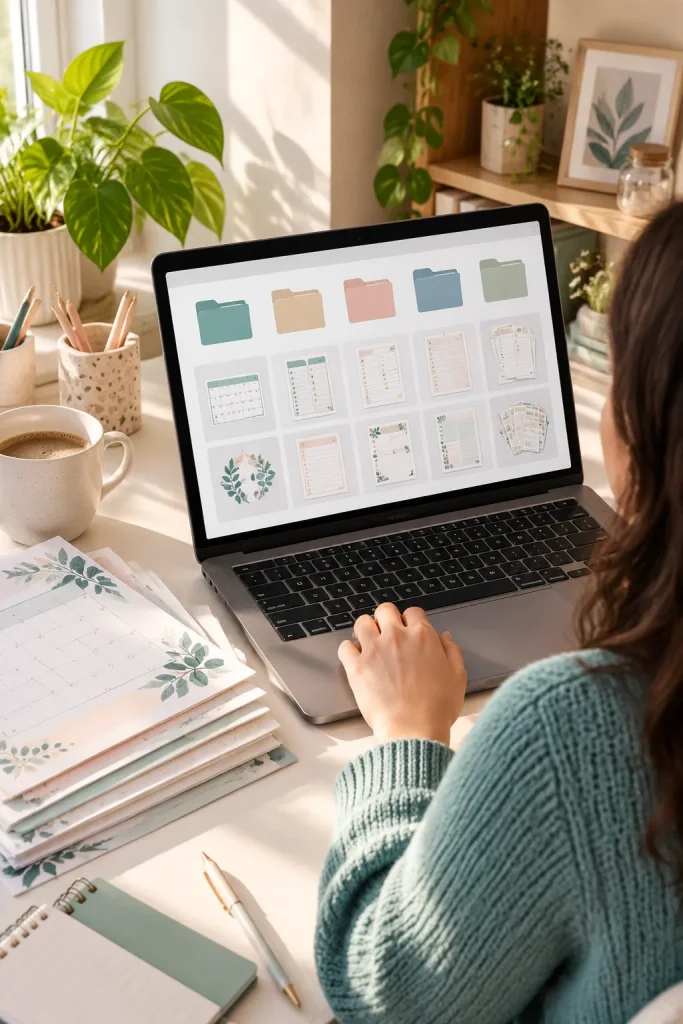
Several finished files often belong in one purchase. A ZIP file is a compressed folder that keeps those files together for delivery. Buyers usually need to extract it before opening what is inside.
What Goes in the Folder
Suppose you sell a printable budget bundle with monthly trackers, savings sheets, and an instruction page. You can place the related PDFs inside one ZIP instead of making customers find several separate downloads.
Give the folder and files clear names. Add a short note explaining how to extract them, especially for buyers using a phone.
A ZIP is packaging, not a printable page. Customers still need to open the individual files inside.
A short PDF explaining the included files and how to use them.
Clearly named tracker pages, worksheets, or template files.
Separate A4 and US Letter folders if both versions are included.
10. Mockup

A framed planner page above a tidy desk can help shoppers understand what a printable might look like after printing. That picture is called a mockup.
A mockup is a staged product preview. It shows a design in a setting, such as a calendar on a wall or an invitation beside an envelope.
Make the Preview Accurate
For example, you can place your digital wall art inside a realistic frame image to show its intended look.
But the frame is not part of the download unless your listing says otherwise.
Keep your mockup close to the actual file. If the design looks different from what customers receive, a pretty image becomes misleading.
🖼️ Before You Upload a Mockup
11. Product Listing

Your design is finished, but buyers still need a place to learn what it includes. A product listing is the page or store entry that presents an item for sale.
It normally combines a title, product images, a description, and details about the item.
Explain the Download Clearly
For example, a listing for a printable cleaning planner should tell shoppers which pages come with it, the file format, and whether they can edit the design.
Mention the page size and any software needed to open it.
Do not rely on product photos alone. A shopper viewing a small phone screen may miss a detail hidden inside an image.
Keep the written information clear and easy to scan.
12. SEO

Finding the right words for a product title can feel harder than designing the product itself. SEO stands for Search Engine Optimization. It means making content easier for search systems to understand and match with relevant searches.
For digital sellers, that includes naming products in a way shoppers recognize.
Think Like a Buyer
Say you sell a printable weekly meal planner. Someone shopping for it may search for those words rather than a creative product name.
Use clear, relevant phrases in your title and description where they fit naturally.
Search systems work differently, and using a phrase does not guarantee visibility. Check the current search and listing rules of the platform where you sell.
🔍 Name Your Digital Product Clearly
Name the item. Start with a clear phrase such as printable meal planner.
Add a useful detail. Mention weekly layout, printable format, or another true feature.
Read it aloud. Keep the title natural and remove repeated words that do not help the buyer.
13. Commercial Use License

Buying a graphic does not always mean you can sell it inside your own designs. A commercial use license describes how someone else’s work may be used for business purposes.
Read the Permission, Not Just the Label
Suppose you buy floral illustrations for a printable calendar. The license might allow you to include them in a finished calendar but forbid selling the original illustrations as separate files.
Other licenses have different conditions.
Look for rules about resale, editing, sharing original files, and giving credit. If the permission is unclear, do not assume it is included.
Read the actual license and the current marketplace rules before publishing your product.
Read the full terms. Check which business activities and products are allowed.
Check resale limits. Find out if the original asset can be included in downloadable files.
Keep license records. Save the terms that apply to assets used in your design.
Do not assume purchased means unrestricted. Payment does not remove license conditions.
Do not ignore file-sharing rules. A finished design and a reusable source file may be treated differently.
Do not guess about permission. Check the license before using an asset in a product for sale.
14. Personal Use License

A personal use license usually allows someone to use a product for private, noncommercial purposes, within the limits written in the license.
That might mean filling in a printable planner for yourself rather than selling copies of it.
Explain the Limits to Buyers
For example, someone purchases your daily habit tracker and prints it for their own routine. If they later want to include the pages in a product they sell, they need permission for that different use.
The exact rules depend on the license. Some cover additional personal copies or gifts, while others have tighter limits.
Write your usage terms plainly so customers do not have to guess what they can do.
📌 Good to Know
Personal use and commercial use are not the same. A buyer needs to follow the license included with the product.
Questions to answer in your terms:
• Can buyers print extra copies for themselves?
• Is sharing the original digital file allowed?
• Are gifts, classroom use, or business activities covered?
State the actual permissions rather than assuming every personal use license has identical rules.
15. Copyright
Original artwork, written instructions, and printable layouts can be protected by copyright. Copyright is a type of legal protection for original creative work.
It is different from the permission you receive through a software subscription or a purchased design asset.
Know What You Have Permission to Sell
Suppose you make a journal cover using illustrations you found online. Finding an image does not mean you can put it in a product for sale.
Even purchased artwork may have restrictions.
Create your own material when possible, or check the license for outside elements. Keep notes showing where each asset came from.
Copyright details vary by location, so check the rules that apply to your work.
Keep This Glossary Close
These digital product terms are easier to remember once you connect them to the small choices you make while building a shop.
A PDF tells buyers how pages are delivered, a mockup shows what a finished design might look like, and a license sets limits on how artwork may be used.
You do not need to memorize every definition before creating something. Keep a short checklist for your next product: what is included, which app opens it, what buyers can change, and what permissions apply.
Check current platform rules before publishing. Clear details make the buying experience easier for everyone.
Save this glossary to your Pinterest board so you can check the terms while preparing your next digital product.