
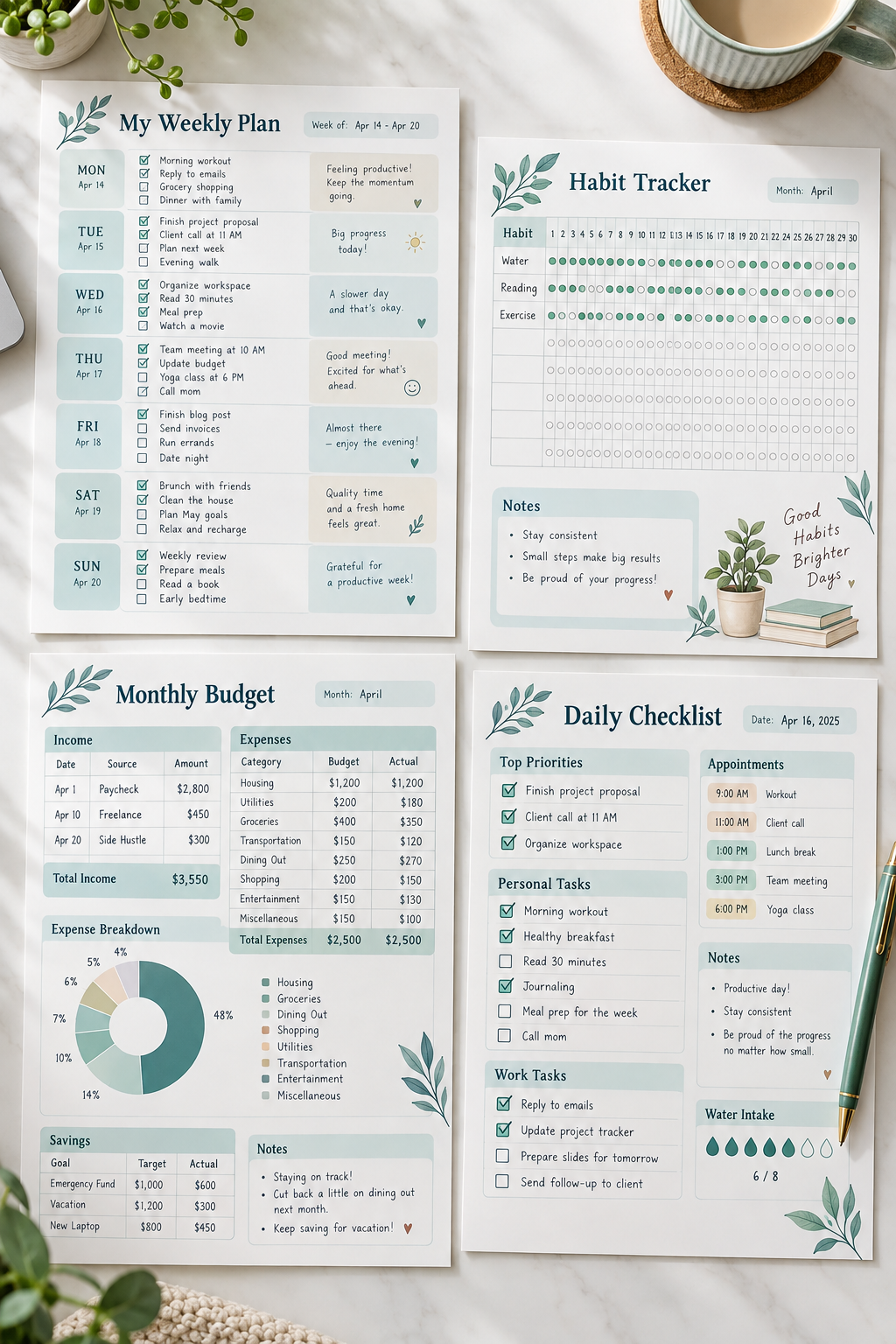
An empty design page can make a simple digital product feel much harder than it is. You may have an idea for a planner or checklist, but then the questions start. What goes on the page? Which tool should you open? How do you know the finished file will work?
Now think about the easier version. You start with one small problem, write down what the buyer needs, and build a useful page with text and basic shapes. A weekly planner does not need fancy illustrations to help someone organize appointments, tasks, and notes. It needs clear spaces that make sense at a glance.
That is a manageable way to make digital products, even if you have never designed anything before. You can begin with a single worksheet, use a simple tool such as Canva or Google Slides, and work through one decision at a time. The goal is not to copy a polished shop listing or spend hours choosing fonts. It is to create something useful, check it carefully, and prepare it for someone else to download.
1. Choose One Small Problem Your Product Will Solve
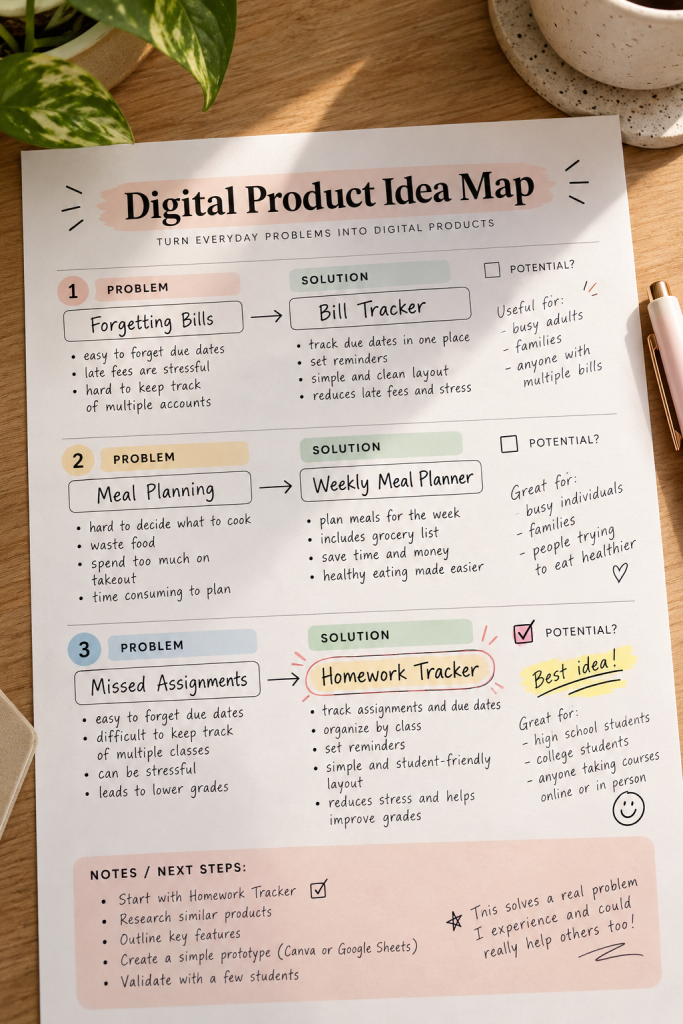
A big idea like “help people stay organized” leaves you with too many pages to create. Start with one task that regularly gets forgotten or feels messy.
Turn a problem into a product
Write down three problems a person might want help with:
- Bills get lost among other notes.
- Weekly meals are decided at the last minute.
- School assignments end up on scraps of paper.
Choose one problem and match it with one simple tool, such as a bill tracker or assignment list.
Common mistake: Trying to serve everyone with your first product. A single useful page is easier to finish and explain to a buyer.
2. Pick a Digital Product That Is Easy to Make
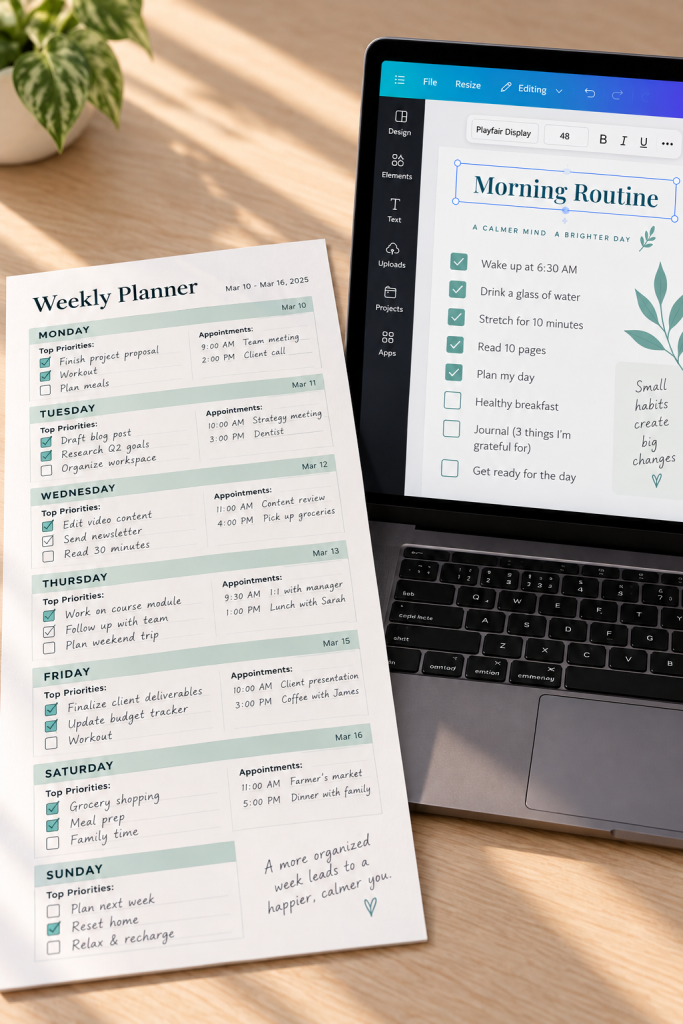
One-page printables are often simpler to finish than products with many linked pages or special features. But the easiest choice depends on what your customer needs to do after downloading it.
Choose the delivery format first
- Printable PDF: The buyer prints the page or writes on it using a suitable PDF app.
- Editable template: The buyer changes the design in a supported editor, so you need to explain how to access and edit it.
For your first attempt, choose one format and make one working sample.
Common mistake: Calling a file editable when it is only a finished PDF. Describe exactly what the buyer can change.
| Printable PDF | Editable Template |
|---|---|
| Example: Weekly planner to print and fill in. | Example: Checklist with editable headings and labels. |
| Buyer needs a PDF viewer or printer. | Buyer needs access to the supported editing tool. |
| Check page size, print margins, and writing space. | Check editable elements, access instructions, and shared-template permissions. |
3. Check What Buyers Need Before You Design
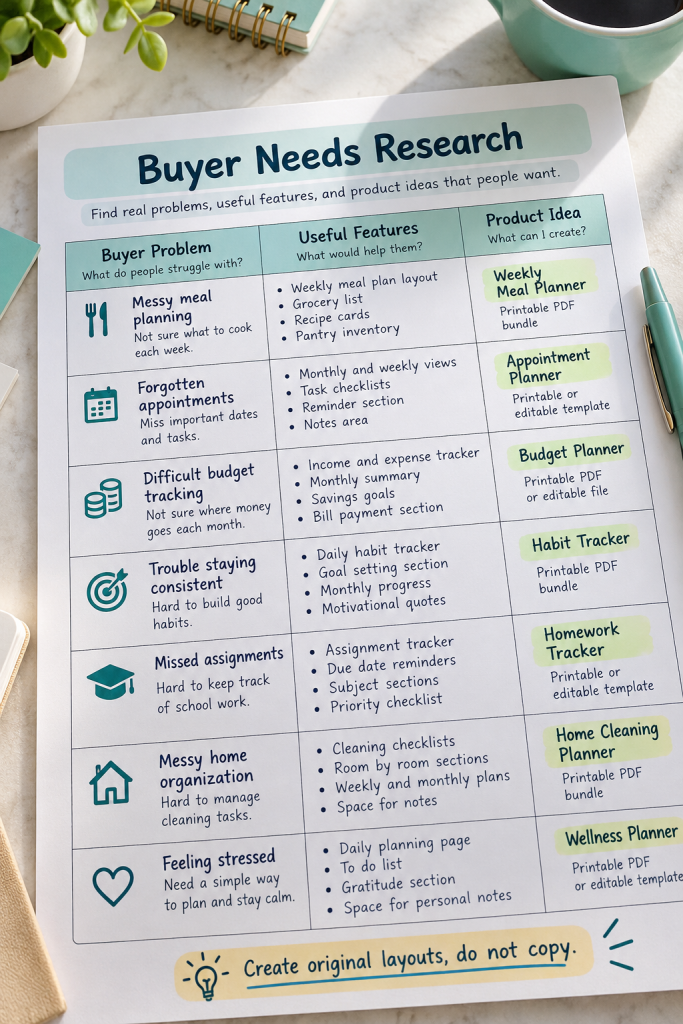
You do not need to guess which features buyers care about. Look at several listings for similar products on a marketplace you may want to use.
Read the descriptions and study the preview images. Notice whether buyers need space for dates, notes, progress tracking, or instructions.
Keep a short research sheet
Record the buyer’s problem, useful product features, and anything existing listings leave unclear.
For example, a meal planner may need a separate grocery list and space for leftovers.
Common mistake: Copying another seller’s design because it looks popular. Research should help you understand the customer’s needs, not give you a design to duplicate.
Buyer task: Plan meals for the week.
Useful feature: Space for breakfast, lunch, and dinner.
Possible extra: A shopping list grouped by food category.
Copying another seller’s page layout or artwork.
Using their product description as your own.
Adding features just because they appear in every listing.
4. Write Down Everything Your Product Needs
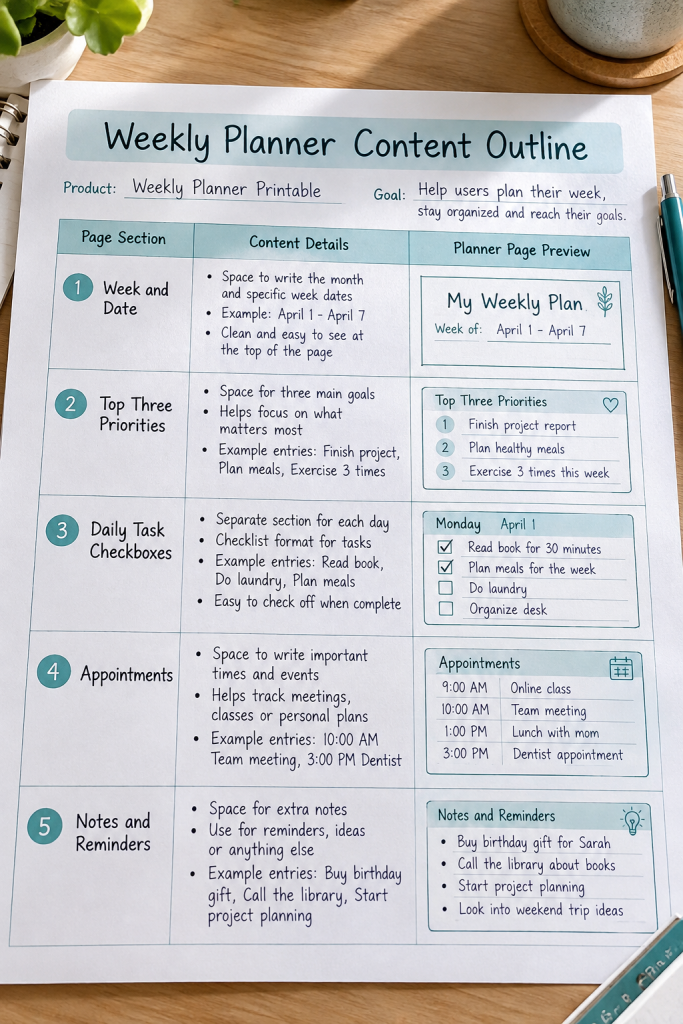
Before opening a design tool, write the actual content your product needs. A simple outline will save you from moving boxes around while you are still deciding what belongs on the page.
Plan the content in plain words
For a weekly planner, your outline might include:
1. A title and space for the week’s dates.
2. A box for the three main priorities.
3. A daily task area with checkboxes.
4. Sections for appointments and extra notes.
Keep each section tied to the problem you chose earlier.
Common mistake: Adding every feature you can think of. Too many sections can leave buyers with tiny writing spaces and a crowded page.
📋 Weekly Planner Content Checklist
5. Open a Simple Design Tool and Set Up Your Page
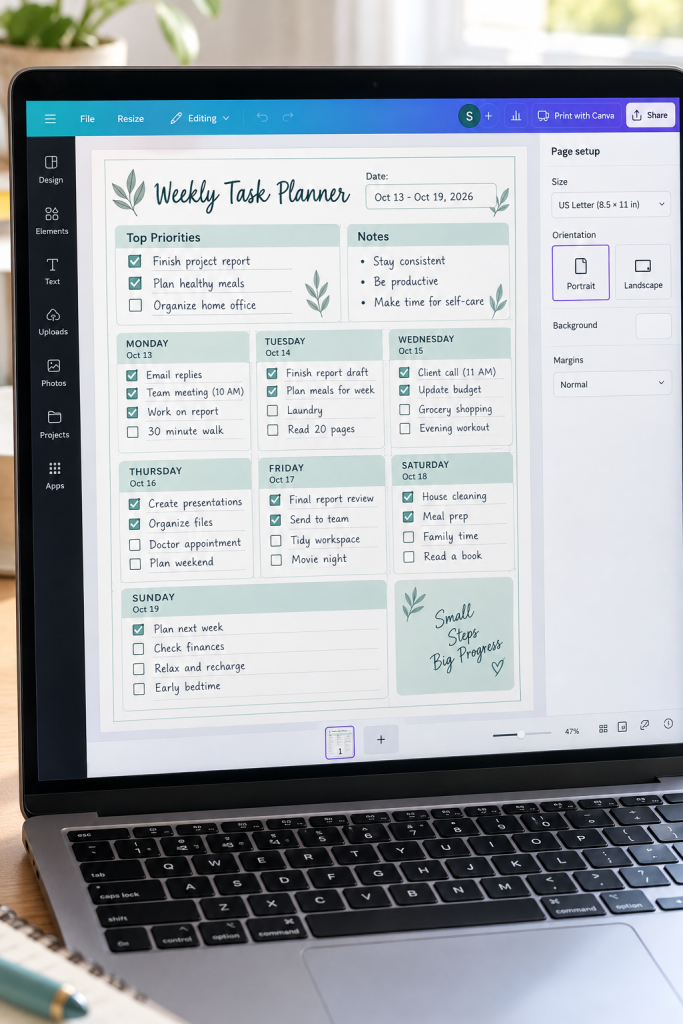
The first time you open a design tool, it is tempting to start browsing colorful templates. Set up your page first.
You can use a familiar tool such as Canva or Google Slides to arrange text, lines, and shapes.
Set the page size before designing
For a printable worksheet, choose a common paper size such as US Letter or A4. Use a portrait layout if your content reads from top to bottom.
Leave comfortable margins so nothing important sits close to the paper edge. Check that your tool supports the file format you plan to deliver.
Common mistake: Designing the whole page before checking its dimensions. Changing the size later can disturb your layout.
6. Build Your First Page With Text and Basic Shapes
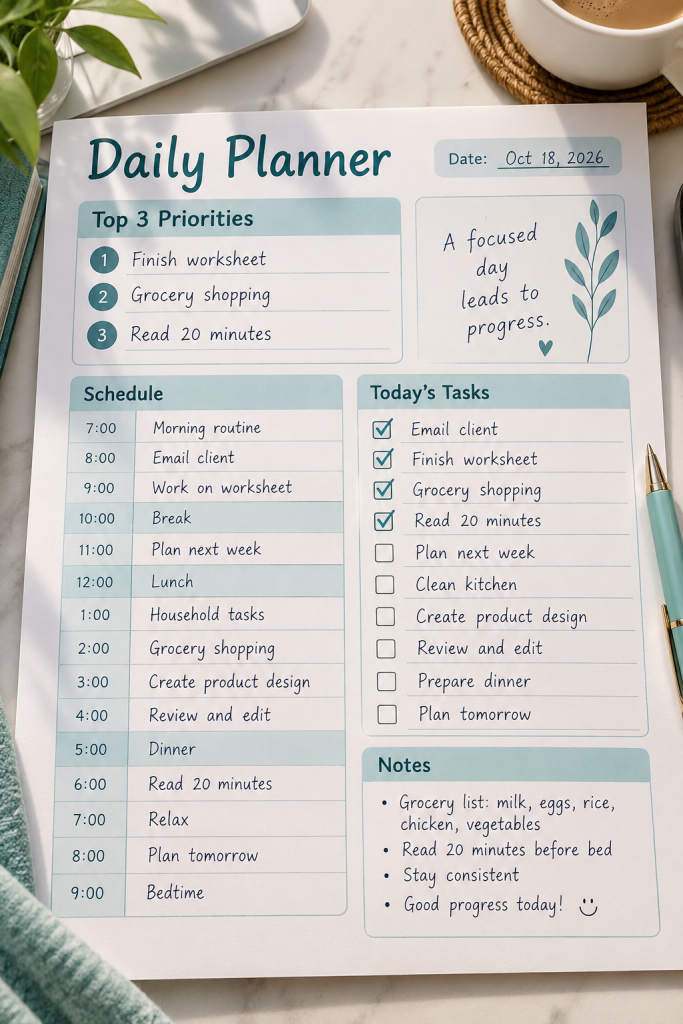
A useful first page can be built with text boxes, lines, and rectangles. You do not need custom illustrations or advanced design features.
Start by adding the page title. Place the most important information near the top, then arrange the remaining sections in a clear reading order.
Keep the layout easy to fill in
Give writing areas enough room for real answers. For a daily planner, a tiny box labeled “Tasks” will not be useful if someone needs to record several activities.
Common mistake: Spending too much time decorating before the content works. Finish the basic page first, then improve its appearance.
Build a Daily Planner Page
Top header: Add “Daily Planner” and a date field.
Priority area: Add three numbered lines for today’s main goals.
Main sections: Create a time schedule and a task checklist.
Bottom area: Leave open space labeled “Notes and Reminders.”
7. Make Your Product Look Clean and Consistent

Two planner pages can contain the same information, yet one feels much harder to use because the sections are crowded together.
A cleaner design makes the headings easy to find and gives the eye a clear path across the page.
Follow three simple design rules
- Fonts: Choose one readable font for body text and one for headings.
- Colors: Use a small group of matching colors with strong text contrast.
- Spacing: Keep similar gaps between boxes, labels, and lines.
Review the page at its actual viewing or printing size.
Common mistake: Choosing pale text, decorative lettering, or heavy backgrounds that look attractive on screen but become difficult to read.
❌ Different heading styles on every section.
❌ Task boxes with uneven spacing.
❌ Busy borders competing with the writing areas.
✅ Matching section headers for priorities, tasks, and notes.
✅ Aligned boxes with steady gaps.
✅ Simple borders that keep the content in focus.
8. Download Your Product and Check Every Page

Exporting a file is not the same as checking it. A worksheet that looks fine inside your design tool may have small text, cut-off lines, or missing details in the finished download.
Open the file like a buyer would
Download the product in its intended format, such as PDF for a printable. Open the actual file outside your editor and inspect each page.
If it is meant for printing, print a sample at the intended paper size. Check whether the text and writing areas are easy to use.
Common mistake: Checking only the design screen and assuming the exported file is correct. Test the file you will actually deliver.
🔎 Final File Quality Check
9. Make Product Preview Images That Show What Is Inside
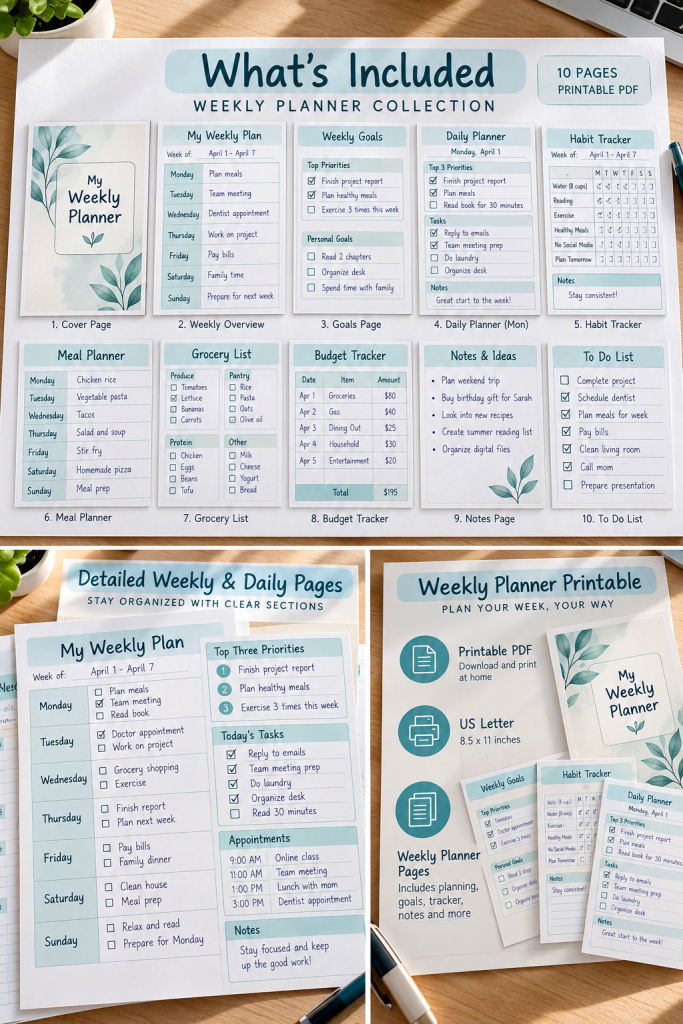
Buyers should be able to understand your digital product before downloading it. Clear preview images help them see what is included, how the pages are organized, and what they can use the product for.
Show the actual product, not just the cover
Prepare three types of preview images:
- Product overview: Display every included page together.
- Page close-up: Show readable headings, checkboxes, writing areas, and other useful details.
- Feature preview: Highlight the sections that solve the buyer’s problem.
Use the real finished pages in your previews.
Common mistake: Making attractive mockups that hide the actual product. Buyers need to see what they are getting.
10. Package Your Files and Create Your First Listing
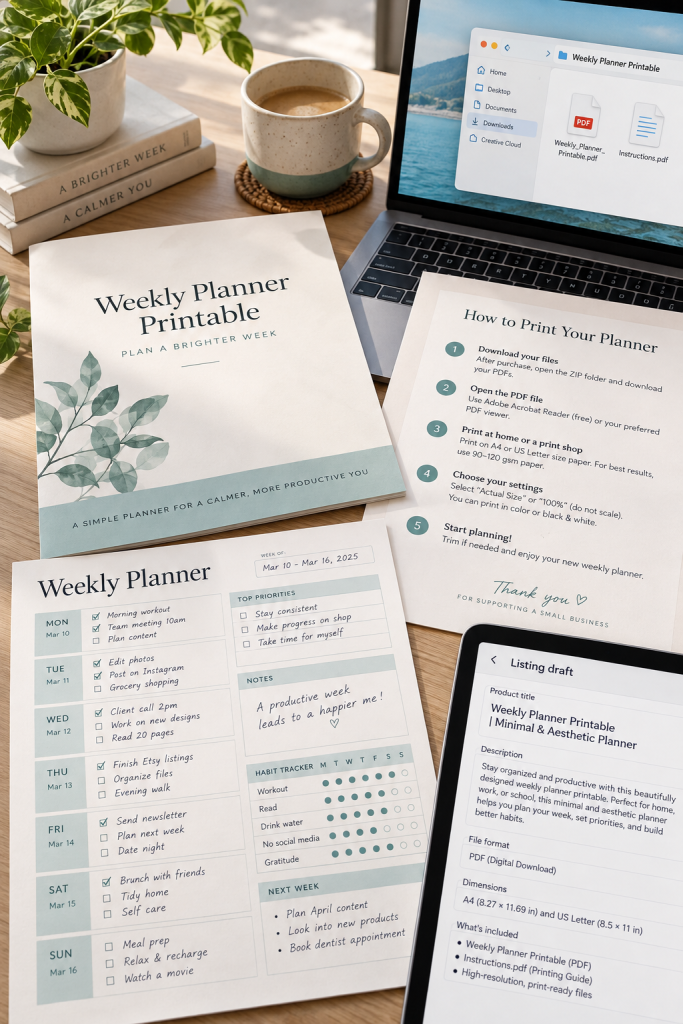
Your product is finished, but buyers still need to know what they are purchasing and how to use it.
Give the final download a clear filename, such as Weekly_Planner_Printable.pdf. Include a short instruction sheet if buyers need help printing, opening, or editing the file.
Write a clear product listing
Describe what the product does, what files are included, the page size, and any software the buyer needs.
Check the current rules of your chosen selling platform, including file requirements, permissions, and listing guidelines.
Common mistake: Uploading working design files instead of the correct customer download. Open the final package and check its contents before publishing.
📦 Final Package Check
Customer download: Include the finished file in the format promised in your listing.
Instructions: Explain how to open, print, or edit the product when needed.
Listing details: State the file type, number of pages, dimensions, and what the buyer receives.
⚠️ Before publishing: Check the platform’s current upload requirements and selling rules. Keep private working files out of the customer package.
Your First Digital Product Starts With One Useful Idea
Learning to make digital products does not require you to become a professional designer first. It starts with understanding a small problem and creating something that makes that task easier.
Your first product might be a weekly planner, a simple tracking sheet, or a printable checklist. What matters is that the content is useful, the layout is easy to understand, and the finished file works as promised.
Start with one page, complete it, and check every detail before listing it for sale. You can build more products as you learn what your audience needs.
Save this guide to your Pinterest board so you can return to each step while creating your first digital download