
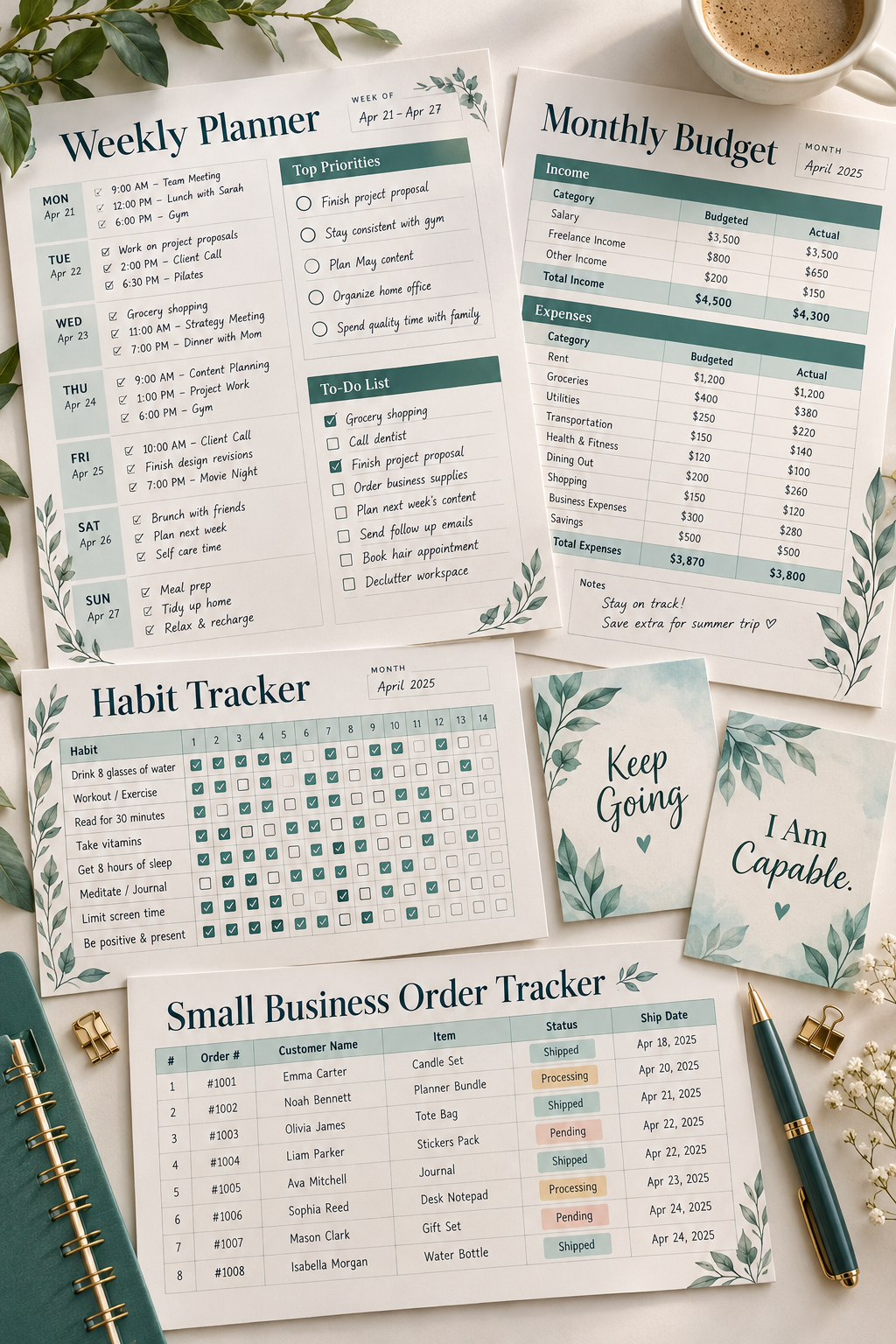
Buying more design tools will not fix a digital product that is confusing to use. A neat worksheet can still be frustrating if the boxes are too small to write in, and a planner can look polished while missing the pages buyers actually need.
That is why choosing Canva features by the job they do matters more than collecting every clever editing trick. Some tools help you build a useful layout. Others make it easier to create matching pages, adjust dimensions, or prepare product images. You may only need a few to finish your first digital download.
This roundup of the best Canva tools focuses on practical work, like turning a basic meal planner into a useful product, building trackers with clear tables, and preparing designs in different sizes. Each option includes who it suits, what it does well, and where it can fall short.
Some features depend on your Canva plan, so there is no reason to use every tool on this list. Start with the product you want to make, then choose the features that help you finish it properly.
1. Use Canva Templates to Start Your Digital Product Designs

A ready-made layout can save you from spending an entire afternoon lining up boxes and headings. Canva Templates are especially helpful when you are making your first meal planner, budget worksheet, or business checklist.
Turn a Basic Template Into a Useful Product
Start with a layout that has the right general structure. Then make changes that improve how someone will use it.
- Replace decorative sections with practical ones, such as a grocery list or weekly meal schedule.
- Adjust writing spaces so buyers have enough room to fill them in.
- Change the fonts, colors, and content to suit your audience.
Best for: Beginners who need help with layouts.
Main limitation: A template is a starting point, not a finished product ready to resell.
Monday to Sunday boxes with equal space for every day.
No grocery list or meal categories.
Breakfast, lunch, and dinner sections for each day.
Separate grocery checklist and weekly prep notes.
2. Set the Right Product Dimensions With Canva Custom Size

A printable can look fine on your laptop and still print at the wrong size. Canva Custom Size lets you choose your page dimensions before you begin designing.
For example, a household budget worksheet might need a full US Letter page, while a printable savings challenge card could work better in a smaller format.
Choose the Size Before Adding Content
Open the custom size option and enter the width and height using the measurement units you need. Build the design around that space instead of trying to squeeze everything in later.
Best for: Sellers creating printable worksheets, planners, and cards.
Main limitation: Correct dimensions do not guarantee correct printing. Margins, printer settings, and test prints still matter.
📐 Printable Size Checklist
3. Add Useful Graphics With Canva Elements
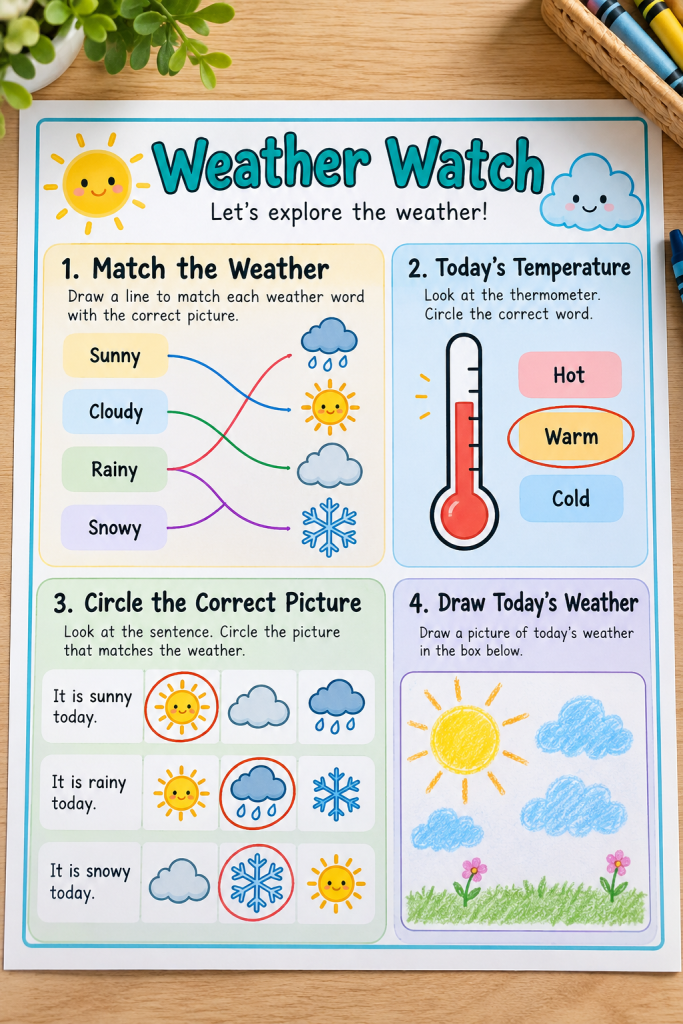
Canva Elements gives you access to shapes, illustrations, lines, icons, and other graphics that can make a worksheet easier to understand.
For a children’s weather worksheet, a simple sun illustration beside the word “Sunny” helps connect the picture to the lesson. A raindrop beside “Rainy” can serve the same purpose.
Choose Graphics That Help the Reader
Use illustrations to explain something, separate sections, or guide attention. Avoid adding decorative graphics to every empty corner.
Best for: Educational worksheets, flashcards, trackers, and visual learning materials.
Main limitation: Not every graphic is suitable for every resale use.
Before selling anything made with Canva content, read Canva’s current license terms. Canva library graphics generally cannot be resold as standalone content, and simply changing their colors may not be enough to create an original product.
4. Build Functional Trackers With Canva Tables

Habit trackers need neat rows and columns more than fancy decorations. Canva Tables can help you build that structure without positioning every individual box by hand.
A monthly tracker might list Water, Reading, Walking, and Sleep down one side, with the days of the month running across the top.
Give Every Habit Enough Space
Use a short habit name in each row and keep the daily marking boxes consistent. Choose borders that remain visible after printing.
For smaller pages, a weekly layout may be easier to read than a crowded monthly grid.
Best for: Habit trackers, cleaning schedules, attendance sheets, and simple logs.
Main limitation: Canva Tables are for page design, not advanced spreadsheet calculations.
| Canva Tables | Separate Text Boxes |
|---|---|
| Useful for lined-up habit rows. | Useful for a few custom labels. |
| Keeps daily cells in a clear grid. | Each box may need manual alignment. |
| Good for repeated rows and columns. | Good for unusual shapes and flexible placement. |
5. Keep Your Digital Product Collection Consistent With Brand Kit
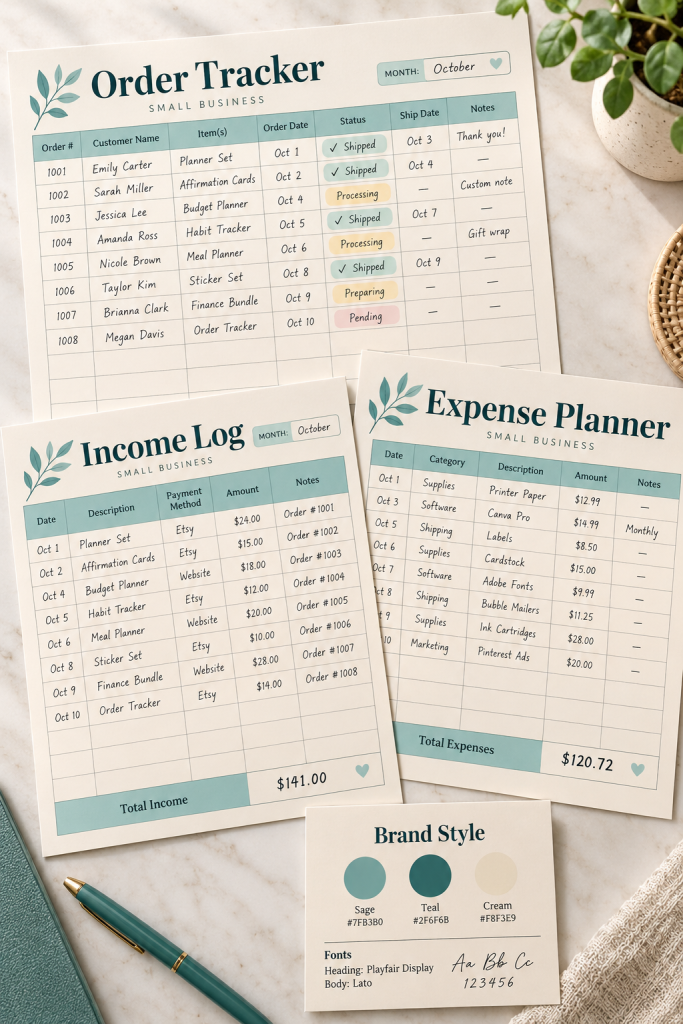
Matching products are easier to recognize as part of a collection. Canva Brand Kit helps you store your chosen colors, fonts, logos, and other brand assets so you can reuse them across designs.
This is helpful when you are creating a matching Order Tracker, Income Log, and Expense Planner for small business owners.
Build a Simple Visual Style
Choose a small set of colors and readable fonts before creating the full collection.
- Use the same heading style on every page.
- Keep page labels, section borders, and background colors consistent.
- Give each product its own useful content without changing the overall design style.
Best for: Sellers creating matching printable bundles.
Main limitation: Brand Kit features depend on your Canva plan.
6. Create Multiple Product Variations With Canva Bulk Create

Typing different messages into a set of affirmation cards by hand gets repetitive quickly. Canva Bulk Create can generate multiple design variations using information from a table or spreadsheet.
For example, you could design one card with a large statement in the center and a small decorative border. Then use Bulk Create to produce cards with messages like “I Can Learn,” “Progress Matters,” and “Keep Going.”
Start With One Finished Layout
Make sure the text box, font, and spacing work before connecting your messages.
Best for: Affirmation cards, certificates, name cards, and other products with repeating layouts.
Main limitation: Bulk Create requires an eligible Canva plan and desktop access. Generated pages still need checking, especially when messages have different lengths.
💬 Affirmation Card Batch Workflow
Create the card layout. Add a message text box, border, and matching decorative details.
Prepare your messages. Add one statement per row under a column named Affirmation.
Connect and generate. Link the message field to the text box, create the variations, and review every card.
7. Adapt Designs to Different Sizes With Canva Magic Resize

A planner built for one paper size may look cramped when copied into another. Canva Magic Resize helps adapt an existing design to different dimensions without rebuilding the page from the beginning.
For example, a finance planner could have a full-page budget layout and a smaller version with fewer writing fields.
Check the Layout After Resizing
Resizing changes the available space, so you may need to adjust:
- Heading sizes and distances between sections.
- Writing boxes, tables, and page margins.
- Decorative details that no longer fit the new layout.
Best for: Sellers preparing multiple size options.
Main limitation: Magic Resize requires an eligible plan and may count toward AI usage limits. Automatic resizing does not guarantee a print-ready result.
Check that income and expense labels are easy to read.
Adjust the width of amount and date fields.
Keep enough space for handwriting on printed pages.
Do not assume every section has stayed aligned.
Do not shrink important text until it is hard to read.
Do not offer a new page size without checking the export.
8. Remove Unwanted Photo Backgrounds With Background Remover

A busy photo background can distract from the artwork you actually want to show. Canva Background Remover helps isolate the main subject of an image.
Suppose you have photographed a plant that you want to include in a botanical sticker sheet. Removing the surrounding background gives you more control over where the plant sits within your finished design.
Work With Clear, Detailed Images
Start with an original photo you created or an image you have permission to use. Check the edges after removing the background, especially around thin leaves and stems.
Best for: Image-based printable designs, stickers, and product mockups.
Main limitation: Background Remover generally requires an eligible plan, and complicated image edges may need manual corrections.
💡 Quick Tip: Check Your Sticker Edges
After removing the background, place your plant image against a dark contrasting color. Look closely for leftover background patches and uneven edges.
If you are making a printable sticker sheet, add a clear cutting outline and check the final layout at its actual print size.
9. Present Your Finished Products With Canva Mockups
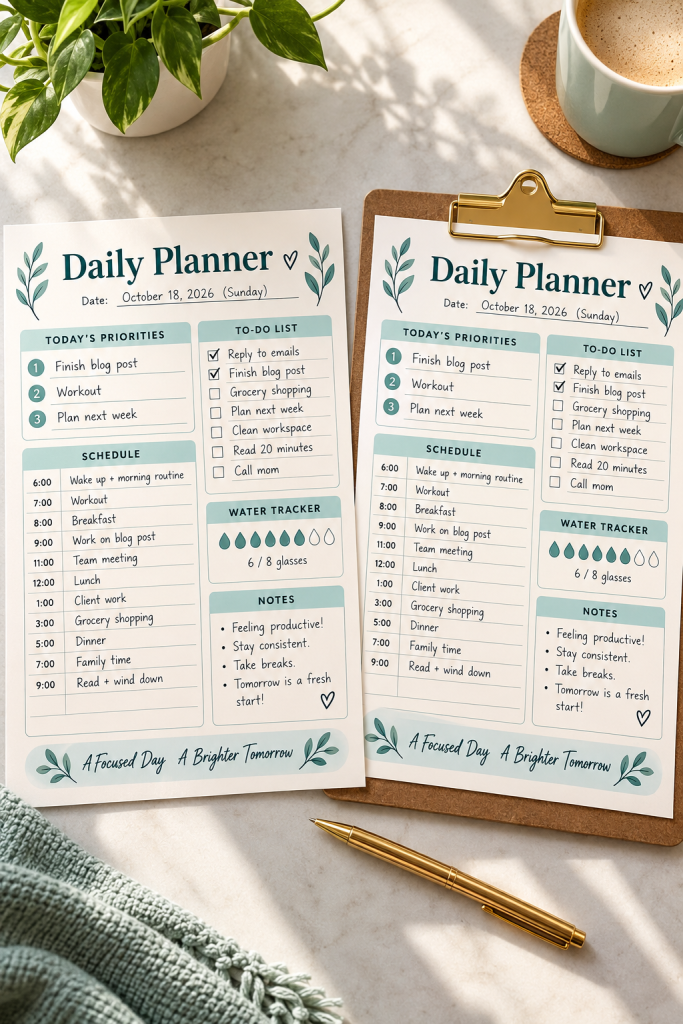
A flat planner page shows the design, but a mockup helps buyers understand how the finished product might look when used.
Canva Mockups lets you place your designs into realistic scenes, such as a planner displayed on a clipboard or a worksheet shown on a tablet.
Make Your Product Easy to Preview
Choose a mockup that fits what you are selling. For a printable daily planner, show the actual schedule, priorities, and task sections clearly instead of covering them with decorative objects.
Best for: Digital product sellers creating listing images and product previews.
Main limitation: Mockups are presentation images, not the actual downloadable product. Avoid showing items that buyers might mistakenly think are included.
A plain daily planner page on a white background.
Buyers can read the sections but have little visual context for the product.
The same planner displayed on a clipboard with its schedule, task list, and priorities visible.
A separate close-up shows the real page details and writing spaces.
10. Prepare Printable Downloads With Canva PDF Print

Exporting a finished planner takes more than clicking Download. The file needs to keep its page dimensions, readable text, and clear graphics when someone prints it.
Canva PDF Print is useful for creating high-resolution printable files, including weekly planners, checklists, and worksheets.
Check the File Before Selling
Open the download settings and choose PDF Print. Select the correct pages and check whether your product needs crop marks or bleed.
Then open the exported file and inspect the actual pages. Make sure your weekly schedule, task boxes, and notes section have enough writing space.
Best for: Sellers offering printable PDF downloads.
Main limitation: PDF Print does not fix blurry source images, cramped layouts, or incorrect page dimensions.
🖨️ Printable PDF Final Check
Start With the Tools Your Product Actually Needs
You do not need every Canva feature to make a useful digital product. A simple habit tracker might only need Custom Size, Tables, and PDF Print. A collection of affirmation cards may benefit more from Templates, Bulk Create, and a consistent design style.
The best Canva tools are the ones that help you solve a real design problem without adding unnecessary work.
Choose one product, build a clear layout, and check the finished file before you list it for sale. Also review the current rules of the platform where you plan to sell, since requirements can change.
Save this list to your Pinterest board so you can return to it when you are ready to create your next digital product.