
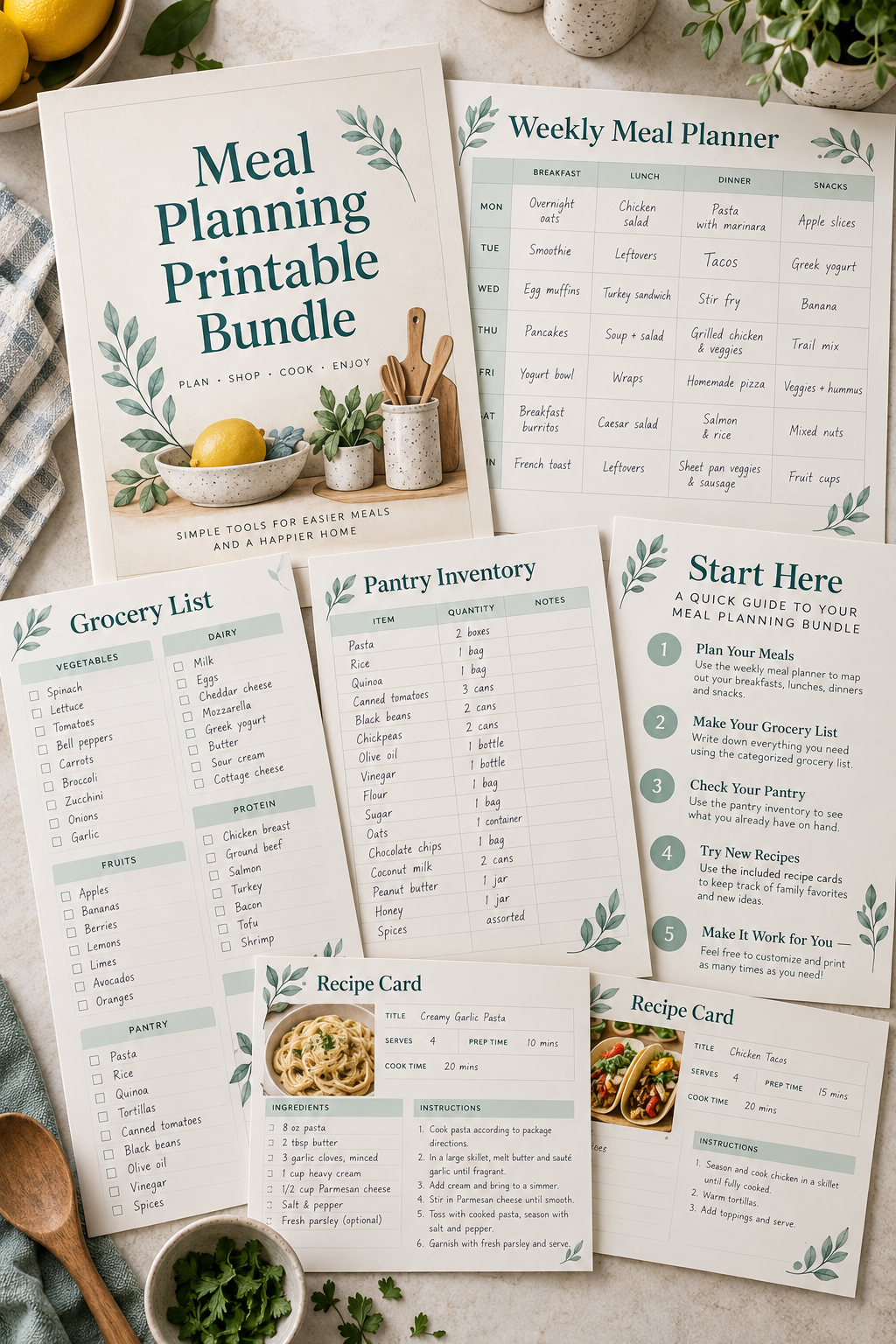
You do not need a huge collection of printables to create a bundle worth selling. In fact, putting too many unrelated pages together can make your product harder to use, not more valuable.
A good printable bundle solves one clear problem. Someone planning family meals might need a weekly menu, a grocery list, a pantry inventory, and a few recipe cards. Those four pages work together because they help with the same task. That is much more useful than a random folder of planners, calendars, and worksheets.
If you have been collecting printable bundle ideas but feel unsure how to turn separate designs into one finished product, the packaging part is probably easier than you expect. You do not need fancy software or advanced computer skills. You just need to make a few careful choices about your pages, files, and download instructions.
The steps below walk you through that process, from choosing a theme to checking your final ZIP file. By the end, you will know how to organize a bundle that buyers can download and use without confusion.
1. Choose One Clear Theme for Your Bundle
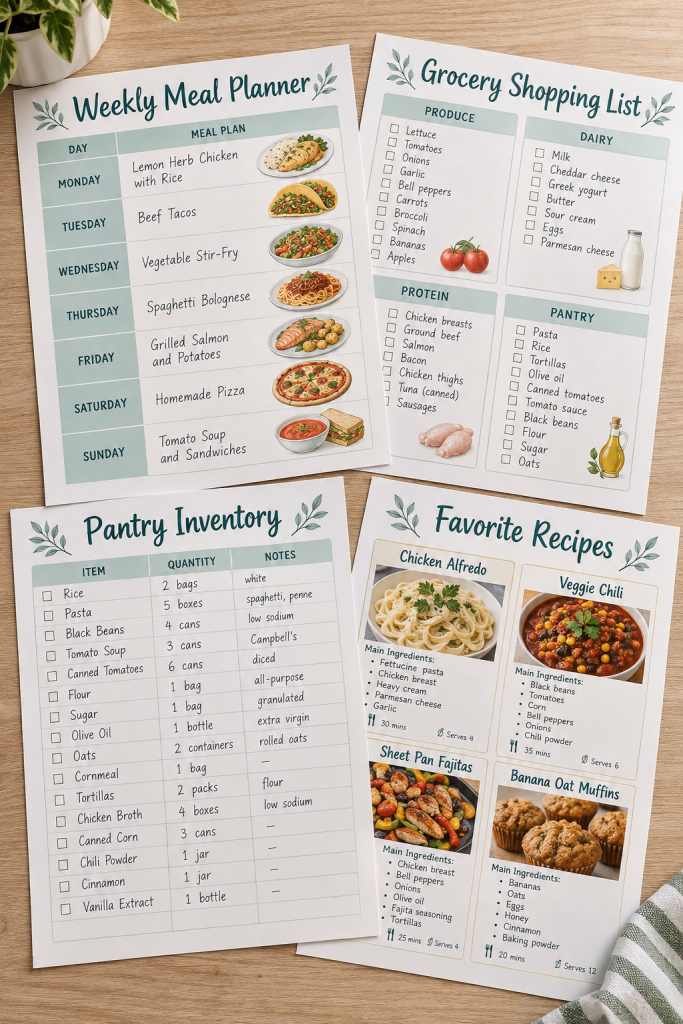
A printable bundle should help someone with one main goal. Start by choosing a topic before you begin designing individual pages.
For example, a meal planning bundle could help busy families plan dinners and shop for groceries. A cleaning bundle might help someone manage daily chores and weekly housework.
Narrow Down Your Idea
Ask yourself two questions:
- Who will use these printables?
- What specific task will they help that person finish?
A bundle for new parents will need different pages than one for small business owners.
Common mistake: Choosing a broad theme like “life organization” and filling it with unrelated worksheets. A focused topic makes choosing the right pages much easier.
2. Pick Printables That Work Together
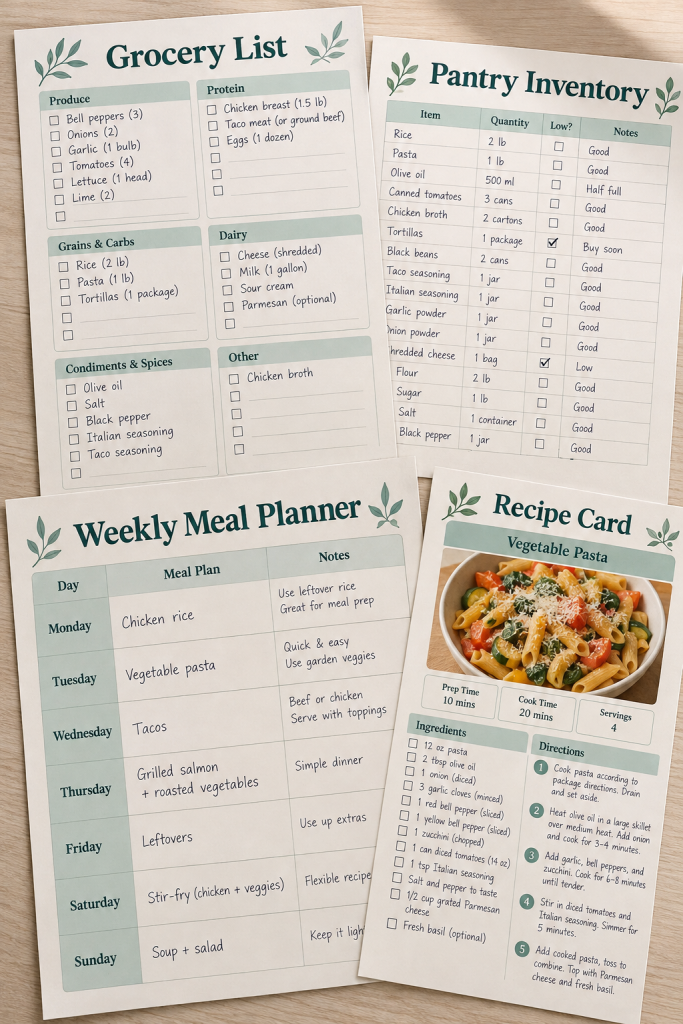
Once you have a theme, decide which individual pages belong in the bundle.
Think about the order in which someone would use them. For a meal planning bundle, a weekly menu helps plan meals, a grocery list helps with shopping, and a pantry inventory shows what is already at home.
Build a Useful Page Collection
Start with three to five different printable types. Write their names on paper and check that each one serves a separate purpose.
You can create extra variations later, such as an undated or ink-friendly version.
Common mistake: Adding several nearly identical pages just to increase the page count. Buyers need useful choices, not repeated layouts with slightly different headings.
🍽️ Meal Planning Bundle Checklist
Use this sample collection to check whether each page has its own job.
3. Give Every Printable a Matching Design
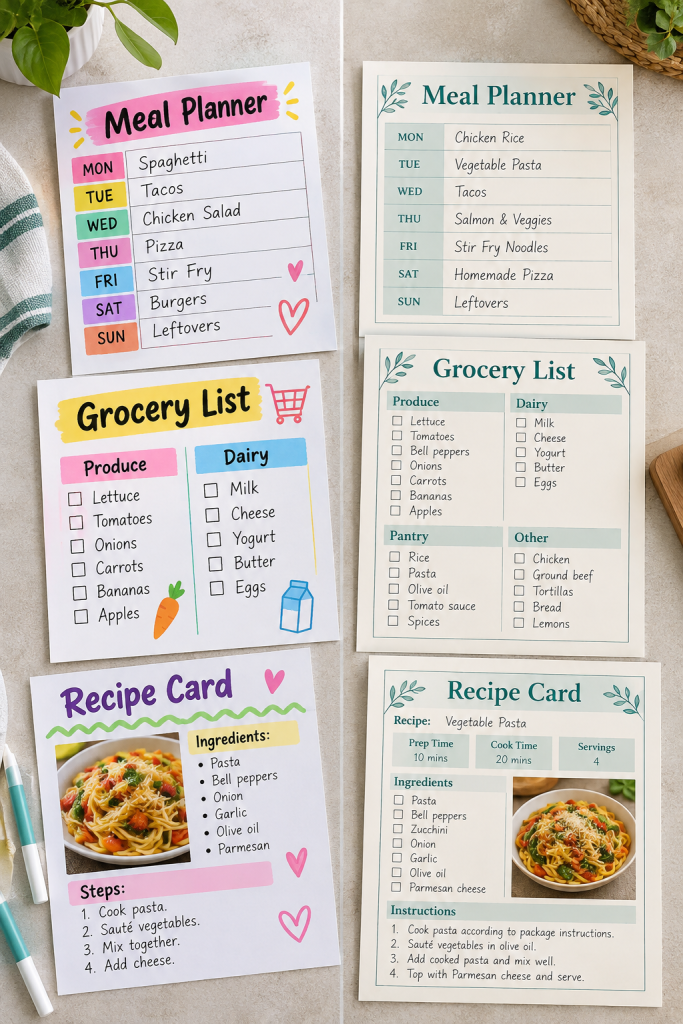
A bundle looks more organized when its pages share the same design style.
Your weekly meal planner should not have bright pink headings while the grocery list uses dark blue boxes and a completely different font. Even if both pages work well, they may look like separate products.
Create a Simple Design System
Choose a few basic design rules before finishing your pages:
- Use the same heading font and body font.
- Pick two or three matching colors.
- Keep margins and section headings consistent.
- Use similar boxes, lines, and checkboxes.
Common mistake: Making every printable look exactly alike. Keep the overall style consistent, but give each page a layout that suits its purpose.
Separate-looking designs
Meal planner: bold red headings and thick borders.
Grocery list: purple script font and dotted boxes.
Recipe card: green headings with a different page layout.
One matching collection
Headings: one readable font across all pages.
Colors: teal headings with soft neutral backgrounds.
Layouts: matching margins, lines, and checkbox styles.
4. Choose Page Sizes and Check Print Quality
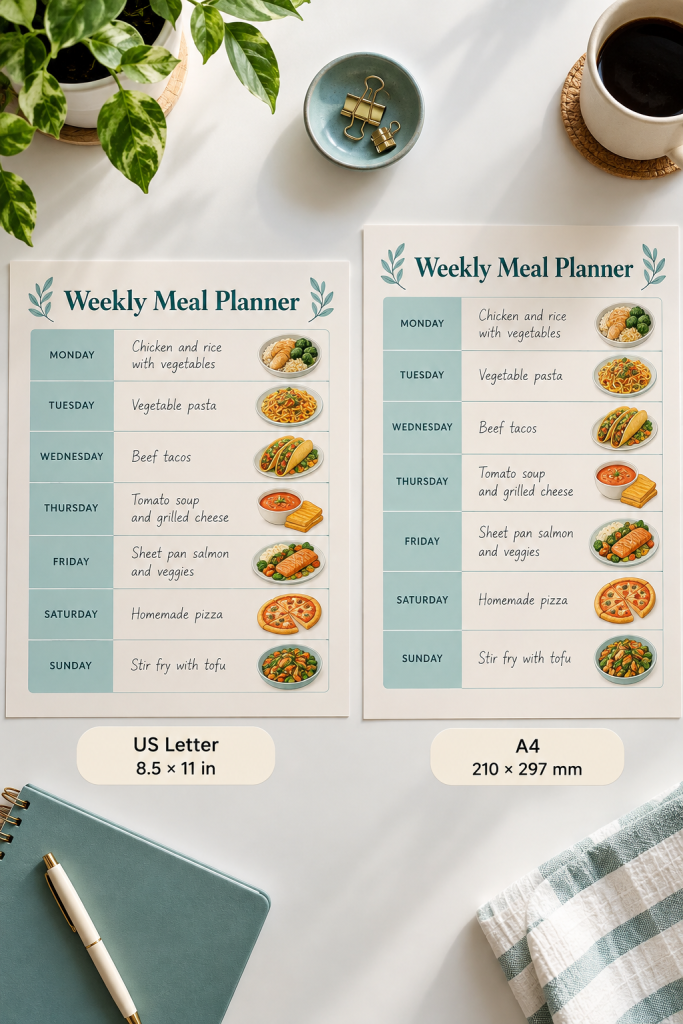
A design that looks good on your computer screen may not print the way you expect.
Before exporting your bundle, decide which paper size your customers will use. US Letter and A4 are common choices, but they have slightly different dimensions.
If you plan to offer both, create and check a proper version for each size rather than assuming one file will fit both.
Check Your Printable Pages
Print a sample using the intended paper size. Look for cut-off headings, tiny text, and writing spaces that are too narrow.
Common mistake: Placing important details too close to the paper edge. Leave enough margin so the design works with ordinary home printers.
| US Letter | A4 |
|---|---|
| 8.5 × 11 inches | 210 × 297 mm |
| Common in the United States | Common in many other countries |
| Check margins on Letter paper. | Check margins on A4 paper. |
| Label the file LETTER. | Label the file A4. |
5. Export Your Printables as Clearly Named PDFs
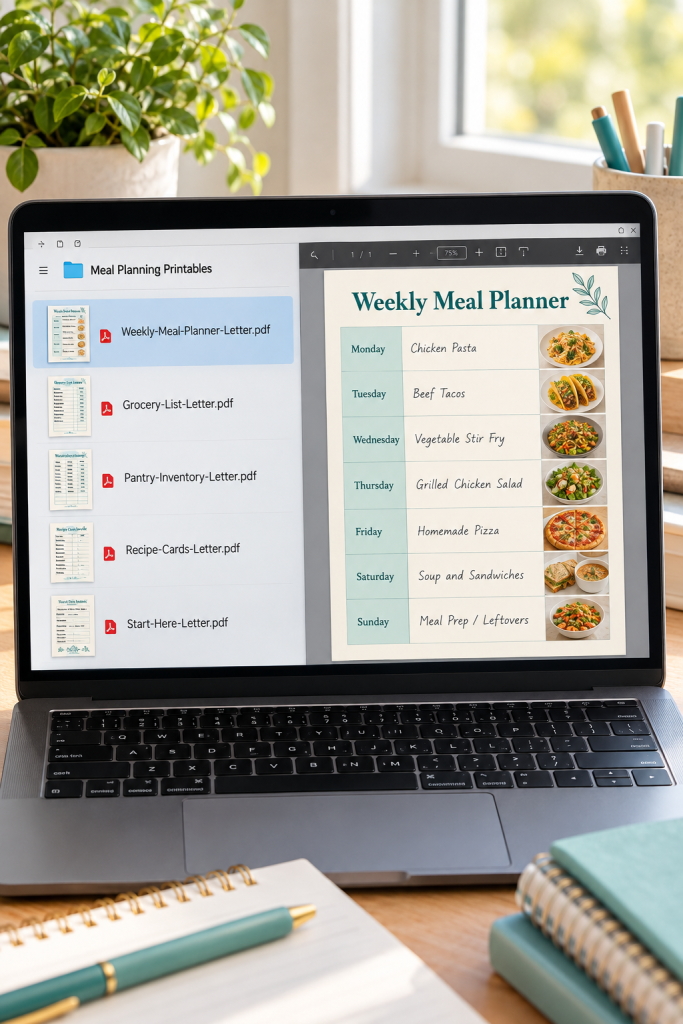
Now it is time to turn your finished designs into files that customers can use.
PDF is a practical format for most printable products because it keeps the page layout together when the document is opened.
If you are designing in Canva, you can use its PDF export options. Choose settings suited to printing, and check the finished output before packaging it.
Use File Names Buyers Understand
Instead of vague names like final2.pdf or design-copy.pdf, use clear names such as:
- Weekly-Meal-Planner-Letter.pdf
- Grocery-List-Letter.pdf
- Pantry-Inventory-Letter.pdf
Use a matching naming pattern for any A4 versions.
Common mistake: Exporting files and immediately moving them into the bundle without opening them. Check that every PDF has the correct pages and readable text.
6. Add a Bundle Cover and Simple Instructions
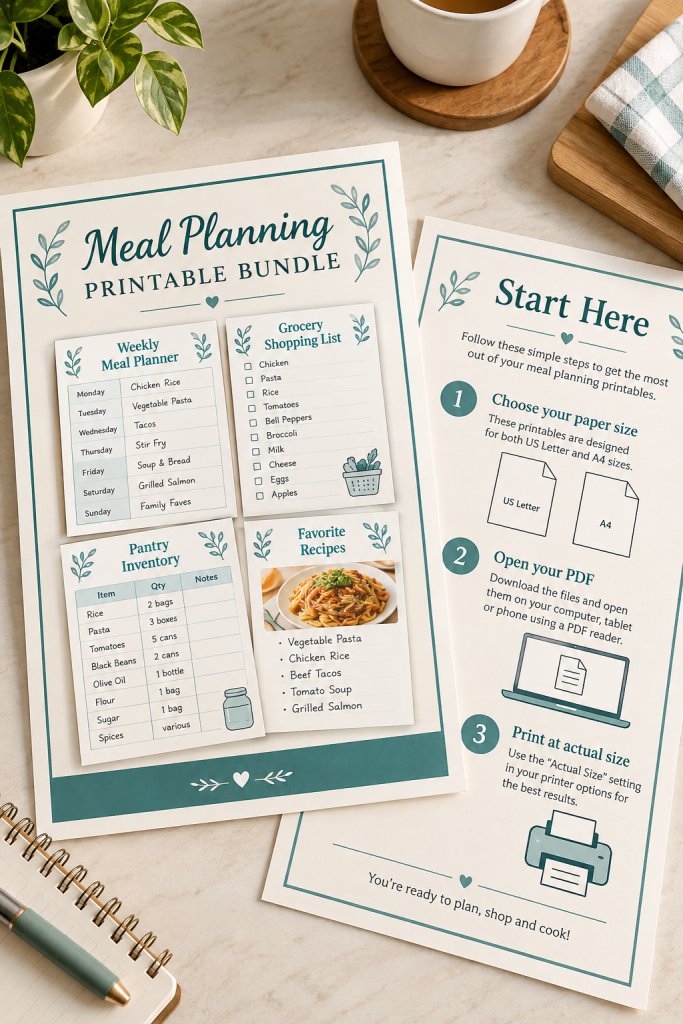
Customers should know what they downloaded without opening every file to find out.
Create a simple cover page that names the product and shows what is inside. For example, your meal planning bundle cover could list the weekly planner, grocery list, pantry inventory, and recipe cards.
Write a Short Start Here Guide
A one-page instruction sheet is enough for a basic bundle.
Include:
- The names of the included printables.
- Which PDF folder to open.
- The paper sizes provided.
- Simple printing and usage instructions.
Save this sheet as Start-Here.pdf.
Common mistake: Writing a long instruction manual for a simple product. Keep directions short enough that someone can understand them in one quick read.
💡 Quick Tip: Make the First File Obvious
Name your instruction document Start-Here.pdf and place it in the main bundle folder. Explain that customers should choose the Letter or A4 folder, open the PDF they need, and print at actual size when appropriate. Add a note to check the print preview before printing the full collection.
7. Organize Everything Into One ZIP File
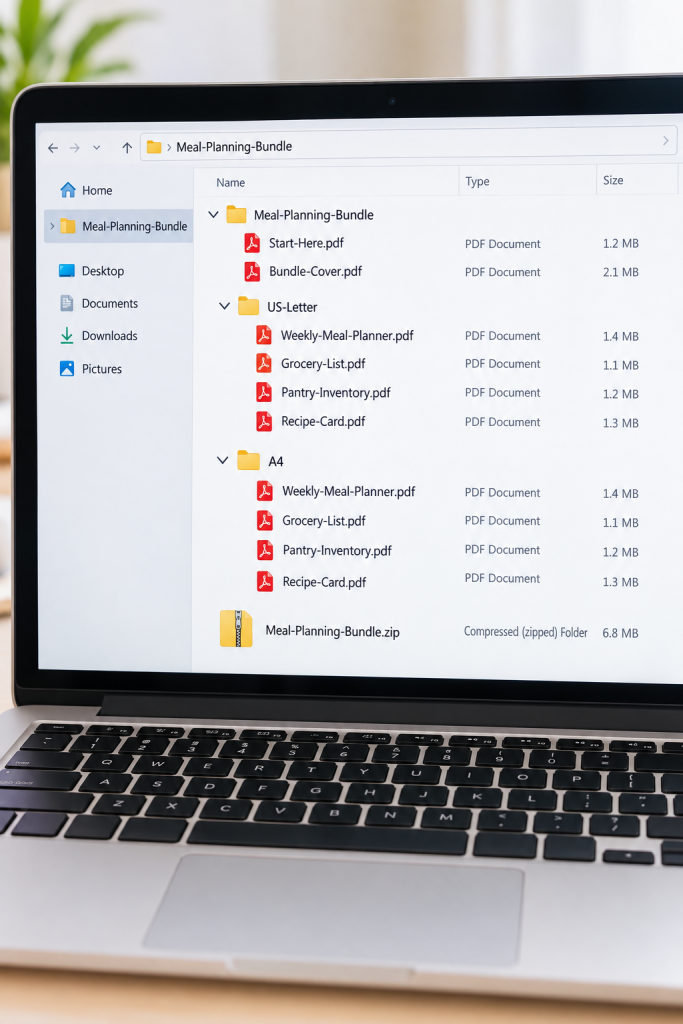
Several loose PDF files can be confusing, especially when a bundle includes different paper sizes.
A ZIP file keeps your collection together in one downloadable package. Customers can extract the ZIP and find everything in the folders you prepared.
Create a Clear Folder Structure
Make one main folder named Meal-Planning-Bundle.
Inside it, place your cover and instruction sheet. If you are providing both paper sizes, create separate folders named US-Letter and A4.
Move the correct PDFs into each folder. Then compress the main folder into a ZIP file using your computer’s built-in compression feature.
Common mistake: Including working design files, old drafts, and duplicate PDFs. Only package the finished files customers need.
Main folder: Meal-Planning-Bundle
Instructions: Start-Here.pdf
Subfolders: US-Letter and A4
Final download: Meal-Planning-Bundle.zip
Mixing Letter and A4 PDFs in one unlabeled folder.
Including files named final, final2, and final-new.
Adding editable drafts that are not part of the purchase.
Forgetting the Start Here instructions.
8. Test Your Bundle Before Listing It for Sale
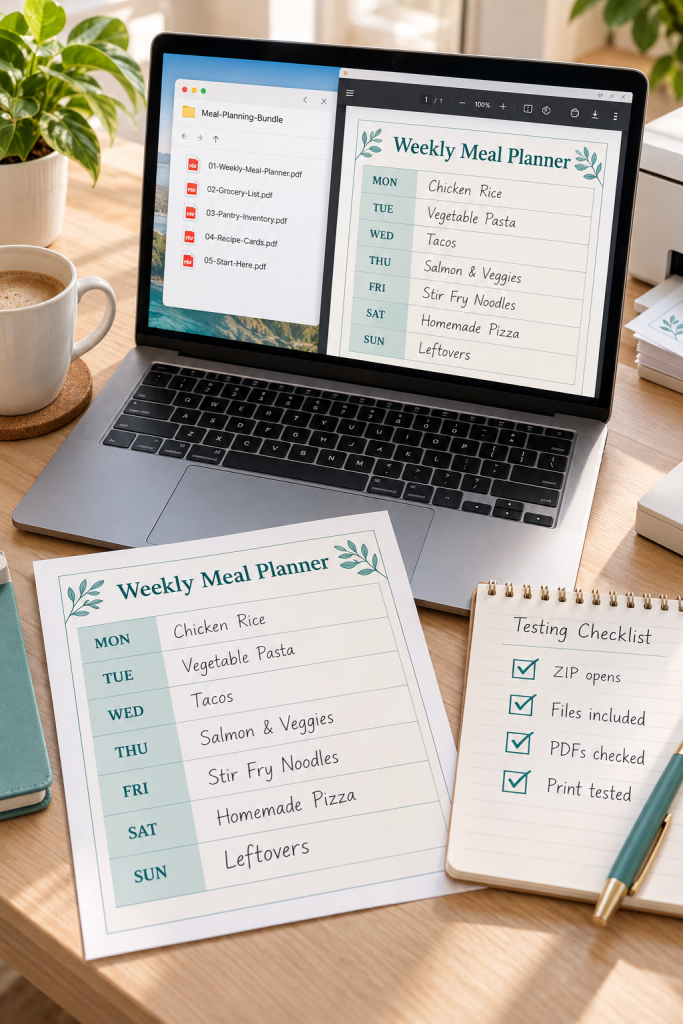
Your bundle might look finished, but one missing file can leave a customer wondering what went wrong.
Before uploading it to a store, test the ZIP file as if you were the buyer.
Move a copy of the final ZIP to a separate folder. Extract it there, open the instructions, and check each PDF one by one.
Check the Customer Experience
Confirm that the files are named correctly, the pages display as expected, and the print preview matches the intended paper size.
Print at least one sample page to check text size and margins.
Common mistake: Testing only the original design files. Test the actual ZIP customers will receive. Also check your selling platform’s current file size, file type, and delivery rules before listing.
Final Bundle Testing Process
Extract the ZIP: Open a fresh copy of your final compressed file.
Count the files: Compare the PDFs inside with the contents listed in Start Here.
Inspect the PDFs: Open every document and check the page order, headings, and writing areas.
Print a sample: Check paper size, readability, and spacing on a real sheet.
Check store requirements: Confirm that your platform accepts the final file format and size.
Your Printable Bundle Is Ready to Package
Creating a printable bundle is mostly about making separate pages work together. Once you have a clear theme, matching designs, organized PDFs, and simple instructions, the final package becomes much easier to prepare.
You do not need dozens of pages or complicated software to get started. A small collection that helps someone finish one task can be a sensible first product.
As you explore more printable bundle ideas, keep the buyer’s experience in mind. Clear file names, useful pages, and a tested download matter more than adding unnecessary extras.
Save this guide to your Pinterest board so you can follow the steps when you are ready to package your next digital product.