
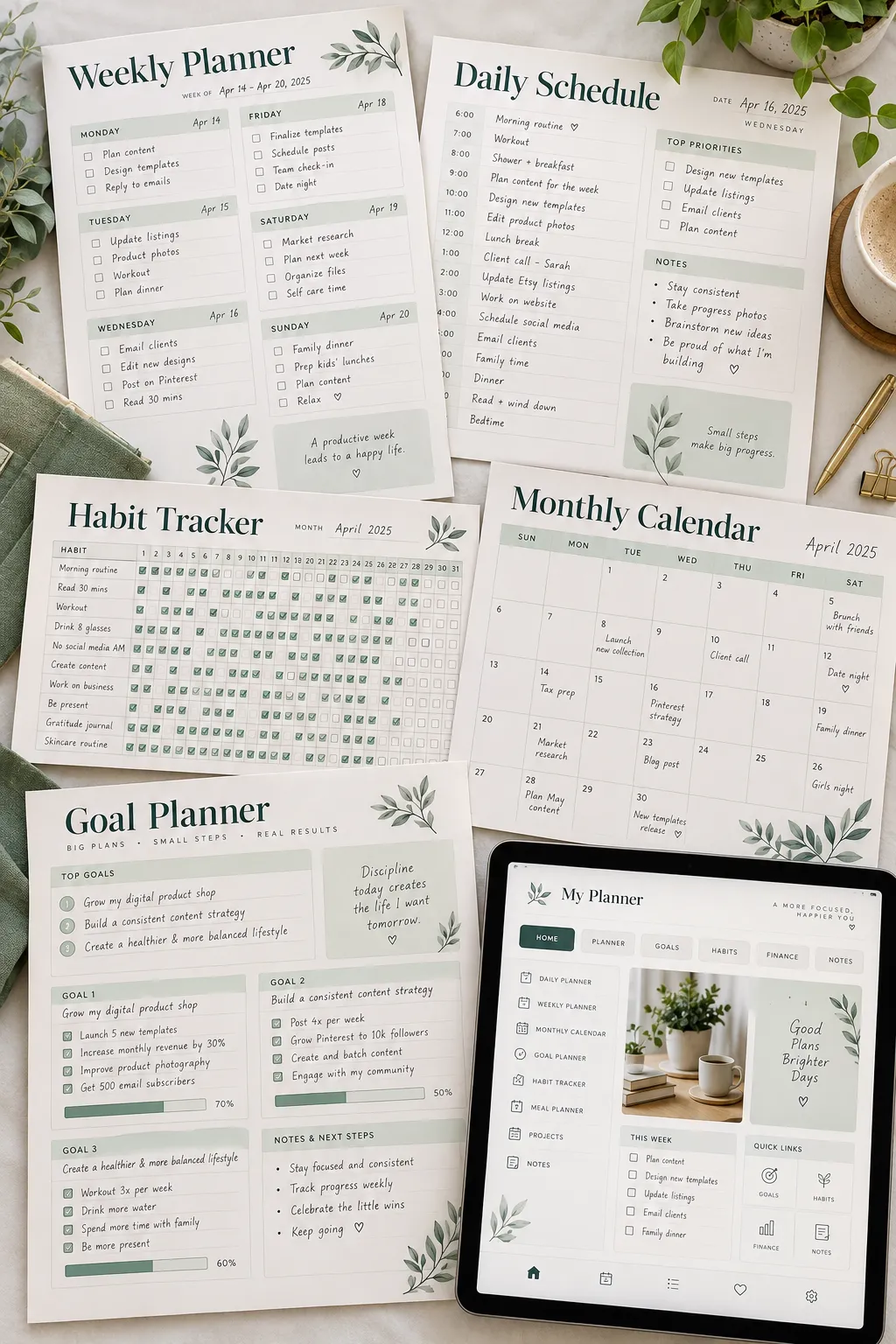
Choosing a planner app sounds simple until you try to turn a nice design into something people can actually print. A weekly planner might look great on your screen, then come out with cut-off boxes, tiny text, or the wrong paper size. That can leave you wondering whether the problem is your design or the app you chose.
The tricky part is that not every design tool works the same way. Some are better for quick layouts and matching planner pages. Others give you more control over margins, page sizes, and detailed printable products. And an app that works well for a simple habit tracker may not be the right choice for a full planner book.
If you’re comparing digital planner apps before spending money, think about what you actually want to create. A beginner selling weekly planning sheets needs different features from someone designing a detailed printable journal.
The options below cover different skill levels and products, with a clear strength and limitation for each one.
1. Canva for Easy, Matching Planner Pages
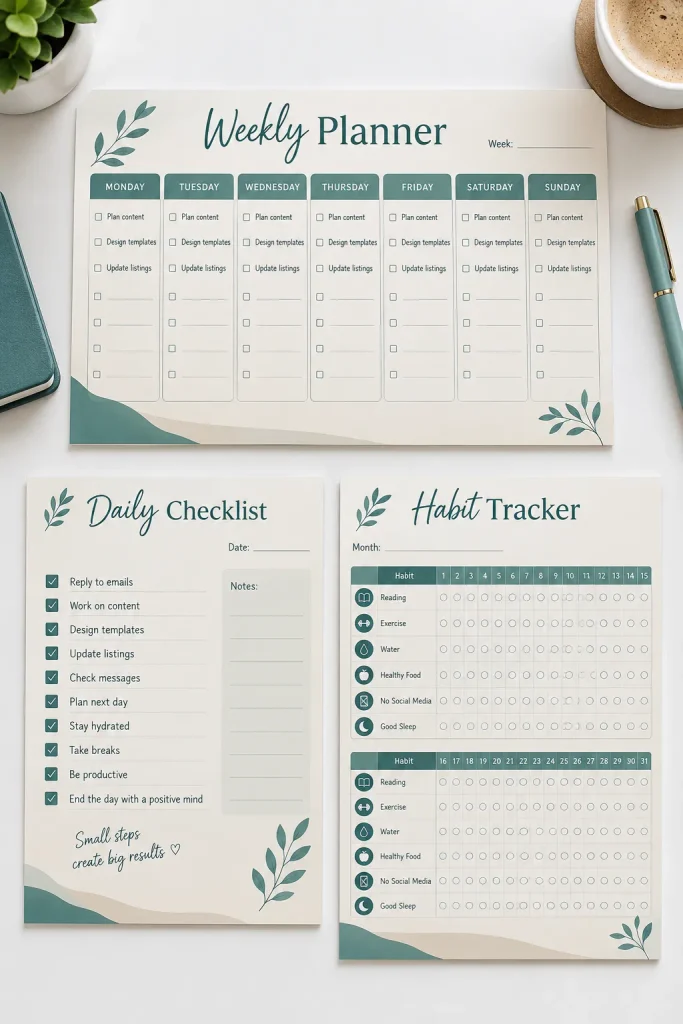
Canva is a sensible starting point when you want several printable pages that look like one matching collection.
You can make a weekly planner, daily checklist, and habit tracker using the same fonts, colors, and page sizes. Its drag-and-drop editor makes small design changes fairly simple.
Where Canva Works Best
Start with a single printable page, then use its style for the rest of your collection. This works especially well for beginners making simple planners.
The main limitation is that Canva has specific licensing rules for products you sell. You cannot simply resell an unchanged template or individual library element. Editable templates can have additional restrictions.
Check Canva’s current content license and your selling platform’s rules before listing anything.
2. Adobe Express for Branded Printable Planners
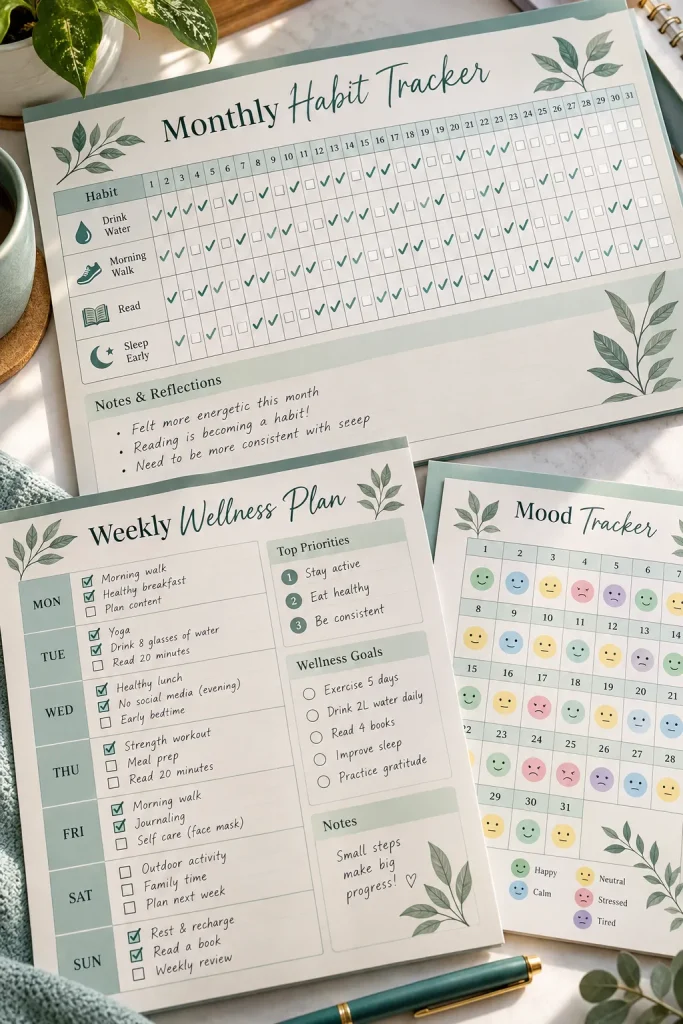
A printable collection looks more organized when every page follows the same visual style. Adobe Express helps you create that consistency without starting every design from scratch.
It’s useful for wellness planners, fitness trackers, and goal-setting worksheets that share matching colors, headings, and decorative elements.
Keep the Branding Consistent
Choose a small color palette and a readable heading font before building your pages. A habit tracker and a weekly reflection sheet should feel like parts of the same product.
Adobe Express offers a simple design workspace, but it may feel limiting when you need advanced page layout controls or complex printable books.
It’s a reasonable choice for sellers who care more about consistent visual branding than detailed publishing features.
⚠️ Watch Out: Small Text Can Ruin a Printable
Decorative headings can look lovely on a screen but become difficult to read when printed. Keep habit names, daily instructions, and tracking labels clear. Print a sample at its actual size before you sell the finished file.
3. Google Slides for Simple Weekly Planner Templates
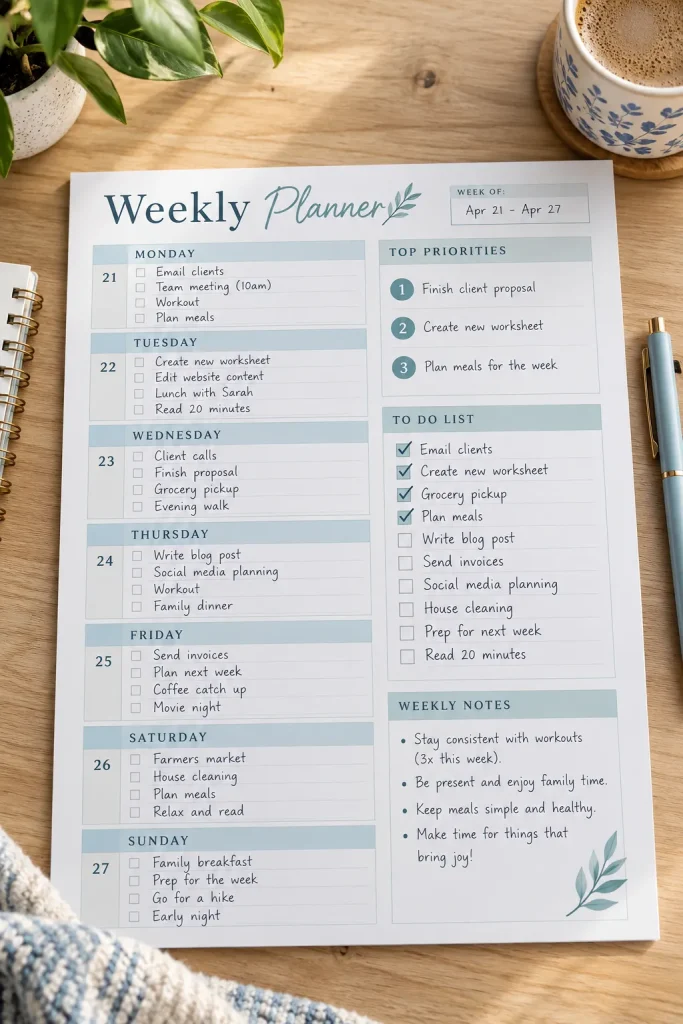
Google Slides isn’t just for presentations. Its shapes, text boxes, and custom page sizes make it useful for building simple printable layouts.
A weekly planner is a good example. You can create seven day sections, a priority box, and a notes area, then arrange everything on one page.
Set Up the Page First
Open the page setup options and choose the paper dimensions you want before adding your design elements.
Google Slides suits beginners who prefer a familiar workspace and don’t need advanced design features.
Its biggest weakness is limited control over professional print production. You’ll need to check alignment, margins, and your exported PDF carefully, especially if the printable has lots of small boxes.
A generic presentation slide has a wide layout.
Printing it on portrait paper may leave unwanted space or change the design’s scale.
A custom portrait page matches the intended paper size.
The weekly planning boxes fit within clear margins and leave enough writing space.
4. Microsoft PowerPoint for Repeatable Planner Layouts
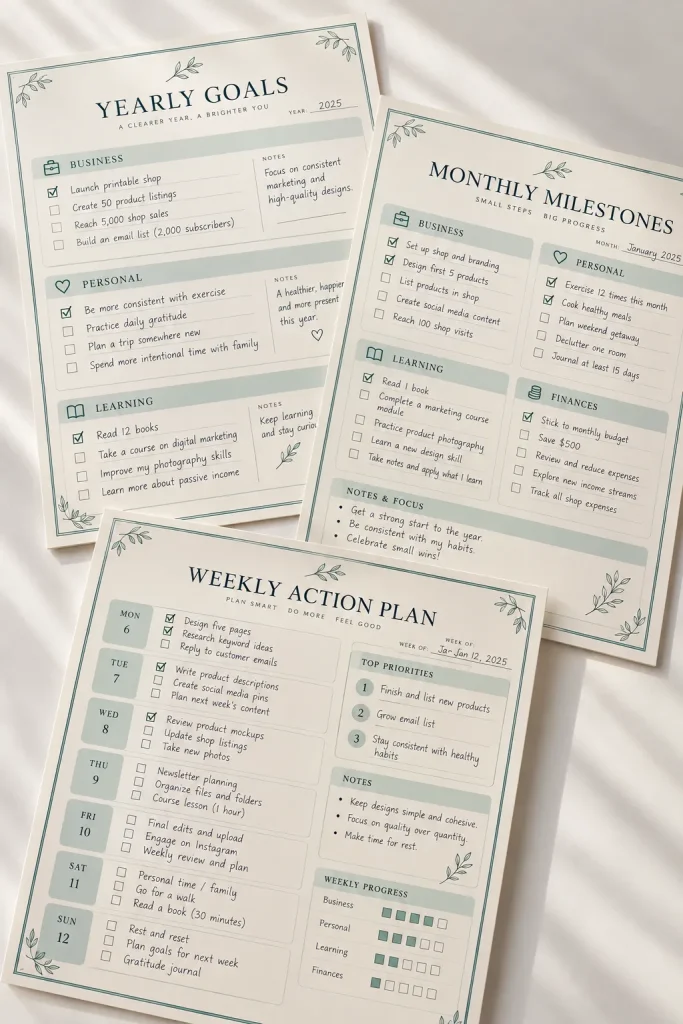
Making a large planner gets tiring when every page needs the same header, spacing, and decorative details.
Microsoft PowerPoint can simplify that work because you can duplicate slides and reuse shapes, text boxes, and layout styles.
For example, build a yearly goals page first, then use the same design style for monthly milestones and weekly progress sheets.
Build a Reusable Design
Set your custom slide size, arrange your layout, and duplicate pages as you expand the planner.
PowerPoint suits sellers who already know how to use presentation software and want to build repeatable page designs.
One limitation is that the slides share a document-wide size. It isn’t ideal when your product needs several different paper sizes in one file.
5. Apple Keynote for Clean and Minimal Daily Planners
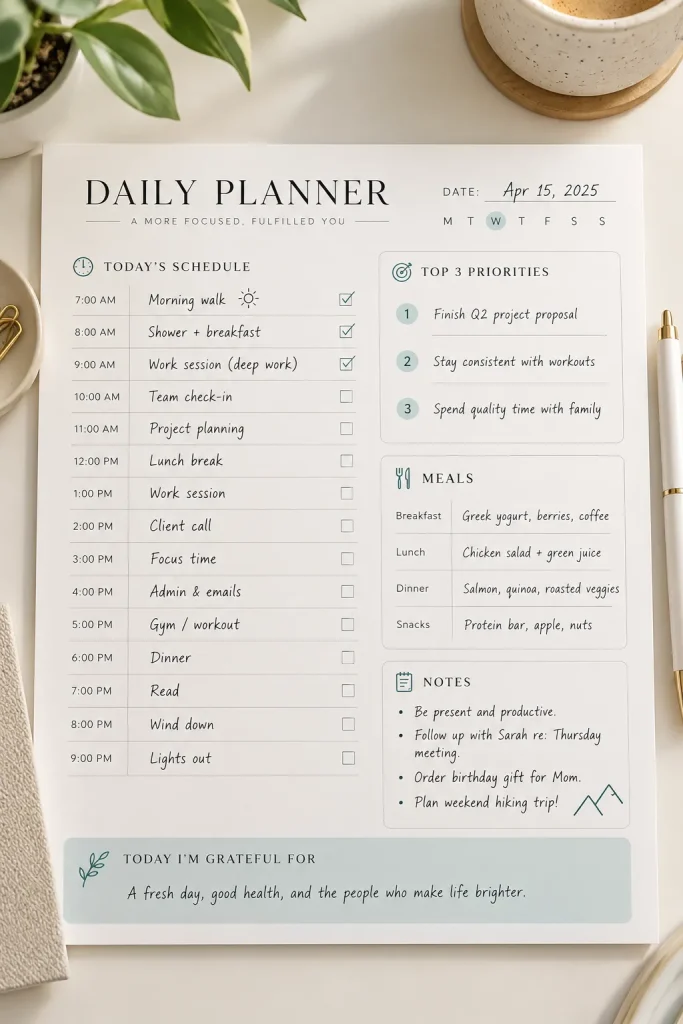
Apple Keynote can help you create simple, clean planner pages without filling them with decorative graphics.
Its shapes, text boxes, and layout tools work well for daily schedules, appointment sheets, and printable to-do lists. You can keep the design minimal while giving every section a clear purpose.
Make Room for Handwriting
A useful daily planner needs more than attractive headings. Leave enough space for appointments, handwritten tasks, and notes.
Keynote is a practical option for sellers who already use Apple devices and prefer uncomplicated designs.
The main limitation is its Apple-focused workflow. It also lacks some of the advanced print-production controls found in dedicated publishing software.
6. Figma for Precise Planner Grids and Reusable Designs
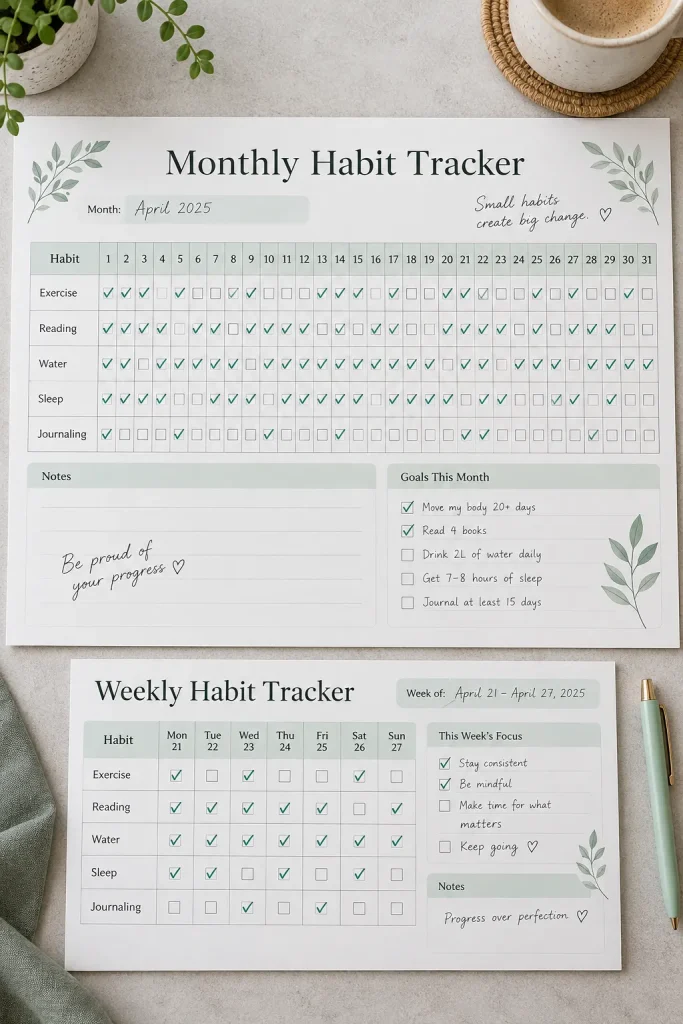
A habit tracker becomes much easier to read when every checkbox, date, and label lines up properly.
Figma is useful for designs that depend on repeated shapes and accurate spacing. You can create reusable elements for tracking grids, calendar sections, and matching planner pages.
Keep Repeated Elements Consistent
Create one tracking row with a habit label and daily checkboxes. Reuse that structure for other habits, keeping the spacing uniform.
Figma suits sellers who enjoy detailed digital design and want control over repeated layouts.
Its weakness is print preparation. Although you can export frames as PDFs, you may need extra work to check physical dimensions, printing requirements, and page order before selling the finished product.
| Design Element | What to Check |
|---|---|
| Daily Checkboxes | Keep each box the same size and allow space for a pen mark. |
| Date Columns | Use equal spacing so dates stay aligned with tracking boxes. |
| Habit Labels | Leave room for longer words such as Meditation or Reading. |
| Page Export | Check that the final PDF contains the correct frames in the intended order. |
7. Affinity for Detailed Multi-Page Planner Sets
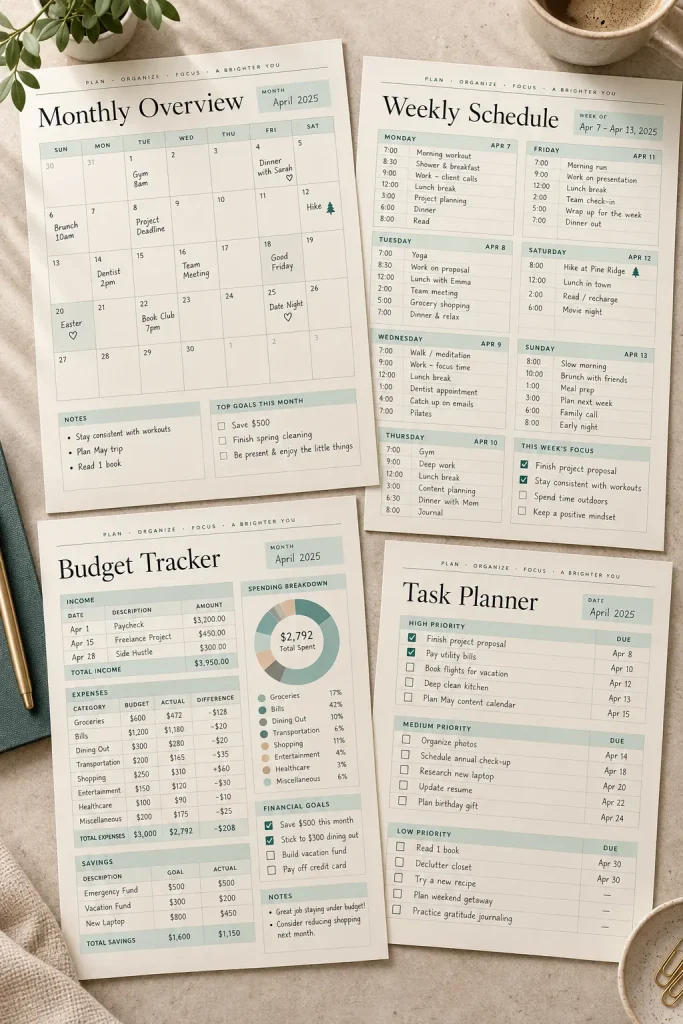
Some printable products need more layout control than a basic template editor provides.
Affinity combines page layout, vector design, and image editing tools in one application. Its layout features are useful for building planner collections with consistent margins, headings, tables, and page styles.
Think Beyond Single Pages
A monthly planner, weekly schedule, finance tracker, and task sheet can all follow one visual system. This makes a larger collection feel more organized.
Affinity suits sellers who want detailed control and are willing to learn a more advanced workspace.
The limitation is the learning curve. Its professional tools can feel complicated when your only goal is to make a simple one-page checklist.
Create a consistent set of page margins before filling the planner with content.
Use reusable page elements for headings, page numbers, and decorative details.
Keep tables and writing areas aligned across matching pages.
Avoid changing the page margins every time you add a new planner section.
Don’t rebuild repeated headers from scratch on every page.
Don’t mix different font sizes and spacing styles without a clear reason.
8. Adobe InDesign for Print-Ready Planner Books
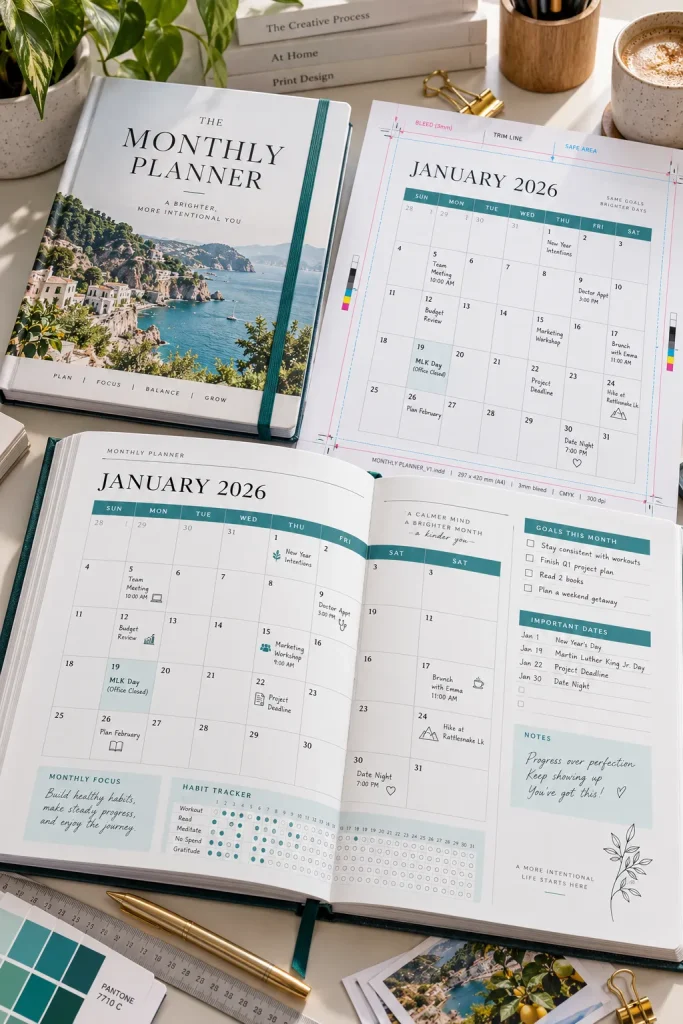
A printable planner book needs careful page setup, especially when customers plan to print and bind it.
Adobe InDesign is built for multi-page documents. It gives you control over margins, page layouts, bleed areas, and print-focused PDF exports.
Prepare Pages for Printing
Start with the final paper size and decide how much room to leave near the binding edge. Use consistent page styles for calendars, notes, and planning sections.
InDesign suits sellers creating detailed printable books, journals, or larger planner collections.
Its main drawback is complexity. Learning professional publishing tools may be unnecessary if you only want to sell a few basic worksheets.
For print-shop products, always follow the printer’s current file specifications.
📋 Print-Ready Planner Checklist
9. Procreate for Hand-Drawn Planner Decorations
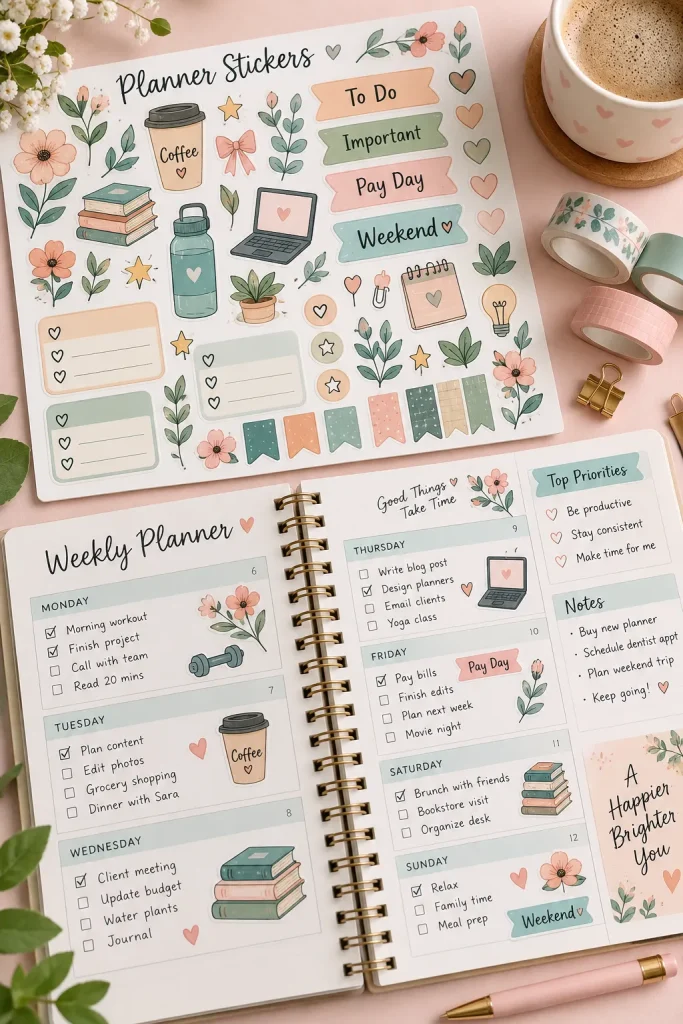
Hand-drawn flowers, colorful calendar icons, and illustrated planner stickers can make a printable collection feel different from basic templates.
Procreate is designed for digital drawing on the iPad. Its brushes and drawing tools are useful for creating original planner decorations, dividers, and sticker sheets.
Create Artwork You Can Reuse
Draw a small collection of matching icons, such as water bottles, books, stars, and flowers. Export the finished artwork as transparent PNG files to place into your planner designs.
Procreate suits sellers who enjoy drawing and want custom illustrations.
Its main limitation is that it isn’t a dedicated page layout tool. Building detailed calendars and text-heavy planners is usually easier in other design software.
Use Procreate to draw the decorations, then arrange them into finished planner pages with a layout tool.
A matching collection of original icons, labels, and illustrations can be reused across weekly planners, habit trackers, and printable sticker sheets.
10. Goodnotes for Testing Digital Planner PDFs
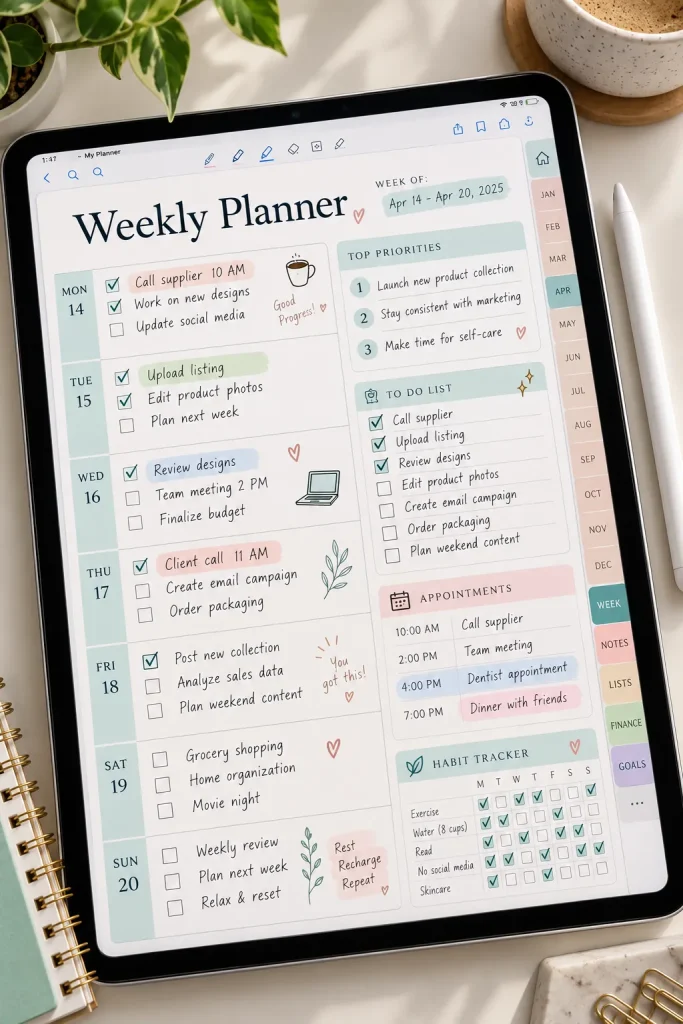
One mistake sellers make is checking how a digital planner looks without checking how it actually works.
Goodnotes is useful for opening finished planner PDFs, writing on their pages, and testing navigation links.
If your product has monthly tabs, weekly sections, and linked calendars, you can review how those features behave before offering the file to customers.
Test the Planner Like a Customer
Import your PDF, switch to Read Only Mode to test links, and use the writing tools to fill in sample appointments and tasks.
Goodnotes is best for sellers checking interactive digital planners.
Its limitation is that it isn’t a replacement for a dedicated design app, and digital PDF testing doesn’t replace printing a paper sample.
💡 Quick Tip: Test the Planner Before Listing It
Open the finished PDF in Goodnotes and tap every navigation tab in Read Only Mode. Then switch to Edit Mode and write sample appointments, check off tasks, and fill in the habit tracker. Make sure everything stays readable and that your writing fits comfortably inside the boxes. Test any claimed compatibility with other apps separately.
Choose the App That Fits Your Printable Products
The right app depends on what you want to sell, not how many design features it offers. A simple weekly planner may only need an easy layout editor, while a detailed printable book benefits from better page controls.
When comparing digital planner apps, start with the product you want to make. Check whether the tool supports your preferred page size, PDF format, and design style.
Before selling, review the app’s current licensing terms and your marketplace’s rules. Export a sample, check the file, and print a test page when needed.
Save this list to Pinterest so you can compare the apps again when you’re ready to create your next printable product.